Some Cute CYA Code in .NET Source

I stumbled upon the following comment in the .NET source code for the ItemsControl class.

In effect, the developer is saying–“I could do this a more elegant fashion.  I just want everyone to know that this is ugly because I was told to do it this way”.

        protected virtual void PrepareContainerForItemOverride(DependencyObject element, object item)
        {
            // Each type of "ItemContainer" element may require its own initialization.
            // We use explicit polymorphism via internal methods for this.
            //
            // Another way would be to define an interface IGeneratedItemContainer with
            // corresponding virtual "core" methods.  Base classes (ContentControl,
            // ItemsControl, ContentPresenter) would implement the interface
            // and forward the work to subclasses via the "core" methods.
            //
            // While this is better from an OO point of view, and extends to
            // 3rd-party elements used as containers, it exposes more public API.
            // Management considers this undesirable, hence the following rather
            // inelegant code.

Who can blame him? I’ve written comments like this myself. Source code as confessional.

Windows 8 Developer Preview Install Screenshots

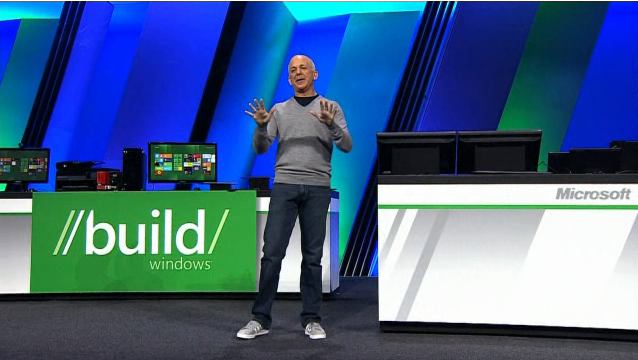
Microsoft released a Developer Preview version of Windows 8 at the BUILD conference on 13 Sep 2011.

Here are all of the the screenshots from a clean install of this build of Windows 8.  (Windows 8 M3, build 8102 – pre-beta Milestone 3).

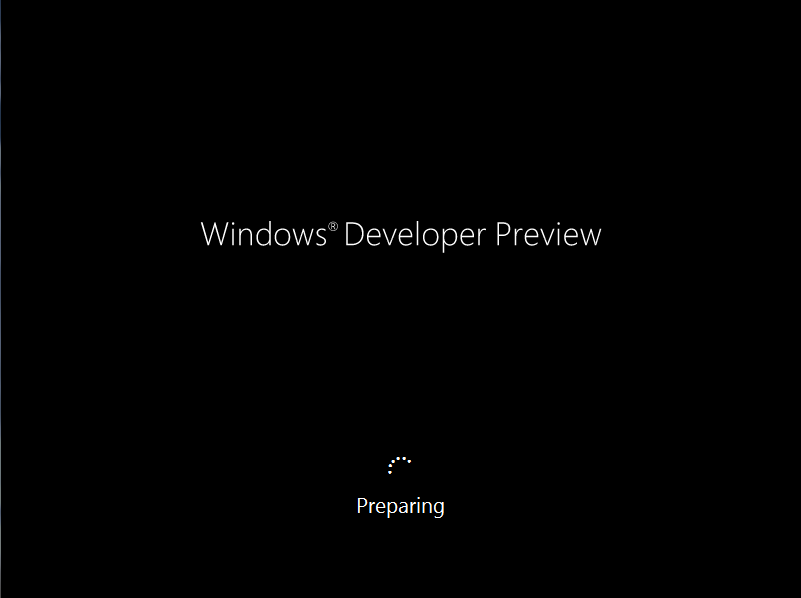
When you power up the machine, the process of booting from the DVD begins.

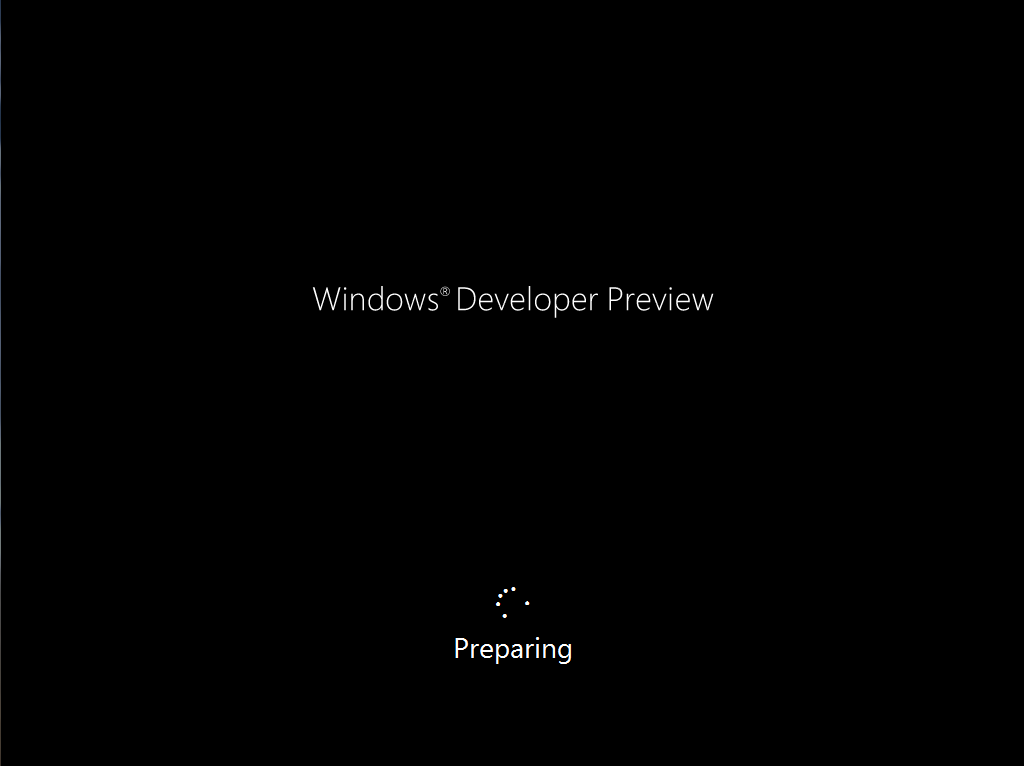
The Developer Preview announces itself.

You get to the first install screen, where you get to select the language. Under the “Language to Install” option, English was the only choice.

After clicking Next, you get a screen giving you the option of doing the install or starting a repair operation.

After clicking the “Install now” button, the install starts.

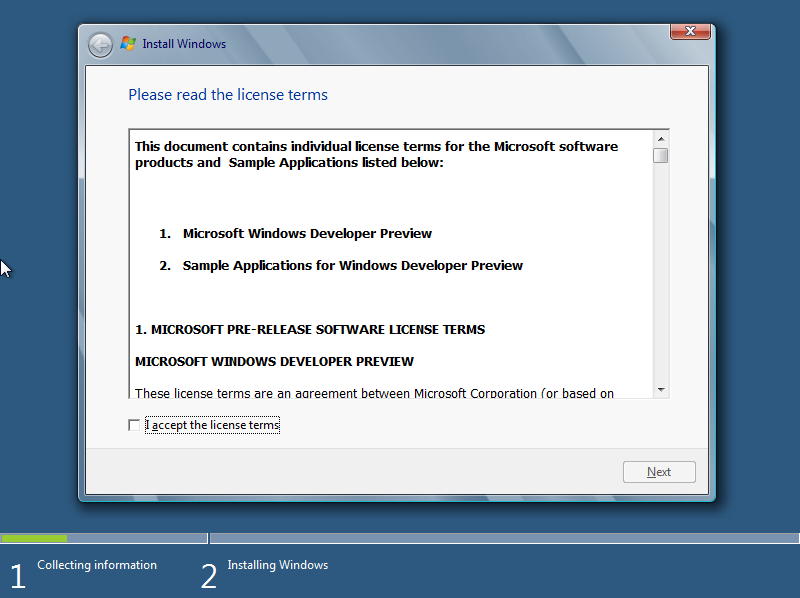
The first thing you’ll see is the license agreement.

You then get the option to upgrade or do a clean install.  Note that, according to the keynote, you can not upgrade Windows 7 to Windows 8, but must do a clean install.

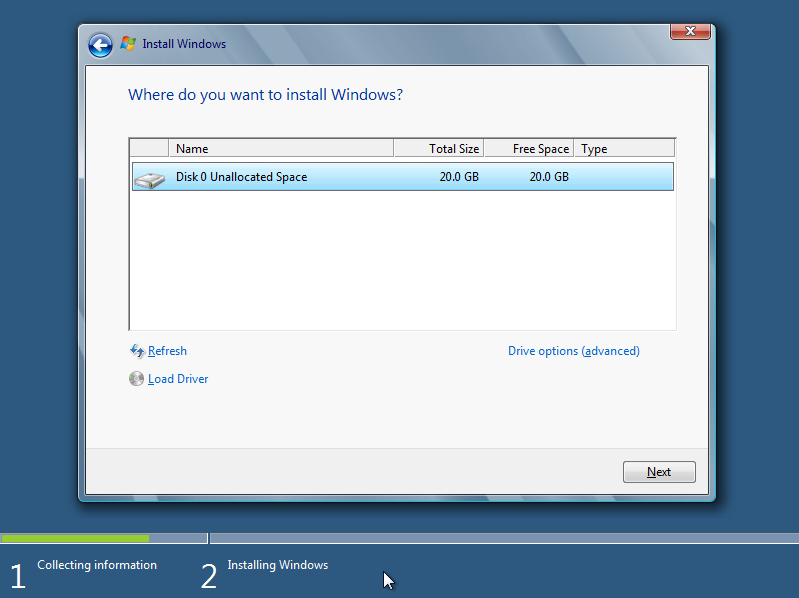
Clicking on the Custom button to do a clean install gets you to a page where you select a partition to install Windows 8 to.

The install process then starts.

Things proceed quickly, with the “Expanding Windows files” step taking the longest.

Once the basic install steps have completed, Windows tells you that it’s going to reboot before continuing.

Windows 8 now boots from the hard drive for the first time.  It announces itself once again as the Developer Preview and says that it is “Preparing”.

It then says that it is “Getting Devices Ready”.

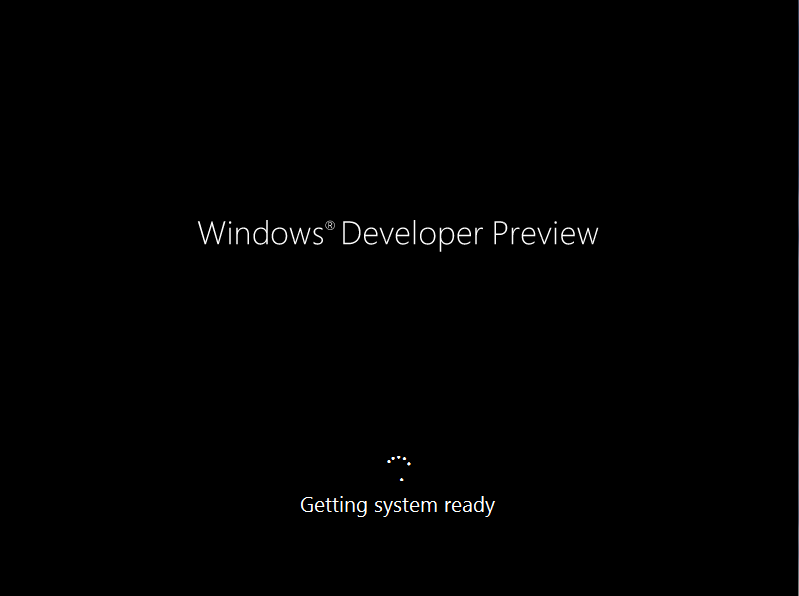
When this step is complete, we see that Windows is “Getting system ready”.

And Windows will reboot once again.

After the reboot, we do some more “Preparing”.

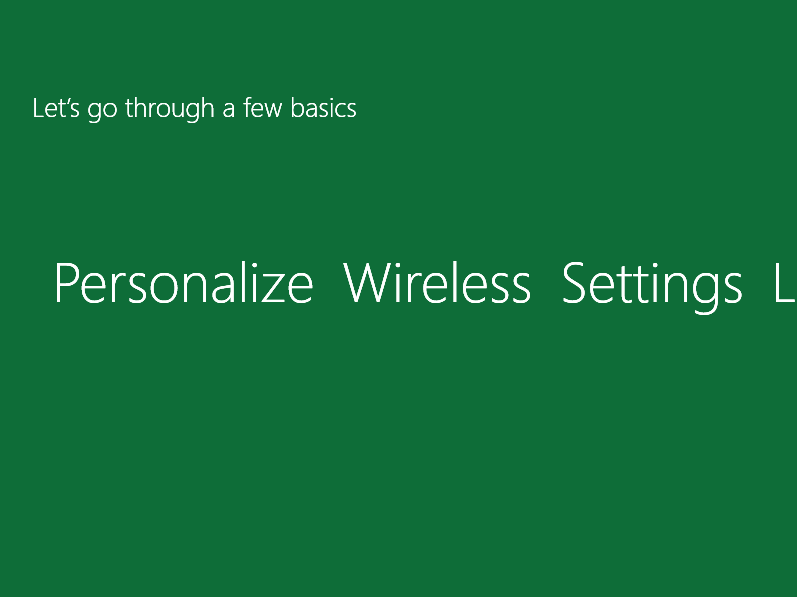
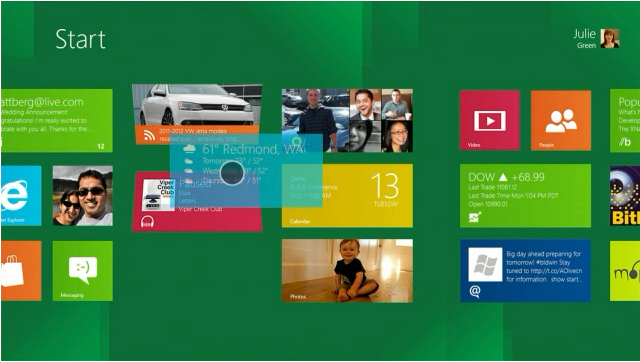
And finally, we see the first configuration screen and the first appearance of a Metro style user interface.

In the first step, we give the PC a name.

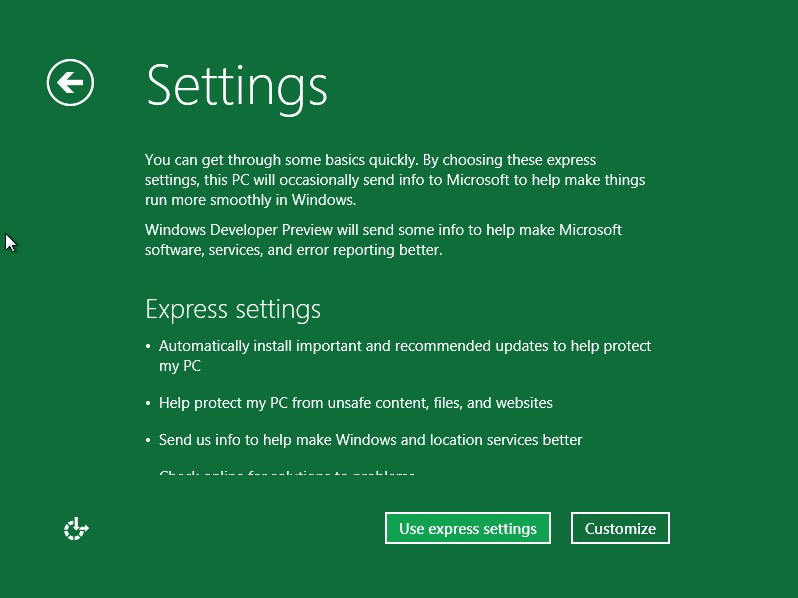
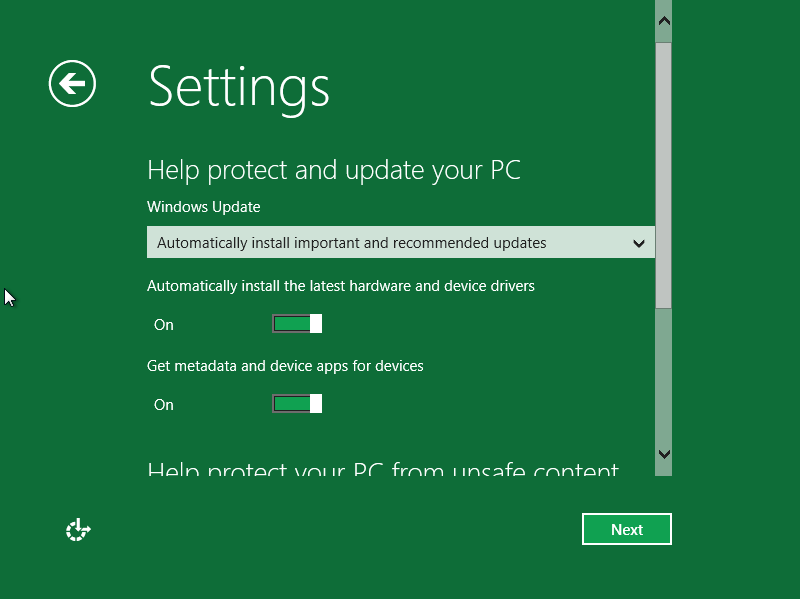
We then see a Settings page, where we can accept the default recommended settings, or choose “Customize” to set things up explicitly.

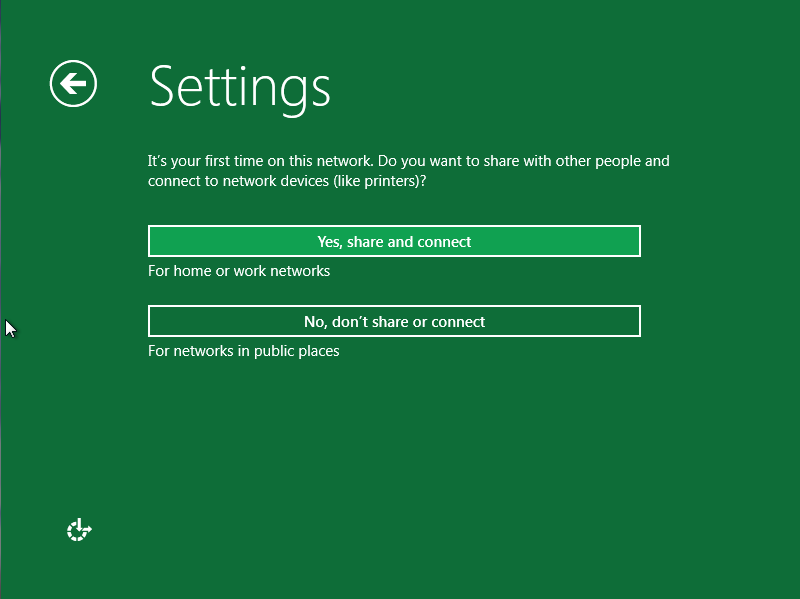
When you select “Customize”, you’ll first be asked whether to turn on sharing.

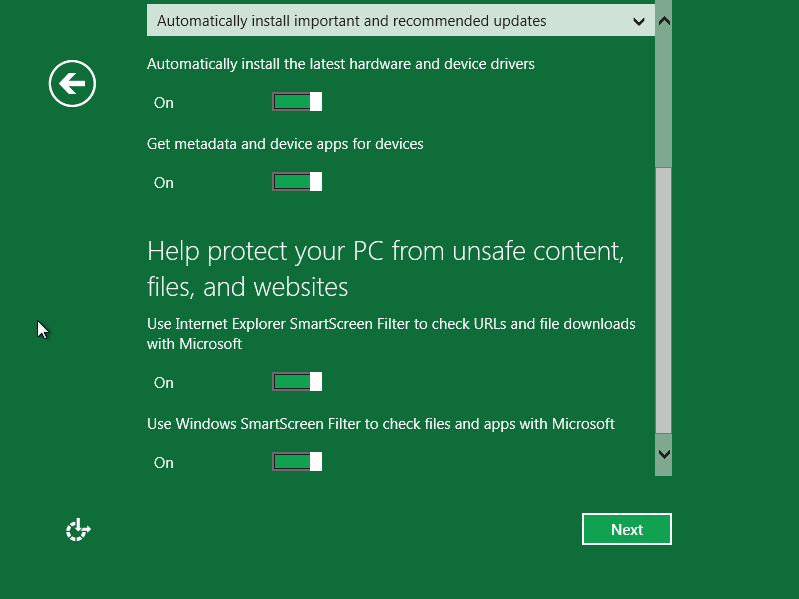
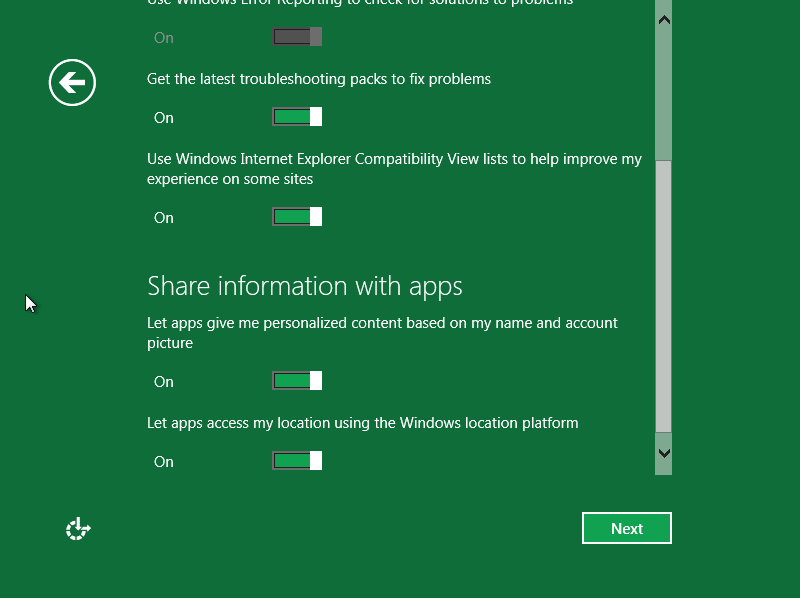
You’ll then see some security-related settings (shown below as two separate screen captures).  It’s actually a little disappointing that they’ve made the text so large that you’re required to scroll to see everything on this page.  They should have either split this into two pages, or used a smaller font so that you could read everything without scrolling.

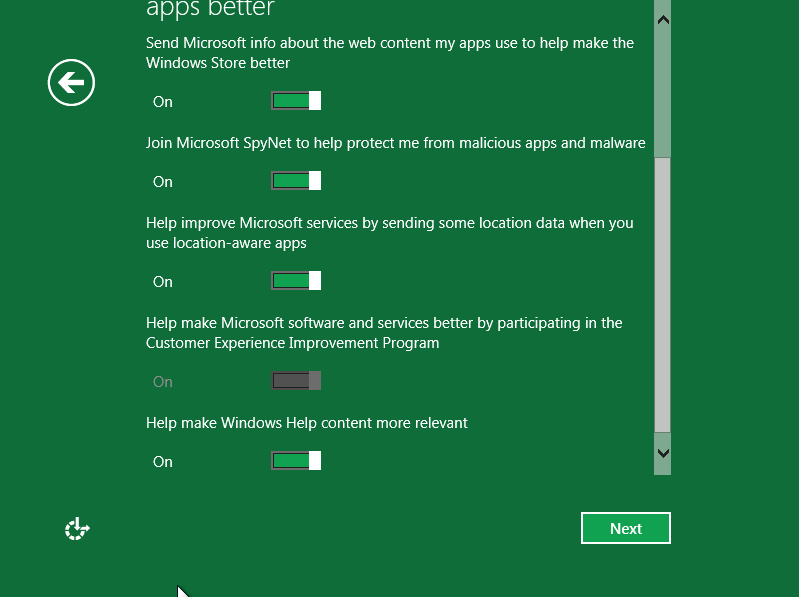
You’ll then be asked questions about what information you’re prepared to share with Microsoft.  It’s nice that they ask our permission for all of this, but you should note that these options are all ON, by default.

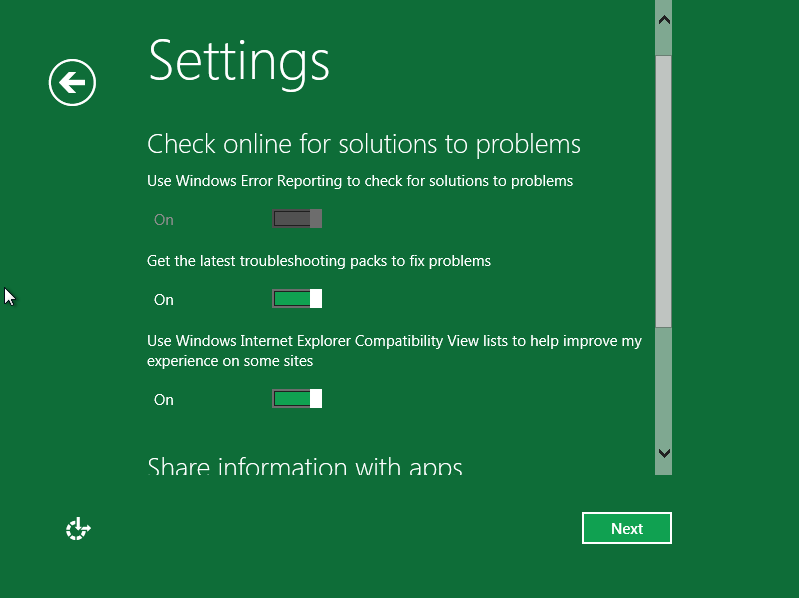
You’ll then see a settings page related to updates.

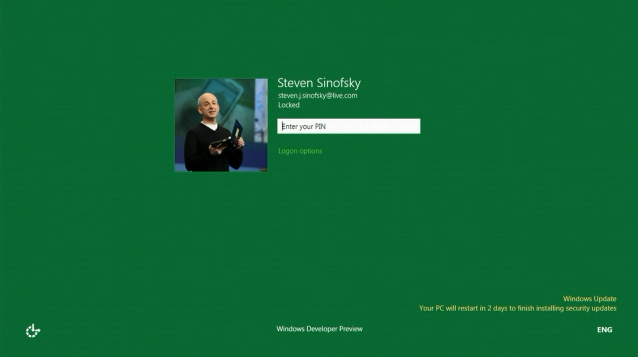
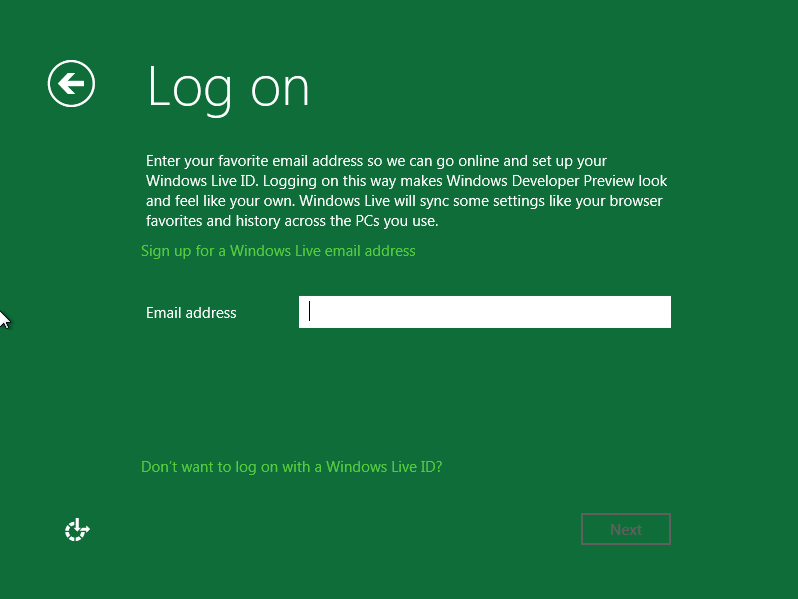
You now see a Log on screen, where you can log into Windows using your Windows Live ID.

You enter your e-mail address and Windows Live password.

Windows goes off and does something will all of these settings.

You get one more “Preparing” screen.

And Windows does a little more work in configuring your settings.

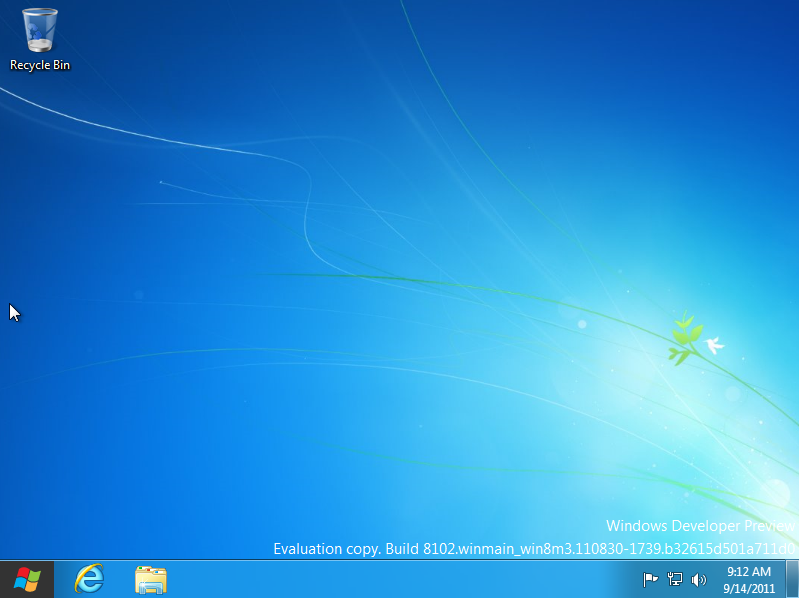
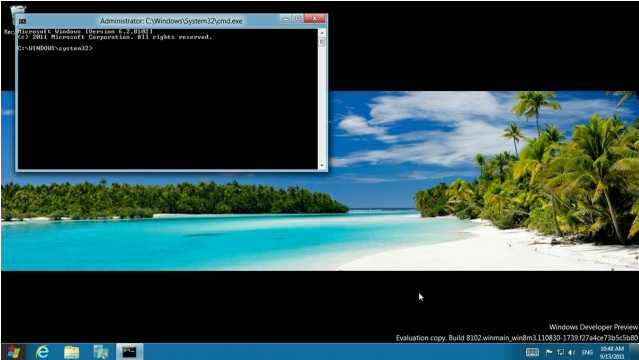
At this point, you’ll get a brief glimpse of the Windows 8 desktop.

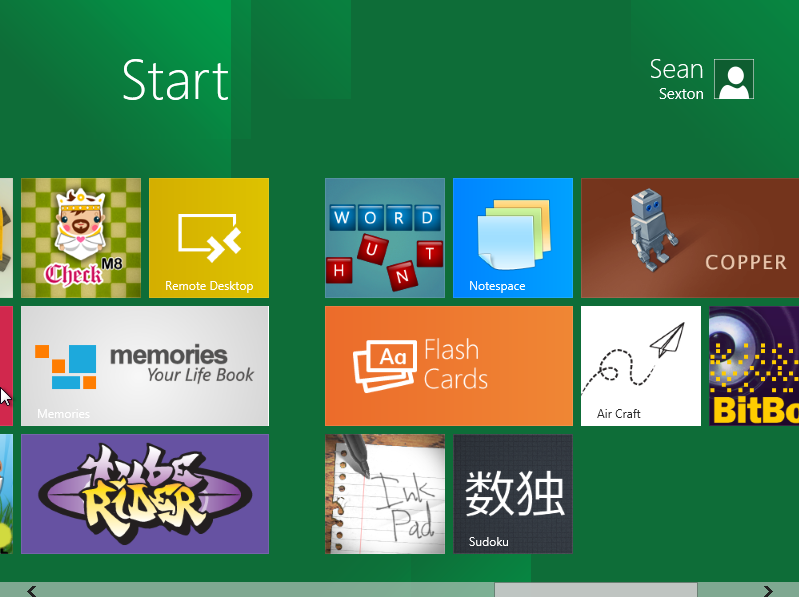
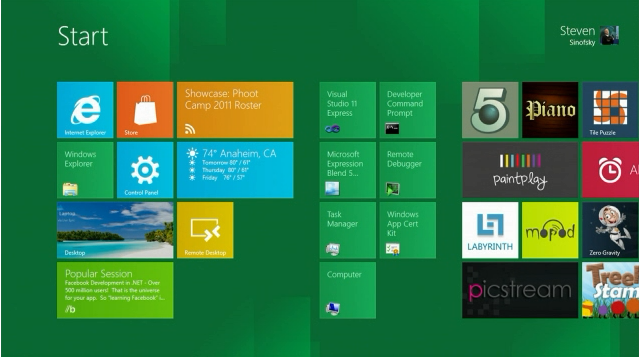
Finally, the Metro user interface shows up, listing all of the apps that you can launch from Metro.

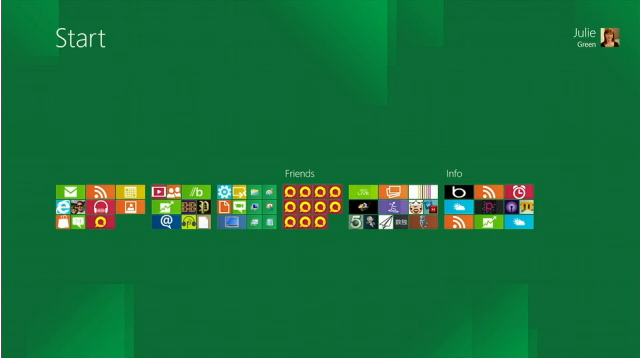
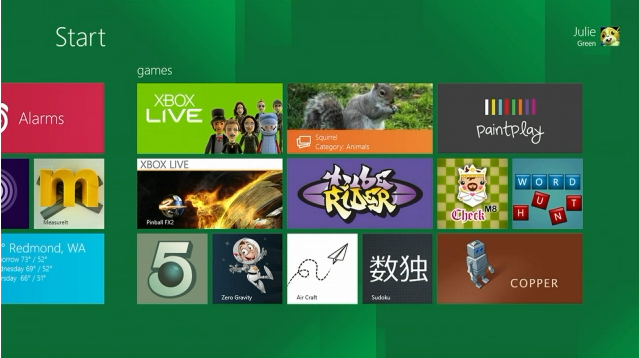
As you scroll to the right, you can see the full set of apps that show up in Metro in this developer preview.

At this point, Windows 8 is up and running.

Note that you can switch to the classic Windows desktop by clicking on the “Desktop” app in the Metro interface, or by pressing the Windows key on your keyboard.  You’ll see the familiar Windows desktop.

Clicking on the Windows icon at the lower left will switch you back to the Metro user interface.

BUILD Conference Notes #4 – Keynote, part IV – Windows Live

BUILD conference keynote, part IV.  Windows 8 and Windows Live.  13 Sep 2011.

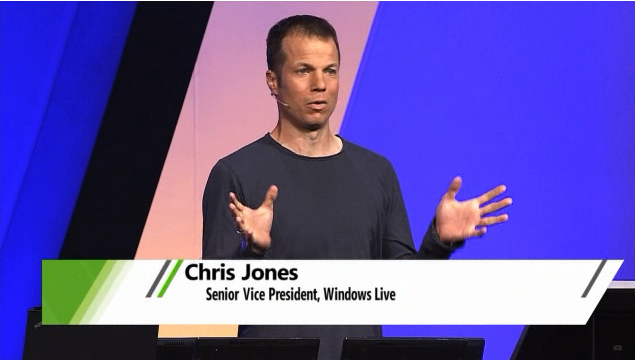
Chris Jones.

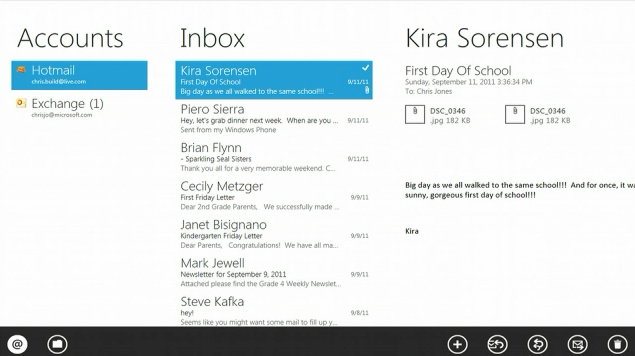
  • InBox, multiple accounts

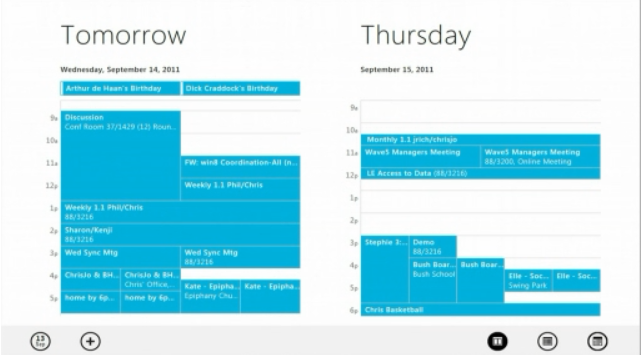
  • Share calendars

  • Connected address book

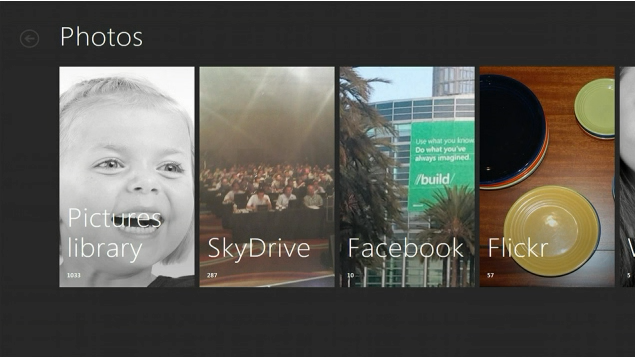
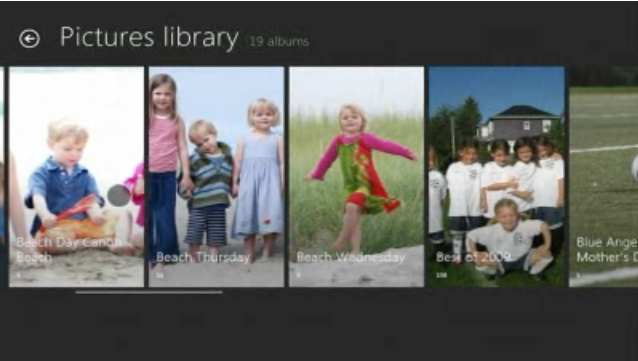
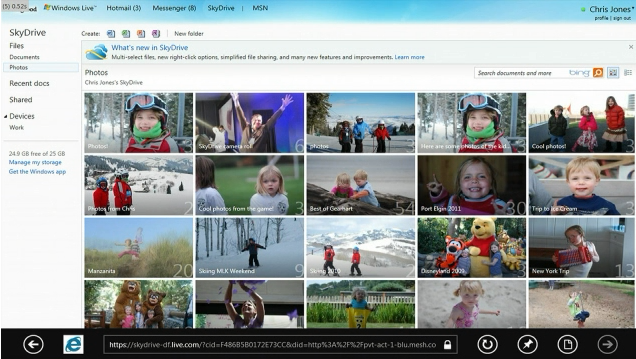
  • Photos – photos from various places

  • SkyDrive – accessible to developers
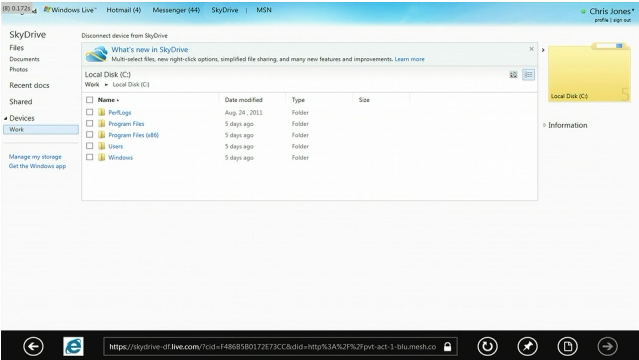
  • Connect devices via Live – e.g. navigate hard drive
  • Tunneling via Live ID
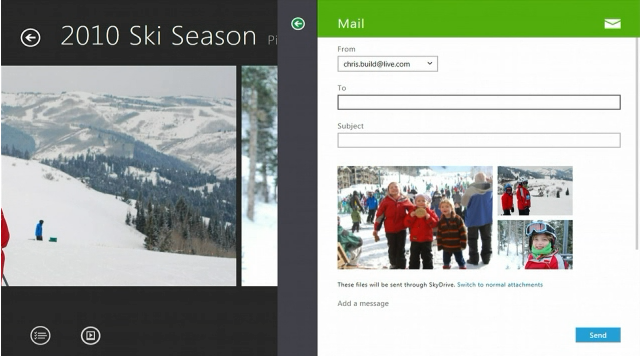
  • Sharing photos via mail

  • Connected contact list

  • SkyDrive via web site, access to all connected devices

  • Windows Phone 7.5, SkyDrive stuff

  • New Acer touch screen PC with Touch

  • Live apps are all written as new HTML5 Metro apps

  • Hundreds of other features in Windows 8 we haven’t yet seen
  • Sample apps

  • Teams built apps in 10 weeks
  • 17 teams, 2-3 devs per team, 10 weeks
  • College interns built all of the sample apps
  • Here are some of the interns

  • Hmm, intern said “turn on their Slate”
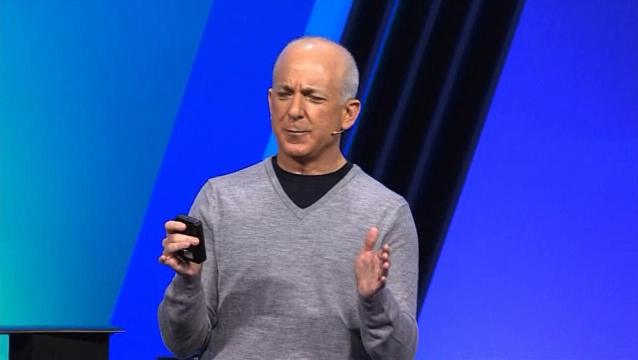
  • Steven, with more to say

  • Windows 8 Developer Preview – pre-release – Visual Studio 11 Express, Blend 5
  • Next milestone Beta.  Then RC, RTM, GA (General Availability)
  • Driven by quality, not by a date
  • Developer Preview will also receive updates
  • Customer Feedback will drive fixes that they make
  • http://dev.windows.com, can download preview, 10PM CST
  • No activation

BUILD Conference Notes #3 – Keynote, part III – Windows 8 Hardware Etc

BUILD conference keynote, part III.  Windows 8 Hardware and other new features in Windows 8.  13 Sep 2011.

  • Michael Angiulo, Corp VP, Windows Planning and Ecosystem

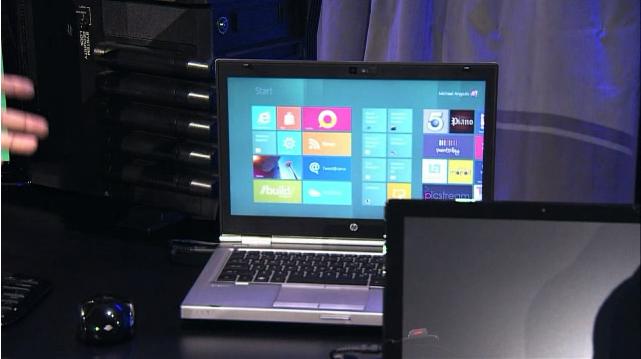
  • Super fast boot times
  • 8-sec bootup on current in-market laptop

  • Service automatically checks for root kits – tons of new security features

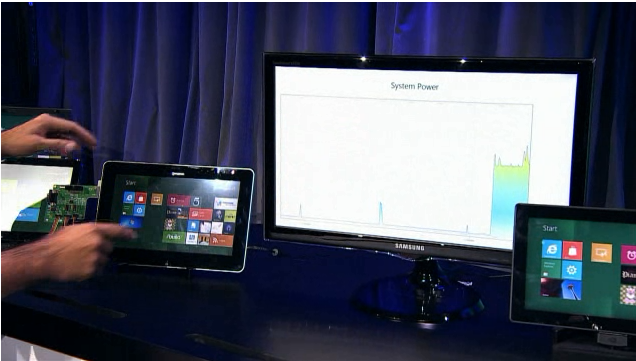
  • New power state – Connected Standby – very low power
  • One-click power switch on tablet – instant on/off

  • Killer feature – instant on/off, just like iPad
  • ATOM and ARM-based systems

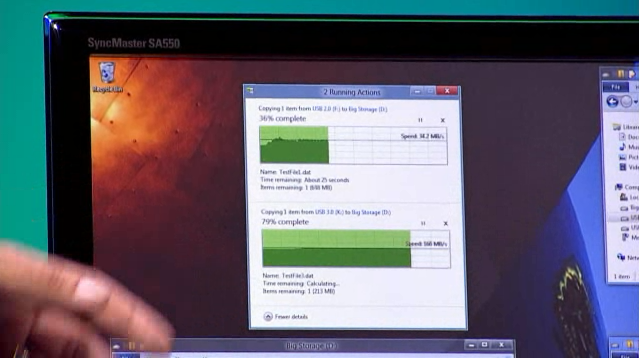
  • USB 3.0 – much faster than 2.0

  • Windows 8 supports 256TB drives
  • 4.7 TFlops computing power on killer 3-graphics card system.  (2500x original Cray)

  • Unreal engine and DX11

  • All of Windows 8 is built hardware accelerated graphics
  • Only 1 pixel of chrome around the outside of apps
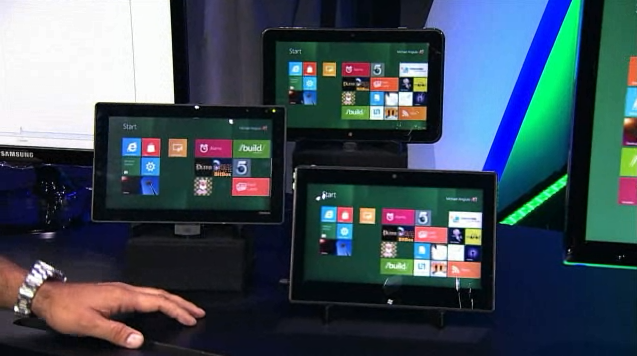
  • Touch working across wide variety of systems
  • If a screen can run Windows 7, it can automatically run Windows 8

  • 1366 x 768 – can do side-by-side in Metro
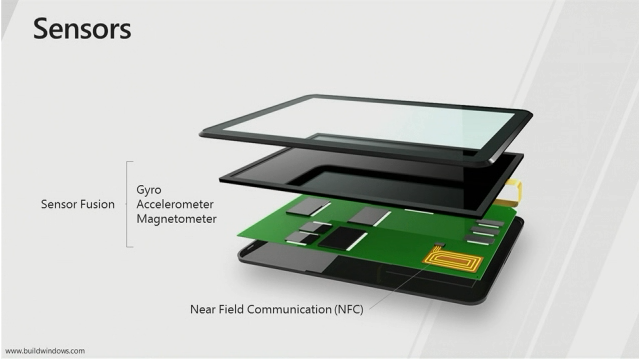
  • Sensor API in Win 8

  • NFC (Near Field Communication) built-in (sensor), to recognize objects
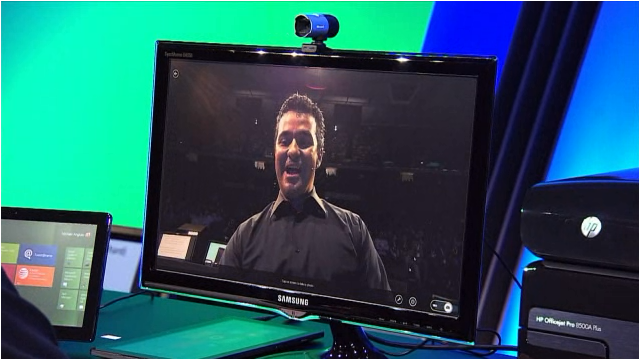
  • HD web cam app

  • Win 8 tablet with 3G

  • Resume from Sleep as fast as you can open the lid
  • Thin laptops

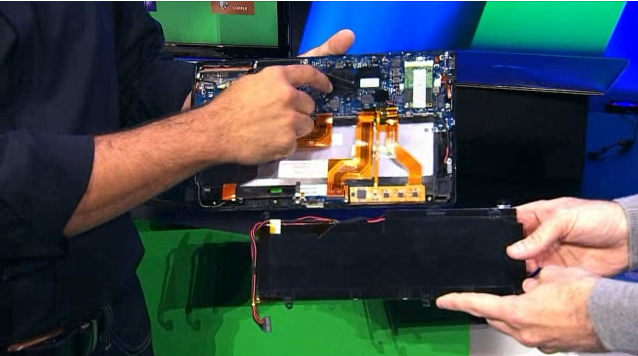
  • PC is mostly battery

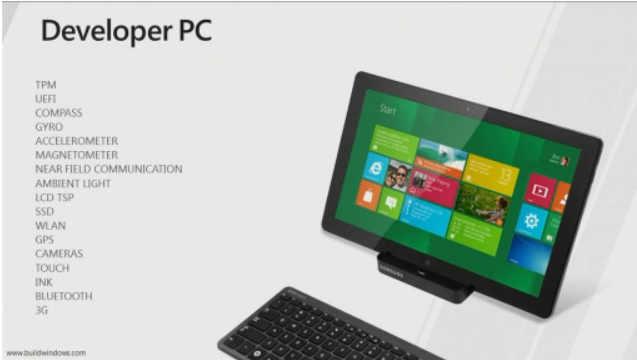
  • Samsung table PC – 5,000 in warehouse

  • Everyone at BUILD gets one of these
  • “Samsung Windows Developer Preview PC”

  • 2nd generation Core i5
  • Dual monitor
  • 11.6″ diagonal
  • Loaded with Developer Preview of Windows 8
  • Comes with tools, apps

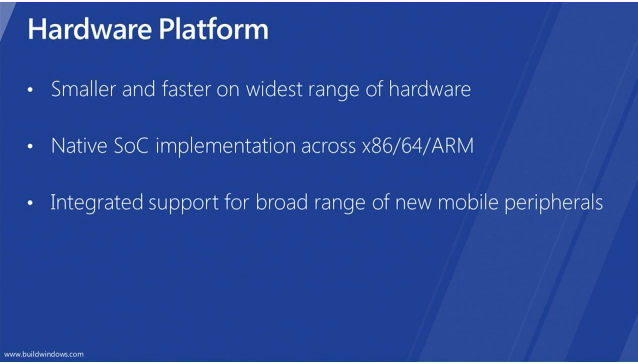
  • Win 8 smaller/faster on widest range of hardware
  • Windows 8 on “professional platform”

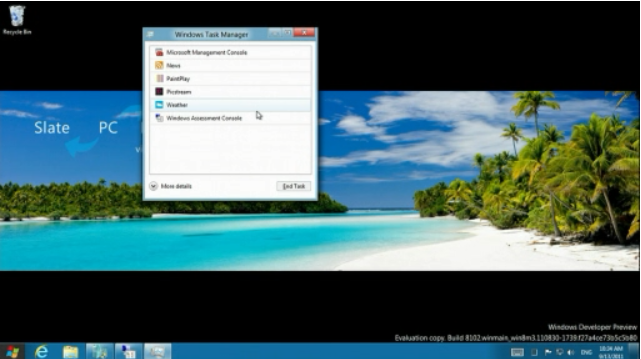
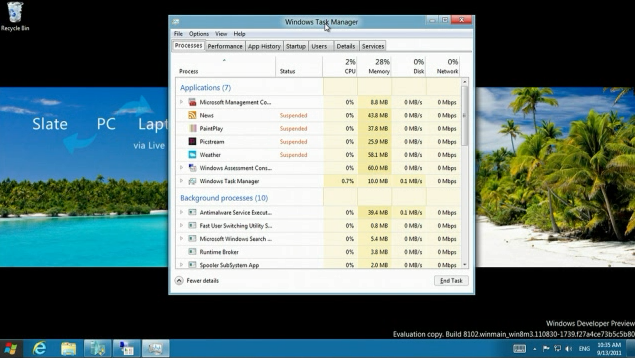
  • New Task Manager

  • Apps go into Suspended state when you’re not looking at them

  • New Startup mods in Task Manager
  • Services tab
  • Run command line tool to make current set of settings a baseline for restore
  • Standard performance benchmarks; run suites of tests; compare over machines or over time
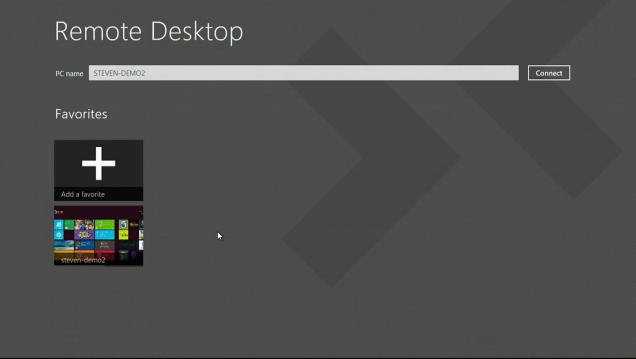
  • Remote Desktop

  • Touch enabling on remote session
  • Hyper-V, can run on Windows

  • VHDs, can mount as drives
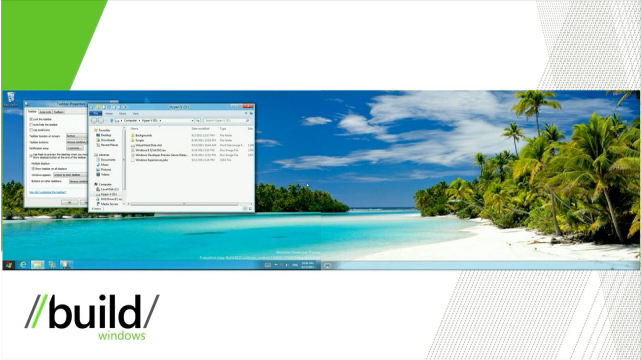
  • New ribbon in Windows Explorer; new Up button

  • Desktop background can span multiple monitors
  • Can customize taskbar for each monitor separately – i.e. show icons only for apps on that monitor

  • Swap monitor, e.g. run Metro on one monitor, app on another
  • Type “cmd” in Metro, search opens automatically, shows you cmd.exe

  • Weather app

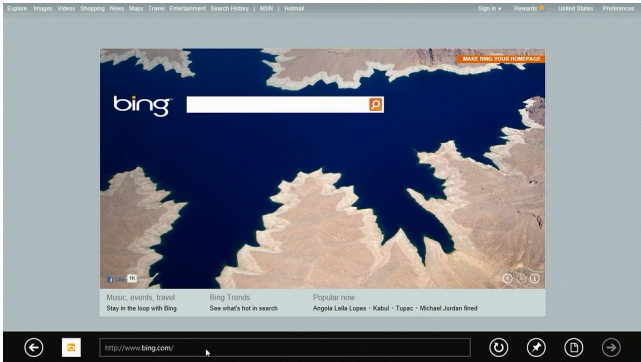
  • IE10 in Windows 8

  • All the normal keyboard/mouse works as usual
  • Can open app in either Metro panel or with normal Windows desktop frame
  • Internet Explorer 10 Platform Preview 3
  • Mulit-touch in IE10

  • Magnifier

  • Ease of Access – can make everything bigger
  • Thumb-by-Thumb keyboard layout

  • Ink / Pen

  • All personal settings roam

BUILD Conference Notes #2 – Keynote, part II – Building Applications

BUILD conference keynote.  13 Sep 2011, 11:30AM CST.

  • Today

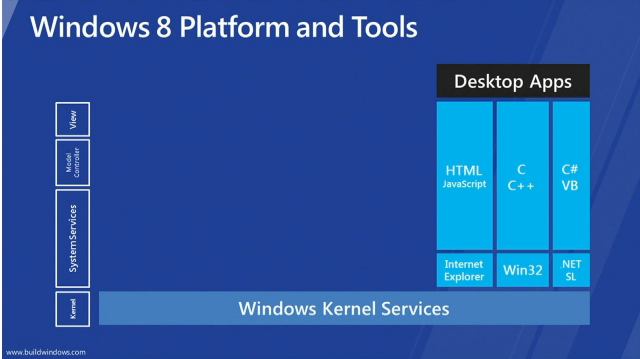
  • Windows 8 platform for Metro apps

  • Windows kernel – brought forward – robust, scalable
  • Windows Runtime – Win RT – APIs
  • WinRT – over 1800 objects
  • Application Model – natively built into Windows; all native code
  • Is .NET Framework gone?  Where does it live in this picture?
  • You pick the language that you want to use
  • Antoine Leblond – building apps

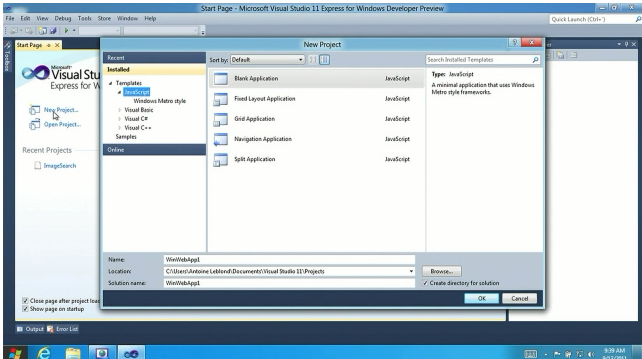
  • New Project, pick language

  • Templates are fully-functioning metro-style apps

  • Adding some HTML5 elements

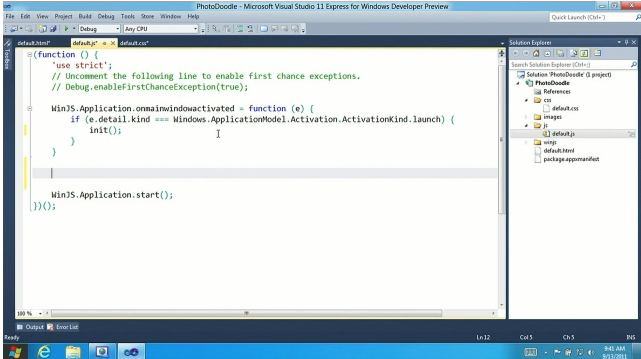
  • Writing some code (Javascript)

  • Run the app – browser launches

  • Ugh, back to procedural code.  Step backwards, if you talk to a XAML developer

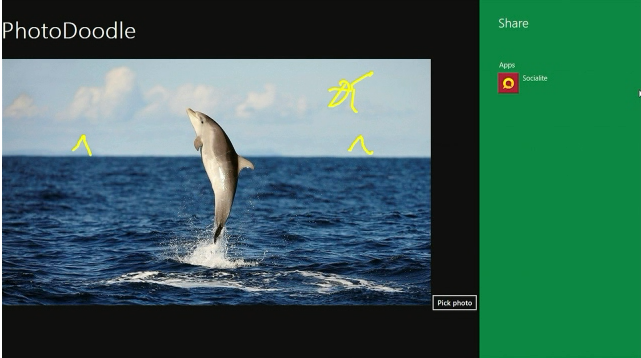
  • Sharing to social network

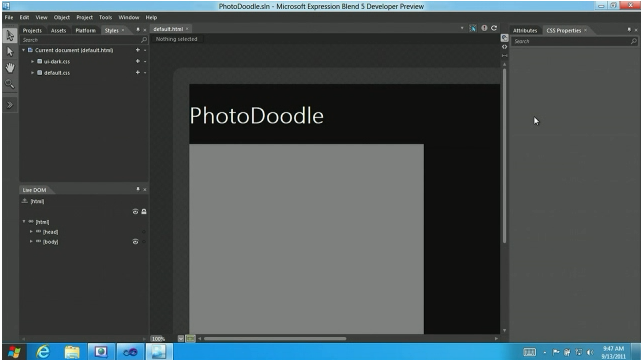
  • Blend 5 has support for HTML5

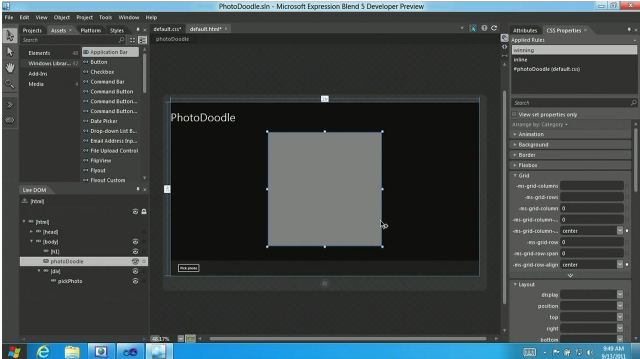
  • Using new CSS layout Grid

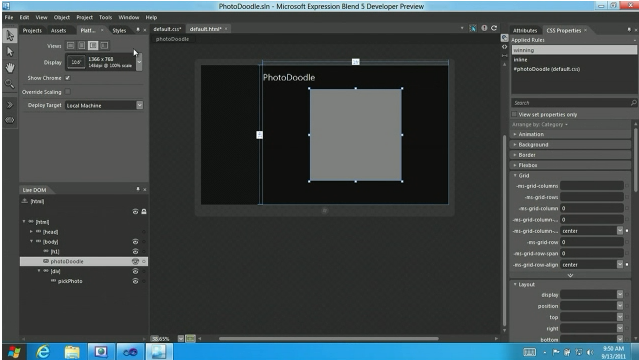
  • Previewing app at different resolutions and screen orientations

  • 58 lines of code for basic little HTML5 app

  • Packaging app into app store

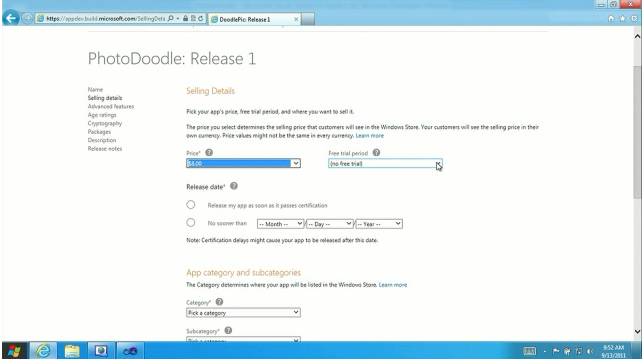
  • Set price for your app

  • Built-in licensing model, including trialware option
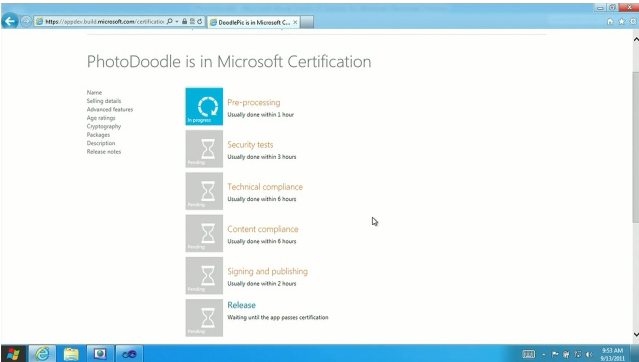
  • App certification process.  Shows you where your app is in the process

  • Technical Compliance – developers can run tests in advance using MS-supplied tools
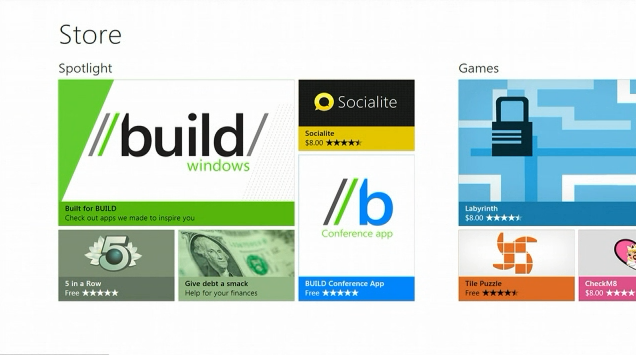
  • App Store, Spotlight section

  • Games in App Store

  • App Store is itself a metro-style HTML5 app
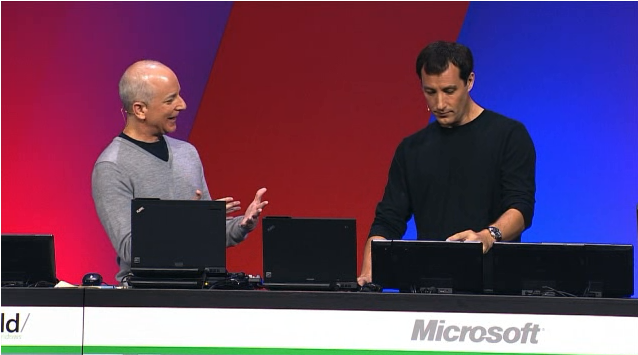
  • Steven is excited

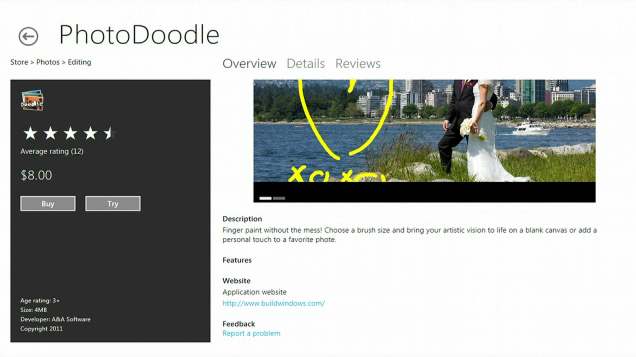
  • App listing page in App Store

  • What about Win32 apps?
  • Start screen can list Win32 apps as well (e.g. Quicken)

  • Developers are NOT forced to use new Microsoft licensing model
  • Old apps can just be listed in App Store
  • XAML – where does it fit in?
  • Silverlight apps can run in new browser in Windows 8
  • Works the same way as in Windows 7, but not Metro app
  • Converting Silverlight app into Metro-style app
  • Converting from Silverlight environment to Windows 8 – only requires a handful of changes (e.g. namespaces)
  • Ported Silverlight now allows touch, full Metro app.  But it’s still XAML.

  • Change view in XAML to Windows 8 GridView.  Still XAML.
  • And can connect to Search Charm in Windows 8
  • We now can run Silverlight app with new Windows 8 grid view

  • New APIs/tools to build Metro apps
  • Rapid/scalable development
  • Your choice of languages and development tools
  • Apps automatically run on all the hardware that Windows 8 supports

BUILD Conference Notes #1 – Keynote, part I – User Experience

BUILD conference keynote.  13 Sep 2011, 11AM CST.

Prior to start of keynote, live stream wanders through the crowd.

  • Tagline – “Do what you’ve always imagined”


  • Steven Sinofsky

  • Launching Windows 8 today
  • Over 450,000,000 copies of Windows 7 sold
  • Windows 7 consumer usage is now greater than Windows XP usage
  • Over 1500 product changes to Windows 7 since RTM
  • IE9 – gave us hardware acceleration; showed that HW acceleration does matter for browsing
  • Over 542,000,000 users of Windows Live
  • IE9 + Windows Live = foundational elements of Windows 8

  • Touch – will become a huge part of interaction
  • Once you’ve used Touch on PC with Windows 8, you’ll want it on all devices
  • Mobility – you want devices that you can use while carrying around
  • Developers want more connectivity between users
  • Services are intrinsic part of all software
  • Windows 8 is at Developer Preview stage
  • Everything great in Windows 7 – even better in Windows 8
  • Everything that runs on 7 runs on 8
  • Full compatibility from Windows 7 to Windows 8
  • Goal of Windows 8 is to reimagine Windows, from the chip set on up to the user experience
  • E.g. Windows 8 running on ARM

  • Windows 8 can run on new hardware, as well as ARM and x86
  • Demo #1 – user experience
  • Demo #2 – Building metro style platform and tools
  • Demo #3 – hardware platform, range of form factors
  • Demo #4 – how everything connects to cloud-based services with Windows Live
  • Over 100 sessions at BUILD
  • Fundamental performance gains
  • Small Lenovo Netbook – 1GB memory, Atom processor.  It’s now running Windows 8
  • On Windows 7, 404MB, 32 processes
  • On Windows 8, uses 281MB memory, 29 processes
  • Better performance on Windows 8, using the same hardware
  • Showing off User Experience – Julie Larson Green, Corp VP of Windows Management

  • Lock screen

  • Login screen

  • Start screen

  • Start Screen is not just a launching.  Also provides notifications, gadgets, etc.
  • Dragging tiles around

  • Pinch to zoom out and see everything

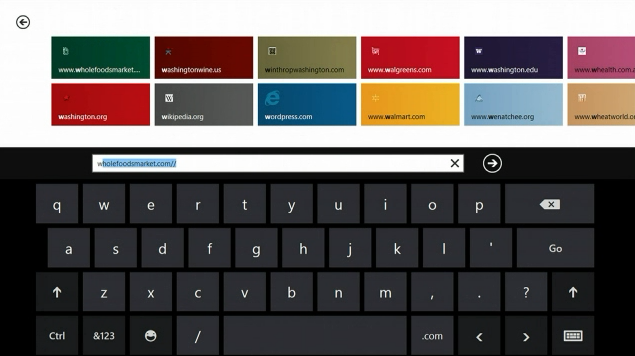
  • Onscreen keyboard

  • Control Panel

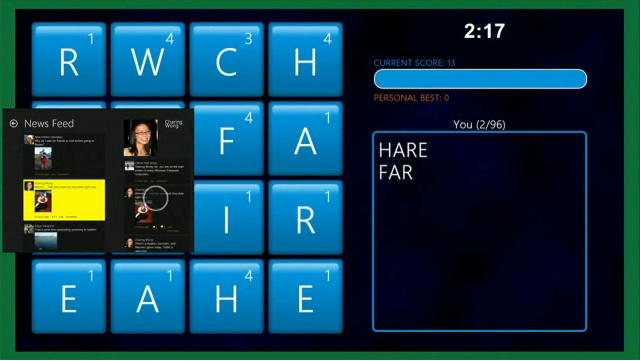
  • Games group

  • News reader

  • App settings

  • Docking apps

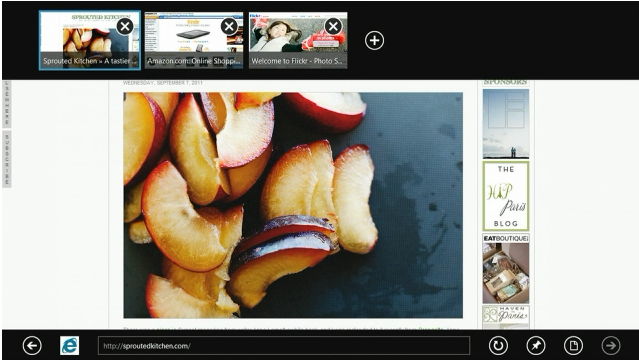
  • IE9 in Metro, chromeless  (“chrome-free”, ha-ha)

  • Swipe to get app bar with IE options

  • Use Touch to select-drag text

  • “Charms”

  • Spell-checking throughout Windows 8
  • Searching applications

  • Playing music

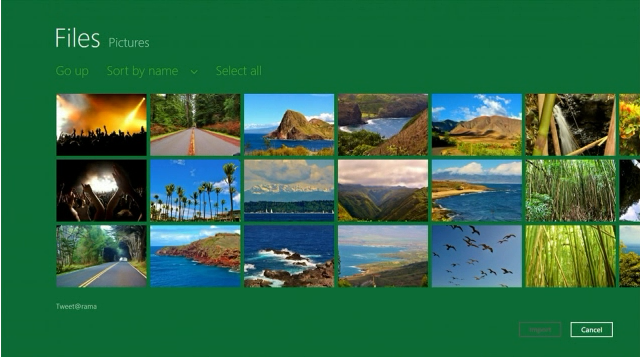
  • Pictures

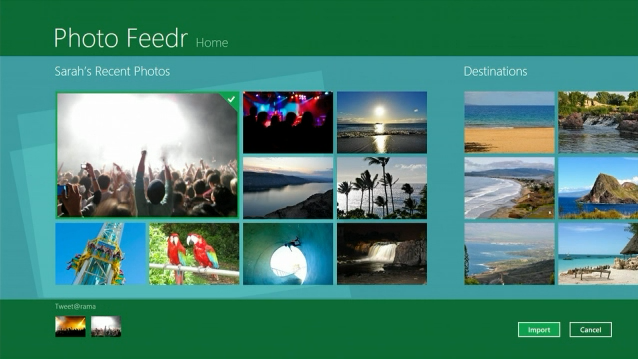
  • Photo Fedr – shows photos from the cloud

  • Tweet@rama

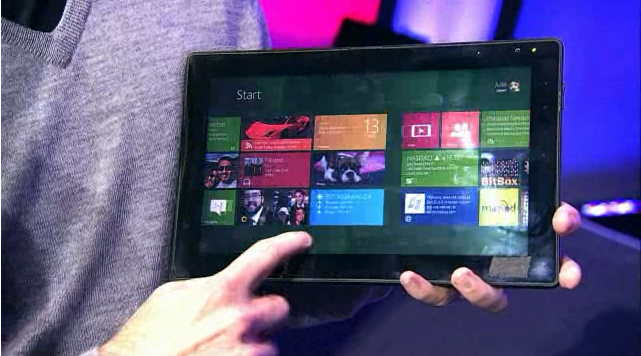
  • On tablet (ARM-based machine running Windows 8)

  • Fast / fluid user experience
  • Applications are immersive and full-screen
  • Touch-first; keyboard/mouse works just as well
  • Web of apps, working together – apps know about each other; work together
  • On various hardware platforms

Notes on Office 365 Launch

Office 365 launch.  28 Jun 2011.  Ballmer introducing it, plus a couple demos.

  • Ballmer introducing Office 365
  • Office + Cloud = Collaboration
  • “Office meets the cloud”
  • Office 365 being announced today
  • Collaboration scenarios, target to small businesses

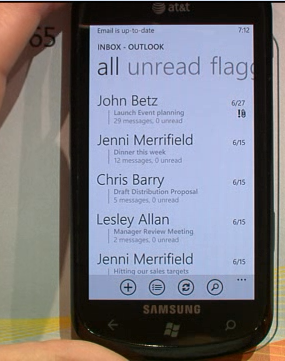
  • Accessing Office 365 using mobile devices, e.g. Windows Phone 7

  • Real-time collaboration–as one user updates, other user sees changes immediately
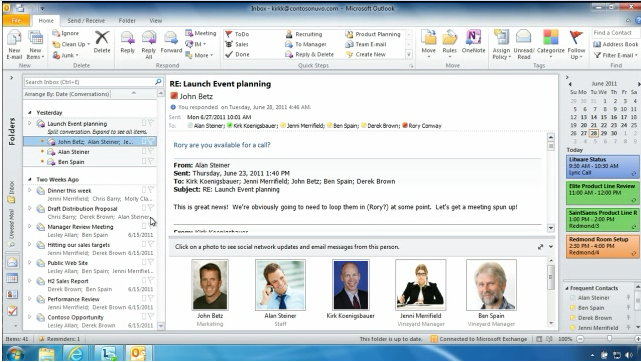
  • Outlook in Office 365

  • Online Meeting button – automatically sets up online meeting/conference

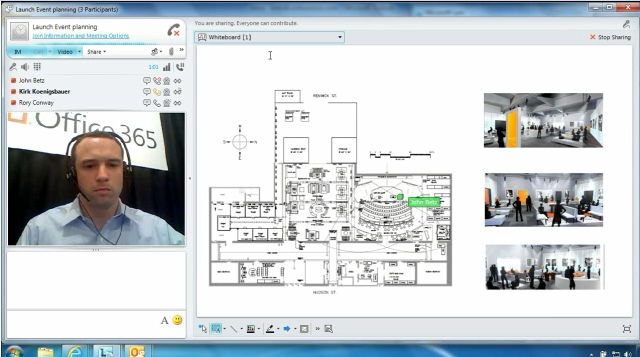
  • Realtime collaboration in whiteboard

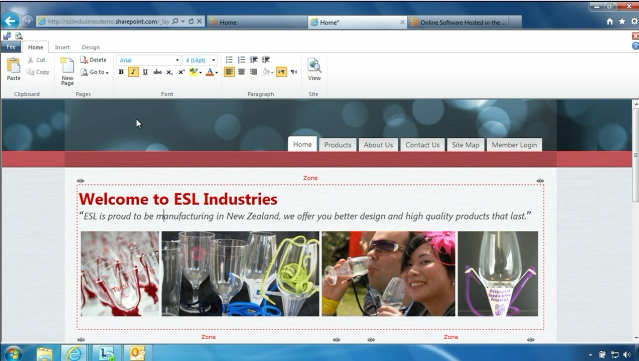
  • Collaboration using SharePoint
  • New SharePoint design surfaces, with Ribbon

  • Service plans for Office 365 – monthly subscription, or connecting existing Office apps to Office 365 service
  • Touting their SLA, but no numbers
  • Example of company planning to host all their documents in Office365
  • $100k/yr savings for sample company
  • Touting – improve collaboration between offices
  • “Global partner ecosystem” – partnering with various partners that already provide SLAs
  • Partner can package Office365 with services that partners already provide to small businesses
  • Our friend Steve

  • “Bring benefits of Office to the cloud”

The Latest on HP TouchPad Availability

I just received the following e-mail update on HP TouchPad availability.  I think I would have payed $99 for a TouchPad when it was first discounted, but after hearing so many stories of sluggishness and other problems, I’m unlikely to get one now–even at $99.

—E-Mail from HP—

Dear Customer,

Thank you for your interest in the HP TouchPad and webOS. The overwhelming demand for this product in recent days has made it difficult to fulfill your request at the present time, and we are working to make more available as soon as possible. While we do not yet have specific details, we know it will be at least a few weeks before we have a limited quantity available again. We will keep you informed as we have more specifics that we can communicate, and we encourage you to join the conversation here for the latest information.

In light of this and other recent HP news, we want you to know that we remain committed to you. We will continue to honor our warranties now and in the future. We will continue delivering products that make a difference in your life and we will continue to provide the best possible service to you every day.

We are grateful for your patience and loyalty and to show our gratitude, we are offering you an exclusive one-time opportunity to save an additional amount on all of our products, valid through the end of the day tomorrow, Wednesday, August 31, 2011. You’ll save 25% off all printers, ink, HP accessories, and PCs starting at or above $599. To take advantage of this offer, use your unique coupon code 4856696 at checkout, and for more information on the details of this offer, please look at the bottom of this email.

Sincerely,

hpdirect.com

—E-Mail from HP—

Creating a ListBox that Shows All Predefined System Colors

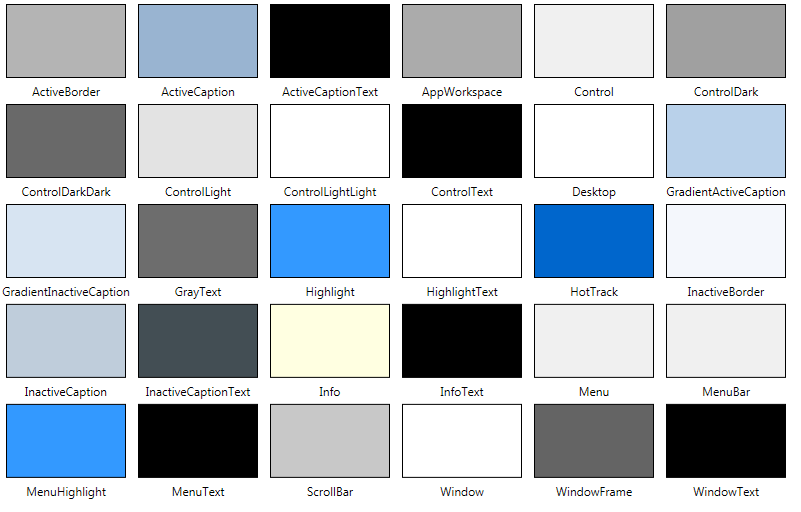
The System.Windows.SystemColors class contains a series of static properties that expose the current predefined system colors.  The properties come in triplets.  For each system color Xxx, there are XxxBrush, XxxBrushKey and XxxColor properties.

We can easily create a little WPF application to display the current system colors by building a collection of brushes and then binding the collection to a ListBox.

Here’s the final result:

Below is the code that I used to create the list.

I start with a little utility class that wraps up a named system color and its Brush:

    public class ColorInfo
    {
        public string Name { get; set; }
        public Brush Brush { get; set; }

        public ColorInfo(string name, Brush brush)
        {
            Name = name;
            Brush = brush;
        }
    }

Next, I add a collection to my main Window class, which will store a list of ColorInfo objects:

    private ObservableCollection<ColorInfo> allSystemColors;
    public ObservableCollection<ColorInfo> AllSystemColors
    {
        get { return allSystemColors; }
    }

In the window’s constructor, I populate this list, using reflection.  Notice that I iterate through all of the properties in the SystemColors class and grab only those whose names end in “Brush”.

        allSystemColors = new ObservableCollection<ColorInfo>();

        Type scType = typeof(SystemColors);
        foreach (PropertyInfo pinfo in scType.GetProperties())
        {
            if (pinfo.Name.EndsWith("Brush"))
                allSystemColors.Add(new ColorInfo(pinfo.Name.Remove(pinfo.Name.Length - 5),
                                                (Brush)pinfo.GetValue(null, null)));
        }

All that remains is to bind this collection to a ListBox.  We do this in the XAML:

    <ListBox ItemsSource="{Binding ElementName=mainWindow, Path=AllSystemColors}"
		ScrollViewer.HorizontalScrollBarVisibility="Disabled"
		ScrollViewer.VerticalScrollBarVisibility="Auto" >
    	<ListBox.ItemsPanel>
    		<ItemsPanelTemplate>
    			<WrapPanel />
			</ItemsPanelTemplate>
		</ListBox.ItemsPanel>
		<ListBox.ItemTemplate>
	        <DataTemplate>
	        	<StackPanel Orientation="Vertical">
	                <Rectangle Fill="{Binding Path=Brush}" Stroke="Black" Margin="5" StrokeThickness="1" Height="74" Width="120"/>
	                <TextBlock Text="{Binding Path=Name}" HorizontalAlignment="Center"/>
				</StackPanel>
	        </DataTemplate>
	    </ListBox.ItemTemplate>
    </ListBox>

Voila!

Creating a ListBox that Shows All Predefined WPF Colors

In WPF, you can use the Colors class to access a series of predefined colors, defined as static properties of the Colors class.  You reference each color just using the name of the color.

For reference, here’s a little application that shows all colors in a ListBox.  (Credit to casperOne, in a stackoverflow post that shows how to create an object that encapsulates the list of properties in the Colors class).

Here’s the final result.  (Click on the image to see it full-sized).

The XAML for generating this list is pretty straightforward:

<Window
	xmlns="http://schemas.microsoft.com/winfx/2006/xaml/presentation"
	xmlns:x="http://schemas.microsoft.com/winfx/2006/xaml"
	xmlns:d="http://schemas.microsoft.com/expression/blend/2008" xmlns:mc="http://schemas.openxmlformats.org/markup-compatibility/2006" mc:Ignorable="d"
	xmlns:local="clr-namespace:WpfApplication1"
    xmlns:sys="clr-namespace:System;assembly=mscorlib"
    x:Class="WpfApplication1.MainWindow"
	x:Name="Window"
	Title="All Colors"
	Width="640" Height="480" >

    <Window.Resources>
        <ObjectDataProvider MethodName="GetType"
        ObjectType="{x:Type sys:Type}" x:Key="colorsTypeOdp">
            <ObjectDataProvider.MethodParameters>
                <sys:String>System.Windows.Media.Colors, PresentationCore,
                Version=3.0.0.0, Culture=neutral,
                PublicKeyToken=31bf3856ad364e35</sys:String>
            </ObjectDataProvider.MethodParameters>
        </ObjectDataProvider>

        <ObjectDataProvider ObjectInstance="{StaticResource colorsTypeOdp}"
        MethodName="GetProperties" x:Key="colorPropertiesOdp">
        </ObjectDataProvider>
    </Window.Resources>

    <ListBox ItemsSource="{Binding Source={StaticResource colorPropertiesOdp}}"
		ScrollViewer.HorizontalScrollBarVisibility="Disabled"
		ScrollViewer.VerticalScrollBarVisibility="Auto" >
    	<ListBox.ItemsPanel>
    		<ItemsPanelTemplate>
    			<WrapPanel />
			</ItemsPanelTemplate>
		</ListBox.ItemsPanel>
		<ListBox.ItemTemplate>
        <DataTemplate>
        	<StackPanel Orientation="Vertical">
                <Rectangle Fill="{Binding Path=Name}" Stroke="Black" Margin="4" StrokeThickness="1" Height="50" Width="81"/>
                <Label Content="{Binding Path=Name}" />
			</StackPanel>
        </DataTemplate>
    </ListBox.ItemTemplate>
    </ListBox>
</Window>

Setting Up a Bare Minimum WPF Development Environment

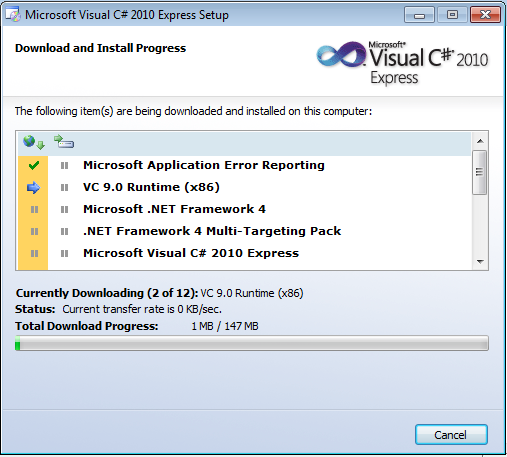
Microsoft now offers Visual Studio 2010 in an Express edition–which is free.  You’re limited to a single language, but you can develop WPF applications using Express.

In this post, I walk through the exact steps to install and use Visual Studio 2010 Express (C# edition).  The install was done a clean Windows 7 machine.

To start with, go to the Microsoft Express download site.  Click on the link for the development language of your choice (e.g. C#, VB, C++) and then select a language (e.g. English).  The install package will start downloading.

This will download file named vcs_web.exe.  Double-click on the file to start the install process.

Click Yes on the UAC dialog.

Installation files will be extracted:

You’ll get to the first install dialog.  Be a good citizen and agree to send information about your “setup experience” back to Microsoft.  After all, they’re giving you a free product.

Carefully read every word in the license agreement and then agree to it.  (Yes, of course I’m being tongue-in-cheek when I say to read every word).

You can optionally decide to install Silverlight and/or SQL Server Express.  For this example, I’ll install Silverlight only.

Decide what directory to install into.  The default is fine.

Things start downloading and installing.  Sit back and wait–this will take a while.

You may need to restart in the middle of the installation.

After the reboot, the install continues.

Your patience will eventually be rewarded, as the installation completes.

Oh wait–one more restart, just for good measure.

Now you’ll see Visual Studio C# 2010 Express in your Start Menu.

When you start Visual Studio for the first time, you’ll see the Start Page.  You can click on the New Project link to create your first project.  The New Project dialog lists the various types of projects that you can create:

  • Windows Forms Application
  • WPF Application
  • Console Application
  • Class Library
  • WPF Browser Application
  • Empty Project

(Notice that we can’t create Silverlight projects–the Silverlight option that we chose during the install likely just installed the Silverlight runtime, rather than the Silverlight tools for Visual Studio).

At this point, you’re all set.  You have everything that you need, to create Windows client applications–either Windows Forms or WPF.  If you’re building something new, you’ll likely want to start with WPF.

An Application to Let You View WPF Logical Trees

In WPF, a logical tree is just the hierarchy of elements that make up your user interface.  If your user interface is defined in XAML, the logical tree is the set of elements from the XAML, organized into a tree based on their parent/child relationships.

Logical Tree Basics

The logical tree can also be thought of as a model that describes the relationships between objects at runtime.  Knowing the logical tree can be helpful in understanding:

  • Resource lookup
  • Property inheritance
  • Event routing

As an example, the logical tree for the following XAML:

 <Window x:Class="WpfApplication4.MainWindow"
      xmlns="http://schemas.microsoft.com/winfx/2006/xaml/presentation"
     xmlns:x="http://schemas.microsoft.com/winfx/2006/xaml"
     Title="A window.." Height="350" Width="525">
     <StackPanel>
         <Button Content="Click Me" Height="23" HorizontalAlignment="Left" Width="75" Click="button1_Click" />
         <TextBox />
         <ListBox>
             <ListBoxItem Content="Barley"/>
             <ListBoxItem Content="Oats"/>
         </ListBox>
     </StackPanel>
 </Window>

can be represented by the following logical tree:

You can use the LogicalTreeHelper.GetChildren method to traverse a logical tree and enumerate all of the objects in the tree.

Every element in a logical tree is a DependencyObject, so you pass a top-level object that derives from DependencyObject into the GetChildren method.  The method returns a collection of children of that object.

 // Enumerate each immediate child of main window.  (Does NOT descend down tree)
 foreach (Object obj in LogicalTreeHelper.GetChildren(mainWindow as DependencyObject))
     Debug.WriteLine(obj.ToString());

An Application for Viewing Logical Trees

I wrote a little application that opens a specified .xaml file and then displays the logical tree from that .xaml file in a TreeView.

Here’s what the end result looks like:

To start, you just drag a .xaml file onto the surface of the application’s main window.  It then goes through the following steps:

  • Uses XamlReader.Load method to load the .xaml file into memory, creating objects to represent each element found in the .xaml file
  • Uses LogicalTreeHelper.GetChildren method to traverse the logical tree
  • For each node in the object tree, manually adds type name and (if it exists) object name to a TreeView

Current limitations:

  • Throws an exception if you try to load .xaml that includes an x:Class attribute  (you need to remove the attribute before loading the file)
  • Can’t load .xaml fragments if they don’t include the required XAML vocabulary namespaces
  • Have tested with Window as root element, but no guarantee that it works for other root elements

Where to Find WPF Logical Tree Application

You can find full source code on Codeplex, at wpflogicaltree.codeplex.com.

Under the Covers

The GUI for the application is simple–basically just a Label and a TreeView:

 <Window x:Class="DisplayWpfTrees.MainWindow"
     xmlns="http://schemas.microsoft.com/winfx/2006/xaml/presentation"
     xmlns:x="http://schemas.microsoft.com/winfx/2006/xaml"
     Title="Drag XAML Files onto This Window to See WPF Logical Tree" Height="350" Width="525" AllowDrop="True"
     Drop="Window_Drop" >
     <ScrollViewer VerticalScrollBarVisibility="Auto">
         <StackPanel Name="spMain" >
             <Label Content="Logical Tree" Height="28" Background="AliceBlue"/>
             <TreeView Name="tvLogical" />
         </StackPanel>
     </ScrollViewer>
 </Window>

You use drag and drop to tell the application to load a .xaml file.  The DragEnter event allows limiting the application to files being dropped.  The Drop event picks up the name of the file being dropped and then calls a helper class to do the loading and initialization of the TreeView.


using System;
using System.Collections.Generic;
using System.Diagnostics;
using System.IO;
using System.Linq;
using System.Reflection;
using System.Text;
using System.Windows;
using System.Windows.Controls;
using System.Windows.Data;
using System.Windows.Documents;
using System.Windows.Input;
using System.Windows.Markup;
using System.Windows.Media;
using System.Windows.Media.Imaging;
using System.Windows.Navigation;
using System.Windows.Shapes;
using System.Xaml;

namespace DisplayWpfTrees
{
    /// <summary>
    /// Interaction logic for MainWindow.xaml
    /// </summary>
    public partial class MainWindow : Window
    {
        public MainWindow()
        {
            InitializeComponent();
        }

        /// <summary>
        /// DragEnter allows prohibiting disallowed formats on drop
        /// </summary>
        /// <param name="sender"></param>
        /// <param name="e"></param>
        private void Window_DragEnter(object sender, DragEventArgs e)
        {
            if (!e.Data.GetDataPresent(DataFormats.FileDrop))
            {
                e.Effects = DragDropEffects.None;
                e.Handled = true;
            }
        }

        /// <summary>
        /// DragEnter allows prohibiting disallowed formats on drop
        /// </summary>
        /// <param name="sender"></param>
        /// <param name="e"></param>
        private void Window_DragOver(object sender, DragEventArgs e)
        {
            if (!e.Data.GetDataPresent(DataFormats.FileDrop))
            {
                e.Effects = DragDropEffects.None;
                e.Handled = true;
            }
        }

        /// <summary>
        /// When file is dropped on window, dump its logical tree to our TreeView
        /// </summary>
        /// <param name="sender"></param>
        /// <param name="e"></param>
        private void Window_Drop(object sender, DragEventArgs e)
        {
            string[] files = (string[])e.Data.GetData(DataFormats.FileDrop);

            string filename = files[0];     // Only deal with first one
            FileInfo fi = new FileInfo(filename);

            if (fi.Extension == ".xaml")
            {
                tvLogical.Items.Clear();

               MyLogicalTreeHelper.LoadAndAddXAMLFile(tvLogical, filename);
            }

            e.Handled = true;
        }

    }
}

Finally, the MyLogicalTreeHelper class includes the method LoadAndAddXAMLFile, which does the work of loading the file and building up the TreeView elements.


using System;
using System.Collections.Generic;
using System.IO;
using System.Linq;
using System.Reflection;
using System.Text;
using System.Windows;
using System.Windows.Controls;

namespace DisplayWpfTrees
{
    public class MyLogicalTreeHelper
    {
        /// <summary>
        /// Load loose XAML, creating object graph, then dump that graph's logical
        ///   tree to a TreeView.
        /// </summary>
        /// <param name="tv"></param>
        /// <param name="filename"></param>
        public static void LoadAndAddXAMLFile(TreeView tv, string filename)
        {
            try
            {
                // Load loose XAML file
                DependencyObject root = (DependencyObject)LoadXAMLObjectGraphFromFile(filename);

                // Descend through logical tree, adding items to TreeView
                DumpLogicalTreeToTreeView(root, tv.Items);

                // If root object is Window, we need to call Close method to avoid process from
                //   running indefinitely.  ??
                Window win = root as Window;
                if (win != null)
                    win.Close();
            }
            catch (Exception xx)
            {
                MessageBox.Show(string.Format("Error while trying to load .xaml: {0}", xx.Message));
            }
        }

        /// <summary>
        /// Given filename, use XamlReader to construct XAML objects by reading the file
        /// </summary>
        /// <param name="xmlString"></param>
        /// <returns></returns>
        private static object LoadXAMLObjectGraphFromFile(string filename)
        {
            using (FileStream fs = new FileStream(filename, FileMode.Open, FileAccess.Read))
            {
                return System.Windows.Markup.XamlReader.Load(fs);
            }
        }

        /// <summary>
        /// Add children of specified parent to TreeView, under specified node
        /// </summary>
        /// <param name="parent"></param>
        /// <param name="lvi"></param>
        private static void DumpLogicalTreeToTreeView(object parent, ItemCollection tvItems)
        {
            TreeViewItem tvi = new TreeViewItem();
            tvi.Header = XamlElementAsString(parent);
            tvItems.Add(tvi);

            if (!(parent is DependencyObject))
                return;

            foreach (object child in LogicalTreeHelper.GetChildren(parent as DependencyObject))
            {
                DumpLogicalTreeToTreeView(child, tvi.Items);
            }
        }

        /// <summary>
        /// Render a XAML element as a string that contains full type name and optional
        ///   element Name.
        /// </summary>
        /// <param name="theElement"></param>
        /// <returns></returns>
        private static string XamlElementAsString(object theElement)
        {
            string asString;

            // Simple elements (e.g. text content), just convert to string
            if (!(theElement is DependencyObject))
                asString = theElement.ToString();

            else
            {
                // Get full type name
                Type objType = theElement.GetType();
                asString = objType.ToString();

                // Optionally, if the element has a name, append it
                PropertyInfo pi = objType.GetProperty("Name");
                if (pi != null)
                {
                    string name = (string)pi.GetValue(theElement, null);
                    if ((name != null) && (name != ""))
                        asString = string.Format("{0}: ({1})", asString, name);
                }
            }

            return asString;
        }
    }
}

Next Steps

This is all pretty clunky, but it works in a limited fashion.  Obvious next steps include:

  • Data bind the TreeView using HierarchicalDataTemplate, rather than building it up manually
  • Helper class should just build up an object model without having any knowledge of GUI elements (like the TreeView)
  • Automatically strip out x:Class attributes so that files can contain them
  • Better understanding of why process runs indefinitely if you don’t invoke Window.Close
  • Add support for also displaying the visual tree

MDC 2010 Takeaways

I attended the Minnesota Developers Conference (MDC 2010) yesterday in Bloomington, MN.  A nice dose of conference-motivation–some good speakers talking about great technologies.  In the FWIW category, here are my lists of takeaways for the talks that I attended.

1.       Keynote – Rocky Lhotka (Magenic)

General overview of development landscape today, especially focused on cloud computing and the use of Silverlight.  Takeaways:

  • We’re finally getting to a point where we can keep stuff in “the cloud”, access anywhere, from any device
  • Desire to access application data in the cloud, from any device, applies not just to consumer-focused stuff, but also to business applications
  • Smart client apps, as opposed to just web-based, are important/desired – intuitive GUI is how you differentiate your product and what users now expect
  • HTML5 is on the way, will enable smart client for web apps
  • Silverlight here today, enables smart clients on most devices (not iPhone/IOS)
  • Silverlight/WPF is ideal solution.  You write .NET code, reuse most GUI elements on both thick clients (WPF) running on Windows, and thin clients (Silverlight) running web-based or on mobile devices
  • I didn’t realize that I have in common with Rocky: working on teletypes, DEC VAX development, Amiga development. :O)
  • http://www.lhotka.net/weblog/ , @RockyLhotka (Twitter)

2.       WPF with MVVM From the Trenches – Brent Edwards (Magenic)

Practical tips for building WPF applications based on MVVM architecture.  What is the most important stuff to know?  Excellent talk.  Takeaways:

  • MVVM excellent pattern for separating UI from behavior.  Benefits: easier testing, clean architecture, reducing dependencies
  • MVVM is perfect fit for WPF apps, very often used for WPF/Silverlight
  • MVVM perfect fit for WPF/Silverlight, makes heavy use of data binding
  • Details of how to do data binding in MVVM, for both data and even for command launching
  • How to use: data binding, DataContext, Commanding, data templates, data triggers, value converters.  (Most often used aspects of WPF)
  • Showed use of message bus, centralized routing of messages in typical MVVM application.  Reduces coupling between modules.  (aka Event Aggregator).   Used Prism version.
  • Slide deck – http://www.slideshare.net/brentledwards/wpf-with-mvvm-from-the-trenches
  • http://blog.edwardsdigital.com/, @brentledwards (Twitter)

3.       Developer’s Guide to Expression Blend – Jon von Gillern (Nitriq)

Demoing use of Expression Blend for authoring UI of WPF/Silverlight apps.  Also demoed Nitriq/Atomiq tools.  Takeaways:

  • Blend not just for designers; developers should make it primary tool for editing GUI—more powerful than VStudio
  • Lots of tricks/tips/shortcuts – he handed out nice cheatsheet – http://blog.nitriq.com/content/binary/DevelopersGuidetoBlend.pdf
  • Very easy to add simple effects (e.g. UI animations) to app elements to improve look/feel, just drag/drop
  • Nitriq – tool for doing basic code metrics, summaries, visualize code, queries that look for style stuff.  (Free for single assembly, $40 for full )
  • Atomiq – find/eliminate duplicate code, $30
  • http://blog.nitriq.com/, @vongillern (Twitter)

4.       Introduction to iPhone Development – Damon Allison (Recursive Awesome)

Basic intro to creating iPhone app, showing the tools/language/etc.  From a .NET developer’s perspective.  Takeaways:

  • You have to do the dev work on a Mac—no tools for doing the work on Windows
  • The tools are archaic, hard to work with, much lower level than .NET.  (E.g. no memory management)
  • In many cases, consider creating web-baesd mobile app, rather than native iPhone.  But then you wrestle with CSS/browser issues
  • Worth considering creation of native iPhone app for the best user experience
  • Lots of crestfallen-looking .NET developers in the audience
  • http://www.recursiveawesome.com/blog/ , damonallison (Twitter)

5.       A Lap Around Prism 4.0 – Todd Van Nurden (Microsoft)

Showing Prism—a free architectural framework written by Microsoft, came out Patterns and Practices group.  Good for creating extensible apps, with plug-in model.  Takeaways:

  • Leverages MEF (Microsoft Extensibility Framework)
  • Good for apps where you have the idea of a lot of “tools” that plug into main application architecture.  Or for applications made up of various building blocks.
  • You write application modules that are decoupled from main app framework, loaded on demand.
  • Prism on Codeplex – http://compositewpf.codeplex.com/
  • http://www.spoke.com/info/p5rAVze/ToddVanNurden

Building A List of Types That Have Content Properties

For future reference, here’s a little code snippet that iterates through all types in a Silverlight/WPF DLL and generates a list of types that have a XAML content property.  The list is written out to a file.

As an example, we generate the list for PresentationFramework.dll, which is where the Button type resides.

 // Click handler for a System.Windows.Controls.Button
 private void button1_Click(object sender, RoutedEventArgs e)
 {
     ContentPropsInAssembly(button1.GetType().Assembly, "PresentationFramework.txt");
 }

 private void ContentPropsInAssembly(Assembly assem, string filename)
 {
     SortedDictionary<string, string> dictContentProps = new SortedDictionary<string, string>();

     // Iterate through every type in the assembly, recording those
     // that have content properties.
     foreach (Type nextType in assem.GetTypes())
     {
         ContentPropertyOfType(nextType, ref dictContentProps);
     }

     // Serialize
     using (StreamWriter sw = new StreamWriter(filename))
     {
         foreach (KeyValuePair<string, string> entry in dictContentProps)
             sw.WriteLine(string.Format("{0},{1}", entry.Key, entry.Value));
     }
 }

 // For a given type, determine if it has a content property.  If so, add the name
 // of the type and its content property to a dictionary.
 private void ContentPropertyOfType(Type t, ref SortedDictionary<string, string> dict)
 {
     foreach (object att in t.GetCustomAttributes(true))
     {
         Type attType = att.GetType();
         if (string.Equals(attType.Name, "ContentPropertyAttribute"))
         {
             ContentPropertyAttribute cpa = (ContentPropertyAttribute)att;
             dict.Add(t.FullName, cpa.Name);
             break;
         }
     }
 }

Also for the record, here is the full list of types in PresentationFramework.dll that have content properties, of the format [typename],[propertyname]

MS.Internal.Annotations.Component.HighlightComponent,Children
MS.Internal.Annotations.Component.MarkedHighlightComponent,Children
MS.Internal.AppModel.RootBrowserWindow,
MS.Internal.Controls.InkCanvasInnerCanvas,Children
MS.Internal.Documents.DocumentGridContextMenu+EditorMenuItem,Items
MS.Internal.Documents.DocumentGridContextMenu+ViewerContextMenu,Items
MS.Internal.Documents.ReaderPageViewer,Document
MS.Internal.Documents.ReaderScrollViewer,Document
MS.Internal.Documents.ReaderTwoPageViewer,Document
System.Windows.Controls.AccessText,Text
System.Windows.Controls.AdornedElementPlaceholder,Child
System.Windows.Controls.AlternationConverter,Values
System.Windows.Controls.Border,Child
System.Windows.Controls.Button,Content
System.Windows.Controls.Canvas,Children
System.Windows.Controls.CheckBox,Content
System.Windows.Controls.ComboBox,Items
System.Windows.Controls.ComboBoxItem,Content
System.Windows.Controls.ContentControl,Content
System.Windows.Controls.ContentPresenter+DefaultTemplate,VisualTree
System.Windows.Controls.ContentPresenter+UseContentTemplate,VisualTree
System.Windows.Controls.ContextMenu,Items
System.Windows.Controls.ControlTemplate,VisualTree
System.Windows.Controls.DataGrid,Items
System.Windows.Controls.DataGridCell,Content
System.Windows.Controls.DataGridCellsPanel,Children
System.Windows.Controls.DataGridComboBoxColumn+TextBlockComboBox,Items
System.Windows.Controls.Decorator,Child
System.Windows.Controls.DockPanel,Children
System.Windows.Controls.DocumentViewer,Document
System.Windows.Controls.Expander,Content
System.Windows.Controls.FlowDocumentPageViewer,Document
System.Windows.Controls.FlowDocumentReader,Document
System.Windows.Controls.FlowDocumentScrollViewer,Document
System.Windows.Controls.Frame,
System.Windows.Controls.Grid,Children
System.Windows.Controls.GridView,Columns
System.Windows.Controls.GridViewColumn,Header
System.Windows.Controls.GridViewColumnHeader,Content
System.Windows.Controls.GroupBox,Content
System.Windows.Controls.GroupItem,Content
System.Windows.Controls.HeaderedContentControl,Content
System.Windows.Controls.HeaderedItemsControl,Items
System.Windows.Controls.InkCanvas,Children
System.Windows.Controls.InkPresenter,Child
System.Windows.Controls.ItemContainerGenerator+EmptyGroupItem,Content
System.Windows.Controls.ItemsControl,Items
System.Windows.Controls.ItemsPanelTemplate,VisualTree
System.Windows.Controls.Label,Content
System.Windows.Controls.ListBox,Items
System.Windows.Controls.ListBoxItem,Content
System.Windows.Controls.ListView,Items
System.Windows.Controls.ListViewItem,Content
System.Windows.Controls.Menu,Items
System.Windows.Controls.MenuItem,Items
System.Windows.Controls.Page,Content
System.Windows.Controls.Panel,Children
System.Windows.Controls.Primitives.BulletDecorator,Child
System.Windows.Controls.Primitives.ButtonBase,Content
System.Windows.Controls.Primitives.CalendarButton,Content
System.Windows.Controls.Primitives.CalendarDayButton,Content
System.Windows.Controls.Primitives.DataGridCellsPresenter,Items
System.Windows.Controls.Primitives.DataGridColumnHeader,Content
System.Windows.Controls.Primitives.DataGridColumnHeadersPresenter,Items
System.Windows.Controls.Primitives.DataGridRowHeader,Content
System.Windows.Controls.Primitives.DataGridRowsPresenter,Children
System.Windows.Controls.Primitives.DatePickerTextBox,Text
System.Windows.Controls.Primitives.DocumentViewerBase,Document
System.Windows.Controls.Primitives.MenuBase,Items
System.Windows.Controls.Primitives.MultiSelector,Items
System.Windows.Controls.Primitives.Popup,Child
System.Windows.Controls.Primitives.RepeatButton,Content
System.Windows.Controls.Primitives.SelectiveScrollingGrid,Children
System.Windows.Controls.Primitives.Selector,Items
System.Windows.Controls.Primitives.StatusBar,Items
System.Windows.Controls.Primitives.StatusBarItem,Content
System.Windows.Controls.Primitives.TabPanel,Children
System.Windows.Controls.Primitives.ToggleButton,Content
System.Windows.Controls.Primitives.ToolBarOverflowPanel,Children
System.Windows.Controls.Primitives.ToolBarPanel,Children
System.Windows.Controls.Primitives.UniformGrid,Children
System.Windows.Controls.RadioButton,Content
System.Windows.Controls.RichTextBox,Document
System.Windows.Controls.ScrollViewer,Content
System.Windows.Controls.StackPanel,Children
System.Windows.Controls.TabControl,Items
System.Windows.Controls.TabItem,Content
System.Windows.Controls.TextBlock,Inlines
System.Windows.Controls.TextBox,Text
System.Windows.Controls.ToolBar,Items
System.Windows.Controls.ToolBarTray,ToolBars
System.Windows.Controls.ToolTip,Content
System.Windows.Controls.TreeView,Items
System.Windows.Controls.TreeViewItem,Items
System.Windows.Controls.UserControl,Content
System.Windows.Controls.Viewbox,Child
System.Windows.Controls.Viewport3D,Children
System.Windows.Controls.VirtualizingPanel,Children
System.Windows.Controls.VirtualizingStackPanel,Children
System.Windows.Controls.WrapPanel,Children
System.Windows.Data.MultiBinding,Bindings
System.Windows.Data.PriorityBinding,Bindings
System.Windows.Data.XmlDataProvider,XmlSerializer
System.Windows.DataTemplate,VisualTree
System.Windows.DataTrigger,Setters
System.Windows.Documents.AdornerDecorator,Child
System.Windows.Documents.AnchoredBlock,Blocks
System.Windows.Documents.BlockUIContainer,Child
System.Windows.Documents.Bold,Inlines
System.Windows.Documents.DocumentStructures.StoryFragment,BlockElementList
System.Windows.Documents.DocumentStructures.StoryFragments,StoryFragmentList
System.Windows.Documents.Figure,Blocks
System.Windows.Documents.FixedDocument,Pages
System.Windows.Documents.FixedDocumentSequence,References
System.Windows.Documents.FixedPage,Children
System.Windows.Documents.Floater,Blocks
System.Windows.Documents.FlowDocument,Blocks
System.Windows.Documents.Hyperlink,Inlines
System.Windows.Documents.InlineUIContainer,Child
System.Windows.Documents.Italic,Inlines
System.Windows.Documents.List,ListItems
System.Windows.Documents.ListItem,Blocks
System.Windows.Documents.NonLogicalAdornerDecorator,Child
System.Windows.Documents.PageContent,Child
System.Windows.Documents.Paragraph,Inlines
System.Windows.Documents.Run,Text
System.Windows.Documents.Section,Blocks
System.Windows.Documents.Span,Inlines
System.Windows.Documents.Table,RowGroups
System.Windows.Documents.TableCell,Blocks
System.Windows.Documents.TableRow,Cells
System.Windows.Documents.TableRowGroup,Rows
System.Windows.Documents.TextEditorContextMenu+EditorContextMenu,Items
System.Windows.Documents.TextEditorContextMenu+EditorMenuItem,Items
System.Windows.Documents.TextEditorContextMenu+ReconversionMenuItem,Items
System.Windows.Documents.Underline,Inlines
System.Windows.EventTrigger,Actions
System.Windows.FrameworkTemplate,VisualTree
System.Windows.HierarchicalDataTemplate,VisualTree
System.Windows.Media.Animation.BeginStoryboard,Storyboard
System.Windows.Media.Animation.Storyboard,Children
System.Windows.Media.Animation.ThicknessAnimationUsingKeyFrames,KeyFrames
System.Windows.MultiDataTrigger,Setters
System.Windows.MultiTrigger,Setters
System.Windows.Navigation.NavigationWindow,
System.Windows.Navigation.PageFunction`1,Content
System.Windows.Navigation.PageFunctionBase,Content
System.Windows.Shell.JumpList,JumpItems
System.Windows.Style,Setters
System.Windows.Trigger,Setters
System.Windows.VisualState,Storyboard
System.Windows.VisualStateGroup,States
System.Windows.VisualTransition,Storyboard
System.Windows.Window,Content

Generate From Usage in Visual Studio 2010

Visual Studio 2010 comes with the new Generate From Usage feature.  Let’s take a quick look at how it works.

The basic idea is simple.  You can use classes and their methods and properties before you’ve actually implemented them.  This helps support test-driven development, in which you normally write your test cases first and get them to run by stubbing out all of the actual production code.

Top-Down Design

You might also use the Generate From Usage feature as you implement your code, writing the code in a top-down fashion.  The idea of top-down design is that you start writing your application at the highest level, creating abstractions for all lower-level constructs that are too complex to implement at the highest level.

Generate From Usage Example

Let’s look at an example.  In this example, I have a function that takes some basic info about a book as input and then expects to persist that information in a Book object in a database.  Let’s assume that we haven’t yet created the Book class, or any of its methods or properties.  Then my function might look something like this in Visual Studio:

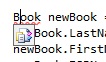
Notice that since we haven’t yet defined the Book class or any of its methods, Visual Studio underlines the Book identifier with a little red squiggle.

If I hover the mouse over the squiggle, I get a nice error message telling me that Book is not defined.

Now let’s just left-click on the squiggle.  A little blue underline shows up at the start of the unknown identifier.

If you now hover over the blue underline, you’ll see a little smart tag show up.

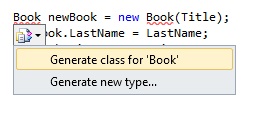
If you click on the smart tag, you’ll see two options: Generate class for ‘Book’ and Generate new type…

The simplest thing to do at this point is to select the first option, to generate a new Book class.  If we pick that option, a Book.cs file will be automatically added to our project, with a skeleton implementation of the Book class.

namespace WpfApplication3
{
    class Book
    {
    }
}

Notice, however, that focus stays in the original code editor window, so you can continue working in the same place.  At this point, the red squiggle on the Book class has disappeared, since we now have a basic implementation of the class.  Also notice that we see a whole bunch of new squiggles.  Now that Book is a valid class, Visual Studio knows that it does not contain any of the properties or methods that we are referencing.

Detour–Generate New Type

Let’s go back a step.  What would have happened if we’d selected the Generate new type… option?  Let’s try it.  If you pick this option, you’ll get a dialog asking you to enter some more details on the class that you want to create.

Basically, you can choose this option if you want to specify some additional details about the class that you want to create, including the file name, which project to create it in, and the access modifier for the class.  You can also have Visual Studio create other constructs, like a struct or an interface.

Return From Detour

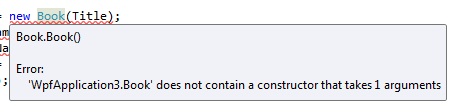
Now let’s go back to the EnterBook() method that we were working on.  Remember that after we generated the Book class, we got a bunch more squiggles.  As before, if you hover over the squiggle, you’ll see what the error is.  For example, we didn’t add a non-default constructor to the Book class, so we’re seeing an error when we try to construct the object.

Once again, we can use the Generate From Usage feature to generate some code for us.  As before, click on the squiggle and then click on the smart tag.  Now we see an option to generate the constructor.

Once again, if you click on this option, nothing will appear to happen in the code window where you are working.  But if you open the Book class, you’ll see that it now has a new constructor.

class Book
{
    private string Title;

    public Book(string Title)
    {
        // TODO: Complete member initialization
        this.Title = Title;
    }
}

But notice that Visual Studio went even one step further.  It also created a private field named Title for us and set the value of the field to the book title that we passed into the constructor.  This is (almost) exactly what we want.  (Likely, we’ll want to convert the private field into a property).

Encapsulating a Field

Actually, since I mentioned it, let’s go ahead and convert this field to a property.  First, I’ll rename the field, from “Title” to “_title”.  I do this because I’m going to want my property to be named Title.  So I want my backing variable (the existing field) to be named something else.  Now just right-click on the field, select Refactor and then select Encapsulate Field.

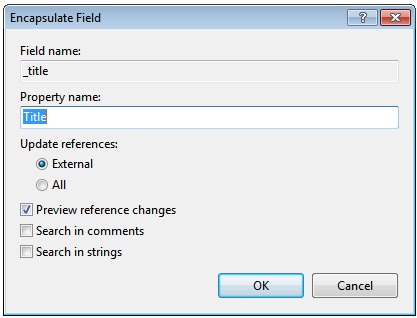
You’ll then get a dialog asking you to confirm the name of the field.

Click OK and then go back to look at your new code in the Book class.

class Book
{
    private string _title;

    public string Title
    {
        get { return _title; }
        set { _title = value; }
    }

    public Book(string Title)
    {
        // TODO: Complete member initialization
        this._title = Title;
    }
}

Perfect!

Generating a Property Stub

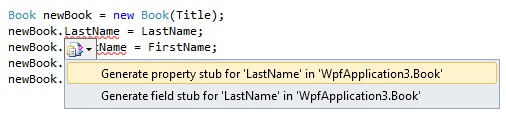
Now let’s go back to our EnterBook function again and once again click on a smart tag.  This time, click on the tag for the line where we’re trying to set the LastName property.  You’ll see the following:

Notice that we’re always seeing options that are appropriate for the type of object that is undefined.  In this case, Visual Studio sees that we are using LastName as a property, so it offers to create it for us.

If you select the option to generate a property stub, rather than a field stub, you’ll get what you expect in your Book class:

    public string LastName { get; set; }

Visual Studio created a new property named LastName and automatically generated the get and set accessors for the property.  Also notice that it figured out the correct type for the property, based on the variable that we were assigning to it.

Generating a Method

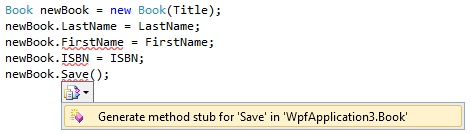
We’ll do just one more example.  As expected, if you click on the smart tag at the point where we’re trying to call a Save method, Visual Studio will offer to generate the method.

As you’d expect, Visual Studio once again generates a stub in the Book class for us:

    internal void Save()
    {
        throw new NotImplementedException();
    }

Wrapping Up

There you have it–a quick tour through the new Generate From Usage feature in Visual Studio 2010.  Once you get into the habit of using it, you can be quite a bit more productive when coding in a top-down fashion.

Silverlight 4 Project Types part III – Silverlight Class Library

Last time, I looked at the Silverlight Navigation Application choice in Silverlight’s New Project wizard.  Next, I’d like to look at the Silverlight Class Library choice.  This is next on the list, out of the six different project types that are listed in the New Project wizard when you pick Silverlight as a project type.

Creating a Class Library

What exactly is a class library?  Well, simply put, it’s a library containing the implementation of one or more classes, implemented as a .NET DLL.  The basic idea is to move basic functionality that you’d likely use in more than one place out to a common library that one or more applications can use.

Silverlight lets us easily create a class library that we can then deploy with our actual Silverlight application.  The class library would contain code that we could invoke from our Silverlight application.

Let’s create a basic Silverlight Class Library using the New Project wizard.  Here’s what the dialog looks like:
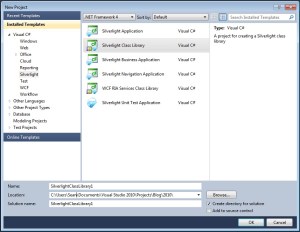
Once you enter your project name and click OK, you see the dialog shown below.  This is where you get to decide which version of Silverlight you’re targeting. We saw something similar when creating a Silverlight Navigation Application.
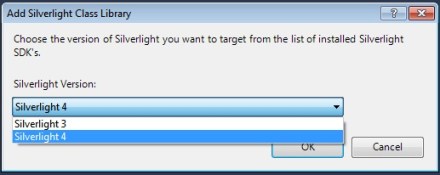
For this project, we’ll stick with version 4 of Silverlight.  Keep in mind that if you author a Silverlight 4 project, the client will need to download Silverlight 4.  If you’re curious about what specific changes were made between Silverlight 3 and Silverlight 4, you can take a look at the article:  Ensuring that Your Silverlight Applications Work with Silverlight 4.  Note the “quirks” mode, in which the Silverlight 4 runtime can behave like Silverlight 3, to avoid breaking applications that targeted version 3.

Here’s what the solution looks like, after the wizard creates it.  Pretty simple.

The obvious question is: how is this different from a standard class library, that you might use with Win Forms or a WPF application?  If we just create a standard class library and then compare the project that we get with our Silverlight Class Library,we see basically the same thing–an empty DLL containing a single class.

One real difference that you’ll notice is related to which assembly references are included in the project by default.  Take a look at the projects shown below.  On the left is a standard C# class library.  On the right is a Silverlight Class Library.  (Nevermind that I’ve changed the default class from “Class1” to “Cat”.
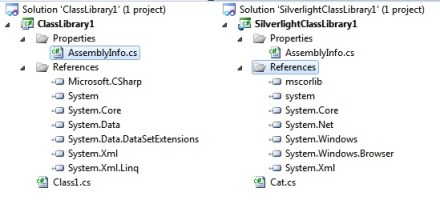
You’ll see some similarities and some differences.  The main thing to remember is that the Silverlight project is built against the Silverlight versions of all of these libraries, rather than the standard .NET Framework versions.  You can convince yourself that there is more than one set installed one your machine by looking at the directory “C:\Program Files\Reference Assemblies\Microsoft\Framework”.  Make note of the .NET Framework and Silverlight sub-directories, with various version numbers under each sub-directory.  If you drill down into the sub-directories, you’ll see the actual .NET Framework or Silverlight DLLs.  There is a completely different set of DLLs for each platform.  As an example of the differences, note that there is a System.Windows.Forms.dll in the .NET Framework directories, but not in the Silverlight directories.

One other thing to remember is that even when you see the same file in both .NET Framework and Silverlight directories, the content of the file may be different.  For example, the Silverlight version of System.Core doesn’t include the System.Diagnostics namespace, because for Silverlight, it’s implemented in mscorlib instead.

There is another important difference between the different versions of the framework–the Silverlight versions are much smaller than their full .NET Framework counterparts.  Remember that Silverlight needs to be deployed over the web, so its copy of the Framework is considerably smaller than the full .NET Framework.  If you just look on a system that has both and compare total size of the files in each directory, you’ll see:

  • Version 3.0 of the .NET Framework = 84.4MB
  • Version 4.0 of the .NET Framework = 189MB
  • v3.0 of Silverlight framework = 20.6MB
  • v4.0 of Silverlight framework = 24.6MB

So the Silverlight runtime is only about 13% of the size of the full .NET 4.0 Framework.  Pretty amazing.

Adding Some Code

Now let’s add some functionality to our Silverlight class library.  We’ll create a Cat class that we can later use in our Silverlight application.  Here’s the implementation:

public class Cat
{
    public string Name { get; set; }
    public string Motto { get; set; }
    public uint NumLives { get; set; }

    public Cat() { NumLives = 9; }

    public void Die()
    {
        if (NumLives > 0)
            NumLives--;
        else
            throw new Exception("This cat is already dead");

        return;
    }
}

Building the Library

What do we get when we build the library that contains an implementation of our Cat class?  As it turns out, we just get a regular .NET DLL.  Let’s take a look at what shows up in our \bin directory:
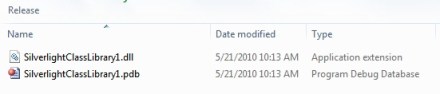
Take a look at what’s in this directory.  Using the IL DASM tool (Intermediate Language Disassembler, which can be found in Windows 7 at C:\Program Files\Microsoft SDKs\Windows\v7.0A\bin), crack open the DLL and you’ll see:
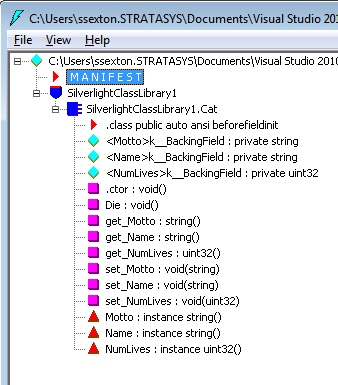
We could also look at the manifest for our Silverlight class library and compare it with manifest for a .NET 4.0 version.  If you did this, you’d see that the main difference is the version of mscorlib that they reference.  .NET 4.0 class libraries reference version 4.0.30319 of mscorlib and Silverlight 4 class libraries reference version 2.0.50727.  This could be because of the timing of the Silverlight and .NET 4.0 releases–Silverlight 4 just ended up using the version of mscorlib that shipped with .NET 3.5.  Or maybe it’s the case that Silverlight doesn’t make use of any of the new functionality added to .NET 4.0.

The bottom line here is that both class libraries (.NET 4.0 and Silverlight) are structurally the same–just .NET DLLs.  But they are not interchangeable, because they depend on different versions of various .NET DLLs.

Using Our Class

Now let’s actually use the class that we just created.  We’ll go back to our SilverlightClassLibrary1 solution and add a Silverlight Application project.  We leave the option turned on that automatically generates an ASP.NET Web Application project.

The solution now looks like this:
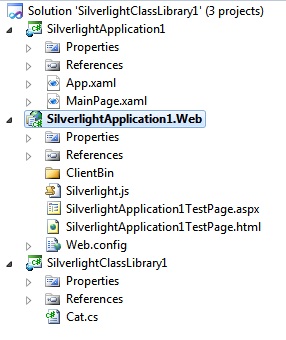
So we have a web project that loads our Silverlight application and we now want to change the application to make use of our class library.  Specifically, we’ll add some code that makes use of our Cat class.

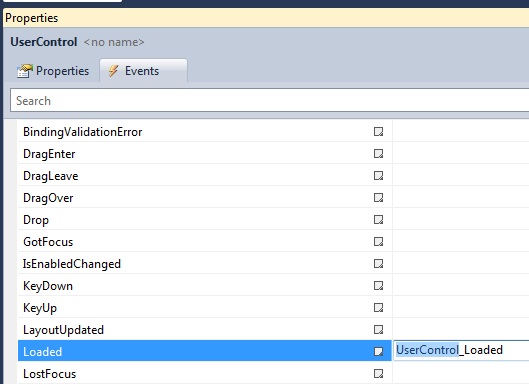
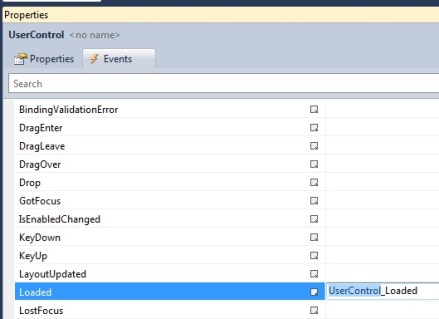
On the MainPage control in the Silverlight application, we switch to the Events tab in the Properties window and double-click to the right of the Loaded event, to generate an event handler for Loaded.
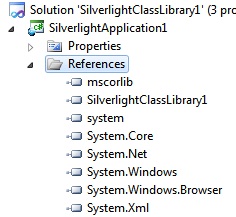
Next, we add a reference to SilverlightClassLibrary1 in the Silverlight application.  In the Solution Explorer, we right-click the References folder in the SilverlightApplication1 project and select Add Reference.  Then we just click on the Project tab and select SilverlightClassLibrary1.  Now we see the class library show up as a reference in the Silverlight application.
Next, we open MainPage.xaml.cs in the code editor and add a using statement at the top for our class library.   Then we add code to the Loaded event to create a new instance of a Cat.  MainPage.xaml.cs now looks like this:

using System;
using System.Collections.Generic;
using System.Linq;
using System.Net;
using System.Windows;
using System.Windows.Controls;
using System.Windows.Documents;
using System.Windows.Input;
using System.Windows.Media;
using System.Windows.Media.Animation;
using System.Windows.Shapes;
using SilverlightClassLibrary1;

namespace SilverlightApplication1
{
    public partial class MainPage : UserControl
    {
        Cat _garfield;

        public MainPage()
        {
            InitializeComponent();
        }

        private void UserControl_Loaded(object sender, RoutedEventArgs e)
        {
            _garfield = new Cat();
            _garfield.Name = "Garfield Arbuckle";
            _garfield.Motto = "Carpe Catnip";
        }
    }
}

Now let’s do something with our cat.  We go back to the design surface for the main window, add a new button, change the Content property to “Kill” and then double-click on the button to create an instance of the button’s Click event.  The code for the Click event is pretty simple–we just tell Garfield to die.

private void button1_Click(object sender, RoutedEventArgs e)
{
    _garfield.Die();
}

Now we’ve created a Cat and we have a button that lets us kill the cat (repeatedly).  As a next step, let’s just add a label on the main page that indicates how many lives the cat has left.  After you drag the label onto the design surface, it will look like this:
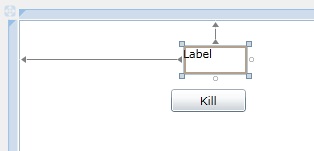
Let’s think about the best way to display the number of lives.  One way would be to add a line in button1_Click() that resets the label’s Content property every time we invoke the Die method.  But the drawback of this is that if we have other places in our code that cause our cats # lives to decrement (or increment), we’d have to remember to add code to all of those places to also update the label.  Better than manually updating the label would be to just “bind” it to Garfield’s NumLives property.  We’d like the label to change automatically whenever Garfield’s NumLives property changes.

Doing the data binding involves two main steps.  The first is to specify the binding of the label’s Content property.  We can set up the binding in XAML, specifying the binding Path, which indicates which property of the Cat object we want to bind this label to.  Below is the XAML for our main page, showing both the Button and the Label.  Note the value of the label’s Content property, with the binding path specified.

<Grid x:Name="LayoutRoot" Background="White">
    <Button Content="Kill" Height="23" HorizontalAlignment="Left" Margin="153,69,0,0" Name="button1" VerticalAlignment="Top" Width="75" Click="button1_Click" />
    <sdk:Label Height="28" HorizontalAlignment="Left" Margin="165,26,0,0" Name="label1" VerticalAlignment="Top" Width="63" Content="{Binding Path=NumLives}" />
</Grid>

(For more info on data binding in Silverlight, see this Silverlight Data Binding article in MSDN).

There’s one more thing that we have to do to get the binding to work.  We need to also specify the object that we’re binding to.  In our case, the object is the instance of the Cat that we created in the Load event–Garfield.  We do this by setting the DataContext property of our main page.  Really, we want to set the DataContext property of the Label.  But we can just set the data context for the whole page and then that data context will automatically get used for all controls on the page (if they don’t set their own data context).  This would be handy if we plan on adding other controls later that are also bound to Garfield.  We do this in our Loaded event:

private void UserControl_Loaded(object sender, RoutedEventArgs e)
{
    _garfield = new Cat();
    _garfield.Name = "Garfield Arbuckle";
    _garfield.Motto = "Carpe Catnip";

    // Set data context of main grid to be our Cat object
    LayoutRoot.DataContext = _garfield;
}

Now let’s try running our application.  When the Silverlight application starts up in a web browser, it looks like this:

Hey, that looks like success.  Our Label appears to have been bound to the NumLives property, because it’s showing that Garfield has 9 lives.

But what happens when we press the Kill button?  When I try it, nothing happens.  Inside the Cat object, the NumLives property should be decrementing.  And our Label should reflect the new value, since we set up the data binding.  But the label doesn’t appear to be changing.  Why not?

As it turns out, the NumLives property is changing internally whenever we kill Garfield.  But our client–the MainPage–is not being told that the property changed.  So the data binding isn’t fully functional and the label does not update.

We missed one small step when we set up data binding on our Cat object.  To properly bind to an object’s property, we need our Cat class to implement the INotifyPropertyChanged interface and to fire the PropertyChanged event whenever the NumLives property changes.  (For more info on INotifyPropertyChanged, see the MSDN documentation for INotifyPropertyChanged Interface).

To start with, we change our Cat class definition to indicate that we plan to implement the INotifyPropertyChanged interface.

public class Cat : INotifyPropertyChanged

If you try to build the project now, you’ll get an error telling you that you haven’t implemented the PropertyChanged event.  This is because when we inherit from INotifyPropertyChanged, we’re agreeing to a contract that says we’ll implement the interface’s methods.  In this case, it means that we’ll implement the PropertyChanged event.

The easiest way to implement the event is to right-click on INotifyPropertyChanged and select “Implement Interface”.  Then select “Implement Interface” again.

When you do that, you’ll get the following event declaration added to your code:

public event PropertyChangedEventHandler PropertyChanged;

Next, we need some code that will fire this event.  So we create a little method that we can use throughout our class.  I added the following code after the event declaration:

public void OnPropertyChanged(PropertyChangedEventArgs e)
{
    if (PropertyChanged != null)
        PropertyChanged(this, e);
}

Finally, we need to fire this event whenever the value of NumLives property changes.  We do this by invoking the OnPropertyChanged method that we just implemented.  We also have to pass the name of the property that is changing when we fire the event.  Here is the updated code for the NumLives property:

private uint _numLives;
public uint NumLives {
    get { return _numLives; }
    set
    {
        _numLives = value;
        OnPropertyChanged(new PropertyChangedEventArgs("NumLives"));
    }
}

That should be everything that we need to get the data binding to work.

For reference, here is the full source code listing for our Cat class:

using System;
using System.Net;
using System.Windows;
using System.Windows.Controls;
using System.Windows.Documents;
using System.Windows.Ink;
using System.Windows.Input;
using System.Windows.Media;
using System.Windows.Media.Animation;
using System.Windows.Shapes;
using System.ComponentModel;

namespace SilverlightClassLibrary1
{
    public class Cat : INotifyPropertyChanged
    {
        public event PropertyChangedEventHandler PropertyChanged;
        public void OnPropertyChanged(PropertyChangedEventArgs e)
        {
            if (PropertyChanged != null)
                PropertyChanged(this, e);
        }

        public string Name { get; set; }
        public string Motto { get; set; }

        private uint _numLives;
        public uint NumLives {
            get { return _numLives; }
            set
            {
                _numLives = value;
                OnPropertyChanged(new PropertyChangedEventArgs("NumLives"));
            }
        }

        public Cat() { NumLives = 9; }

        public void Die()
        {
            if (NumLives > 0)
                NumLives--;
            else
                throw new Exception("This cat is already dead");

            return;
        }
    }
}

Killing the Cat

Finally, let’s run our application.  Now when we start up the application and run it in browser, we see the # lives indicator decrement whenever we click the Kill button.  Success!

Deployment

Let’s look at one more thing.  When we create and use a Silverlight class library and then deploy and run our Silverlight application, what is really going on?  We saw earlier that we’re creating a DLL.  But what actually happens to that DLL when some client hits the web page that hosts our Silverlight Application?

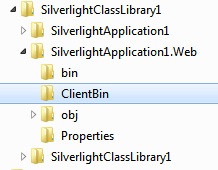
In Windows Explorer, let’s find the project directory and drill down until we see the ClientBin directory under the SilverlightApplication1.Web project.

In ClientBin dir, we see just one file: SilverlightApplication1.xap.  This is the XAP file that represents our Silverlight application and which gets deployed by the web server whenever a client loads the hosting ASP.NET page.

Let’s take a look inside the .xap file.  (Just rename the extension to .zip and double-click to open the .zip archive).  Here’s what we see:

The important components to notice are SilverlightApplication1.dll and SilverlightClassLibrary1.dll.  SilverlightApplication1.dll is the main DLL that contains our Silverlight application (MainPage class, derived from Silverlight UserControl).  SilverlightClassLibrary1.dll is the output of our SilverlightClassLibrary1 project–a DLL that contains our Cat object.  So we see that when our Silverlight application is deployed, the referenced class library is also deployed to the client, since it is included in the .xap file.

Finally

Now we’ve seen the main purpose of the Silverlight Class Library.  You can create a separate DLL that contains one or more classes that your Silverlight application is going to make use of, when running on the client.  Since the Silverlight application makes use of the class library, the class library is deployed to the client along with the main Silverlight application.

Silverlight 4 Project Types part II – Silverlight Navigation Application

Last time, I took a look at what gets created when you create a new Silverlight project and choose Silverlight Application as your project type in the New Project wizard.  Now I’d like to look at the Silverlight Navigation Application project type that is new for Silverlight 4.

As usual, I’d like to walk through the process of creating a new project and then take a quick peek at what’s under the covers.  There are a number of pieces here that are complex enough for their own blog post.  So I’ll probably use the phrase “cover this later” a lot.  My goal right not is to just get a high-level view of the Silverlight Navigation Application.

Just a quick note on the tooling: I’m currently still using the Beta 2 build of Visual Studio 2010.  So some of the behavior or layout might be different from the final release.

Below is an image of the New Project dialog in Visual Studio, showing the new Silverlight Navigation Application choice.  This is the type of project that I’ll be creating.

If you pay attention to the text describing each template, displayed over on the right, you’ll see a slight difference between the Silverlight Application and the Silverlight Navigation Application.

  • Silverlight Application – A blank project for creating a rich internet application using Silverlight
  • Silverlight Navigation Application – A project for creating a rich internet application using Silverlight

So with the Silverlight Navigation Application, you get just a bit more of the framework for an actual production Silverlight application.
If we click OK to continue, we get the familiar dialog for creating a sample web project in which to host the Silverlight application.  As before, we can choose between a Web Application, a Web Site, or an MVC Web Site.  I’ll just pick a Web Application project type.
Note the new checkbox on this dialog labeled Enable .NET RIA Services.  RIA Services (now called WCF RIA Services) is an n-tier design pattern in which you have Silverlight on the client, ASP.NET as the middle tier and then some sort of data tier.  More on this later.  For now, you can get an introduction at the WCF RIA Services home page.  I first heard about RIA Services at Microsoft’s PDC 2008 conference and remembering that it sounded very similar in its goals to Rocky Lhotka’s CSLA.NET for Silverlight framework.

Let’s compare the Silverlight Application and Silverlight Navigation Application projects side by side.  Here’s the high-level view.  (The Silverlight Navigation Application is on the right).

The first difference you’ll notice are the Assets and Views folders in the Silverlight Navigation Application.  Taking a quick peek at these folders, you get an idea of what they contain.

The navigation application adds a Resource Dictionary, Styles.xaml, which serves as a sort of stylesheet for the application.  In the Views folder, we get a new control for displaying errors, ErrorWindow.xaml, and a couple pages where we’ll show our actual web site content, About.xaml and Home.xaml.
We’ll find the biggest changes in the MainPage.xaml file and its code-behind.  But before we take a look at the code, let’s just run our application to see what it looks like so far.

Wow.  That’s slick.  Instead of the blank page that we got with the Silverlight Application, it looks like we get a small, but fully functional web site, implemented entirely in Silverlight.

If you move the mouse around a little bit, you’ll discover that you can click on the home and about labels in the upper right corner of the page to navigate between a Home page and an About page.  When the Silverlight application first starts, we get the Home page.  If you click on the about label, you navigate to the About page.

This highlights that there are two fundamentally different ways to use Silverlight:

  • Silverlight controls embedded in ASP.NET web pages
  • Silverlight as the entire application

In the first case, you create individual Silverlight controls for the areas of your web site where you need a richer user experience and embed them in ASP.NET (or plain old HTML) web pages.  You can think of the Silverlight as little islands of interaction embedded in a traditional ASP.NET web site.

The other basic way to use Silverlight, highlight by the Silverlight Navigation Application, is to make Silverlight handle the entire user experience.  Instead of a web page, you have Silverlight running in the browser as a true RIA (Rich Internet Application).

Which is a better way to use Silverlight?  Neither.  You might consider creating your entire web application in Silverlight, to give your users a richer experience.  But doing that also means that you’re hiding your content in a Silverlight black box that search engines might not be able to crack open to get at the content.  It also means that you’re out of luck for users who haven’t downloaded and installed the Silverlight plug-in.

The Main Page

Ok, let’s go back to the XAML for the main page and figure out how this page navigation is working.

If we’re curious about how things get started, we can go back to the project and note that the App object is listed as the startup object for our application.  If we look at its code behind, we see that it sets the main object to be displayed as an instance of MainPage, just like the standard Silverlight Application.
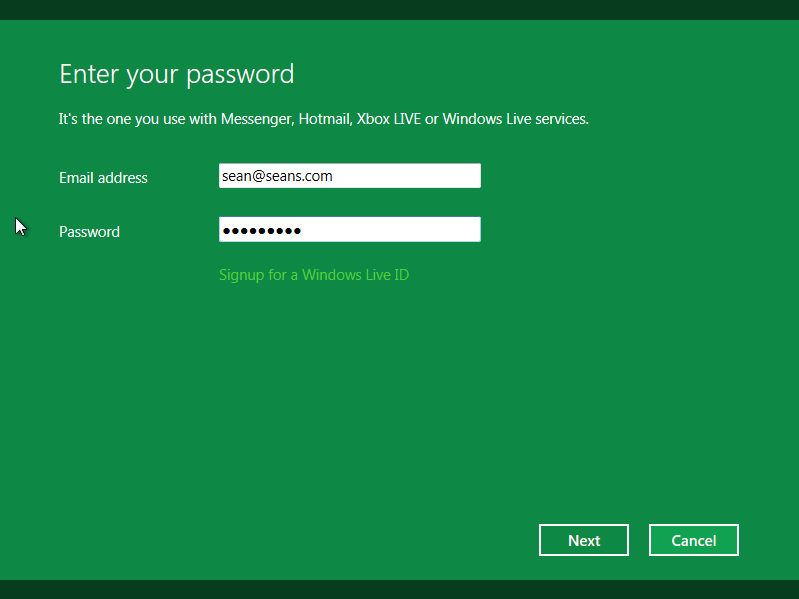
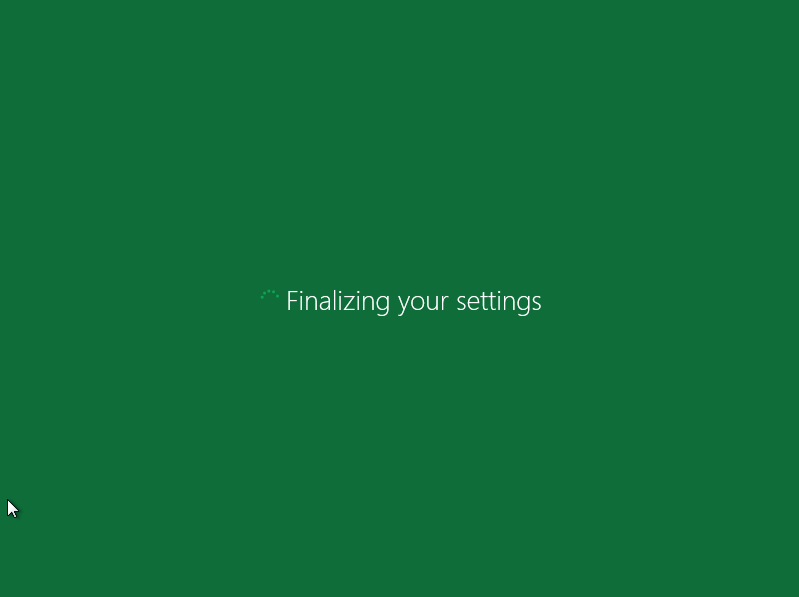
Before we look in any detail at the MainPage object, let’s take a quick look at how it looked for our standard Silverlight Application–the template that Visual Studio calls a “blank” Silverlight project.  Here’s the XAML:

MainPage is just a UserControl that contains a white grid, onto which you can put anything that you like.  This is the tabla rasa for Silverlight controls.

Now let’s take a look at the same XAML, for the MainPage object, in our Silverlight Navigation Application.  We find that it also derives from UserControl and the XAML consists of a UserControl tag, which contains a Grid.  But this time, the grid is far from empty.
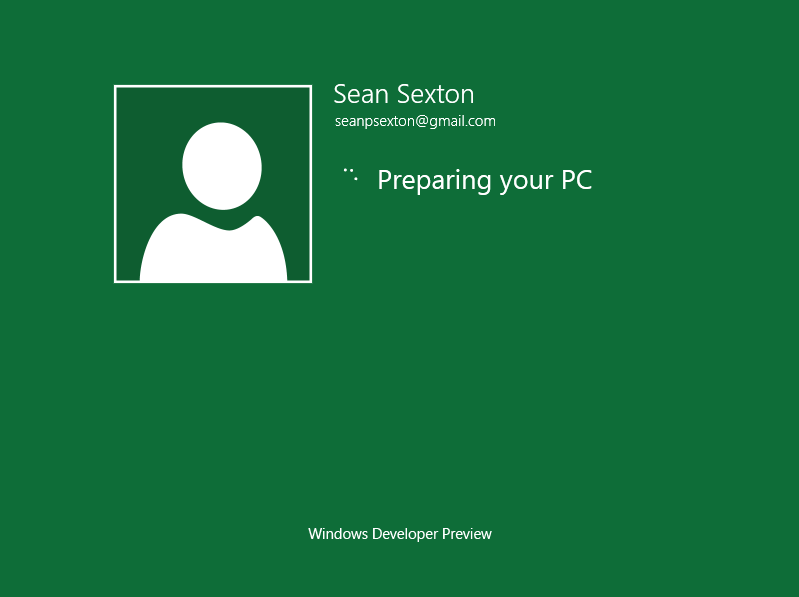
There’s a lot of junk in the XAML for the MainPage control.  But if we strip it down to the main elements, we get the following basic outline (starting with the outer Grid, which is contained in the UserControl):

<pre><Grid Name="LayoutRoot">
    <Border Name="ContentBorder">
        <navigation:Frame Name="ContentFrame">
    </Border>
    <Grid Name="NavigationGrid">
        <Border Name="BrandingBorder">
            <StackPanel Name="BrandingStackPanel"/>
        </Border>
        <Border Name="LinksBorder">
            <StackPanel Name="LinksStackpanel"/>
        </Border>
    </Grid>
</Grid>

This looks a bit busy, but it’s pretty straightforward.  The two main objects in the XAML match the two main areas of the screen that we saw when we ran our Silverlight application–a navigation area at the top of the window that contains the “home” and “about” navigation buttons and then our main content area.  This content area is a container (a Frame object) that will contain our actual content (individual Page objects).

In this XAML fragment, ContentFrame is the container where we put all of our main web page content.  It’s contained, in turn, in a Border object that will add some basic formatting to the frame.

The NavigationGrid object, which contains the navigation buttons, is a little less interesting.  So let’s look first at the ContentBorder and the ContentFrame.

Here’s the full XAML fragment for these guys:

<Border x:Name="ContentBorder" Style="{StaticResource ContentBorderStyle}">
    <navigation:Frame x:Name="ContentFrame" Style="{StaticResource ContentFrameStyle}"
                      Source="/Home" Navigated="ContentFrame_Navigated" NavigationFailed="ContentFrame_NavigationFailed">
        <navigation:Frame.UriMapper>
            <uriMapper:UriMapper>
                <uriMapper:UriMapping Uri="" MappedUri="/Views/Home.xaml"/>
                <uriMapper:UriMapping Uri="/{pageName}" MappedUri="/Views/{pageName}.xaml"/>
            </uriMapper:UriMapper>
        </navigation:Frame.UriMapper>
     </navigation:Frame>
</Border>

The ContentBorder is just a wrapper around the ContentFrame that adds:

  • A margin at the top of the page, making room for the navigation controls
  • A gradient brush for the frame’s background

You can see the details by opening the Styles.xaml file and looking at the ContentBorderStyle style.

The Navigation Frame

The frame object (System.Windows.Controls.Frame) is where all of the magic happens.  MSDN says that this control is a “content control that supports navigation”.

The basic idea of a Frame is that you can tell it the URI of the content that you want to have it display.  You normally do this by setting its Source property or by calling its Navigate method.

When our application first starts up, the Source property of the ContentFrame gets set to “/Home”, since it’s set in the XAML.  This causes the /Views/Home.xaml page to get loaded by default.

But we also load content into the frame when we click on the home and about buttons in the navigation grid at the top of the screen.  These two buttons are actually HyperlinkButton objects.  Here’s the XAML for our about button (you can find this in MainPage.xaml):

<HyperlinkButton x:Name="Link2" Style="{StaticResource LinkStyle}"
                 NavigateUri="/About" TargetName="ContentFrame" Content="about"/>

The HyperlinkButton lets us navigate to a new web page by specifying a URI and the target control where that URI should get loaded.  In our case, we tell it to load “/About” as the URI in our ContentFrame.  This will have the same effect as if we’d set the Source property of the ContentFrame to “/About”.

So we change the content in the ContentFrame object at three different points:

  • At startup, we navigate to Home.xaml
  • When user clicks on the about button, we navigate to /Views/About.xaml
  • When user clicks on the home button, we navigate to /Views/Home.xaml

URI Mapping

But how is it that we specified “/About” as a URI and we end up at the page /Views/About.xaml”?  When we just specify “/About”, how does the Frame get the exact URI that describes how to find the actual .xaml file?

This happens through something called URI Mapping.  URI mapping simply means that you can map one URI to another, using a simple lookup table.  In general, this is used to map longer URIs to shorter, or internal, URIs.  In our case, when we pass the URI “/About” to our Frame, it uses its UriMapper object to map this URI to “/Views/About.xaml”–the true path to the page that we want to load.

You can see the rule that does this mapping in the XAML fragment above that contains the ContentFrame and XAML elements that specify the UriMapper property of the Frame.  We basically have two rules:

  • Map an empty URI to “/Views/Home.xaml”  (the default/home page)
  • Map “/something” to “/Views/something.xaml”

The second rule is the interesting one.  In the individual UriMapping objects, we can do some basic pattern matching, using one or more variables, denoted by braces.  So the rule lets a user enter just a page name and our mapping fills in the rest.  The mapping rule looks like this:

    <uriMapper:UriMapping Uri="/{pageName}" MappedUri="/Views/{pageName}.xaml"/></pre>

The whole point here, when we’re talking about user-entered URIs, is that we can hide the details of the URI path from the user and give them something easier to remember and easier to enter.

In the Silverlight Navigation Application example, users aren’t directly entering URIs.  But it still helps to simplify the URIs that we need to specify when setting up the HyperlinkButton objects.

By the way, it’s interesting to note that the Frame class in the main .NET Framework does not support URI mapping, while the Frame class in the Silverlight version of the framework does.

More Fun With Frames

One other very interesting thing about the Frame control is that not only can you tell it to navigate to various pages, but that it remembers its navigation history.  We could then tap into that history and tell the Frame to navigate forward or backward through its history.  For example, I could add a couple of buttons, label them Forward and Back and then add the following code behind.

    private void btnBack_Click(object sender, RoutedEventArgs e)
    {
        if (ContentFrame.CanGoBack)
            ContentFrame.GoBack();
    }

    private void btnForward_Click(object sender, RoutedEventArgs e)
    {
        if (ContentFrame.CanGoForward)
            ContentFrame.GoForward();
    }

We check the CanGoBack and CanGoForward properties before navigating, because if you try to navigate past either the beginning or end of the history, Silverlight will throw an exception.

Even better, the Frame’s navigation history is automatically integrated to the web browser’s history itself (the journal), using the JournalOwnership property.

You can prove this to yourself by running the application generated by the wizard, clicking on the home and about buttons several times and then using the browser’s Back button to see that you can navigate through the pages that you’ve just visited.

This is actually pretty important.  One of the drawbacks of implementing a Rich Internet Application in a black-box technology like Flash is that if you’re navigating between pages, the user loses the ability to use the browser’s navigation buttons to move back/forward through these pages.  Using a Silverlight Frame control addresses this because it ties directly in with the browser’s navigation history.

Wrapping Up

That’s about it for the Silverlight Navigation Application.  The one remaining thing that you can look at is the ContentFrame_Navigated code, in MainPage.xaml.cs. This function is responsible for changing the visual look of the navigation buttons after you click on one of them, to show which content is currently being shown.
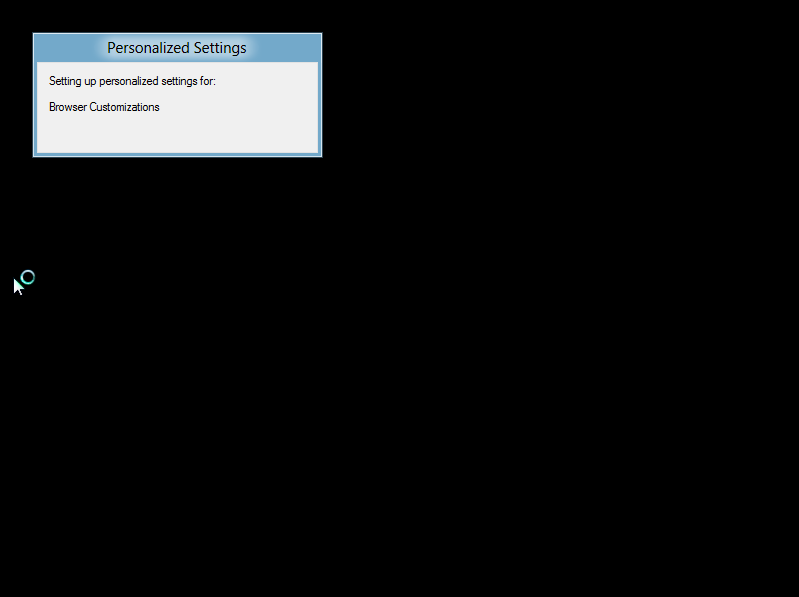
The other thing that’s worth doing is opening one of the pages from this project in Expression Blend(As of May, 2010, there is currently a Release Candidate of Blend 4 out that includes support for Silverlight 4).

The easiest way to pop over to Blend from Visual Studio is to just right-click on one of the pages and selected the Open in Expression Blend menu option.

You just click on this option and Blend 4 fires up, opens your project, and then opens the same page in Blend.  Wow.

It’s a good idea to get into the habit of being just as comfortable editing your pages in Blend as you are in Visual Studio.  And that little shortcut in the context menu helps with that quite a bit.

That’s all for now.  Next time I’ll take a look at the next Silverlight project type–the Silverlight Class Library.

Project Intro – YAMTS

I talked last time about coming up with my own sample application to use as a framework for learning various Microsoft technologies like Silverlight, WPF and WCF.  I ended up deciding on a book tracking web site, books being one of my great passions.  I spent the rest of the post in describing the mission objectives for the yabts.com web site.

Actually, it wasn’t quite a slam dunk to pick book tracking as my sample application.  My second choice, representing another great passion of mine, was to do a web site to track movies and DVDs.  I’m hugely passionate about movies and DVDs and I’ve always wanted a killer app that helped me keep track of DVDs that I own and movies that I’ve seen or want to see.

Since I’m a glutton for punishment, I figure that I don’t have to actually pick just one of these two applications.  Why not build both?

So, with that, here’s my 2nd sample application, also already registered with godaddy.com as a bona fide domain:

yamts.com – Yet Another Movie Tracking Site

Another obviously lovely name.

Mission Statement

As with the book tracking site, the first thing to do is to state what this little movie application is going to do:

The purpose of the movies web site is to keep track of the movies that I own, movies that I’ve seen and the movies that I want to see.

Perfect.  A nice parallel to a book web site.

Mission Objectives

And, just like before, we also need to lay out some “mission objectives”.  This will be a short list of things that my little movie application is going to let a user do:

  • Keep track of all DVDs that I own
  • Keep track of all movies that I’ve seen
  • For the movies that I own, keep track of whether I’ve seen them or not
  • Access a list of all my movies from the web
  • Access all my movie lists from the web
  • Keep track of all movies that I want to see
  • Record my impressions/thoughts, for movies that I’ve seen
  • Keep track of recommended lists of movies to see (e.g. AFI movie lists)
  • Track my progress as I try to see all movies in the lists
  • Share my movie lists with other people
  • Let other people track their own DVDs
  • Let other people track their own lists of movies that they’ve seen or want to see
  • Keep track of movies-seen and movies-to-see for various family members
  • Browse through movies by genre or actor
  • Browse through lists of award-winning movies
  • Organize my DVDs by genre and topic
  • Organize my list of movies to see by genre and topic

Once again, this got a little bit out of control at the end.  But you get the idea.

Where Are We?

There you have it, a second candidate for a sample application.  Next time, we’ll also do some data modeling for this guy, too.

Project Intro – YABTS

As I play around more and more with new technologies like Silverlight, WPF and WCF, I create a lot of little sample applications. Invariably, I start off with little hello-world and click-the-button applications. But Hello World gets old quickly and I’m tired of all the usual suspects when it comes to Microsoft’s lineup of sample applications. (Do you remember these old favorites: Northwind, Fitch & Mather, Duwamish and Adventureworks)? Given how bored I am with these samples, I’d rather just create something that’s closer to a real-world application.
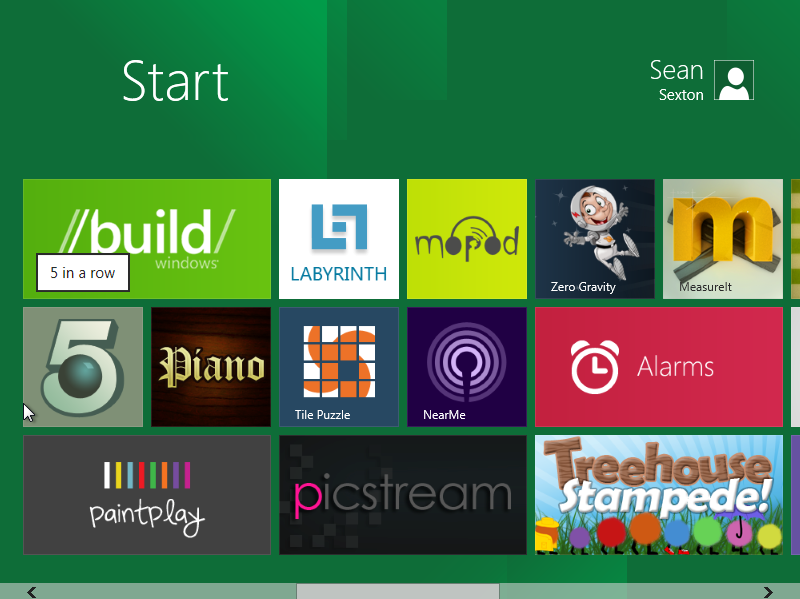
Besides, there’s really no better way to learn a new technology than to try to use it to build something real. Tiny sample apps can only go so far. At some point, you have to roll your sleeves up and actually build something if you want to become really familiar with the technology.

I’m not looking to come up with some big plan for a brilliant new web site here. I just want to pick a problem/domain area that’s sufficiently interesting to me that I’ll be motivated to build something cool.

It also wouldn’t hurt if what I build will be at least marginally useful.

So I have the following requirements:

  • Domain area should be something I’m very interested in
  • Application should be something that I can really use
  • Data model should be sufficiently rich to be interesting

Books

There’s really no contest.  I’m a lifelong bibliophile and I’ve taken many stabs at trying to catalog and organize my book collection over the years.  I’m guessing that I’ve started scratching out a database schema for a Books-I-Own database at least a dozen times in the past 20 years.  Just give me a boring corporate meeting and a sheet of paper with a little whitespace on it and I’ll invariably start sketching out an entity relationship diagram.

So that’s my choice for a sample real-world application: a book tracking application/site.

Mission Statement

Let’s start off by at least defining what this thing is going to do. For the moment, let’s assume that this is going to be some sort of database-backed web site.

Here’s my mission statement:

The purpose of the books web site is to keep track of the books that I own, books that I’ve read and the books that I want to read.

Short but sweet and even a little bit ambitious in its scope.

How About a Name

I’ll get tired pretty quickly of calling this thing “the books database” or “the books web site”.  So we need an honest to God site name with an associated domain name.

This is the point in a new project, even a sample project, when you can easily lose many hours on the godaddy.com site, trying to find a domain name that doesn’t suck and has at least a couple of vowels.

I won’t waste my time trying to find the holy grail of domain names for my little book database project.  Instead, I’ll just pick something sort of short that I think I can remember.  After 10-15 mins of godaddy’ing, here’s what I came up with:

yabts.com – Yet Another Book Tracking Site

That’s perfect:  an honest-to-God 5-letter domain name that I can actually remember.

Mission Objectives

The next step is to define some basic “mission objectives”.  These are the very high-level statements of what my little application is going to do.  I’ll try to stay very firmly in the realm of What, rather than How.  I’m also allowing myself to be a little bit ambitious or even grandiose–this is my “dream list” for the book tracking site that I’ve always wanted.

YABTS Mission Objectives:

  • Keep track of all the books that I own
  • Keep track of books that I want to buy
  • Keep track of all books that I’ve ever read
  • Keep track of recommended reading lists
  • Keep track of specific books that I’d like to read
  • For the books that I own, track whether I’ve read them or not
  • Record my personal thoughts (review) for the books that I’ve read
  • Store specific notes on some of the books that I’ve read
  • Track book lists and collections for other people, too
  • Publish my book collection information to the web
  • Keep track of books that people have borrowed from me
  • Share reviews of books that I’ve read with other people
  • Find other readers who share similar book interests
  • Track my progress as I work through “great book” lists
  • Let people browse the “great book” lists all in one place
  • Let people create their own recommended reading book lists
  • Organize my reading lists by subject
  • Organize my book collection by subject

Okay, I had to pull the plug on the idea-generating fairy after about 5 minutes.  What started out as a simple list of books that I own just kept growing and growing as I thought of more and more “must have” features.  But this list will do fine for now as a starting point.

Where Are We?

That should do for the time being.  I now have a vision for a sample application that I can actually get sort of excited about.  I’ve made a list of all the stuff that my application should do and I’ve payed my  money to godaddy.com to get my domain name.

Next time, I’ll continue by diving into some actual data modeling.

Silverlight 4 Project Types part I – Silverlight Application

Ok, let’s take a look at the different types of Silverlight applications that you can create out-of-the-box with Visual Studio 2010.  Now that I’ve installed Visual Studio 2010 and Silverlight 4, I want to take a quick spin through each of the different project types that the New Project wizard makes available.

After firing up Visual Studio 2010, I click on the New Project link and then select the Silverlight project type under C#.  Here’s the default list that I see:

  • Silverlight Application
  • Silverlight Navigation Application
  • Silverlight Class Library
  • Silverlight Business Application
  • WCF RIA Services Class Library
  • Silverlight Unit Test Application

I’d like to take a quick look at each project type, looking at the pieces that make up the project and then thinking a little bit about when to use that particular project type.  As I walk through the various project types, I’d also like to think a little bit about the ecosystem in which the Silverlight application lives.  In other words, what other components might you typically create when designing a solution of that type?

I also want to think a little bit about the tooling.  What tools would you typically use to work on the project that you’re creating?  Would Visual Studio 2010 alone be sufficient?  Or would you spend a lot of time working in Blend?  What about SQL Server 2008?

The Silverlight Application

The first project type—the Silverlight Application—looks like it might be the same thing that I created with Visual Studio 2008 and Silverlight 2, back in the Hello Silverlight World, Part 1 post.

The New Application dialog that we see next is very similar to what I saw with Visual Studio 2008 and Silverlight 2.  As before, we have to host our Silverlight application somewhere.

Notice that this time we have one additional project type that we didn’t have before—an ASP.NET MVC Web Project.  So we can basically go with a “classic” ASP.NET web site or an MVC web site.

The default is to host Silverlight in a new ASP.NET web application project.  But if I uncheck the first checkbox, I get a simple Silverlight project with no containing web site:

If you go this route and then press F5 to “run” your Silverlight application, Visual Studio will just create a test .html page in which to host your Silverlight control.

If you take a look at this page, you’ll see a simple HTML page with a familiar <object> tag hosting the Silverlight control.  (See my post on the Lifecycle of a Silverlight Control for more details on how this is done).

If we instead go with the defaults on the New Silverlight Application dialog (host the Silverlight Application in a new ASP.NET Web Application project), we end up with a simple ASP.NET project that contains both .html and .aspx pages hosting the new Silverlight control.

In either case, .html or .aspx, your Silverlight application is embedded in the web page

<div id="silverlightControlHost">
 <object data="data:application/x-silverlight-2," type="application/x-silverlight-2" width="100%" height="100%">
 <param name="source" value="ClientBin/SLApp1.xap"/>
 <param name="onError" value="onSilverlightError" />
 <param name="background" value="white" />
 <param name="minRuntimeVersion" value="4.0.41108.0" />
 <param name="autoUpgrade" value="true" />
 <a href="http://go.microsoft.com/fwlink/?LinkID=149156&v=4.0.41108.0" style="text-decoration:none">
 <img src="http://go.microsoft.com/fwlink/?LinkId=161376" alt="Get Microsoft Silverlight" style="border-style:none"/>
 </a>
 </object><iframe id="_sl_historyFrame" style="visibility:hidden;height:0px;width:0px;border:0px"></iframe></div>

As I describedin The Lifecycle of a Silverlight Control, this <div> tag embeds your Silverlight application (control) into a web page using the application/x-silverlight-2 MIME type.  This MIME type now maps to the AgControl.AgControl.4.0 class, implemented in npctrl.dll, which can be found in C:\Program Files\Microsoft Silverlight\4.0.41108.0.

Visually, the pieces of the puzzle look like this (from MSDN article on Silverlight 4.0 Application Services):

So as before, a Silverlight application is managed code that runs in the context of a browser plugin.  Here’s how things work when your browser renders a page containing a Silverlight control:

  • Browser renders HTML  from .html page (or generated HTML from ASP.NET page)
  • Browser sees <object> tag for application/x-silverlight-2 MIME type and fires up the Silverlight plug-in
  • Silverlight plug-in loads the Silverlight core services
  • Silverlight plug-in loads the Silverlight CLR, which creates an AppDomain for your application
  • .xap file containing your Silverlight application is downloaded from the server
  • Your application manifest is loaded/read (from AppManifest.xaml, in .xap)
  • Your main Silverlight application DLL is loaded (from .xap)
  • Silverlight CLR instantiates your Application object and fires its Startup event
  • Your application’s Startup event creates a new instance of your main page (a Silverlight UserControl)
  • Your main page (e.g. MainPage in wizard-generated project) renders itself by reading/loading its .xaml file

Voila.  At the end of all this, you get a Silverlight Application rendered in an ASP.NET web page.  In our case, having generated everything using the Project Wizard, we can just press F5 to run the application–launching a browser window and loading your auto-generated ASP.NET page.  It looks like this (the Silverlight application has the green background):

The XAP Payload

One final topic to cover quickly is–what exactly does the downloaded .xap file contain?  In our wizard-generated test project, you’ll find a ClientBin directory, which contains the compiled Silverlight application in a .xap file.  In our case, it’s named SLApp1.xap.

If you just rename the .xap file as SLApp1.zip and double-click on it, you can see what it contains:

The main pieces here are the application manifest, which tells the Silverlight runtime what object to start up first, and the assembly in which that object lives.  The .xap file also contains the assembly (SLApp1.dll) that contains our actual code.

The .xap file also contains some dependent DLLs, which are sent down to the client as part of the .xap package.

Wrapping Up

That’s all there is to a basic Silverlight Application.  Next time, I’ll take a look at the Silverlight Navigation Application, which lets us create a complete Silverlight application with multiple pages, rather than a single user control.