Session – Microsoft Silverlight, WPF and the Microsoft .NET Framework: Sharing Skills and Code

PDC 2008, Day #1, Session #4, 1 hr 15 min.

Ian Ellison-Taylor

This session focused on sharing code between WPF and Silverlight applications.  How easy is it to take an existing WPF application and run it in the cloud by converting it to Silverlight 2?  Conversely, how easy is it to take a Silverlight 2 application and run it locally as a WPF application?

The bottom line is that it’s really quite easy to run the same application as either a local WPF application or a cloud-based Silverlight 2 app, with just a few modifications.

Ian started with a quick summary of when you’d want to use WPF vs. Silverlight 2:

  • WPF: best for desktop apps needing maximum performance and leveraging 3D graphics on the desktop
  • Silverlight 2: best for RIAs, smaller and lighter, able to run on various platforms and in various browsers

One of the more interesting parts of the talk was Ian’s description of the history of Silverlight 2.  We know that Silverlight 2 uses a smaller version (much smaller) of the .NET Framework, which it deploys via the browser, if a client needs it.

But Ian described how, in the first attempt at a Silverlight 2 framework (WPF/e at the time), they started with the full framework and started pulling stuff out.  They quickly found, however, that it made more sense to start with a clean slate and then only pull in the bits that they needed for Silverlight 2.

Applications written in WPF or Silverlight 2 can be moved to the other platform fairly easily, but Ian said that it was a bit easier to convert Silverlight 2 apps to run as WPF than the other way around.  This makes sense—WPF apps might be using parts of the full .NET framework that aren’t supported in the Silverlight 2 subset.

Also interesting, Ian suggested that developers start by learning Silverlight 2 and then moving to WPF, rather than the other way around.  Things are done in Silverlight 2 in a much simpler way, so the learning curve will likely be shorter.  As an example, he talked about the property system, which is far more complex in WPF.

This was an excellent talk, with some nice demos.  Ian worked simultaneously on a WPF and a Silverlight 2 application, adding features to one and then moving them over to the other platform.  It was an excellent way to highlight some of the differences and the gotchas that developers will run into.  But it also showed off how similar the platforms are and how easy it is to migrate an app from one to the other.

Session – Microsoft Sync Framework Advances

PDC 2008, Day #1, Session #3, 1 hr 15 min.

Lev Novik

My next session talked about the next version of something called the Microsoft Sync Framework.  I’d never heard of the framework, prior to the talk.  And I’m still not exactly sure where it fits into the full family of Microsoft’s cloud-based services and tools.

My best guess for now is that the Sync Framework basically lives in the Live Services arena, where it supports Live Mesh.

My understanding of where the Sync Framework fits in goes something like this.  You can write an application against the Mesh Framework, allowing you to take advantage of the support for feeds and synchronization that are part of that framework.  And if you wanted data synchronization between applications that run exclusively in this framework, you’d stop there.  But if you want to synchronize data between legacy applications that were not written to be Mesh apps, you’d use the Sync Framework to write a custom sync provider for that legacy application.  This would allow that application’s data to sync up with other Sync Framework providers, or with Mesh applications.

That’s my current take on where the Sync Framework fits in, but I’ll maybe learn a bit more in later sessions.  One thing that wasn’t clear from Lev’s talk was whether Mesh itself is using the Sync Framework under the covers, or whether it’s something entirely different.

Lev talked very fast and sounded just a little bit like Carl Sagan.  But once I got past that, he did a decent job of showing how sync providers work to synch up various types of data.

The basic takeaway here goes something like this:

  • Data synchronization done properly is tough
  • The Sync Framework gives you all the hooks for handling the complexity

Lev pointed out that getting the first 80% of data synchronization working is fairly easy.  It’s the remaining 20%, when you start dealing with various conflicts, that can get tricky.

V1 of the Sync Framework has built-in providers for File Systems and Relational Databases.  Version 2 adds support for SQL Data Services and for Live Mesh.

The bulk of Lev’s talk was a demo where he showed the underlying code in a simple sync provider, synching data between his local file system, his Live Mesh data store, and a SmugMug account.

The synchronization was pretty cool and worked just like you’d expect it to.  Throughout the demo, Lev was doing a 3-way synchronization and files added, updated, or deleted in one of the endpoints would be replicated at the other two.

Lev also talked a fair bit about how you deal with conflicts in the sync framework.  Conflicts are things like concurrent updates—what do you do when two endpoints change the same file at the same time?  Lev demonstrated how conflicts are resolved in the sync providers that you write, using whatever logic the provider wants to use.

Takeaways

The Sync Framework seems a very powerful framework for supporting data synchronization across various data stores.  Out of the box, the framework supports synching between a number of popular stores, like relational databases, file systems, and Mesh applications.  And the ability to write your own sync providers is huge.  It means that you can implement synchronization across the web between almost any type of application or data store that you can imagine.

Session – Microsoft Blend: Tips & Tricks

PDC 2008, Day #1, Session #2, 45 min.

Doug Olson & Peter Blois

My next session was run by a couple of the key guys on the Expression Blend team.  (Which is located in Minneapolis, if I remember correctly).  They did a quick intro to Blend and then showed various techniques for using Blend to develop WPF applications.

This was my first real view of Blend in action and it was fairly impressive.

As everyone explains, the basic idea of Blend is that it is a tool to be used primarily by designers.  Developers are expected to work primarily in Visual Studio, and designers in Blend.  The beauty of the architecture is that both tools work directly with the XAML file(s) used by the application.  So there is no converting of designer-supplied UIs into Visual Studio.

The slightly shocking thing was Peter’s main demo—he opened a sample project in Blend.  And the sample project was Blend itself.  It got a little surreal to see bits and pieces of Blend loaded inside its own designer.  But Peter proved the point that it was straightforward to work with large WPF projects in Blend.

Also notable was Peter’s quick demo of a little tool called “WPF Snoop” that he wrote.  It inspects a running WPF application and breaks it apart into its constituent visual elements.  Then came the big applause-inducing moment of the day.  Peter flipped a 2D/3D switch, and WPF Snoop rotated the 2D view of the Blend GUI into three dimensions, showing an exploded view of all visual elements in the application.  Gorgeous.

Doug and Peter’s other main theme was how easy it is for a designer to take an existing project and just restyle the various elements.  As an example, Peter demo’d a little Twitter application that he wrote and then showed the version produced by a designer that he worked with.  The impressive thing is how different the designer could make the application look, and even behave, just by changing the GUI from Blend.  This really serves to prove the point of separation of GUI and behavior through the use of two different tools.

Takeaways

  • Blend is a powerful tool and can even handle very large projects
  • It’s true that designers can significantly modify look/feel of an app without the developer being involved
  • WPF Snoop is a must-have tool

Session – A Lap Around Windows Azure, part 1

PDC 2008, Day #1, Session #1, 1 hr 15 min.

Manuvir Das

In my first PDC session, Manuvir Das gave us some more information about the Azure platform.

He started talking about the platform for traditional desktop clients as being the operating system.  It provides a variety of services that all applications need, to run on the platform.

Windows Azure serves as a similar platform for web-based applications.  In other words, Azure is the operating system for the cloud.  It provides the “glue” required for cloud-based services.

According to Manuvir, the four main features of Azure as a platform are:

  • Automated service management
  • Power service hosting environment
  • Scalable, available cloud storage
  • Rich, familiar developer experience

Manuvir demonstrated how an Azure-based service is defined.  The developer describes the service topology and health constraints.  And Azure automatically deploys the service in the cloud.  This means that your service runs on Microsoft’s servers and is scaled out (run on more than one server) as necessary.

As a sample topology, Manuvir showed a service application consisting of a web-facing “role” and a worker “role”.  The web-facing part of the application accepted requests from the web UI and the worker role processed the requests.  When the author configures the service, he specifies the desired number of instances for each of these roles.  Azure seamlessly creates a separate VM for each instance of each role.

A developer can create and test all of this infrastructure entirely on a local desktop by using the Azure SDK.  The SDK simulates the cloud environment on the developer’s PC.  This is valuable for uncovering concurrency and other issues prior to deployment.

Manuvir also talked about Azure providing scalable and available cloud-based storage.  The data elements used for storage are things like Blobs, Tables, and Queues.  Future revs of the platform will support other data objects, including File Streams, Caches, and Locks.  Note that these data structures are simpler than a true relational data source.  If a relational data store is required, the service should use something like SQL Services—Microsoft’s “SQL Server in the cloud” solution.

Rollout

Windows Azure goes “live” this week, for a limited number of users.  It will likely release as a commercial service sometime in 2009.

The business model that Azure will follow will be some sort of pay-for-use model.  Manuvir said that it would be competitive with other similar services.

At some point, Azure will better support geo-distribution of Azure-based services.  It’s also expected to eventually support the ability to run native (x86) code on the virtual servers.

Demo

The obligatory demo by a partner featured Danny Kim, from Full Armor.  Danny described an application that they had created for the government of Ethiopia, that allowed them to track thousands of teachers throughout the country and push out data/documents to the teachers’ laptops.

This demo was again a bit more interesting as a RIA demo than a demo of Azure’s capabilities.  The only Azure-related portion of the demo involved Danny explaining that they were currently supporting 150 teachers, but would soon scale up to several hundred thousand teachers.  But they hadn’t yet scaled out, so Danny’s application didn’t really highlight Azure’s capabilities.

PDC Keynote – Windows Azure Arrives

I love the Terminator movies.  That’s why I need to share this fact—Skynet has finally arrived, and it’s called Windows Azure.

In short, Windows Azure is Microsoft’s platform for cloud-based services and applications. It’s a platform on which you can deploy your own applications, leveraging Microsoft-supplied hosting, service management, data services, and scalability.  It’s also the platform that Microsoft is using to host all of their subscription-based enterprise services, like Live Services and SQL Services.  (Umm, eventually, I think).

Or maybe it’s Skynet—the network that allows the machines to finally take over.  It’s hard to tell.  Maybe not—Steve Ballmer looks not a bit like the Terminator.

Because I’m not an enterprise software sort of guy, some of the stuff in the keynote made my eyes glaze over.  When Dave Thompson started demoing Sharepoint and Microsoft Dynamics CRM Services, I found myself having a truly deep I-don’t-really-give-a-crap reaction.  It’s just hard to get pumped up about timesheets and status reports.

On the other hand, there are things Ray mentioned that hint at being fairly interesting.  If the Azure platform really makes it simple to scale out a web app, that would be cool.  Or if they can provide SQL Server data services to web-based apps in a simple way, that would also be cool.

Ray was talking about two basic things today:

  • Windows Azure — the underlying platform for cloud-based services
  • Microsoft’s services that are based on Azure

For Azure as a platform, the mom-and-apple-pie speaking points are attractive:

  • Move Microsoft’s expertise for scaling web-based apps into a platform
  • Easy to scale up/out
  • Easy to deploy globally  (i.e. not just to server sitting in some city)
  • Federated identity, allowing enterprise identities to move into cloud

Ray also showed the various Microsoft services that will be available to applications/organizations, and which run on Azure:

  • Live Services
  • .NET Services
  • SQL Services
  • SharePoint Services
  • Microsoft Dynamics CRM Services

Live Services—seems to be the “kitchen sink” category.  Possible pieces include Live Mesh for synchronized storage, and interop with other Windows Live bits, like Messenger and Photo Gallery.  Maybe I missed something, but I don’t think that Muglia really talked about this box.  More info on Live Services here.

.NET Services—Muglia touched briefly on these higher-level application services that are built on top of Azure.  They include: Service Bus (connect applications over the Internet), Access Control (federated identity based on claims), and Workflow Service (running Workflow in the cloud).  More info on .NET Services here.

SQL Services—SQL Server “in the cloud”, available to your web apps.  This is basically just a subscription model for SQL Server, where you “pay as you go” and get access to SQL Server data stores in a scalable fashion.  For more info, go here.

SharePoint Services—blah blah blah enterprise blah blah

Microsoft Dynamics CRM Services—see SharePoint Services

Oslo

I forget who was talking at the time, maybe Muglia or maybe Ozzie.  But on one of the high-level slides included Oslo as a little blurb.  Oslo is a new platform for modeling applications and creating domain-specific languages.  Promises to be very interesting, especially given that Don Box and Chris Sells are on this team.

Demos

What would a keynote be without cool demos by Microsoft partners, who have put their gonads on the line by using the new Microsoft technologies in some production environment.  Microsofties at the keynote (Amitabh?) alluded to the need for demos by admitting that a new platform wasn’t that sexy—you really need a cool demo to see what it’s capable of.

I’m sorry to say that the main example of an application built on Azure was a British startup, bluehoo.com, whose purpose in life is for mobile users to discover other mobile users sitting near them by using a little animated blue avatar.  WTF?!  We already have that application.  It goes like this: a) stand up; b) turn to your right; c) extend hand; d) introduce yourself.

Bluehoo.com seems a major fail.  The demo didn’t really show off any of the true Azure goodness that was being touted.  The closest it came was their CEO saying that he’d have to go tweak his Azure configuration to bring more servers online.  Maybe they might have done some sort of animated load testing to prove their point?  Worse yet, the bluehoo.com site is DOA—nothing more than a linkback to a twitter feed.  Ugh.  Bluehoo would have made a fine Silverlight 2 demo, but as an Azure demo it was pretty thin.

Takeaways

As lackluster as the demos were, the rollout of Azure really is a big deal.  Azure demos aren’t as flashy as the NBC Olympics site that was demoed with the rollout of Silverlight 2.  But Azure really is more about the back-end anyway—it’s truly a platform for developing scalable web applications.  The man on the street won’t know (or care) about it.  But for web developers, Skynet truly is here.

Microsoft PDC Starts

Ok, yes, everyone seems to be at PDC and those who aren’t are getting sick of all of the hype. But hey—PDC only comes along every few years, so we have to take advantage of it when it does!

Things are starting to come alive here at the convention center in LA.  I stopped by yesterday to pick up my badge and “swag bag”, but didn’t attend any of the pre-conference sessions.

Swag bag: I didn’t see any signs yesterday directing me to where I might get my swag, but I started watching the geeks wandering by who DID have bags and followed the geek-trail backwards.

I was a little disappointed not to get the external USB drive in the swag bag that we’ve heard about.  Instead, I score a silly mug, geeky t-shirt, conference booklet and a crapload of 3rd party adverts.

But then I noticed that I had a second ticket for picking stuff, and it mentioned being valid only after Tuesday at 1PM.  Ahh, got it.  The USB drive is going to contain the Windows 7 alpha, as well as probably copies of all of the session slides.  So Microsoft doesn’t want the alpha or session info “in the wild” until it is officially “released” at the keynotes.

Speaking of keynotes, today’s will feature Ray Ozzie and Bob Muglia and starts in about an hour.  Two hours of Ozzie goodness.  Tomorrow, we have another 2-hr keynote with Ray Ozzie, Steven Sinofsky, Scott Guthrie and David Treadwell.

So far, it’s clear that Windows 7 will be prominently featured at PDC.  Posters and market splashes are everywhere.  You’ll do fine if you just mentally subsitute “Vista 6.1” whenever you read the marketing-derived “7”.

Also promising to make a big splash here at PDC–Live Mesh and cloud computing.  More to come..

There will be five session slots today, starting at 11:00 AM and running through 6:30 PM.  I plan to blog rough notes from the sessions that I attend, if I have time.

Oh, by the way–LA is supposed to hit a high of 86 degF today, and sunny.  (Well, in LA, “sunny” really means “mostly smoggy”).  Thinking fondly of my fellow Twin Citians and the first snow flurries of the season.

I WPF, Therefore I Blend

If you’re a developer doing WPF development, you really need to be using Expression Blend.

Yes, I know the party line on WPF development runs something like this:

  • Every dev team should have at least 1 developer and 1 designer
  • Developers can’t design decent-looking GUIs to save their soul
  • Designers can’t be trusted with code, or anything close to code (excepting XAML)
  • Devs will open a project in Visual Studio and do all of their work there
  • Designers will open the same project in Blend and do all of their work there
  • Devs wear button-up shirts that don’t match their Dockers
  • Designers wear brand-name labels and artsy little berets

I don’t quite buy into the idea of a simple developer/designer separation, with one tool for each of them.  (I also don’t wear Dockers).

It’s absolutely true that Blend makes it easier for a designer to be part of the team and work directly on the product.  The old model was to have the designers do static mockups in Photoshop and then have your devs painstakingly reproduce the images, working in Visual Studio.  The old model sucks.

The new model, having Blend work directly with XAML and even open the same solution file as Visual Studio, is a huge advancement.  Designers get access to all of the flashy photoshoppy features in Blend, which means that they can do their magic and create something that actually looks great.  And devs will instantly get the new GUI layout when they use Visual Studio to open/run the project.

The problem that I have with the designer/developer divide is as follows.  To achieve an excellent user experience takes more than just independently creating form and function and then marrying the two together.  A designer might create GUI screens that are the most beautiful thing on the planet.  And the dev working with him might write the most efficient and elegant code-behind imaginable.  But this isn’t nearly enough to guarantee a great user experience.

User experience is all about user interaction.  Poorly done user interaction will lead to a failed or unused application far more quickly than either an ugly GUI or poorly performing code.

So what exactly is “user interaction”?  In my opinion, it’s everything in the application except for the code and the GUI.  User interaction is all about how the user uses your application to get her work done (or to create what she wants to create).  Does the application make sense to her?  Does using it feel natural?  Allow her to be efficient?  Are features discoverable?  Does the flow of the application match her existing workflow?

The only way to get user interaction correct is to know your user.  This means truly understanding the problem that your users are trying to solve, as well as what knowledge they have about the problem space.

There is an easy four step process to get at this information: 1) talk to the users; 2) prototype; 3) observe them using the prototype; 4) repeat.

There are a whole host of specific strategies to help you in this process, including things like: use cases, user stories, storyboarding, etc.  The literature is full of good processes and techniques for working early and often with users to get both the right set of functionality and a great user experience.

But let’s get back to designers and developers.  The reason that I don’t buy into the clean GUI/code split (or code + markup, if you’re a Petzold fan) is that good user interaction requires both code and markup.  Somebody needs to be responsible for the user interaction model and it should come first, requiring some code and some markup.

If you do buy into the devs-Studio/designers-Blend party line for WPF development, there are two simplistic approaches that you might be tempted to take, both equally bad:

  • Developer codes up all required functionality, puts API on it and designer creates screens that call into the API
  • Designer mocks up screens and then developers create code behind those screens to get desired functionality

The problem behind both approaches is, of course, that no one is focused on how the user is using the application.  The designer is thinking about the user in aesthetic terms and that’s a huge improvement over a battleship grey GUI.  But it’s not nearly enough–not if your goal is to achieve a great user experience.

If someone needs to be responsible for the user experience, it should be the developer.  If you are lucky enough to be working with a designer, the developer is still the team member that drives the entire process.  The designer is likely working in support of the developer, not the other way around.  (Note: I’m talking here about developing rich WPF client software, rather than web-based sites or applications.  With web-based projects, it’s likely the designer that is driving the project).

My vote is for a process that looks something like the following:

  • Developer initiates requirements gathering through user stories and use cases
  • Developer starts sketching up storyboards, with input from designer
  • Developer builds prototype, using both Visual Studio and Blend
  • Team presents prototype to user, walks through use cases, gets feedback, iterates
    • Important to focus here on how the user works w/application, rather than how it looks
  • As pieces of user interaction solidify
    • Designer begins refining those pieces of GUI for aesthetics, branding, etc.
    • Developer begins fleshing out code behind and full functionality
  • Continue iterating/reviewing with user

You might agree with this process, but say that the developer should work exclusively in Visual Studio to generate the prototypes.  Why is it important for them to use Blend for prototyping and iterating with the user?

The simple truth is that Blend is far superior to Visual Studio for doing basic GUI layout.  Using Visual Studio, you can definitely set property values using the property grid or by entering XAML directly.  But the property editors in Blend make it much easier to quickly set properties and tweak controls.

Given that the developer should be doing the GUI prototyping, I think it makes sense for them to use both Blend and Visual Studio, rather than just Visual Studio alone.

The bottom line is this: the choice of using Blend vs. Visual Studio should be based on the task that you are doing, rather than who is doing that task.  Instead of Blend just being a tool for designers and Visual Studio a tool for developers, it’s more true that Blend is a tool for doing GUI design and Visual Studio a tool for writing/debugging code.  Given that I think the developer should be the person responsible for early prototyping of the GUI, they should be using both Blend and Visual Studio during the early phases of a project.

So if you’re a developer just getting into WPF, don’t write off Blend as an artsy-fartsy tool for designers.  Instead, just think of it as a GUI design tool.  Though you may not be great at putting together beautiful user interfaces, it’s definitely your job to create the early GUI prototypes.  You may not be responsible for the design of the GUI, but you should be responsible for designing the GUI.  So if you WPF, you really ought to Blend.  Who knows?  You might like it so much that you start wearing a beret.

Build a Kick-Shin Media Server PC

Here are the specs for a building a media server PC that is a bit more affordable than the Kick-Arse Media Server that I described last time. We’ll call this one a Kick-Shin Media Server.

I went through each component from last time and considered downgrading a bit, to get the price down.  The result is a machine that should do a respectable job at serving up media through Media Center in Vista, but won’t break the bank.

The planned use for my media server is to host all of my family photos and videos, as well as being equipped with a video capture card for capturing video directly from a satellite receiver.

I’ll use Media Center in Vista to serve up all of my photos, videos, and recorded television programs. Like Tivo, Media Center allows setting up the machine to grab all sorts of shows/movies that it finds in the schedule.

I plan to use an XBox 360 as my media extender. The XBox 360 is connected to the 50″ plasma TV and will use wireless ethernet (G, rather than N) to pull media from the server and play it on the TV.

Here is my proposed list of components:

Case: Antec Three Hundred Black ATX Mid Tower – $69.95

Power Supply: Antec EA650 650W ATX12V Ver.2.2 / EPS12V version 2.91 SLI Certified CrossFire Ready 80 PLUS Certified Active PFC – $99.99

Motherboard: GIGABYTE GA-EP45-DS3L LGA 775 Intel P45 ATX Intel – $99.99

CPU: Intel Core 2 Duo E8400 Wolfdale 3.0GHz 6MB L2 Cache LGA 775 65W Dual-Core – $169.99

CPU Fan: Use retail fan – $0

Memory: Patriot Extreme Performance 4GB (2 x 2GB) 240-Pin DDR2 SDRAM DDR2 1066 (PC2 8500) Dual Channel Kit Desktop Memory – $108.99
(Total of 4GB)

Hard Drive #1: Western Digital Caviar Black WD1001FALS 1TB 7200 RPM 32MB Cache SATA 3.0Gb/s – $189.99

Optical drive: SAMSUNG Black 22X DVD+R 8X DVD+RW 16X DVD+R DL 22X DVD-R 6X DVD-RW 12X DVD-RAM 16X DVD-ROM 48X CD-R 32X CD-RW 48X CD-ROM 2MB Cache SATA 22X DVD Burner – $24.99

Video card: MSI N9600GT-T2D512E GeForce 9600 GT 512MB 256-bit GDDR3 PCI Express 2.0 x16 HDCP Ready SLI Supported – $114.99

TV Tuner/Capture: Hauppauge WinTV-HVR 1800 MCE Kit 1128 PCI-Express x1 Interface – $99.99

Total: $978.83

Thoughts

Case: I stuck with Antec, but dropped down to the Three Hundred case: still lots of room in the case, but slightly less cooling.

Power Supply: We drop down to a 650W power supply, which should be enough if we don’t load the server up with too many drives or other cards.

Motherboard: Managed to stick with a P45 board, but one that supports fewer SATA drives (six).  If we need more than six drives, we could look at going with an external drive or drive array.

CPU: I dropped down from Quad Core to Dual Core, going with the E8400.  Should be fast enough for our basic needs.

Memory: We dropped back down to 4GB, which should be plenty.

1st hard drive: I deleted our fast 10,000RPM drive and we now just have a single 1TB SATA drive.  The OS will be marginally slower, but adequate for our needs.

Video card: I also dropped down a bit on the video card, since we don’t plan to use the server for actual gaming.  Stuck with NVidia, but we’re now going with a GeForce 9600 with 512MB memory.

TV Capture: We stuck with the Hauppage WinTV-HVR 1800, which is compatible with Vista-based Media Center.

Conclusions

We didn’t have to give up too much from our Kick-Arse ($1800) configuration to come down to about half the price.  This is a decent sub-$1000 PC that we could use as a media server or a software development box.

Build a Kick-Arse Media Server PC

I’m getting that itch to build another PC.  (It’s been >6 mos).  This time, my goal is to build a beefy media server PC.  I’ll equip it with a video capture card, which will turn it into a “PVR” — Personal Video Recorder, or basically a PC-based Tivo.

I’m calling this particular configuration a “kick-arse” server, because I’ve upscaled a lot of the components.  In most cases, you could get away with something less beefy, or less expensive.  But for a few extra pennies in each area, you can build a pretty nice PC.

This would also make a fine software development PC, as configured.  It would also make a decent gaming PC if you swapped out the video card with something a bit higher end.

My basic goal for building a PVR is as follows–the media server PC will host all of my family photos and videos, as well as being equipped with a video capture card for capturing video directly from a satellite receiver.  I’ve chosen not to go HD yet, since the Hauppage HD video capture card is not yet certified to work with Media Center.

I’ll use Media Center in Vista to serve up all of my photos, videos, and recorded television programs.  Like Tivo, Media Center allows setting up the machine to grab all sorts of shows/movies that it finds in the schedule.

I plan to use an XBox 360 as my media extender.  The XBox 360 is connected to the 50″ plasma TV and will use wireless ethernet (G, rather than N) to pull media from the server and play it on the TV.

Here is my proposed list of components:

Case: Antec Nine Hundred Black Steel ATX Mid Tower – $139.99
(http://www.newegg.com/Product/Product.aspx?Item=N82E16811129021)

Power Supply: Thermaltake W0116RU 750W – $159.99
(http://www.newegg.com/Product/Product.aspx?Item=N82E16817153038)
($50 mail-in rebate)

Motherboard: GIGABYTE GA-EP45-DQ6 LGA 775 Intel P45 ATX  – $234.99
(http://www.newegg.com/Product/Product.aspx?Item=N82E16813128343)

CPU: Intel Core 2 Quad Q9550 Yorkfield 2.83GHz 12MB L2 Cache LGA 775 95W Quad-Core Processor – $324.99
(http://www.newegg.com/Product/Product.aspx?Item=N82E16819115041)

CPU Fan: ARCTIC COOLING Freezer 7 Pro 92mm CPU Cooler – $24.99
(http://www.newegg.com/Product/Product.aspx?Item=N82E16835186134)

Memory: Kingston HyperX 4GB (2 x 2GB) 240-Pin DDR2 SDRAM DDR2 1066 (PC2 8500) Dual Channel Kit – $108.99×2 = $217.98
(2 pkgs, for total of 4 x 2GB = 8GB total)
(http://www.newegg.com/Product/Product.aspx?Item=N82E16820104038)
($20 mail-in rebate)

Hard Drive #1: Western Digital VelociRaptor WD3000GLFS 300GB 10000 RPM 16MB Cache SATA 3.0Gb/s – $294.99
(http://www.newegg.com/Product/Product.aspx?Item=N82E16822136260)
($25 mail-in rebate)

Hard Drive #2: Western Digital Caviar Black WD1001FALS 1TB 7200 RPM 32MB Cache SATA 3.0Gb/s – $189.99
(http://www.newegg.com/Product/Product.aspx?Item=N82E16822136284)

Optical drive: SAMSUNG Black 22X DVD+R 8X DVD+RW 16X DVD+R DL 22X DVD-R 6X DVD-RW 12X DVD-RAM 16X DVD-ROM 48X CD-R 32X CD-RW 48X CD-ROM 2MB Cache SATA 22X DVD Burner – $24.99
(http://www.newegg.com/Product/Product.aspx?Item=N82E16827151171)

Video card: GIGABYTE GV-N98TZL-512H GeForce 9800 GT 512MB 256-bit GDDR3 PCI Express 2.0 x16 HDCP Ready SLI Supported Video Card w/ Zalman VF830 – $169.99
(http://www.newegg.com/Product/Product.aspx?Item=N82E16814125227)

TV Tuner/Capture: Hauppauge WinTV-HVR 1800 MCE Kit 1128 PCI-Express x1 Interface – $99.99
(http://www.newegg.com/Product/Product.aspx?Item=N82E16815116015)

Total: $1887.88
Total rebates: $95

Total less rebates: $1792.8

Thoughts

Case: I went with the Nine Hundred case because of the large number of internal bays (6).  Also, it seems to be a great case for cooling.  I also decided on Antec because I’ve had very good luck with their cases in the past.

Power Supply: I figure that I might eventually have more drives in the case, so it’s important to have enough power.  1kW is still far too pricey, but we can get 750W for a reasonable price.

Motherboard: I waffled between the Intel P45 and X48 chipsets, but went with this board (P45) in the end, because of its support for 16GB and the huge number of connections (10 SATA, 8 USB).  I’ll be starting initially with 8GB, already a huge amount of memory.  And one could argue that I’m not likely to bump beyond this.  But if memory prices continue to come down, especially on DDR2, it would be reasonable to bump up to 16GB.  One might also argue that a media server doesn’t need this much memory, but having lots of memory will help in doing video editing on the PC.  It also keeps my options open for running one or more VMs on this box.

CPU: Going with a Quad Core for a media server is likely overkill for most people.  But if I end up using the machine directly, especially for video editing or rendering/conversion, I think that I’ll take advantage of having four cores (as well as all of the memory).

Memory: 8GB total, which is very sexy.  (Can do this because I’ll be going with 64-bit Vista).

1st hard drive: The root drive, where Vista will be installed, will be a 10000 RPM drive.  This is a very good choice, since bumping up the speed of the drive where your OS is installed will likely make a big difference.

2nd hard drive: The second drive will be a basic 1TB SATA drive.  I was tempted to go with multiple drives and configure as RAID 5, but the slight advantage for data protection isn’t worth all the extra cash.  I’ll protect my data in other ways (e.g. backups).

Video card: Because this won’t be primarily a gaming PC, I opted for a middle-range graphics card–one that can handle any recent games thrown at it, but not with over-the-top performance.  I also went with NVidia, rather than ATI, but that’s personal preference–I see nothing wrong with ATI cards.

TV Capture: I’m going with the Hauppage WinTV-HVR 1800, which is reportedly compatible with Vista-based Media Center.

Conclusions

I’m still waiting to pull the trigger on all of the gear listed here.  But I will likely purchase everything and will then post photos of the rig as I assemble it.

Next time I’ll build a “kick-shin” media server–one that fulfills that same basic purpose as the high-end media server, but at a more reasonable price.

Writing a Screen Saver in WPF

I take my Raindrop Animation from last time and converted it into a screen saver, complete with a Settings dialog, to allow tweaking the various parameters.

Note: Full source code available on Codeplex, at: http://wavesimscrsaver.codeplex.com/

Last time, I created a WPF application that displayed an animated simulation of raindrops falling on water.  It was a little work, but not a huge effort, to convert that application into a Windows screen saver.

A screen saver is mainly just a regular .exe file with a .scr extension that has been copied into your C:\Windows\system32 directory.  In the simplest implementation, your application will just run when the screen saver kicks in.  But a fully functional screen saver in Windows will also support two additional features—running in the little preview window in the Screen Saver dialog and providing a customization GUI that is launched from the Settings button in the Screen Saver dialog.  You’ll also want to tweak the normal runtime behavior so that your application runs maximized, without window borders, and responds to mouse and/or keyboard events to shut down gracefully.

Our existing Raindrops WPF application runs in a WPF window.  We can easily tweak its behavior to run maximized and without a window border.  But we also need to interpret command line parameters so that we can decide which of the three following modes to run in:

  • Normal  (run screen saver maximized)
  • Preview  (run screen saver that is hosted in the little preview window)
  • Settings  (show dialog allowing user to tweak settings)

The first thing that we need to do is to change the main Application object in our WPF application and tell it not to start up a window, but to execute some code.  We remove the StartupUri property (was set to “Window1.xaml”) and replace it with a Startup property that points to an Application_Startup method.

Here is the modified App.xaml code:


<Application x:Class="WaveSim.App"
    xmlns="http://schemas.microsoft.com/winfx/2006/xaml/presentation"
    xmlns:x="http://schemas.microsoft.com/winfx/2006/xaml"
    Startup="Application_Startup">
    <Application.Resources>

    </Application.Resources>
</Application>

The bulk of our changes will be in the new Application_Startup method.  It’s here that we parse the command line and figure out what mode we should run under.  The Screen Saver mechanism and dialog uses the following API to tell a screen saver how to run:

  • /p handle    Run in preview mode, hosting inside preview window whose handle is passed in
  • /s        Run in normal screen saver mode (full screen)
  • /c        Run in settings (configuration) mode, showing GUI to change settings

Here are the entire contents of App.xaml.cs, with the command line parsing logic:

using System;
using System.Collections.Generic;
using System.Configuration;
using System.Data;
using System.Drawing;
using System.Linq;
using System.Windows;
using System.Windows.Interop;
using System.Runtime.InteropServices;
using System.Windows.Media;

namespace WaveSim
{
    /// <summary>
    /// Interaction logic for App.xaml
    /// </summary>
    public partial class App : Application
    {
        // Used to host WPF content in preview mode, attach HwndSource to parent Win32 window.
        private HwndSource winWPFContent;
        private Window1 winSaver;

        private void Application_Startup(object sender, StartupEventArgs e)
        {
            // Preview mode--display in little window in Screen Saver dialog
            // (Not invoked with Preview button, which runs Screen Saver in
            // normal /s mode).
            if (e.Args[0].ToLower().StartsWith("/p"))        
            {
                winSaver = new Window1();

                Int32 previewHandle = Convert.ToInt32(e.Args[1]);
                //WindowInteropHelper interopWin1 = new WindowInteropHelper(win);
                //interopWin1.Owner = new IntPtr(previewHandle);

                IntPtr pPreviewHnd = new IntPtr(previewHandle);

                RECT lpRect = new RECT();
                bool bGetRect = Win32API.GetClientRect(pPreviewHnd, ref lpRect);

                HwndSourceParameters sourceParams = new HwndSourceParameters("sourceParams");

                sourceParams.PositionX = 0;
                sourceParams.PositionY = 0;
                sourceParams.Height = lpRect.Bottom - lpRect.Top;
                sourceParams.Width = lpRect.Right - lpRect.Left;
                sourceParams.ParentWindow = pPreviewHnd;
                sourceParams.WindowStyle = (int)(WindowStyles.WS_VISIBLE | WindowStyles.WS_CHILD | WindowStyles.WS_CLIPCHILDREN);

                winWPFContent = new HwndSource(sourceParams);
                winWPFContent.Disposed += new EventHandler(winWPFContent_Disposed);
                winWPFContent.RootVisual = winSaver.grid1;
            }

            // Normal screensaver mode.  Either screen saver kicked in normally,
            // or was launched from Preview button
            else if (e.Args[0].ToLower().StartsWith("/s"))     
            {
                Window1 win = new Window1();
                win.WindowState = WindowState.Maximized;
                win.Show();
            }

            // Config mode, launched from Settings button in screen saver dialog
            else if (e.Args[0].ToLower().StartsWith("/c"))     
            {
                SettingsWindow win = new SettingsWindow();
                win.Show();
            }

            // If not running in one of the sanctioned modes, shut down the app
            // immediately (because we don't have a GUI).
            else
            {
                Application.Current.Shutdown();
            }
        }

        /// <summary>
        /// Event that triggers when parent window is disposed--used when doing
        /// screen saver preview, so that we know when to exit.  If we didn't
        /// do this, Task Manager would get a new .scr instance every time
        /// we opened Screen Saver dialog or switched dropdown to this saver.
        /// </summary>
        ///
<param name="sender"></param>
        ///
<param name="e"></param>
        void winWPFContent_Disposed(object sender, EventArgs e)
        {
            winSaver.Close();
//            Application.Current.Shutdown();
        }
    }
}

The most complicated thing about this code is what we do in preview mode.  We need to basically take our WPF window and host it inside an existing Win32 window—the little preview window on the Screen Saver dialog.  To start with, all we have is the handle of this window.  The trick is to create a new HwndSource object, specifying the desired size and who we want for a parent window.  Then we attach our WPF window by changing the HwndSource.RootVisual property.  We also hook up an event handler so that we know when the window gets disposed.  When the parent window goes away, we need to make sure to shut our application down (or it will continue to run).

Running in normal screen saver mode is the most straightforward of the three options.  We simply instantiate our Window1 window and show it.

For settings/configuration mode, we show a new SettingsWindow window that we’ve created.  This window will display some sliders to let the user change various settings and it will also persist the new settings to an .xml file.

The Raindrop settings are encapsulated in the new RaindropSettings class.  This class just contains public (serializable) properties for the various things we want to tweak, and it includes Save and Load methods that serialize the properties to an .xml file and read them back in.

It’s important that we serialize these properties in an .xml file because the screen saver architecture doesn’t expect to display a settings dialog while the screen saver is running.  Instead, it expects to run the application once to allow the user to change settings and then run again to show the screen saver.

Here is the full code for the RaindropSettings class.  Note that we use auto-implemented properties so that we don’t have to write prop getter/setter code:

using System;
using System.Collections.Generic;
using System.IO;
using System.Linq;
using System.Text;
using System.Xml.Serialization;

namespace WaveSim
{
    /// <summary>
    /// Persist raindrop screen saver settings in memory and provide support
    /// for loading from file and persisting to file.
    /// </summary>
    public class RaindropSettings
    {
        public const string SettingsFile = "Raindrops.xml";

        public double RaindropPeriodInMS { get; set; }  
        public double SplashAmplitude { get; set; }
        public int DropSize { get; set; }
        public double Damping { get; set; }

        /// <summary>
        /// Instantiate the class, loading settings from a specified file.
        /// If the file doesn't exist, use default values.
        /// </summary>
        ///
<param name="sSettingsFilename"></param>
        public RaindropSettings()
        {
            SetDefaults();      // Clean object, start w/defaults
        }

        /// <summary>
        /// Set all values to their defaults
        /// </summary>
        public void SetDefaults()
        {
            RaindropPeriodInMS = 35.0;
            SplashAmplitude = -3.0;
            DropSize = 1;
            Damping = 0.96;
        }

        /// <summary>
        /// Save current settings to external file
        /// </summary>
        ///
<param name="sSettingsFilename"></param>
        public void Save(string sSettingsFilename)
        {
            try
            {
                XmlSerializer serial = new XmlSerializer(typeof(RaindropSettings));

                FileStream fs = new FileStream(sSettingsFilename, FileMode.Create);
                TextWriter writer = new StreamWriter(fs, new UTF8Encoding());
                serial.Serialize(writer, this);
                writer.Close();
            }
            catch { }
        }

        /// <summary>
        /// Attempt to load settings from external file.  If the file doesn't
        /// exist, or if there is a problem, no settings are changed.
        /// </summary>
        ///
<param name="sSettingsFilename"></param>
        public static RaindropSettings Load(string sSettingsFilename)
        {
            RaindropSettings settings = null;

            try
            {
                XmlSerializer serial = new XmlSerializer(typeof(RaindropSettings));
                FileStream fs = new FileStream(sSettingsFilename, FileMode.OpenOrCreate);
                TextReader reader = new StreamReader(fs);
                settings = (RaindropSettings)serial.Deserialize(reader);
            }
            catch {
                // If we can't load, just create a new object, which gets default values
                settings = new RaindropSettings();     
            }

            return settings;
        }
    }
}

Here is the .xaml for our SettingsWindow class.  The window will contain four sliders, one for each setting.  It also includes a button that resets everything back to the default values.  When the user clicks the OK button, all settings are persisted to the RaindropSettings.xml file.  (There is no cancel function).

<Window x:Class="WaveSim.SettingsWindow"
    xmlns="http://schemas.microsoft.com/winfx/2006/xaml/presentation"
    xmlns:x="http://schemas.microsoft.com/winfx/2006/xaml"
    Title="Raindrop Screensaver Settings" Height="300" Width="300">
    <Grid>
        <Button Height="23" Margin="0,0,48,17" Name="btnClose" VerticalAlignment="Bottom" Click="btnClose_Click" HorizontalAlignment="Right" Width="76">OK</Button>
        <Slider Height="21" Margin="0,27,10,0" Name="slidNumDrops" VerticalAlignment="Top" Minimum="1" Maximum="1000" AutoToolTipPlacement="BottomRight" HorizontalAlignment="Right" Width="164" ValueChanged="slidNumDrops_ValueChanged" />
        <Label Height="28" Margin="24,25,0,0" Name="label1" VerticalAlignment="Top" HorizontalAlignment="Left" Width="70">Num Drops</Label>
        <Button Height="23" HorizontalAlignment="Left" Margin="43,0,0,17" Name="btnDefaults" VerticalAlignment="Bottom" Width="76" Click="btnDefaults_Click">Defaults</Button>
        <Label Height="28" HorizontalAlignment="Left" Margin="6,66,0,0" Name="label2" VerticalAlignment="Top" Width="88">Drop Strength</Label>
        <Slider AutoToolTipPlacement="BottomRight" Height="21" Margin="104,70,10,0" Maximum="15" Minimum="0" Name="slidDropStrength" VerticalAlignment="Top" ValueChanged="slidDropStrength_ValueChanged" />
        <Label HorizontalAlignment="Left" Margin="29,111,0,123" Name="label3" Width="61">Drop Size</Label>
        <Slider AutoToolTipPlacement="BottomRight" Margin="104,114,10,127" Maximum="6" Minimum="1" Name="slidDropSize" ValueChanged="slidDropSize_ValueChanged" />
        <Label Height="28" HorizontalAlignment="Left" Margin="30,0,0,79" Name="label4" VerticalAlignment="Bottom" Width="61">Damping</Label>
        <Slider AutoToolTipPlacement="BottomRight" Height="21" Margin="104,0,10,83" Maximum="100" Minimum="50" Name="slidDamping" VerticalAlignment="Bottom" ValueChanged="slidDamping_ValueChanged" SmallChange="0.01" LargeChange="0.1" />
    </Grid>
</Window>

And here is the full code for SettingsWindow.xaml.cs.  When we load the window, we read in settings from the .xml file and change the value of the sliders.  When the user clicks OK, we just save out the current settings to RaindropSettings.xml.

using System;
using System.Collections.Generic;
using System.Linq;
using System.Text;
using System.Windows;
using System.Windows.Controls;
using System.Windows.Data;
using System.Windows.Documents;
using System.Windows.Input;
using System.Windows.Media;
using System.Windows.Media.Imaging;
using System.Windows.Shapes;

namespace WaveSim
{
    /// <summary>
    /// Interaction logic for SettingsWindow.xaml
    /// </summary>
    public partial class SettingsWindow : Window
    {
        private RaindropSettings settings;

        public SettingsWindow()
        {
            InitializeComponent();

            // Load settings from file (or just set to default values
            // if file not found)
            settings = RaindropSettings.Load(RaindropSettings.SettingsFile);

            SetSliders();
        }

        private void btnClose_Click(object sender, RoutedEventArgs e)
        {
            settings.Save(RaindropSettings.SettingsFile);
            this.Close();
        }

        /// <summary>
        /// Set all sliders to their default values
        /// </summary>
        ///
<param name="sender"></param>
        ///
<param name="e"></param>
        private void btnDefaults_Click(object sender, RoutedEventArgs e)
        {
            settings.SetDefaults();
            SetSliders();
        }

        private void SetSliders()
        {
            slidNumDrops.Value = 1.0 / (settings.RaindropPeriodInMS / 1000.0);
            slidDropStrength.Value = -1.0 * settings.SplashAmplitude;
            slidDropSize.Value = settings.DropSize;
            slidDamping.Value = settings.Damping * 100;
        }

        private void slidDropStrength_ValueChanged(object sender, RoutedPropertyChangedEventArgs<double> e)
        {
            if (settings != null)
            {
                // Slider runs [0,30], so our amplitude runs [-30,0]. 
                // Negative amplitude is desirable because we see little towers of 
                // water as each drop bloops in. 
                settings.SplashAmplitude = -1.0 * slidDropStrength.Value;
            }
        }

        private void slidNumDrops_ValueChanged(object sender, RoutedPropertyChangedEventArgs<double> e)
        {
            if (settings != null)
            {
                // Slider runs from [1,1000], with 1000 representing more drops (1 every ms) and 
                // 1 representing fewer (1 ever 1000 ms).  This is to make slider seem natural 
                // to user.  But we need to invert it, to get actual period (ms) 
                settings.RaindropPeriodInMS = (1.0 / slidNumDrops.Value) * 1000.0;
            }
        }

        private void slidDropSize_ValueChanged(object sender, RoutedPropertyChangedEventArgs<double> e)
        {
            if (settings != null)
            {
                settings.DropSize = (int)slidDropSize.Value;
            }
        }

        private void slidDamping_ValueChanged(object sender, RoutedPropertyChangedEventArgs<double> e)
        {
            if (settings != null)
            {
                settings.Damping = slidDamping.Value / 100;
            }
        }
    }
}

The only remaining thing to be done is to change Window1 to get rid of our earlier sliders and to read in the settings from the .xml file.

Here is the modified Window1.xaml code:

<Window x:Class="WaveSim.Window1"
    xmlns="http://schemas.microsoft.com/winfx/2006/xaml/presentation"
    xmlns:x="http://schemas.microsoft.com/winfx/2006/xaml"
    Title="Window1"
    MouseWheel="Window_MouseWheel" ShowInTaskbar="False" ResizeMode="NoResize" WindowStyle="None"
        MouseDown="Window_MouseDown" KeyDown="Window_KeyDown" Background="Black">
    <Grid Name="grid1">
        <Viewport3D Name="viewport3D1">
            <Viewport3D.Camera>
                <PerspectiveCamera x:Name="camMain" Position="255 38.5 255" LookDirection="-130 -40 -130" FarPlaneDistance="450" UpDirection="0,1,0" NearPlaneDistance="1" FieldOfView="70">

                </PerspectiveCamera>
            </Viewport3D.Camera>
            <ModelVisual3D x:Name="vis3DLighting">
                <ModelVisual3D.Content>
                    <DirectionalLight x:Name="dirLightMain" Direction="2, -2, 0"/>
                </ModelVisual3D.Content>
            </ModelVisual3D>
            <ModelVisual3D>
                <ModelVisual3D.Content>
                    <DirectionalLight Direction="0, -2, 2"/>
                </ModelVisual3D.Content>
            </ModelVisual3D>
            <ModelVisual3D>
                <ModelVisual3D.Content>
                    <GeometryModel3D x:Name="gmodMain">
                        <GeometryModel3D.Geometry>
                            <MeshGeometry3D x:Name="meshMain" >
                            </MeshGeometry3D>
                        </GeometryModel3D.Geometry>
                        <GeometryModel3D.Material>
                            <MaterialGroup>
                                <DiffuseMaterial x:Name="matDiffuseMain">
                                    <DiffuseMaterial.Brush>
                                        <SolidColorBrush Color="DarkBlue"/>
                                    </DiffuseMaterial.Brush>
                                </DiffuseMaterial>
                                <SpecularMaterial SpecularPower="24">
                                    <SpecularMaterial.Brush>
                                        <SolidColorBrush Color="LightBlue"/>
                                    </SpecularMaterial.Brush>
                                </SpecularMaterial>
                            </MaterialGroup>
                        </GeometryModel3D.Material>
                    </GeometryModel3D>
                </ModelVisual3D.Content>
            </ModelVisual3D>
        </Viewport3D>
    </Grid>
</Window>

And here is the updated Window1.xaml.cs.  Note that we also add event handlers to shut down the application when a mouse or keyboard button is pressed.

using System;
using System.Collections.Generic;
using System.Diagnostics;
using System.Linq;
using System.Text;
using System.Windows;
using System.Windows.Controls;
using System.Windows.Data;
using System.Windows.Documents;
using System.Windows.Input;
using System.Windows.Media;
using System.Windows.Media.Media3D;
using System.Windows.Media.Imaging;
using System.Windows.Navigation;
using System.Windows.Shapes;
using System.Windows.Threading;

namespace WaveSim
{
    ///

    /// Interaction logic for Window1.xaml
    ///

    public partial class Window1 : Window
    {
        private Vector3D zoomDelta;

        private WaveGrid _grid;
        private bool _rendering;
        private double _lastTimeRendered;
        private Random _rnd = new Random(1234);

        // Raindrop parameters, from .xml settings file
        private RaindropSettings _settings;

        private double _splashDelta = 1.0;      // Actual splash height is Ampl +/- Delta (random)
        private double _waveHeight = 15.0;

        // Values to try:
        //   GridSize=20, RenderPeriod=125
        //   GridSize=50, RenderPeriod=50
        private const int GridSize = 250; //50;   
        private const double RenderPeriodInMS = 60; //50;

        public Window1()
        {
            InitializeComponent();

            // Read in settings from .xml file
            _settings = RaindropSettings.Load(RaindropSettings.SettingsFile);

            // Set up the grid
            _grid = new WaveGrid(GridSize);
            _grid.Damping = _settings.Damping;
            meshMain.Positions = _grid.Points;
            meshMain.TriangleIndices = _grid.TriangleIndices;

            // On each WheelMouse change, we zoom in/out a particular % of the original distance
            const double ZoomPctEachWheelChange = 0.02;
            zoomDelta = Vector3D.Multiply(ZoomPctEachWheelChange, camMain.LookDirection);

            StartStopRendering();
        }

        private void Window_MouseWheel(object sender, MouseWheelEventArgs e)
        {
            if (e.Delta > 0)
                // Zoom in
                camMain.Position = Point3D.Add(camMain.Position, zoomDelta);
            else
                // Zoom out
                camMain.Position = Point3D.Subtract(camMain.Position, zoomDelta);
        }

        // Start/stop animation
        private void StartStopRendering()
        {
            if (!_rendering)
            {
                //_grid = new WaveGrid(GridSize);        // New grid allows buffer reset
                _grid.FlattenGrid();
                meshMain.Positions = _grid.Points;

                _lastTimeRendered = 0.0;
                CompositionTarget.Rendering += new EventHandler(CompositionTarget_Rendering);
                _rendering = true;
            }
            else
            {
                CompositionTarget.Rendering -= new EventHandler(CompositionTarget_Rendering);
                _rendering = false;
            }
        }

        void CompositionTarget_Rendering(object sender, EventArgs e)
        {
            RenderingEventArgs rargs = (RenderingEventArgs)e;
            if ((rargs.RenderingTime.TotalMilliseconds – _lastTimeRendered) > RenderPeriodInMS)
            {
                // Unhook Positions collection from our mesh, for performance
                // (see http://blogs.msdn.com/timothyc/archive/2006/08/31/734308.aspx)
                meshMain.Positions = null;

                // Do the next iteration on the water grid, propagating waves
                double NumDropsThisTime = RenderPeriodInMS / _settings.RaindropPeriodInMS;

                // Result at this point for number of drops is something like
                // 2.25.  We’ll induce integer portion (e.g. 2 drops), then
                // 25% chance for 3rd drop.
                int NumDrops = (int)NumDropsThisTime;   // trunc
                for (int i = 0; i < NumDrops; i++)                     _grid.SetRandomPeak(_settings.SplashAmplitude, _splashDelta, _settings.DropSize);                 if ((NumDropsThisTime - NumDrops) > 0)
                {
                    double DropChance = NumDropsThisTime – NumDrops;
                    if (_rnd.NextDouble() <= DropChance)                         _grid.SetRandomPeak(_settings.SplashAmplitude, _splashDelta, _settings.DropSize);                 }                 _grid.ProcessWater();                 // Then update our mesh to use new Z values                 meshMain.Positions = _grid.Points;                 _lastTimeRendered = rargs.RenderingTime.TotalMilliseconds;             }         }         private void Window_MouseDown(object sender, MouseButtonEventArgs e)         {             Application.Current.Shutdown();         }         private void Window_KeyDown(object sender, KeyEventArgs e)         {             Application.Current.Shutdown();         }     } } [/sourcecode] Here is a .zip file containing the entire Raindrops Screen Saver project.  After you build it, you’ll need to:

  • Rename WaveSimScrSaver.exe to WaveSimScrSaver.scr
  • Copy WaveSimScrSaver.scr to C:\Windows\system32

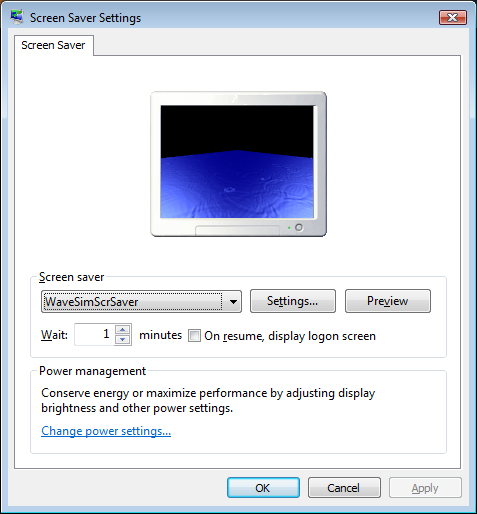
Here’s a screen shot of the screen saver running in Preview mode.  This is very satisfying, since getting this to work properly was the hardest part of the project.

Next Steps

There are a few obvious “next steps” to take in this project, including:

  • Stop screen saver on mouse move (stop on large movement, but not small movement)
  • Run screen saver on multiple monitors/screens
  • Allow user to set the background image
  • Allow user to set an image to get mapped onto the surface of the water

Sources

Here are some of the sources that I used in learning how to create and run a screen saver in WPF:

Raindrop Animation in WPF

I’ve expanded a bit on my earlier example of simulating ripples on water in WPF.  Last time, I started a ripple by inducing a single peak value into a grid of points and then watching the ripples propagate.

Full source code available at:  http://wavesim.codeplex.com

This time, we go much further, inducing peaks at random intervals to simulate raindrops falling on a liquid surface.  The underlying algorithm for propagating the ripples is identical to last time—calculating new height values for every point in a 2D mesh, using a basic filtering/smoothing algorithm.

To see the final result right away, you can download/run the WPF application from here.  As before, you can use the mouse wheel to zoom in/out, while the simulation is running.

I’ve updated the GUI to include a few knobs that you can play with.  The three sliders that control the raindrops are:

  • Num Drops – Controls how fast the drops are falling.  For starters, the average time between raindrops is 35ms.  The slider allows changing the frequency, such that the time between drops ranges from 1ms to 1000ms.  (On average)
  • Drop Strength – Controls how deep the drop falls, which impacts the amplitude of the resulting ripples.  Defaults to creating a drop that goes 3.0 units deep, with a range of [0,15].  (Grid is 250×250 units).
  • Drop Size – The diameter of the drop that comes down.  (Actually, drops are square, so this value is the length of one side of the square).  Defaults to 1, range is [1,6].

To start the animation, with the default values, click on the Start Rain button.  You’ll get a nice/natural animated scene, with raindrops falling on the water.  (On my graphics card, at least, this results in an animation that feels close to real-time—this may not be true on slower/faster cards).

The next thing to try playing with is the Num Drops setting, leaving everything else the same.  The raindrop frequency will increase as you move the slider, and you’ll a much more agitated surface, since the ripples don’t have enough time to damp.

Now try turning the Num Drops setting back down low and turn up the Drop Size setting.  Now you’ll get nice fat drops that create pretty good-size ripples.

Finally, set Drop Size back down again and try playing with the Drop Strength setting.  You’ll simulate stronger drops, as we create much deeper craters for each drop initially.  Also notice the little tower of water the jumps up as the first visual indication of a drop.

You can obviously play with all three of the settings at the same time.  Doing so, you can easily get a pretty crazy bathtub effect, as the waves just get larger and larger.

Use of the Wave button is left as an exercise to the reader.  It basically introduces a deep channel across the entire wave mesh, which results in a fairly large wave that propagates out in both directions.

One interesting thing to note about the wave is that you’ll see the existing ripples bend around the wave and continue propagating outward.  Also note that, because we add all amplitudes to existing point heights, new drops that fall on the wave will be at the proper height, relative to the current wave height.

Ok, I can’t resist.  Here’s a screencap of the Wave in action.

Below is the WPF code that I used for the simulation.  As before, the three parts are: a) the static XAML that sets up the window; b) the code-behind for Window1, which runs the Rendering loop and c) the WaveGrid class, which does the actual simulation and contains the two point buffers.

Here is the XAML code for the main window, nothing too spectacular:

<Window x:Class="WaveSim.Window1"
    xmlns="http://schemas.microsoft.com/winfx/2006/xaml/presentation"
    xmlns:x="http://schemas.microsoft.com/winfx/2006/xaml"
    Title="Window1" Height="679.023" Width="812.646"
    MouseWheel="Window_MouseWheel">
    <Grid Name="grid1" Height="618.12" Width="759.015">
        <Grid.RowDefinitions>
            <RowDefinition Height="76*" />
            <RowDefinition Height="542.12*" />
        </Grid.RowDefinitions>
        <Button HorizontalAlignment="Right" Margin="0,11.778,115,0" Name="btnStart" Width="75" Click="btnStart_Click" Height="22.649" VerticalAlignment="Top">Start Rain</Button>
        <Viewport3D Name="viewport3D1" Grid.Row="1">
            <Viewport3D.Camera>
                <PerspectiveCamera x:Name="camMain" Position="255 38.5 255" LookDirection="-130 -40 -130" FarPlaneDistance="450" UpDirection="0,1,0" NearPlaneDistance="1" FieldOfView="70">

                </PerspectiveCamera>
            </Viewport3D.Camera>
            <ModelVisual3D x:Name="vis3DLighting">
                <ModelVisual3D.Content>
                    <DirectionalLight x:Name="dirLightMain" Direction="2, -2, 0"/>
                </ModelVisual3D.Content>
            </ModelVisual3D>
            <ModelVisual3D>
                <ModelVisual3D.Content>
                    <DirectionalLight Direction="0, -2, 2"/>
                </ModelVisual3D.Content>
            </ModelVisual3D>
            <ModelVisual3D>
                <ModelVisual3D.Content>
                    <GeometryModel3D x:Name="gmodMain">
                        <GeometryModel3D.Geometry>
                            <MeshGeometry3D x:Name="meshMain" >
                            </MeshGeometry3D>
                        </GeometryModel3D.Geometry>
                        <GeometryModel3D.Material>
                            <MaterialGroup>
                                <DiffuseMaterial x:Name="matDiffuseMain">
                                    <DiffuseMaterial.Brush>
                                        <SolidColorBrush Color="DarkBlue"/>
                                    </DiffuseMaterial.Brush>
                                </DiffuseMaterial>
                                <SpecularMaterial SpecularPower="24">
                                    <SpecularMaterial.Brush>
                                        <SolidColorBrush Color="LightBlue"/>
                                    </SpecularMaterial.Brush>
                                </SpecularMaterial>
                            </MaterialGroup>
                        </GeometryModel3D.Material>
                    </GeometryModel3D>
                </ModelVisual3D.Content>
            </ModelVisual3D>
        </Viewport3D>
        <Slider Margin="0,13.596,198,0" Name="slidPeakHeight" ValueChanged="slidPeakHeight_ValueChanged" Minimum="0" Maximum="15" HorizontalAlignment="Right" Width="167.256" Height="20.831" VerticalAlignment="Top" />
        <Label Margin="286,11.964,0,36.083" Name="lblDropDepth" HorizontalAlignment="Left" Width="89.015">Drop Strength</Label>
        <Slider Name="slidNumDrops" HorizontalAlignment="Left" Margin="111,15.452,0,0" Maximum="1000" Minimum="1" Width="167.256" ValueChanged="slidNumDrops_ValueChanged" Height="20.831" VerticalAlignment="Top" />
        <Label HorizontalAlignment="Left" Margin="12,13.596,0,34.451" Name="label1" Width="89">Num Drops</Label>
        <Button HorizontalAlignment="Right" Margin="0,11.963,19,0" Name="btnWave" Width="75" Click="btnWave_Click" Height="22.649" VerticalAlignment="Top">Wave !</Button>
        <Slider Height="20.831" HorizontalAlignment="Left" Margin="111,0,0,5.266" Maximum="6" Minimum="1" Name="slidDropSize" VerticalAlignment="Bottom" Width="167.256" ValueChanged="slidDropSize_ValueChanged"/>
        <Label Height="27.953" HorizontalAlignment="Left" Margin="12,0,0,0" Name="label2" VerticalAlignment="Bottom" Width="89">Drop Size</Label>
    </Grid>
</Window>

Here is the Window1.xaml.cs code.  Some things to take note of:

  • We’re no longer setting peaks in the center of the grid, but calling SetRandomPeak to induce each raindrop
  • As before, we’re using the CompositionTarget_Rendering event handler as our main rendering loop.  During the loop, we induce new raindrops, tell the grid to process the point mesh (propagating waves) and we then reattach the new point grid to our MeshGeometry3D
  • Note that we calculate the number of drops to induce by first calculating how many drops we should drop each time we visit this loop (should be moved outside the loop).  We induce points for the integer portion of this number and then use the fractional part as a % chance of dropping one more point.
using System;
using System.Collections.Generic;
using System.Diagnostics;
using System.Linq;
using System.Text;
using System.Windows;
using System.Windows.Controls;
using System.Windows.Data;
using System.Windows.Documents;
using System.Windows.Input;
using System.Windows.Media;
using System.Windows.Media.Media3D;
using System.Windows.Media.Imaging;
using System.Windows.Navigation;
using System.Windows.Shapes;
using System.Windows.Threading;

namespace WaveSim
{
    /// <summary>
    /// Interaction logic for Window1.xaml
    /// </summary>
    public partial class Window1 : Window
    {
        private Vector3D zoomDelta;

        private WaveGrid _grid;
        private bool _rendering;
        private double _lastTimeRendered;
        private Random _rnd = new Random(1234);

        // Raindrop parameters.  Negative amplitude causes little tower of
        // water to jump up vertically in the instant after the drop hits.
        private double _splashAmplitude; // Average height (depth, since negative) of raindrop splashes.
        private double _splashDelta = 1.0;      // Actual splash height is Ampl +/- Delta (random)
        private double _raindropPeriodInMS;
        private double _waveHeight = 15.0;
        private int _dropSize;

        // Values to try:
        //   GridSize=20, RenderPeriod=125
        //   GridSize=50, RenderPeriod=50
        private const int GridSize = 250; //50;
        private const double RenderPeriodInMS = 60; //50;    

        public Window1()
        {
            InitializeComponent();

            _splashAmplitude = -3.0;
            slidPeakHeight.Value = -1.0 * _splashAmplitude;

            _raindropPeriodInMS = 35.0;
            slidNumDrops.Value = 1.0 / (_raindropPeriodInMS / 1000.0);

            _dropSize = 1;
            slidDropSize.Value = _dropSize;

            // Set up the grid
            _grid = new WaveGrid(GridSize);
            meshMain.Positions = _grid.Points;
            meshMain.TriangleIndices = _grid.TriangleIndices;

            // On each WheelMouse change, we zoom in/out a particular % of the original distance
            const double ZoomPctEachWheelChange = 0.02;
            zoomDelta = Vector3D.Multiply(ZoomPctEachWheelChange, camMain.LookDirection);
        }

        private void Window_MouseWheel(object sender, MouseWheelEventArgs e)
        {
            if (e.Delta > 0)
                // Zoom in
                camMain.Position = Point3D.Add(camMain.Position, zoomDelta);
            else
                // Zoom out
                camMain.Position = Point3D.Subtract(camMain.Position, zoomDelta);
        }

        // Start/stop animation
        private void btnStart_Click(object sender, RoutedEventArgs e)
        {
            if (!_rendering)
            {
                //_grid = new WaveGrid(GridSize);        // New grid allows buffer reset
                _grid.FlattenGrid();
                meshMain.Positions = _grid.Points;

                _lastTimeRendered = 0.0;
                CompositionTarget.Rendering += new EventHandler(CompositionTarget_Rendering);
                btnStart.Content = "Stop";
                _rendering = true;
            }
            else
            {
                CompositionTarget.Rendering -= new EventHandler(CompositionTarget_Rendering);
                btnStart.Content = "Start";
                _rendering = false;
            }
        }

        void CompositionTarget_Rendering(object sender, EventArgs e)
        {
            RenderingEventArgs rargs = (RenderingEventArgs)e;
            if ((rargs.RenderingTime.TotalMilliseconds - _lastTimeRendered) > RenderPeriodInMS)
            {
                // Unhook Positions collection from our mesh, for performance
                // (see http://blogs.msdn.com/timothyc/archive/2006/08/31/734308.aspx)
                meshMain.Positions = null;

                // Do the next iteration on the water grid, propagating waves
                double NumDropsThisTime = RenderPeriodInMS / _raindropPeriodInMS;

                // Result at this point for number of drops is something like
                // 2.25.  We'll induce integer portion (e.g. 2 drops), then
                // 25% chance for 3rd drop.
                int NumDrops = (int)NumDropsThisTime;   // trunc
                for (int i = 0; i < NumDrops; i++)
                    _grid.SetRandomPeak(_splashAmplitude, _splashDelta, _dropSize);

                if ((NumDropsThisTime - NumDrops) > 0)
                {
                    double DropChance = NumDropsThisTime - NumDrops;
                    if (_rnd.NextDouble() <= DropChance)
                        _grid.SetRandomPeak(_splashAmplitude, _splashDelta, _dropSize);
                }

                _grid.ProcessWater();

                // Then update our mesh to use new Z values
                meshMain.Positions = _grid.Points;

                _lastTimeRendered = rargs.RenderingTime.TotalMilliseconds;
            }
        }

        private void slidPeakHeight_ValueChanged(object sender, RoutedPropertyChangedEventArgs<double> e)
        {
            // Slider runs [0,30], so our amplitude runs [-30,0].
            // Negative amplitude is desirable because we see little towers of
            // water as each drop bloops in.
            _splashAmplitude = -1.0 * slidPeakHeight.Value;
        }

        private void slidNumDrops_ValueChanged(object sender, RoutedPropertyChangedEventArgs<double> e)
        {
            // Slider runs from [1,1000], with 1000 representing more drops (1 every ms) and
            // 1 representing fewer (1 ever 1000 ms).  This is to make slider seem natural
            // to user.  But we need to invert it, to get actual period (ms)
            _raindropPeriodInMS = (1.0 / slidNumDrops.Value) * 1000.0;
        }

        private void btnWave_Click(object sender, RoutedEventArgs e)
        {
            _grid.InduceWave(_waveHeight);
        }

        private void slidDropSize_ValueChanged(object sender, RoutedPropertyChangedEventArgs<double> e)
        {
            _dropSize = (int)slidDropSize.Value;
        }
    }
}

Finally, here is the updated code for the WaveGrid class.  Things to note:

  • We’ve replaced SetCenterPeak with SetRandomPeak, which does the “dropping”
  • The crazy wave is induced in InduceWave
  • I’ve added a FlattenGrid function, to calm things down

using System;
using System.Collections.Generic;
using System.Diagnostics;
using System.Linq;
using System.Text;
using System.Windows.Media;
using System.Windows.Media.Media3D;

namespace WaveSim
{
class WaveGrid
{
// Constants
const int MinDimension = 5;
const double Damping = 0.96; // SAVE: 0.96
const double SmoothingFactor = 2.0; // Gives more weight to smoothing than to velocity

// Private member data
private Point3DCollection _ptBuffer1;
private Point3DCollection _ptBuffer2;
private Int32Collection _triangleIndices;
private Random _rnd = new Random(48339);

private int _dimension;

// Pointers to which buffers contain:
// – Current: Most recent data
// – Old: Earlier data
// These two pointers will swap, pointing to ptBuffer1/ptBuffer2 as we cycle the buffers
private Point3DCollection _currBuffer;
private Point3DCollection _oldBuffer;

///

/// Construct new grid of a given dimension
///

/// public WaveGrid(int Dimension)
{
if (Dimension < MinDimension) throw new ApplicationException(string.Format("Dimension must be at least {0}", MinDimension.ToString())); _ptBuffer1 = new Point3DCollection(Dimension * Dimension); _ptBuffer2 = new Point3DCollection(Dimension * Dimension); _triangleIndices = new Int32Collection((Dimension - 1) * (Dimension - 1) * 2); _dimension = Dimension; InitializePointsAndTriangles(); _currBuffer = _ptBuffer2; _oldBuffer = _ptBuffer1; } ///

/// Access to underlying grid data
///

public Point3DCollection Points
{
get { return _currBuffer; }
}

///

/// Access to underlying triangle index collection
///

public Int32Collection TriangleIndices
{
get { return _triangleIndices; }
}

///

/// Dimension of grid–same dimension for both X & Y
///

public int Dimension
{
get { return _dimension; }
}

///

/// Induce new disturbance in grid at random location. Height is
/// PeakValue +/- Delta. (Random value in this range)
///

/// Base height of new peak in grid /// Max amount to add/sub from BasePeakValue to get actual value /// # pixels wide, [1,4] public void SetRandomPeak(double BasePeakValue, double Delta, int PeakWidth)
{
if ((PeakWidth < 1) || (PeakWidth > (_dimension / 2)))
throw new ApplicationException(“WaveGrid.SetRandomPeak: PeakWidth param must be <= half the dimension"); int row = (int)(_rnd.NextDouble() * ((double)_dimension - 1.0)); int col = (int)(_rnd.NextDouble() * ((double)_dimension - 1.0)); // When caller specifies 0.0 peak, we assume always 0.0, so don't add delta if (BasePeakValue == 0.0) Delta = 0.0; double PeakValue = BasePeakValue + (_rnd.NextDouble() * 2 * Delta) - Delta; // row/col will be used for top-left corner. But adjust, if that // puts us out of the grid. if ((row + (PeakWidth - 1)) > (_dimension – 1))
row = _dimension – PeakWidth;
if ((col + (PeakWidth – 1)) > (_dimension – 1))
col = _dimension – PeakWidth;

// Change data
for (int ir = row; ir < (row + PeakWidth); ir++) for (int ic = col; ic < (col + PeakWidth); ic++) { Point3D pt = _oldBuffer[(ir * _dimension) + ic]; pt.Y = pt.Y + (int)PeakValue; _oldBuffer[(ir * _dimension) + ic] = pt; } } ///

/// Induce wave along back edge of grid by creating large
/// wall.
///

/// public void InduceWave(double WaveHeight)
{
if (_dimension >= 15)
{
// Just set height of a few rows of points (in middle of grid)
int NumRows = 20;
//double[] SineCoeffs = new double[10] { 0.156, 0.309, 0.454, 0.588, 0.707, 0.809, 0.891, 0.951, 0.988, 1.0 };

Point3D pt;
int StartRow = _dimension / 2;
for (int i = (StartRow – 1) * _dimension; i < (_dimension * (StartRow + NumRows)); i++) { int RowNum = (i / _dimension) + StartRow; pt = _oldBuffer[i]; //pt.Y = pt.Y + (WaveHeight * SineCoeffs[RowNum]); pt.Y = pt.Y + WaveHeight ; _oldBuffer[i] = pt; } } } ///

/// Leave buffers in place, but change notation of which one is most recent
///

private void SwapBuffers()
{
Point3DCollection temp = _currBuffer;
_currBuffer = _oldBuffer;
_oldBuffer = temp;
}

///

/// Clear out points/triangles and regenerates
///

/// private void InitializePointsAndTriangles()
{
_ptBuffer1.Clear();
_ptBuffer2.Clear();
_triangleIndices.Clear();

int nCurrIndex = 0; // March through 1-D arrays

for (int row = 0; row < _dimension; row++) { for (int col = 0; col < _dimension; col++) { // In grid, X/Y values are just row/col numbers _ptBuffer1.Add(new Point3D(col, 0.0, row)); // Completing new square, add 2 triangles if ((row > 0) && (col > 0))
{
// Triangle 1
_triangleIndices.Add(nCurrIndex – _dimension – 1);
_triangleIndices.Add(nCurrIndex);
_triangleIndices.Add(nCurrIndex – _dimension);

// Triangle 2
_triangleIndices.Add(nCurrIndex – _dimension – 1);
_triangleIndices.Add(nCurrIndex – 1);
_triangleIndices.Add(nCurrIndex);
}

nCurrIndex++;
}
}

// 2nd buffer exists only to have 2nd set of Z values
_ptBuffer2 = _ptBuffer1.Clone();
}

///

/// Set height of all points in mesh to 0.0. Also resets buffers to
/// original state.
///

public void FlattenGrid()
{
Point3D pt;

for (int i = 0; i < (_dimension * _dimension); i++) { pt = _ptBuffer1[i]; pt.Y = 0.0; _ptBuffer1[i] = pt; } _ptBuffer2 = _ptBuffer1.Clone(); _currBuffer = _ptBuffer2; _oldBuffer = _ptBuffer1; } ///

/// Determine next state of entire grid, based on previous two states.
/// This will have the effect of propagating ripples outward.
///

public void ProcessWater()
{
// Note that we write into old buffer, which will then become our
// “current” buffer, and current will become old.
// I.e. What starts out in _currBuffer shifts into _oldBuffer and we
// write new data into _currBuffer. But because we just swap pointers,
// we don’t have to actually move data around.

// When calculating data, we don’t generate data for the cells around
// the edge of the grid, because data smoothing looks at all adjacent
// cells. So instead of running [0,n-1], we run [1,n-2].

double velocity; // Rate of change from old to current
double smoothed; // Smoothed by adjacent cells
double newHeight;
int neighbors;

int nPtIndex = 0; // Index that marches through 1-D point array

// Remember that Y value is the height (the value that we’re animating)
for (int row = 0; row < _dimension; row++) { for (int col = 0; col < _dimension; col++) { velocity = -1.0 * _oldBuffer[nPtIndex].Y; // row, col smoothed = 0.0; neighbors = 0; if (row > 0) // row-1, col
{
smoothed += _currBuffer[nPtIndex – _dimension].Y;
neighbors++;
}

if (row < (_dimension - 1)) // row+1, col { smoothed += _currBuffer[nPtIndex + _dimension].Y; neighbors++; } if (col > 0) // row, col-1
{
smoothed += _currBuffer[nPtIndex – 1].Y;
neighbors++;
}

if (col < (_dimension - 1)) // row, col+1 { smoothed += _currBuffer[nPtIndex + 1].Y; neighbors++; } // Will always have at least 2 neighbors smoothed /= (double)neighbors; // New height is combination of smoothing and velocity newHeight = smoothed * SmoothingFactor + velocity; // Damping newHeight = newHeight * Damping; // We write new data to old buffer Point3D pt = _oldBuffer[nPtIndex]; pt.Y = newHeight; // row, col _oldBuffer[nPtIndex] = pt; nPtIndex++; } } SwapBuffers(); } } } [/sourcecode] That’s basically it.  If anyone is interested in getting the source code, leave a comment and I’ll take the trouble to post it somewhere.

Simple Water Animation in WPF

Many years ago (mid-80s), I was working at a company that had a Silicon Graphics workstation.  Among a handful of demos designed to show off the SGI machine’s high-end graphics was a simulation of wave propagation in a little wireframe mesh.  It was great fun to play with by changing the height of points in the mesh and then letting the simulation run.  And the SGI machine was fast enough that the resulting animation was just mesmerizing.

Recreating this water simulation in WPF seemed like a nice way to learn a little more about 3D graphics in WPF.  (The end result is here).

The first step was to find an algorithm that simulates wave propagation through water.  It turns out that there is a very simple algorithm that achieves the desired effect simply by taking the average height of neighboring points.  The basic algorithm is described in detail in this article on 2D Water.  The same algorithm is also described in The Water Effect Explained.

The next step is to set up the 3D viewport and its constituent elements.  I used two different directional lights, to create more contrast on the surface of the water, as well as defining both diffuse and specular material properties for the surface of the water.

Here is the relevant XAML.  Note that meshMain is the mesh that will contain the surface of the water.

        <Viewport3D Name="viewport3D1" Margin="0,8.181,0,0" Grid.Row="1">
            <Viewport3D.Camera>
                <PerspectiveCamera x:Name="camMain" Position="48 7.8 41" LookDirection="-48 -7.8 -41" FarPlaneDistance="100" UpDirection="0,1,0" NearPlaneDistance="1" FieldOfView="70">

                </PerspectiveCamera>
            </Viewport3D.Camera>
            <ModelVisual3D x:Name="vis3DLighting">
                <ModelVisual3D.Content>
                    <DirectionalLight x:Name="dirLightMain" Direction="2, -2, 0"/>
                </ModelVisual3D.Content>
            </ModelVisual3D>
            <ModelVisual3D>
                <ModelVisual3D.Content>
                    <DirectionalLight Direction="0, -2, 2"/>
                </ModelVisual3D.Content>
            </ModelVisual3D>
            <ModelVisual3D>
                <ModelVisual3D.Content>
                    <GeometryModel3D x:Name="gmodMain">
                        <GeometryModel3D.Geometry>
                            <MeshGeometry3D x:Name="meshMain" >
                            </MeshGeometry3D>
                        </GeometryModel3D.Geometry>
                        <GeometryModel3D.Material>
                            <MaterialGroup>
                                <DiffuseMaterial x:Name="matDiffuseMain">
                                    <DiffuseMaterial.Brush>
                                        <SolidColorBrush Color="DarkBlue"/>
                                    </DiffuseMaterial.Brush>
                                </DiffuseMaterial>
                                <SpecularMaterial SpecularPower="24">
                                    <SpecularMaterial.Brush>
                                        <SolidColorBrush Color="LightBlue"/>
                                    </SpecularMaterial.Brush>
                                </SpecularMaterial>
                            </MaterialGroup>
                        </GeometryModel3D.Material>
                    </GeometryModel3D>
                </ModelVisual3D.Content>
            </ModelVisual3D>
        </Viewport3D>

Next, we create a WaveGrid class that implements the basic algorithm described above.  The basic idea is that we maintain two separate buffers of mesh data—one representing the current state of the water and one the prior state.  WaveGrid stores this data in two Point3DCollection objects.  As we run the simulation, we alternate which buffer we’re writing into and attach our MeshGeometry3D.Positions property to the most recent buffer.  Note that we’re only changing the vertical height of the points—which is the Y value.

WaveGrid also builds up the triangle indices for the mesh, in an Int32Collection which will also get connected to our MeshGeometry3D.

All of the interesting stuff happens in ProcessWater.  This is where we implement the smoothing algorithm described in the articles.  Since I wanted to fully animate every point in the mesh, I processed not just the internal points that have four neighboring points, but the points along the edge of the mesh, as well.  As we add in height values of neighboring points, we keep track of how many neighbors we found, so that we can do the averaging properly.

The final value for each point is a function of both the smoothing (average height of your neighbors) and the “velocity”, which is basically—how far from equilibrium was the point during the last iteration?  We also then apply a damping factor, since waves will gradually lose their amplitude.

Here’s the complete code for the WaveGrid class:


using System;
using System.Collections.Generic;
using System.Linq;
using System.Text;
using System.Windows.Media;
using System.Windows.Media.Media3D;

namespace WaveSim
{
    class WaveGrid
    {
        // Constants
        const int MinDimension = 5;    
        const double Damping = 0.96;
        const double SmoothingFactor = 2.0;     // Gives more weight to smoothing than to velocity

        // Private member data
        private Point3DCollection _ptBuffer1;
        private Point3DCollection _ptBuffer2;
        private Int32Collection _triangleIndices;

        private int _dimension;

        // Pointers to which buffers contain:
        //    - Current: Most recent data
        //    - Old: Earlier data
        // These two pointers will swap, pointing to ptBuffer1/ptBuffer2 as we cycle the buffers
        private Point3DCollection _currBuffer;
        private Point3DCollection _oldBuffer;

        /// <summary>
        /// Construct new grid of a given dimension
        /// </summary>
        ///
<param name="Dimension"></param>
        public WaveGrid(int Dimension)
        {
            if (Dimension < MinDimension)
                throw new ApplicationException(string.Format("Dimension must be at least {0}", MinDimension.ToString()));

            _ptBuffer1 = new Point3DCollection(Dimension * Dimension);
            _ptBuffer2 = new Point3DCollection(Dimension * Dimension);
            _triangleIndices = new Int32Collection((Dimension - 1) * (Dimension - 1) * 2);

            _dimension = Dimension;

            InitializePointsAndTriangles();

            _currBuffer = _ptBuffer2;
            _oldBuffer = _ptBuffer1;
        }

        /// <summary>
        /// Access to underlying grid data
        /// </summary>
        public Point3DCollection Points
        {
            get { return _currBuffer; }
        }

        /// <summary>
        /// Access to underlying triangle index collection
        /// </summary>
        public Int32Collection TriangleIndices
        {
            get { return _triangleIndices; }
        }

        /// <summary>
        /// Dimension of grid--same dimension for both X & Y
        /// </summary>
        public int Dimension
        {
            get { return _dimension; }
        }

        /// <summary>
        /// Set center of grid to some peak value (high point).  Leave
        /// rest of grid alone.  Note: If dimension is even, we're not
        /// exactly at the center of the grid--no biggie.
        /// </summary>
        ///
<param name="PeakValue"></param>
        public void SetCenterPeak(double PeakValue)
        {
            int nCenter = (int)_dimension / 2;

            // Change data in oldest buffer, then make newest buffer
            // become oldest by swapping
            Point3D pt = _oldBuffer[(nCenter * _dimension) + nCenter];
            pt.Y = (int)PeakValue;
            _oldBuffer[(nCenter * _dimension) + nCenter] = pt;

            SwapBuffers();
        }

        /// <summary>
        /// Leave buffers in place, but change notation of which one is most recent
        /// </summary>
        private void SwapBuffers()
        {
            Point3DCollection temp = _currBuffer;
            _currBuffer = _oldBuffer;
            _oldBuffer = temp;
        }

        /// <summary>
        /// Clear out points/triangles and regenerates
        /// </summary>
        ///
<param name="grid"></param>
        private void InitializePointsAndTriangles()
        {
            _ptBuffer1.Clear();
            _ptBuffer2.Clear();
            _triangleIndices.Clear();

            int nCurrIndex = 0;     // March through 1-D arrays

            for (int row = 0; row < _dimension; row++)
            {
                for (int col = 0; col < _dimension; col++)
                {
                    // In grid, X/Y values are just row/col numbers
                    _ptBuffer1.Add(new Point3D(col, 0.0, row));

                    // Completing new square, add 2 triangles
                    if ((row > 0) && (col > 0))
                    {
                        // Triangle 1
                        _triangleIndices.Add(nCurrIndex - _dimension - 1);
                        _triangleIndices.Add(nCurrIndex);
                        _triangleIndices.Add(nCurrIndex - _dimension);

                        // Triangle 2
                        _triangleIndices.Add(nCurrIndex - _dimension - 1);
                        _triangleIndices.Add(nCurrIndex - 1);
                        _triangleIndices.Add(nCurrIndex);
                    }

                    nCurrIndex++;
                }
            }

            // 2nd buffer exists only to have 2nd set of Z values
            _ptBuffer2 = _ptBuffer1.Clone();
        }

        /// <summary>
        /// Determine next state of entire grid, based on previous two states.
        /// This will have the effect of propagating ripples outward.
        /// </summary>
        public void ProcessWater()
        {
            // Note that we write into old buffer, which will then become our
            //    "current" buffer, and current will become old. 
            // I.e. What starts out in _currBuffer shifts into _oldBuffer and we
            // write new data into _currBuffer.  But because we just swap pointers,
            // we don't have to actually move data around.

            // When calculating data, we don't generate data for the cells around
            // the edge of the grid, because data smoothing looks at all adjacent
            // cells.  So instead of running [0,n-1], we run [1,n-2].

            double velocity;    // Rate of change from old to current
            double smoothed;    // Smoothed by adjacent cells
            double newHeight;
            int neighbors;

            int nPtIndex = 0;   // Index that marches through 1-D point array

            // Remember that Y value is the height (the value that we're animating)
            for (int row = 0; row < _dimension ; row++)
            {
                for (int col = 0; col < _dimension; col++)
                {
                    velocity = -1.0 * _oldBuffer&#91;nPtIndex&#93;.Y;     // row, col
                    smoothed = 0.0;

                    neighbors = 0;
                    if (row > 0)    // row-1, col
                    {
                        smoothed += _currBuffer[nPtIndex - _dimension].Y;
                        neighbors++;
                    }

                    if (row < (_dimension - 1))   // row+1, col
                    {
                        smoothed += _currBuffer&#91;nPtIndex + _dimension&#93;.Y;
                        neighbors++;
                    }

                    if (col > 0)          // row, col-1
                    {
                        smoothed += _currBuffer[nPtIndex - 1].Y;
                        neighbors++;
                    }

                    if (col < (_dimension - 1))   // row, col+1
                    {
                        smoothed += _currBuffer&#91;nPtIndex + 1&#93;.Y;
                        neighbors++;
                    }

                    // Will always have at least 2 neighbors
                    smoothed /= (double)neighbors;

                    // New height is combination of smoothing and velocity
                    newHeight = smoothed * SmoothingFactor + velocity;

                    // Damping
                    newHeight = newHeight * Damping;

                    // We write new data to old buffer
                    Point3D pt = _oldBuffer&#91;nPtIndex&#93;;
                    pt.Y = newHeight;   // row, col
                    _oldBuffer&#91;nPtIndex&#93; = pt;

                    nPtIndex++;
                }
            }

            SwapBuffers();
        }
    }
}
&#91;/sourcecode&#93;

Finally, we need to hook everything up.  When our main window fires up, we create an instance of <strong>WaveGrid </strong>and set the center point in the grid to some peak value.  When we start the animation, this higher point will fall and trigger the waves.

We do all of the animation in the <strong>CompositionTarget.Rendering </strong>event handler.  This is the recommended spot to do custom animations in WPF, as opposed to doing the animation in some timer Tick event.  (<em>Windows Presentation Foundation Unleashed</em>, Nathan, pg 470).

When you attach a handler to the <strong>Rendering </strong>event, WPF just continues rendering frames indefinitely.  One problem is that the handler will get called for every frame rendered, which turns out to be too fast for our water animation.  To get the water to look right, we keep track of the time that we last rendered a frame and then wait a specified number of milliseconds before rendering another.

Here is the full source code for Window1.xaml.cs:


using System;
using System.Collections.Generic;
using System.Diagnostics;
using System.Linq;
using System.Text;
using System.Windows;
using System.Windows.Controls;
using System.Windows.Data;
using System.Windows.Documents;
using System.Windows.Input;
using System.Windows.Media;
using System.Windows.Media.Media3D;
using System.Windows.Media.Imaging;
using System.Windows.Navigation;
using System.Windows.Shapes;
using System.Windows.Threading;

namespace WaveSim
{
    /// <summary>
    /// Interaction logic for Window1.xaml
    /// </summary>
    public partial class Window1 : Window
    {
        private Vector3D zoomDelta;

        private WaveGrid _grid;
        private bool _rendering;
        private double _lastTimeRendered;
        private double _firstPeak = 6.5;

        // Values to try:
        //   GridSize=20, RenderPeriod=125
        //   GridSize=50, RenderPeriod=50
        private const int GridSize = 50;   
        private const double RenderPeriodInMS = 50;    

        public Window1()
        {
            InitializeComponent();

            _grid = new WaveGrid(GridSize);        // 10x10 grid
            slidPeakHeight.Value = _firstPeak;
            _grid.SetCenterPeak(_firstPeak);
            meshMain.Positions = _grid.Points;
            meshMain.TriangleIndices = _grid.TriangleIndices;

            // On each WheelMouse change, we zoom in/out a particular % of the original distance
            const double ZoomPctEachWheelChange = 0.02;
            zoomDelta = Vector3D.Multiply(ZoomPctEachWheelChange, camMain.LookDirection);
        }

        private void Window_MouseWheel(object sender, MouseWheelEventArgs e)
        {
            if (e.Delta > 0)
                // Zoom in
                camMain.Position = Point3D.Add(camMain.Position, zoomDelta);
            else
                // Zoom out
                camMain.Position = Point3D.Subtract(camMain.Position, zoomDelta);
            Trace.WriteLine(camMain.Position.ToString());
        }

        // Start/stop animation
        private void btnStart_Click(object sender, RoutedEventArgs e)
        {
            if (!_rendering)
            {
                _grid = new WaveGrid(GridSize);        // 10x10 grid
                _grid.SetCenterPeak(_firstPeak);
                meshMain.Positions = _grid.Points;

                _lastTimeRendered = 0.0;
                CompositionTarget.Rendering += new EventHandler(CompositionTarget_Rendering);
                btnStart.Content = "Stop";
                slidPeakHeight.IsEnabled = false;
                _rendering = true;
            }
            else
            {
                CompositionTarget.Rendering -= new EventHandler(CompositionTarget_Rendering);
                btnStart.Content = "Start";
                slidPeakHeight.IsEnabled = true;
                _rendering = false;
            }
        }

        void CompositionTarget_Rendering(object sender, EventArgs e)
        {
            RenderingEventArgs rargs = (RenderingEventArgs)e;
            if ((rargs.RenderingTime.TotalMilliseconds - _lastTimeRendered) > RenderPeriodInMS)
            {
                // Unhook Positions collection from our mesh, for performance
                // (see http://blogs.msdn.com/timothyc/archive/2006/08/31/734308.aspx)
                meshMain.Positions = null;

                // Do the next iteration on the water grid, propagating waves
                _grid.ProcessWater();

                // Then update our mesh to use new Z values
                meshMain.Positions = _grid.Points;

                _lastTimeRendered = rargs.RenderingTime.TotalMilliseconds;
            }
        }

        private void slidPeakHeight_ValueChanged(object sender, RoutedPropertyChangedEventArgs<double> e)
        {
            _firstPeak = slidPeakHeight.Value;
            _grid.SetCenterPeak(_firstPeak);
        }
    }
}

The end result is pretty satisfying—a nice smooth animation of a series of ripples propagating out from the initial disturbance.  You can install and run the simulation by clicking here.  Note that you can zoom in/out using the mouse wheel.

We could extend this example in several different ways:

  • Render the surface of the water in a more lifelike way—e.g. glassy, with reflections.
  • Add simple controls to change the viewpoint or to rotate the mesh itself
  • Add knobs for playing with things like Damping and SmoothingFactor
  • Add ability to “grab” points in the mesh with the mouse and manually move them up/down
  • Raindrop simulation—just add timer that introduces new random peaks, representing raindrops
  • Antialiasing–also consider diagonally adjacent points as neighbors, but adjust by weighting factor when averaging

Drawing a Cube in WPF

It’s time to draw a simple 3D object using WPF.  As a quick introduction to 3D graphics in WPF, let’s just render one of the simplest possible objects—a cube.

In this example, I’ll define everything that we need directly in XAML.  As with everything else in WPF, we could do all this directly in code.  But defining everything in the XAML is a bit cleaner, in that it makes the object hierarchy more obvious.  In a real-world project, you’d obviously do some of this in code, e.g. the creation or loading of the 3D mesh (the object that we want to display).

Let’s start with the final XAML.  Here are the full contents of the Window1.xaml file:

<Window x:Class="SimpleCube.Window1"
    xmlns="http://schemas.microsoft.com/winfx/2006/xaml/presentation"
    xmlns:x="http://schemas.microsoft.com/winfx/2006/xaml"
    Title="Window1" Height="398" Width="608"
    <Grid>
        <Viewport3D Name="viewport3D1">
            <Viewport3D.Camera>
                <PerspectiveCamera x:Name="camMain" Position="6 5 4" LookDirection="-6 -5 -4">
                </PerspectiveCamera>
            </Viewport3D.Camera>
            <ModelVisual3D>
                <ModelVisual3D.Content>
                    <DirectionalLight x:Name="dirLightMain" Direction="-1,-1,-1">
                    </DirectionalLight>
                </ModelVisual3D.Content>
            </ModelVisual3D>
            <ModelVisual3D>
                <ModelVisual3D.Content>
                    <GeometryModel3D>
                        <GeometryModel3D.Geometry>
                            <MeshGeometry3D x:Name="meshMain"
                                Positions="0 0 0  1 0 0  0 1 0  1 1 0  0 0 1  1 0 1  0 1 1  1 1 1"
                                TriangleIndices="2 3 1  2 1 0  7 1 3  7 5 1  6 5 7  6 4 5  6 2 0  2 0 4  2 7 3  2 6 7  0 1 5  0 5 4">
                            </MeshGeometry3D>
                        </GeometryModel3D.Geometry>
                        <GeometryModel3D.Material>
                            <DiffuseMaterial x:Name="matDiffuseMain">
                                <DiffuseMaterial.Brush>
                                    <SolidColorBrush Color="Red"/>
                                </DiffuseMaterial.Brush>
                            </DiffuseMaterial>
                        </GeometryModel3D.Material>
                    </GeometryModel3D>
                </ModelVisual3D.Content>
            </ModelVisual3D>
        </Viewport3D>
    </Grid>
</Window>

The basic idea here is that we need a Viewport3D object that contains everything required to render our cube.  The simplified structure, showing the Viewport3D and its child objects, is:

Viewport3D
    ModelVisual3D   (defines lighting)
        DirectionalLight
    ModelVisual3D   (defines object to render)
        GeometryModel3D
            MeshGeometry3D
            DiffuseMaterial

Here’s what each of these objects is responsible for:

  • Viewport3D – A place to render 3D stuff
  • ModelVisual3D – A 3D object contained by the viewport, either a light or a geometry
  • DirectionalLight – A light shining in a particular direction
  • GeometryModel3D – A 3D geometrical object
  • MeshGeometry3D – The set of triangles that defines a 3D object
  • DiffuseMaterial – Material used to render a 3D object, e.g. a brush

Perhaps the most interesting of these classes is the MeshGeometry3D.  A “mesh” basically consists of a series of triangles, typically all connected to form the 3D object that you want to render.  The MeshGeometry3D object defines a mesh by specifying a series of points and then a collection of triangles.  The collection of points represent all of the vertexes in the mesh and are defined by the Positions property.  The triangles, stored in the TriangleIndices property, are defined in terms of the points, using indexes into the Positions collection.

This seems a bit odd at first.  Why not just define a collection of triangles, each consisting of three points?  Why define the points as a separate collection and then define the triangles by referencing the points?  The answer is that this scheme allows reusing a single point in multiple triangles.

In our case, drawing a cube, we define eight points, for the eight vertexes of the cube.  The image below shows the points numbered from 0-7, matching the order that we add them to Positions.  The back left corner of the cube is located at (0, 0, 0).

After defining the points, we define the 12 triangles that make up the surface cube—two triangles per face.  We define each triangle by just listing the indexes of the three points that make up the triangle.

It’s also important to pay attention to the order that we list the indexes for each triangle.  The order dictates the direction of a vector normal to the triangle, which indicates which side of the triangle that we can see.  The rule is: add vertexes counter-clockwise, as you look at the visible face of the triangle.

In addition to the mesh, we define a material used to render the cube.  In this case, it’s a DiffuseMaterial, which allows painting the surface of the cube with a simple brush.

We also need to add a camera to our scene, by specifying where it is located and what direction it looks in.  In order to see our cube, we put the camera at (6, 5, 4) and then set its LookDirection, a vector, to (-6, -5, -4) so that it looks back towards the origin.

Finally, in order to see the cube, we need lighting.  We define a single light source, which is a DirectionalLight—a light that has no position, but just casts light in a particular direction.

The final result is a simple red cube.

A Five-Part Backup Strategy

In the past few posts, I surveyed some common backup tools.  Next, I thought I’d describe my backup strategy in some detail, talking about what I do to keep my data safe.

My own backup strategy is far from perfect.  There may be a few missing pieces, but I think that I’ve protected myself against most of the data loss scenarios that I can think of.  Most of us have a backup strategy based on whatever “holy ****” data loss adventure we’ve suffered in the past.   That’s certainly true for me, so I tend be pretty pessimistic when it comes to protecting my data.

I have a total of four PCs at home, including three desktops and a laptop.  And I currently have a total of about 3TB of disk space, with about 1.2TB currently in use—a respectable amount of data.

As I said in my original post on why you need a backup plan, the critical question to ask is—how precious is my data to me?  Of this 1.2TB, some of it is very precious to me, like family photos and videos.  And some of it is not at all important, like the 625MB footprint of an Office 2007 installation.  Thinking about how important my data is will drive decisions about how I structure my backups.

The main goal is to figure out how to best protect all of this data.  Questions to ask include:

  • What data needs to be backed up?
  • Where to back the data up?  Different drive?  PC?  Offsite?
  • How often?
  • Should the backup always be a mirror of original?  Or archive—capture moment in time?
  • How long should the backup sets be kept?

Before we even think about backups, it’s worth doing some preventative maintenance on your hard drives.  I’ve had good luck using SpinRite 6, from grc.com, to do surface defect detection.  It’s obviously far better to avoid defects in the first place than to have to deal with a bad drive.

Below are the five pieces of my current backup strategy.  Each serves a slightly different purpose and protects my data in a different way.

  • LiveMesh to Mirror Data Between PCs at Home
  • JungleDisk / Amazon S3 to do Continuous Backups to the “Cloud”
  • Quarterly Archival Backups to External Drive
  • Encrypt / Mirror Sensitive Data on USB Thumb Drives
  • Keep Extra Copies of All Installation Media

LiveMesh to Mirror Data Between PCs at Home

I talked a little bit last time about using LiveMesh to synchronize data between multiple PCs at the same site.  Although LiveMesh provides limited storage space (5GB) in “the cloud”, you can ignore that part and use it to synchronize an unlimited amount of data in a peer-to-peer manner.

This is my first line of defense in protecting my data.  On each of my PCs, I identify the main top-level directories that contain important data and then add those folders to my “mesh”.  Once a folder is visible to LiveMesh, you can synchronize it with any of your other PCs that are also running LiveMesh.  In my case, my important data will be replicated on two of my three main desktop PCs at home.

The two main purposes of using LiveMesh are to provide local copies on multiple PCs and to protect data against hard drive crash or system failure.

Because your folders are synchronized across multiple machines, and because LiveMesh supports two-way synchronization, you can edit/change files locally at whichever machine you happen to be sitting at.  LiveMesh will immediately synch the changes back to the other device.  This is basically just a different way of sharing files on the network, rather than creating a network share.  It’s a little easier for your applications to access a local copy of the file than to have to reach across the network to get it.

LiveMesh also protects against hard drive failure, in that you have a second copy of your data on another machine.  If a hard drive dies, you can swap in a new drive and just let LiveMesh repopulate the missing files from the other mirror.

There is one important thing that LiveMesh does not protect against, which is—unintended deletion or modification of a file.  Because LiveMesh is doing continuous (or very quick) updates to your other devices, the fact that you deleted a file will get replicated across your devices and the file will be quickly deleted from all of your devices.

The only real way to protect against this would be for LiveMesh to have full support for versioning.  So far, versioning is not part of the tool.

JungleDisk / Amazon S3 to do Continuous Backups to the “Cloud”

My next line of defense is to use JungleDisk and Amazon’s S3 (Simple Storage Service) to regularly back up my important data to the Internet (the “cloud”).

JungleDisk, or a similar tool, is required because S3 is just a service that you subscribe to for storing your files—it provides no user interface for accessing the files and no client-side tool for doing the backups.

Amazon S3 charges you only for the data that you use, as follows:

  • $0.15/GB/month for data storage
  • $0.20/GB/month for data transfer

Because you pay separately for storage vs. transfer, you’ll end up paying a bit more in the first month or two, as you back everything up.  After that, your costs will be mainly for storage, since you’ll be uploading only data that has changed.

The JungleDisk/S3 combination provides a couple of key benefits beyond what LiveMesh gives me:

  • JungleDisk keeps old versions of modified/deleted files on S3  (for 60 days)
  • S3 provides an off-site backup location for your data

Because JungleDisk is configured to keep old versions of your files for 60 days, you’re protected against inadvertent deletion or modification of a file.

Most importantly, because you’re backing your data up to “the cloud”, you’re protected against any catastrophe that might occur at home.  (But make sure to store your Amazon S3 access key and password in a different location)!

It’s worth mentioning that if you intend to archive your old e-mail, it’s a good idea to break your e-mail files into several pieces, based on age.  You might have one smaller file containing just data from the past year and then older files, one per year.  That way, you’re backing up less data on a regular basis, because JungleDisk only backs up the data files that change.

Quarterly Archival Backups to External Drive

Both LiveMesh and S3 are focused on creating mirrored copies of my data.  But there is still the danger that I inadvertently delete some data, or the data becomes corrupt, and then that deletion or corruption is propagated to my mirror.

To protect against this, it’s also important to do periodic archival backups of important data and then to store those archives at an offsite location.  This gives you a copy of your data at a particular moment in time that you then keep indefinitely.

In my case, I do archival backups as follows:

  • Quarterly archival backups
  • I use Genie Backup Manager Pro 8.0
  • I back my data up to an external USB Western Digital My Book drive (750GB)
  • I store my WD drive at work (offsite) after I’ve backed up my home data
  • I always have two copies of everything that I back up to the WD drive (two most recent archives)
  • Archives are a superset of what I back up with LiveMesh and S3

This isn’t quite ideal.  I’m not really living up to my goal of keeping my archived data permanently.  I have a rotation scheme where I keep the two most recent quarterly archives, which means that I could lose data if I delete something and then decide six months later that I really needed it.  But I use this rotation scheme because it would be too expensive to keep every archive.

My archives include a superset of the data that I back up with LiveMesh and S3.  In addition to archive what I back up with those tools, I archive data that rarely changes, like ripped CDs (.mp3 files) and home videos.  This is data that’s important enough to archive, but not worth backing up regularly, given that it never changes.

Encrypt / Mirror Sensitive Data on USB Thumb Drives

I also have data that should be encrypted, as well as backed up.  We all probably have a file or two where we keep track of all the really important stuff—online passwords, bank account numbers, personal financial data, etc.  Ideally, we’d write none of it down.  But there is so much important data that we need to keep track of, it’s no longer possible to keep it all in our heads.

My approach for securing this data and for keeping it safe is:

  • Two USB thumb drives, one kept at work, one at home
  • Both USB drives fully encrypted using TrueCrypt
  • USB drives normally unmounted, unless I need to read data from them
  • Unmount as soon as I’m done using the drive
  • To change data on a stick, I make the change on one drive, then bring the drive to the other location and synch up
  • As part of quarterly archive, also archive entire encrypted image

This is handy because I can carry one of the thumb drives with me wherever I go, with no fear of what would happen if I lost it.  The data is completely encrypted, so safe from prying eyes.  Having two drives ensures that the data is being backed up.  Because I don’t entirely trust the flash media, I also keep a copy in my quarterly archives.

Keep Extra Copies of All Installation Media

With all of the strategies described above, I’m backing up only data—never actual programs.  I figure that if I have a major crash, I’ll just reinstall the software that I need.

But I do need to make sure that I don’t lose my original media.  If I stored everything in one spot at home and had a fire, my data would be okay, but I’d lose all of the software.

In my case, I just duplicate the original media and then store a copy at work.  I don’t bother duplicating Microsoft software, because I have an MSDN Universal subscription, so I’d be able to re-download anything that I lost.

Summary

That’s my basic backup strategy—a combination of techniques and tools that gives me a fair degree of confidence that I could get data back without too much trouble if I lost it.

Windows Backup Products, part 2 – Imaging, Synchronization, Online

Last time I posted a list of the most popular file/folder backup tools.  This time, I’ll look at Windows backup tools that fall into the categories: drive imaging, file/folder synchronization, and online storage.

NOTE: This post is just a survey of available tools, rather than a review.  I’ve used some, but not all, of the tools listed.

Backing up your files and folders should be just a part of your overall backup strategy, but not the entire strategy.  A complete approach would likely include some use of full system backups (imaging), as well as synchronization and online backups.

The tools that I mentioned last time are good for:

  • Automating your backups
  • Getting your files backed up to another PC, via network device
  • Backing files up efficiently, by doing a combination of full/incremental backups
  • Creating “snapshots” of files at a specific point in time

What these traditional tools are not necessarily as good at doing is:

  • Getting your files backed up to an off-site location
  • Sharing files/folders with other devices
  • Allowing you to browse files in original directory structure
  • Backing up your Windows system files
  • Backing up and restoring an entire PC

The tools in these other categories (imaging, synchronization, and online backup) address some of the shortcomings of traditional file/folder backup tools.

Drive Imaging Tools

In addition to periodically backing up your data files, you should consider doing a full disk backup, or image backup.  Traditional file/folder backup tools typically don’t support backing up an entire disk or partition.

For drive imaging software, I took a brief look at the following products:

These products are all very similar, but there are a few differences.  My list of available features is based on the documentation on each product’s web site.

Drive Imaging Tools

Drive Imaging Tools

Synchronization Tools

The goal of synchronization tools isn’t to create a backup of a directory, but to create a copy of that directory on other devices.  Typically, one PC shares one or more directories, making them visible to the tool or service.  Other devices subscribe to the shared folder and then  replicate the contents locally.

What makes synchronization tools so powerful is their ability to do continuous/live updates.  When someone changes a file in a shared folder, that change is replicated across all of the subscribing PCs immediately.

This gives us the benefits of both shared network drives and remote backups—users on other machines have access to the data at all times and can edit it from their machine.  And the data is also backed up, in that it’s stored in multiple locations.

Desirable features to look for in file synchronization tools include things like:

  • Continuous Updates:  no need to synch manually
  • Multiple Subscribers:  synchronize across multiple devices
  • 2-Way Synchronization:  users can change files in any location
  • Share Across HTTP:  PCs don’t need to be on LAN, but can share via Internet
  • Encryption:  data transferred via HTTP in secure manner
  • Backup to Cloud:  store copy of synched files online

The chart below includes the following synchronization tools and a list of features:

Synchronization Tools

Synchronization Tools

Traditional synchronization tools worked only with devices that were directly networked on a LAN.  But modern synchronization tools are more commonly delivered as a web-based services that synchronize machines via HTTP.  A PC shares a folder to the service, causing the files to get replicated in “the cloud”.  And then other devices can in turn sync to the same folder, allowing the files to get downloaded to the subscribing device.

This “cloud” approach allows doing online backups in addition to synchronizing files across devices.  This is a nice blending of traditional synchronization tools with online backup tools.

Microsoft’s new LiveMesh platform offers maybe the best combination of features spanning both synchronization and online backup.  For each folder added to the mesh, the user can choose exactly which devices to synch the contents to—including both physical devices in the mesh, as well as the online storage area.  This allows doing peer-to-peer synchronization for some data, and online backup for other data.

There are many more network-only synchronization tools available than I list in this chart.  Given the power of the newer tools that also provide online backup, these older tools are becoming less popular.

Online Backup Tools / Services

There are also services that offer pure online backup of data, rather than both synchronization and backup.  The chart below lists some of the more common ones, including:

Online Backup Services

Online Backup Services

With easy access to highspeed Internet access these days, it’s clear that online backup, rather than network-only backup, is the preferred choice for most people.  And with storage prices continuing to drop, these services are becoming affordable, even for storing huge amounts of data, like photos & videos.

The future for these products is likely something like the LiveMesh model.  This approach (once LiveMesh provides larger amounts of online storage) is:

  • Continuous online backups
  • Automatic synchronizing of data to multiple devices
  • Ability to do both synchronizing (exact mirrors) and archival (backup at a point in time)

Next Time

At the moment, I’m personally using a combination of LiveMesh and JungleDisk for my backups.  Next time, I’ll describe how I use these tools.

Windows Backup Products, part 1 – File/Folder Backup Tools

Here is a quick summary of the most popular backup tools for Windows.  In general, there are several different flavors/families of backup tools:

  • Traditional file/folder backup tools
  • File/directory synchronization tools
  • Drive imaging tools
  • Online backup tools/services

In this post, I’m focusing on just the first group—traditional tools that let you select a group of files or folders to backup, set up an automated schedule, and then regularly back your files up to a local or network drive.

This list is by no means complete.  I’m focusing here only on tools for Windows and looking only at the more popular commercial tools.  There are, obviously, lots of open source and freeware tools out there and some of them have feature sets that approach some of the commercial tools.

I looked only at tools targeted at home users, rather than the higher-end server-based backup tools, or tools targeted at the enterprise.

My goal here is to just give people a quick list of some of the tools and do a high-level feature-for-feature comparison.

Here are the tools that I include in the chart:

Several of these products offer one or more editions, with different pricing and feature sets.  Where this is the case, I’m only listing the “professional” edition, or the one with the most features (and highest price).

Here is the feature list for these backup tools.  My understanding of which features are provided comes from the product documentation or web site.  (Apologies that this is just an image, rather than formatted as a table in HTML):

Backing up individual files or folders is obviously just one prong of a complete backup strategy.  An important part of the strategy is also in determining where to back your files to—a second or external drive, network drive, or FTP server.  Backing up file sets, though not sufficient for a complete backup strategy, is a good place to start.

If you have a favorite full-featured commercial backup tool that I’ve missed, please feel free to share it in the comments section.

Next Time

Next time, I’ll finish the backup tool survey by talking about directory synchronization tools, drive/PC imaging tools and online backup services.

Why You Need a Backup Plan

Everyone has a backup plan.  Whether you have one that you follow carefully or whether you’ve never even thought about backups, you have a plan in place.  Whatever you are doing or not doing constitutes your backup plan.

I would propose that the three most common backup plans that people follow are:

  1. Remain completely ignorant of the need to back up files
  2. Vaguely know that you should back up your PC, but not really understand what this means
  3. Fully realize the dangers of going without backups and do occasional manual backups, but procrastinate coming up with a plan to do it regularly

Plan #1 is most commonly practiced by less technical folk—i.e. your parents, your brother-in-law, or your local pizza place.  These people can hardly be faulted.  The computer has always remembered everything that they’ve told it, so how could it actually lose something?  (Your pizza guy was unpleasantly reminded of this when his browser informed his wife that the “Tomato Sauce Babes” site was one of his favorite sites).  When these people lose something, they become angry and will likely never trust computers again.

Plan #2 is followed by people who used to follow plan #1, but graduated to plan #2 after accidentally deleting an important file and then blindly trying various things they didn’t understand—including emptying their Recycle Bin.  They now understand that bad things can happen.  (You can also qualify for advancement from plan #1 to #2 if you’ve ever done the following—spent hours editing a document, closed it without first saving, and then clicked No when asked “Do you want to save changes to your document”)?  Although this group understands the dangers of losing stuff, they don’t really know what they can do to protect their data.

Plan #3 is what most of us techies have used for many years.  We do occasional full backups of our system and we may even configure a backup tool to do regular automated backups to a network drive.  But we quickly become complacent and forget to check to see if the backups are still getting done.  Or we forget to add newly created directories to our backup configuration.  How many of us are confident that we have regular backups occurring until the day that we need to restore a file and discover nothing but a one line .log file in our backup directory that simply says “directory not found”?

Shame on us.  If we’ve been working in software development or IT for any length of time, bad things definitely have happened to us.  So we should know better.

Here’s a little test.  When you’re working in Microsoft Word, how often do you press Ctrl-S?  Only after you’ve been slaving away for two hours, writing the killer memo?  Or do you save after every paragraph (or sentence)?  Most of us have suffered one of those “holy f**k” moments at some point in our career.  And now we do know better.

How to Lose Your Data

There are lots of different ways to lose data.  Most of us know to “save early and often” when working on a document because we know that we can’t back up what’s not even on the disk.  But when it comes to actual disk crashes (or worse), we become complacent.  This is certainly true for me.  I had a hard disk crash in 1997 and lost some things that were important to me.  For the next few months, I did regular backups like some sort of data protection zealot.  But I haven’t had a true crash since then—and my backup habits have gradually deteriorated, as I slowly regained my confidence in the reliability of my hard drives.

After all, I’ve read that typical hard drives have an MTBF (Mean Time Between Failures) of 1,000,000 hours.  That works out to 114 years, so I should be okay, right?

No.  MTBF numbers for drives don’t mean that your hard drive is guaranteed (or even expected) to run for many years before encountering an error.  Your MTBF number might be 30 years, but if the service life of your drive is only five years, then you can expect failures on your drive to start becoming more frequent after five years.  The 30 year MTBF means that, statistically, if you were running six drives for that five year period, one of the drives would see a failure at the end of the five years.  In other words, you saw a failure after 30 drive-years—spread across all six drives.  If we were running 30 drives at the same time, we’d expect our first failure on one of those drives after the first year.  (Click here for more  information on MTBF).

In point of fact, your drive might fail the first year.  Or the first day.

And hard drive crashes aren’t the only, or even the most common, type of data loss.  A recent PC World story refers to a study saying that over 300,000 laptops are lost each year from major U.S. airports and not reclaimed.  What about power outages?  Applications that crash and corrupt the file that they were working with?  (Excel did this to me once).  Flood/fire/earthquake?  Or just plain stupidity?  (Delete is right next to Rename in the Windows Explorer context menu).

A Good Backup Plan

So we’re back to where we started.  You definitely need a backup plan.  And you need something better than the default plans listed above.

You need a backup plan that:

  • Runs automatically, without your having to remember to do something
  • Runs often enough to protect data that changes frequently
  • Copies things not just off-disk, or off-computer, but off-site
  • Allows restoring lost data in a reasonably straightforward manner
  • Secures your data, as well as backing it up (when appropriate)
  • Allows access to old data even after you’ve intentionally deleted it from your PC
  • Refreshes backed data regularly, or stores the data on media that will last a long time

The most important attribute of a good backup plan, by far, is that it is automated.  When I was in college, I used to do weekly backups of my entire PC to a stack of floppies, and then haul the floppies to my parents’ house when I’d visit on Sunday.  But when the last few weeks of the semester rolled around, I was typically so busy with papers and cramming that I didn’t have time to babysit a stack of floppies while doing backups.  So I’d skip doing them for a few weeks—at the same time that I was creating a lot of important new school-related data.

How often should your data get backed up?  The answer is–more frequently than the amount of time that you would not want to have to spend reproducing the data.  Reentering a day’s worth of data into Quicken isn’t too painful.  But reentering a full month’s worth probably is—so nightly backups make sense if you use Quicken every day.  On the other hand, when I’m working on some important document that I’ve spent hours editing, I typically back the file up several times an hour.  Losing 10-15 minutes’ worth of work is my pain point.

Off-site backups are important, but often overlooked.  The more destructive the type of data loss, the farther away from the original the backup should be, to keep it safe.  For an accidental fat-finger deletion, a copy in a different directory is sufficient.  Hard drive crash?  The file should be on a different drive.  PC hit by a voltage spike?  The file should be on a different machine.  Fire or flood?  You’d better have a copy at another location if you want to be able to restore it.  The exercise is this—imagine all the bad things that might happen to your data and then decide where to put the data to keep it safe.  If you live in San Francisco and you’re planning for the Big One of ’09, then don’t just store your backups at a buddy’s house down the street.  Send the data to a family member in Chicago.

If you do lose data, you ought to be able to quickly: a) find the data that you lost and b) get that data back again.  If you do full backups once a year to some arcane tape format and then do daily incremental backups, also to tape, how long will it take you to find and restore a clean copy of a single corrupted file?  How long will it take you to completely restore an entire drive that went bad?  Pay attention to the format of your backups and the processes and tools needed to get at your archives.  It should be very easy to find and restore something when you need it.

How concerned are you with the idea of someone else gaining access to your data?  When it comes to privacy, all data is not created equal.  You likely wouldn’t care much if someone got a hold of your Mario Kart high scores.  (In fact, some of you are apparently geeky enough to have already published them).  On the other hand, you wouldn’t be too happy if someone got a copy of that text file where you store your credit card numbers and bank passwords.  No matter how much you trust the tool vendor or service that you’re using for backups, you ought to encrypt any data that you wouldn’t want handed out at a local biker bar.  Actually, this data should already be encrypted on your PC anyway—no matter how physically secure you think your PC is.

We might be tempted to think that the ideal backup plan would be to somehow have all of your data continuously replicated on a system located somewhere else.  Whenever you create or change a file, the changes would be instantly replicated on the other system.  Now you have a perfect replica of all your work, at another location, all of the time.  The problem with this approach is that if you delete a file or directory and then later decide that you wanted it back, it’s too late.  The file will have already been deleted from your backup server.  So, while mirroring data is a good strategy in some cases, you should also have a way to take snapshots of your data and then to leave the snapshots untouched.  (Take a look at the Wayback Machine at the Internet Archive for an example of data archival).

On the other hand, you don’t want to just archive data off to some medium and then never touch it again, expecting the media to last forever.  If you moved precious family photos off of your hard disk and burned them to CDs, do you expect the data on the CDs to be there forever?  Are you figuring that you’ll pass the stack of CDs on to your kids?  A lot has been written about media longevity, but I’ve read that cheaply burned CDs and DVDs may last no longer than 12-24 months.  You need a plan that re-archives your data periodically, to new media or even new types of media.  And ideally, you are archiving multiple copies of everything to protect against problems with the media itself.

How Important Is This?

The critical question to ask yourself is–how precious is my data to me?  Your answer will guide you in coming up with a backup plan that is as failsafe as you need it to be.  Your most important data deserves to be obsessed over.  You probably have thousands of family photos that exist only digitally.  They should be backed up often, in multiple formats, to multiple locations.  One of the best ways to protect data from loss is to disseminate it as widely as possible.  So maybe in addition to multiple backups, your best bet is to print physical copies of these photos and send boxes of photos to family members in several different states.

The bottom line is that you need a backup plan that you’ve come up with deliberately and one that you are following all of the time.  Your data is too important to trust to chance, or to a plan that depends on your remembering to do backups from time to time.  A deliberate plan, coupled with a healthy amount of paranoia, is the best way to keep your data safe.

Next Time

In my next post, I’ll put together a list of various products and services that can help you with backups.  And I’ll share my own backup plan (imperfect as it is).

Hello WPF World, part 3 – Forms and Windows

We continue with our basic “hello world” WPF application by adding a button to our main window and then building and running the application.  We also talk about the difference between forms in Windows Forms and windows in WPF, as well as how to add event handlers.

I want to insert a caveat at this point.  These first few “hello world” posts are basic—very, very basic.  Adding a button to a form and having it display a message box is what most of us do in the first five minutes that we spend playing with a new language or framework.  So don’t expect any cosmic secrets here.  I just want to take a little time to throw together a super simple application and then comment a little bit on what I’m seeing.

Form vs. Window

Let’s start by just building our basic wizard-generated application and then running it.  I’ll continue doing parallel stuff in a Windows Forms application, so we can compare the two.  Here’s what we get when we run the applications:

Form vs. Window

Form vs. Window

Nothing too earth-shattering here, although WPF has gotten rid of two old standbys that I’m sick of—the little multi-colored default application icon and the battleship grey form background.  Good riddance to both of them.

In both cases, we get a simple window with the standard window decoration elements.  Nothing appears to have changed here.  But if we look at the type that implements the window in either case, we see that everything is different under the covers.

Win Forms is using a System.Windows.Forms.Form (System.Windows.Forms.dll), while WPF’s main window is a Systems.Windows.Window (PresentationFramework.dll).

I’m curious, so let’s compare the two classes briefly.  (If you don’t already know about it, now is a good time to teach yourself Ctrl-Alt-J in Visual Studio for popping up the Object Browser).

The inheritance tree for a Win Forms Form is:

And the inheritance tree on the WPF side, for the Window, is:

(I included MSDN’s basic description of each class).  We won’t go any deeper than this for now, but the point is that, for WPF, things are very different under the hood.

One difference to note is that WPF does not support MDI (Multiple Document Interface), whereas Windows Forms does.  I could see a case for continuing to support MDI functionality for those who need it, but I can also see why it’s not worth carrying the old MDI framework forward.  It’s rare to see applications that support MDI in exactly the way that Win Forms supported it (windows entirely contained within parent window, etc).  When you do see a parent window containing child windows, the visual interface is likely different from the traditional sizable child windows—e.g. using a series of tabs.  There are so many different ways of doing this that it’s just easier to roll your own mechanism.  Or perhaps we could get some support in WPF in the future for a more updated and customizable implementation of MDI.

Another good way to see what goes on behind the scenes for the main form/window classes is to look at their lifecycle, as described by the events that the classes fire.  I always end up wanting to keep these “window lifetime” event lists for reference purposes, so they’re worth jotting down here.

Forms.Form events (Win Forms)

Loading/opening new form (application startup), events fired are:

Move
LocationChanged
StyleChanged
BindingContextChanged
Load
Layout
VisibleChanged
Activated
Shown
Paint

Closing a Win Forms Form, the events that fire are:

FormClosing
FormClosed
Deactivate

Windows.Window events (WPF)

Loading/opening new window (application startup), events fired are:

Initialized
IsVisibleChanged
SizeChanged
LayoutUpdated
SourceInitialized
Activated
PreviewGotKeyboardFocus
GotKeyboardFocus
LayoutUpdated
Loaded
ContentRendered

Closing a WPF Window, the events that fire are:

Closing
IsVisibleChanged
Deactivated
Closed

Adding a Button

Now let’s add our first control to the WPF window in our application.  We’ll add a button to the window by just dragging it onto the design surface in the XAML designer.

The designer ends up looking something like this:

And the XAML snippet in the bottom window is also updated as soon as we add the button:

Note that everything we do in the designer  is immediately reflected in the XAML.  This is because there is an exact match between what the designer renders and what is stored in the XAML.  You can think of the designer (or design surface) as nothing more than a combination XAML viewer and XAML editor.

We can also demonstrate here that working in the opposite direction works as expected—if you edit the XAML, the designer updates immediately to reflect your changes.  Note that we don’t even have to save the file—the content in the designer changes immediately, as we type!  You can also edit property values in the Properties window that is docked to the right of the designer (under the Solution Explorer).

Let’s take a look now at what happens in our generated code, once we have a couple of controls on the design surface.  I’ll add a CheckBox to the window and then open up Window1.g.cs.  Note that this source file is not updated until we build (since it’s generated from the XAML whenever we build).  If we rebuild the project now and take a look, we’ll see that both controls have been declared at the top of our partial class and that the Connect method includes them in its switch statement:

This code is creating/initializing the controls at runtime, based on the content in the BAML memory stream that was included in our assembly.

Event Handlers

Now it’s time to wire up our first event handler so that we can do something when the button is clicked.

At first glance, something important is missing from Visual Studio.  When we have the WPF Designer open for our main window and have selected our button, the Properties window doesn’t seem to list any events.  Entirely missing is the little event icon that lets us get a list of all events for the currently selected control.

The question then becomes—what designer support do we have for adding event handlers in a WPF application?  The answer is to edit the XAML directly.  If we position the cursor at the end of the attribute list for the Button element in our XAML editor and press space, we see a nice intellisense popup listing all available attributes (properties and events).  Note the presence of the Click event in the image below:

If we select the Click event, or start typing “Click”, the editor adds a new attribute for the Click event and the intellisense window changes to indicate <New Event Handler>.  At this point, we can dbl-click on <New Event Handler>  to generate our event handler, or—better yet—just press the TAB key to generate the handler.

Once we’ve created the default event handler, our XAML looks like this (note the default handler name):

Now we can open our partial class implementation of Window1 in Window1.xaml.cs and we see our empty handler that has been generated for us:

Hello World

We’re finally ready to add some “hello world” code to our handler, which will execute when the Push Me button is clicked:

And—highly satisfying—we can run our program and get one of two message boxes to display, depending on whether the “verbose” checkbox is checked:

Next time, I’ll start looking in more depth at the various controls available in a WPF application, starting with the Button.

Hello WPF World, part 2 – Why XAML?

Let’s continue poking around with a first WPF “hello world” application.  We’ll continue comparing our bare bones wizard-generated WPF project with an equivalent Win Forms application.  And we’ll look at how XAML fits into our application architecture.

Last time, we compared the Win Forms Program class with its parallel in WPF–an App class, which inherits from System.Windows.Application.  The application framework in Win Forms was pretty lightweight–we just had a simple class that instantiated a form and called the Application.Run method.  WPF was just a bit more complicated.  If we count the generated code, we have an App class split across a couple of files, as well as a .xaml file that defines applicaton-level properties (like the startup window).

Now let’s compare the main form in our Win Forms application with the main window generated for us in WPF.  (The fact that WPF calls it a window, rather than a form, hints at the idea that GUI windows aren’t meant to be used just for entering data in business applications).

In Windows Forms, we have two files for each form–the form containing designer-generated code (e.g. Form1.Designer.cs) and the main code file where a user adds their own code (e.g. Form1.cs).  These two source files completely define the form and are all that’s required to build and run your application.  In Windows Forms, the designer renders a form in the IDE simply by reading the Form1.Designer.cs file and reconstructing the layout of the form directly from the code.  (The IDE does create a Form1.resx resource file, but by default your form is not localizable and the resource file contains nothing).

When you think about it, this approach is a bit kludgy.  The designer is inferring the form’s layout and control properties by parsing the code and reconstructing the form.  Form1.Designer.cs is meant to contain only designer-generated code, so with partial classes, we can keep designer-generated code in a single file and it only contains designer code.  But it’s clumsy to use procedural code to define the static layout of a form.

Here’s a picture of how things work in Win Forms:

In this model, the Form1.Designer.cs file contains all the procedural code that is required to render the GUI at runtime–instantiation of controls and setting their properties.  We could dispense with the designer in Visual Studio—it’s just a convenient tool for generating the code.  (I’m ashamed to admit that I’ve worked on projects that broke the designer and everyone worked from that point on only in the code–ugh)!

Now let’s look at WPF.  Here’s a picture of what’s going on:

Note the main difference here is–our designer works with XAML, rather than working with the code.  This is the big benefit of using XAML–that the tools can work from a declarative specification of the GUI, rather than having to parse generated code.  This also means that it’s easier to allow other tools to work with the same file–e.g. Expression Blend, or XamlPad.

Then at build time, instead of just compiling our source code, the build system first generates source code from the XAML file and then compiles the source code.

But this isn’t quite the whole story.  It’s not the case in WPF that the Window1.g.cs file contains everything required to render the GUI at runtime.  If we look at the Window1.g.cs file, we don’t find the familiar lines where we are setting control properties.  Instead, we see a call to Application.LoadComponent, where we pass in a path to the .xaml file.  We also find a very interesting method called Windows.Markup.IComponentConnector.Connect(), which appears to be getting objects passed into it and then wiring them up to private member variables declared for each control.  If we add a single button to our main window, the code looks something like:

But then the obvious question is–what happened to all those control properties?  Where do the property values come from at runtime?

Enter BAML–a binary version of the original XAML that is included with our assembly.  Let’s modify the above picture to more accurately reflect what is going on:

Note the addition–when we build our project, the contents of the XAML file–i.e. a complete definition of the entire GUI–is compiled into a BAML file and stored in our assembly.  Then, at runtime, our code in Window1.g.cs simply loads up the various GUI elements (the logical tree) from the embedded BAML file.  This is done by the Connect method that we saw earlier, in conjunction with a call to Application.LoadComponent:

MSDN documentation tells us, for LoadComponent, that it “loads a XAML file that is located at the specified uniform resource identifier (URI) and converts it to an instance of the object that is specified by the root element of the XAML file”.  When we look at the root element of the XAML file for our application, we discover that it is an object of type Window, with the specific class being HelloWPFWorld.Window1.  Voila!  So we now see that the code in Window1.g.cs which was generated at build time just contains an InitializeComponent method whose purpose it is to reconstitute a Window and all its constitutent controls from the GUI definition in the XAML file.  (Which went along for the ride with the assembly as compiled BAML).

So what is BAML and where is it?  BAML (Binary Application Markup Language) is nothing more than a compiled version of the corresponding XAML.  It’s not procedural code of any sort–it’s just a more compact version of XAML.  The purpose is just to improve runtime performance–the XAML is parsed/compiled at build time into BAML, so that it does not have to be parsed at runtime when loading up the logical tree.

Where does this chunk of BAML live?  If you take a look at our final .exe file in ILDASM, you’ll see it in the manifest as HelloWPFWorld.g.resources.  Going a tiny bit deeper, the Reflector tool shows us that HelloWPFWorld.g.resources contains something called window1.baml, which is of type System.IO.MemoryStream.  (I found something that indicated there was also a BAML decompiler available from the author of Reflector, which would allow you to extract the .baml from an assembly and decompile back to .xaml–but I couldn’t find the tool when I went looking for it).

So there you have it.  We haven’t quite yet finished our “hello world” application, but we’re close.  We’ve now looked in more depth at the structure of the application and learned a bit about where XAML fits into the picture.  Next time, we’ll add a few controls to the form and talk about how things are rendered.

Hello WPF World, part 1

All right, it’s time to create our first “hello world” application in WPF.  Let’s just use the Visual Studio wizard to create an application and then poke around to see what we got.  (Yes, I know I’m a bit late to the WPF game, but let’s just get started).

We’ll start by doing a New Project in Visual Studio 2008.  Under Visual C# (I’m a C# guy), select Windows to see projects related to thick clients.  If you change the targeted .NET Framework to version 3.0 or 3.5, you’ll see the following WPF project types:

  • WPF Application
  • WPF Browser Application
  • WPF Custom Control Library
  • WPF User Control Library

This seems pretty straightforward.  We’re building an application, rather than a control library.  So we want to create a WPF Application. I’ll explore creating WPF controls later.

Now it’s time to see what the project wizard created for us in our project.  As we walk through the solution, let’s compare the pieces with an equivalent “hello world” application in Win Forms, just to see how WPF differs.

AssemblyInfo.cs

For starters, both projects have an AssemblyInfo.cs file that describes metadata for the assembly.  Cracking them open,  they’re pretty similar, as expected.  But there are a couple of differences.

The WPF project includes a couple additional namespaces—System.Resources and System.WindowsSystem.Resources is added for the NeutralResourcesLanguage attribute.

System.Windows is, surprisingly, a new namespace for WPF, containing a lot the high-level WPF classes and types.  In this case, we’re using the ThemeInfo attribute and the ResourceDictionaryLocation enumeration.

The first new chunk of stuff in the WPF file is a commented out instance of the NeutralResourcesLanguage attribute and a comment about adding an <UICulture> tag to your project, if you want your application localizable.  Adding the <UICulture> tag  to your project file will tell the project that it should be localizable, and causes creation of the external satellite DLL.  We’re also instructed to uncomment the NeutralResourcesLanguage attribute, and setting the culture to match the <UICulture> tag—which indicates what our “neutral” language is, i.e. the native language of the assembly itself.  This reportedly speeds performance during the resource fallback process—runtime won’t  bother looking for an external resource DLL if the thread’s CurrentUICulture matches the neutral culture of your assembly.  A little unclear why the attribute is required—possibly just to make sure you set the neutral culture to match the <UICulture> tag.

Next, the WPF AssemblyInfo.cs file contains an instance of the ThemeInfo attribute.  This attribute has to do with defining theme-specific resources for your controls—i.e. you define a set of resources that applies a style to your controls, depending on which Windows theme is active.  Looks like a topic for a future post.

Resources.resx & Resources.Designer.cs

The default resources file created by the project wizard is the same for a WPF application as for a Win Forms application.  We get an empty resource file and an internal class that will be used to contain strong-typed string resources.  (The strongly typed resources were new in VS2005 and offer the huge benefit of being told at compile time that you misspelled a resource name, rather than just having the resource not be found at run time).

Settings.settings & Settings.Designer.cs

The default settings file in WPF is the same as the Win Forms file, with one subtle difference.  The WPF version uses an XML namespace of “uri:settings”, rather than the Win Forms explicit namespace, which is “http://schemas.microsoft.com/VisualStudio/2004/01/settings”.  I’m not enough of an XML or a URI/URN guru to understand the difference here, other than observing that the WPF version is more generic.  It’s also interesting to see that using “uri” for the URI scheme (the part before the colon) is not an official IANA-registered usage.  (See http://en.wikipedia.org/wiki/URI_scheme).

Assembly References

The WPF project references three new assemblies for WPF : PresentationCore, PresentationFramework, and WindowsBase.  These just contain new WPF types, sprinkled across many different namespaces.  (By the way, if you’re curious about the total # types in the Framework, take a look at this post by Brad Abrams: http://blogs.msdn.com/brada/archive/2008/03/17/number-of-types-in-the-net-framework.aspx).

Out of curiosity, I ran NDepend on these WPF assemblies and came up with the following metrics.  PresentationCore – 2,711 types,  PresentationFramework – 2,306, and WindowsBase – 785.  And these are just a subset of the assemblies introduced for WPF in .NET 3.0!

The WPF project does not reference the System.Deployment, System.Drawing or System.Windows.Forms assemblies.  System.Drawing and System.Windows.Forms include GDI+ and Windows Forms functionality, respectively, so it’s obvious why we no longer need them in WPF.  System.Deployment is related to deploying with ClickOnce and it’s not clear why the Win Forms project included it by default.

App.xaml vs. Program.cs

Now we come to the core differences between a Win Forms and a WPF application.  In terms of what you see in the WPF project, the App class couldn’t be simpler—an empty partial class deriving from System.Windows.Application and a mostly empty XAML file:

App.xaml.cs

App.xaml.cs

App.xaml

App.xaml

Wait a minute!  Where’s my Main() function?  In the wizard-generated Win Forms project, we got a Program.cs file with a Main(),  which called System.Windows.Forms.Application.Run, passing it an instance of our main form.  But how does the WPF application start itself up?

The hint is that our App class is declared as a partial class.  If we right-click on the App class and select Go To Definition, we can hunt down the file App.g.i.cs (in the \Debug or \Release folder, if we’ve built our application).  You can also click Show All Files in the Solution Explorer and expand the obj\Debug folder, finding App.g.cs.  (These files appear to be identical—perhaps the i.cs file is generated by Intellisense)?

The magic that creates these generated files at build time comes from the <Generator>MSBuild:Compile</Generator> line in our .csproj file, for the App.xaml file (under ApplicationDefinition tag).  When App.xaml is built, MSBuild generates the actual code that represents what was declared in App.xaml, storing the code in App.g.cs.  The actual code generation magic happens in the Microsoft.Build.Tasks.Windows namespace, which lives in the PresentationBuildTasks assembly.  Sounds like another topic for a future blog.  (I started to get lost in Ildasm).

Now let’s take a look at the App.g.cs file.  It shows that we’re deriving from System.Windows.Application, which is the main WPF application class.  We also see that the InitializeComponent method is pulling stuff in from the XAML file.  In our case, all we have in App.xaml is a value for the StartupUri attribute, which pointed to the XAML file for our main window.  In our code, this maps to setting the StartupUri property of the Application class.  This is basically just—the UI that should be shown when our application starts.

App.g.cs

App.g.cs

The Main function is very similar to what we find in Program.cs for our Win Forms application—we just create an instance of our App class, call InitializeComponent to set stuff up, and call the Application.Run method.  It should be no surprise that the documentation for Run tells us that it creates a System.Windows.Threading.Dispatcher object, which creates a message pump to process windows messages.

Note that we could also call Run and pass it a Window object to indicate the first window to open when the application starts.  Instead, the generated code specifies the first window by setting the StartupUri property.

Next time: Looking at the Window1.xaml, Window1.xaml.cs and Window1.g.cs files, which define the application’s main window.