Windows 8 Developer Preview Install Screenshots

Microsoft released a Developer Preview version of Windows 8 at the BUILD conference on 13 Sep 2011.

Here are all of the the screenshots from a clean install of this build of Windows 8.  (Windows 8 M3, build 8102 – pre-beta Milestone 3).

When you power up the machine, the process of booting from the DVD begins.

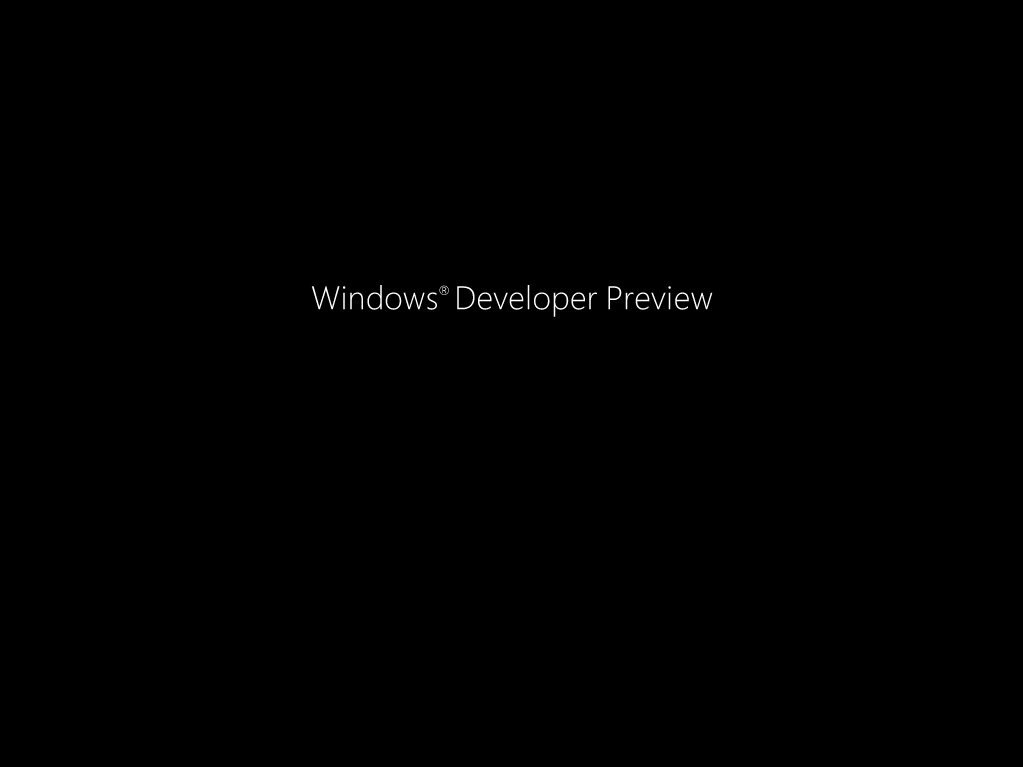
The Developer Preview announces itself.
You get to the first install screen, where you get to select the language. Under the “Language to Install” option, English was the only choice.

After clicking Next, you get a screen giving you the option of doing the install or starting a repair operation.

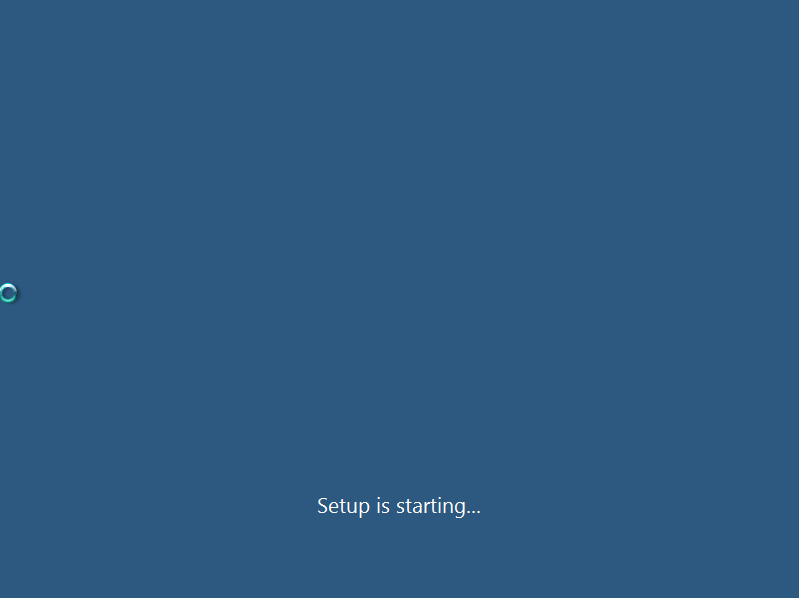
After clicking the “Install now” button, the install starts.
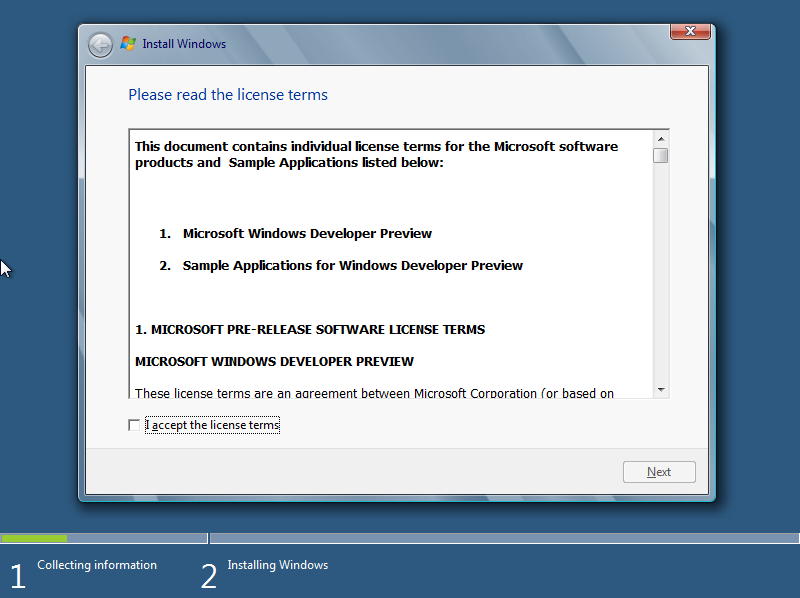
The first thing you’ll see is the license agreement.
You then get the option to upgrade or do a clean install.  Note that, according to the keynote, you can not upgrade Windows 7 to Windows 8, but must do a clean install.

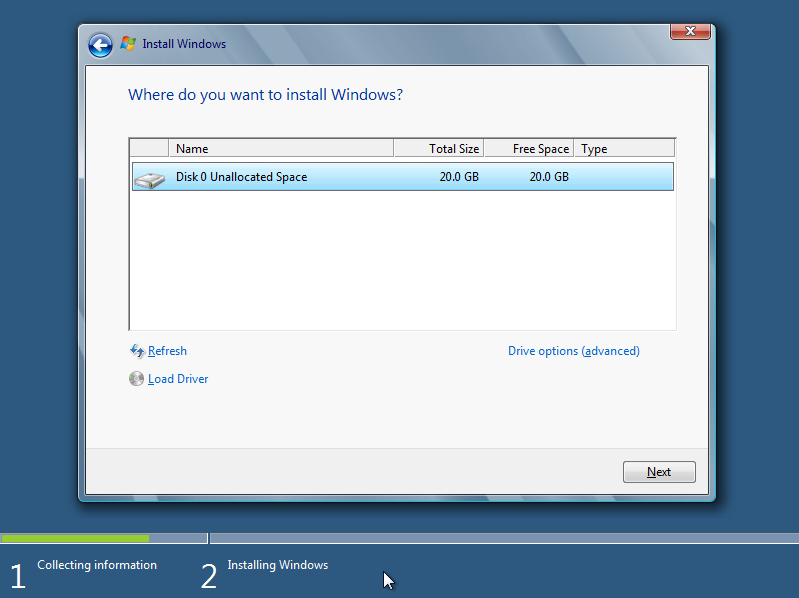
Clicking on the Custom button to do a clean install gets you to a page where you select a partition to install Windows 8 to.
The install process then starts.

Things proceed quickly, with the “Expanding Windows files” step taking the longest.

Once the basic install steps have completed, Windows tells you that it’s going to reboot before continuing.

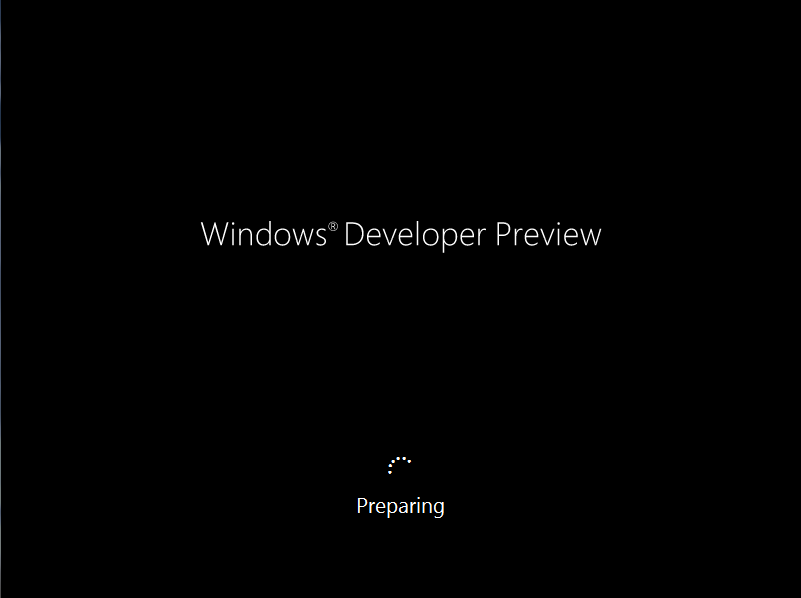
Windows 8 now boots from the hard drive for the first time.  It announces itself once again as the Developer Preview and says that it is “Preparing”.
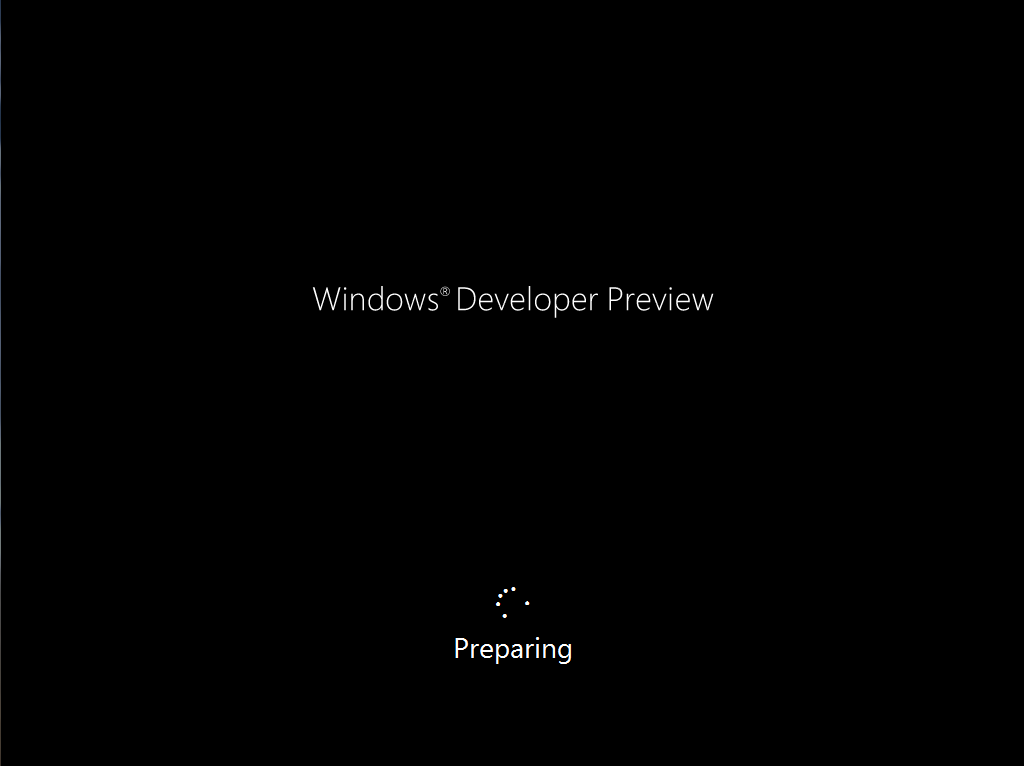
It then says that it is “Getting Devices Ready”.

When this step is complete, we see that Windows is “Getting system ready”.
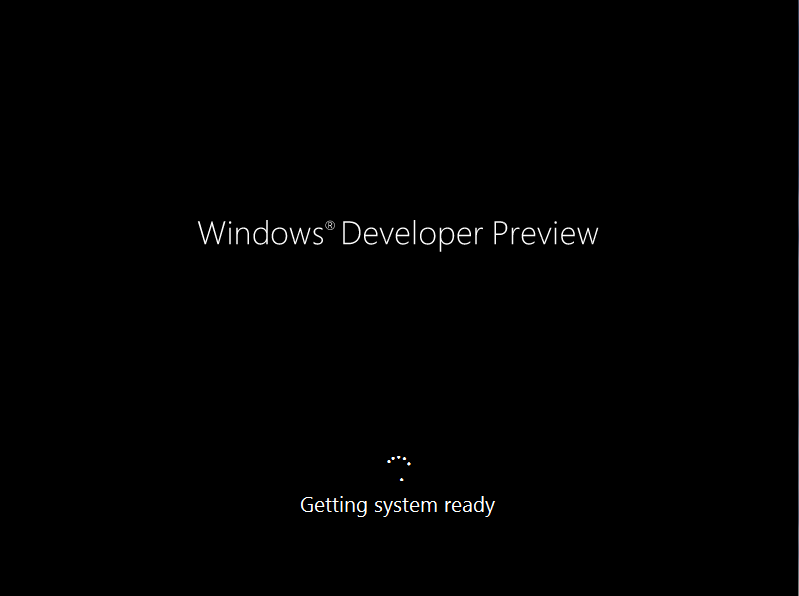
And Windows will reboot once again.
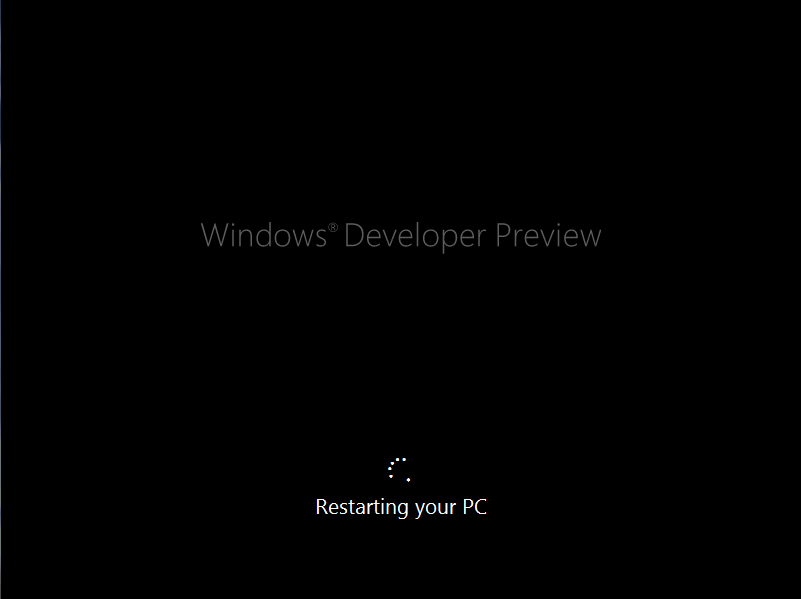
After the reboot, we do some more “Preparing”.
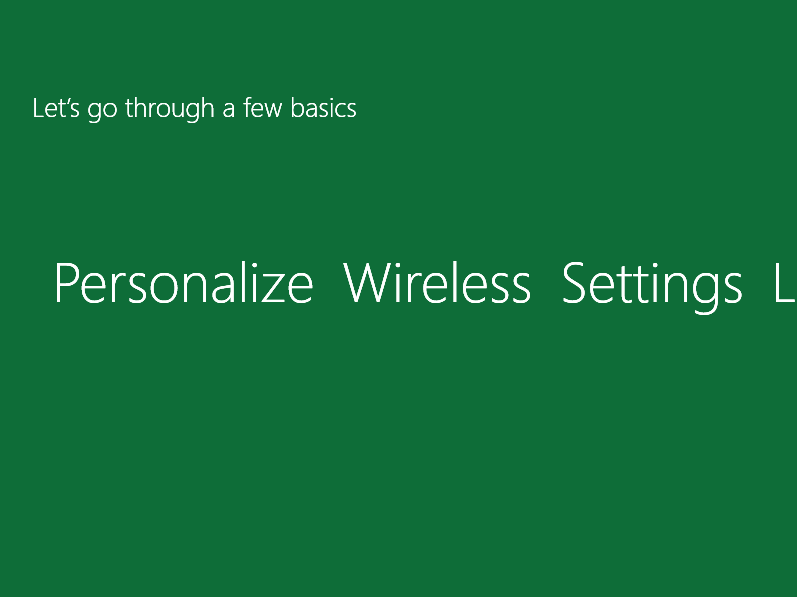
And finally, we see the first configuration screen and the first appearance of a Metro style user interface.
In the first step, we give the PC a name.

We then see a Settings page, where we can accept the default recommended settings, or choose “Customize” to set things up explicitly.
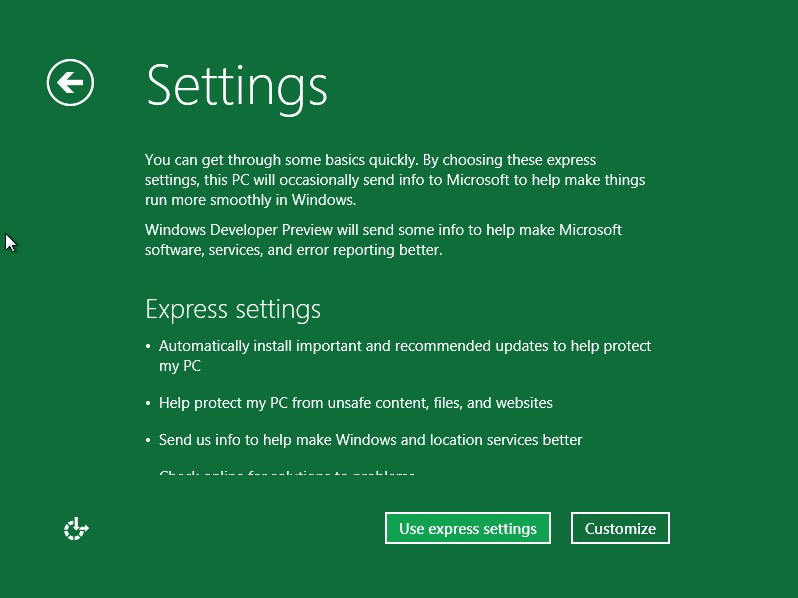
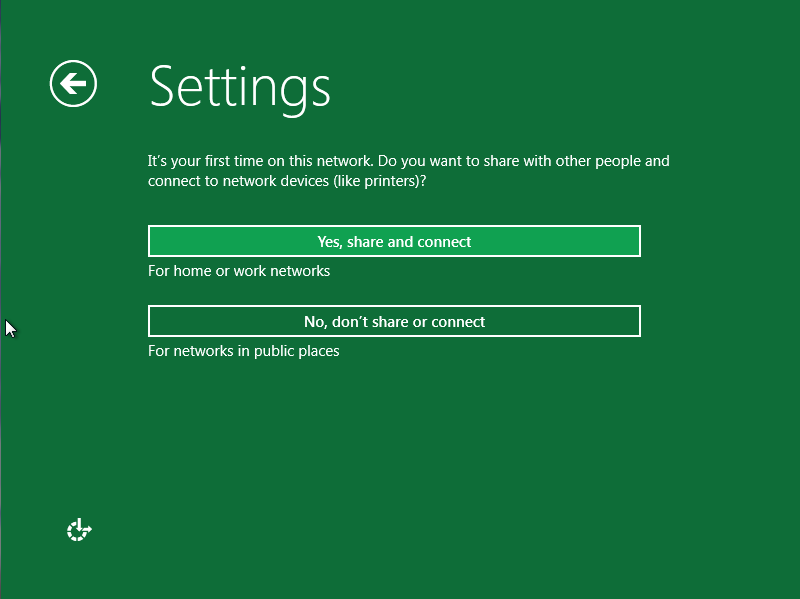
When you select “Customize”, you’ll first be asked whether to turn on sharing.
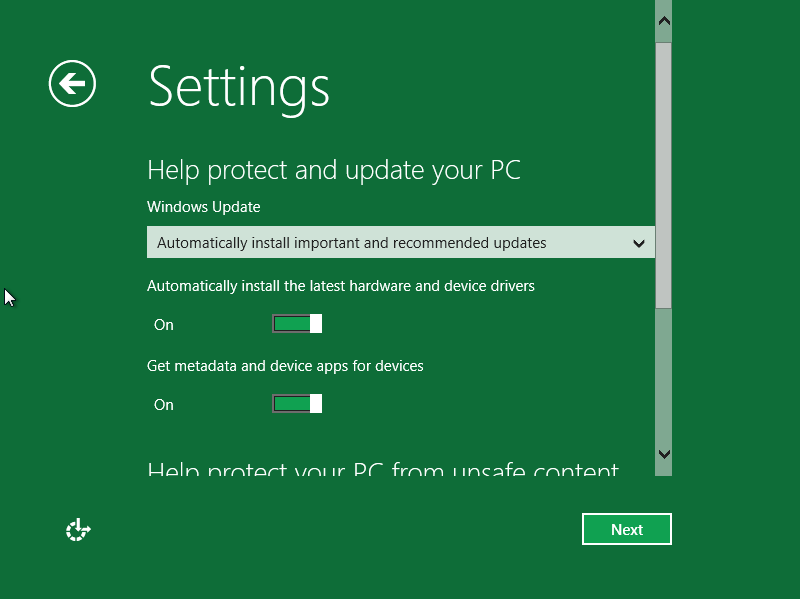
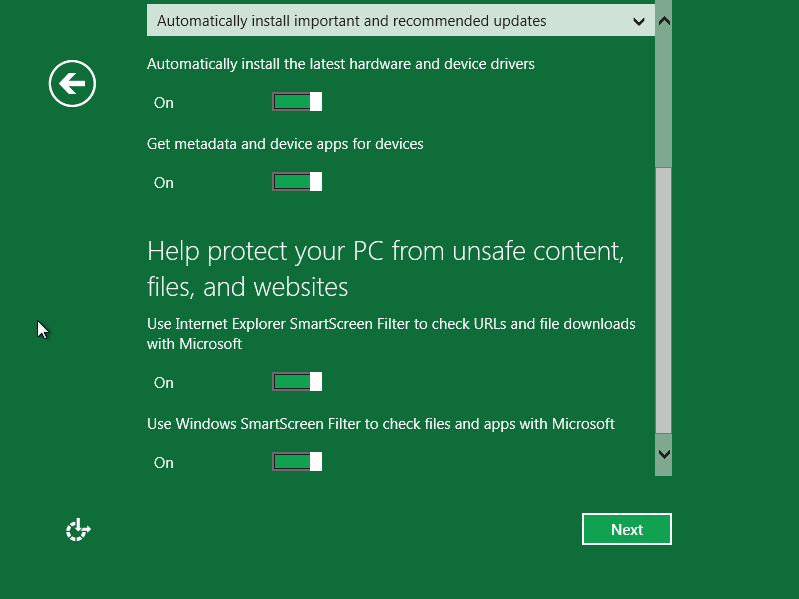
You’ll then see some security-related settings (shown below as two separate screen captures).  It’s actually a little disappointing that they’ve made the text so large that you’re required to scroll to see everything on this page.  They should have either split this into two pages, or used a smaller font so that you could read everything without scrolling.
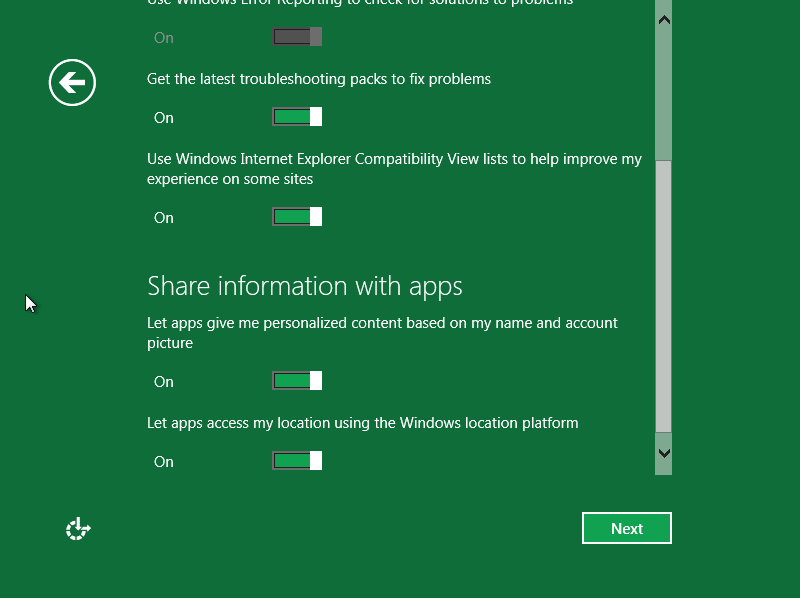
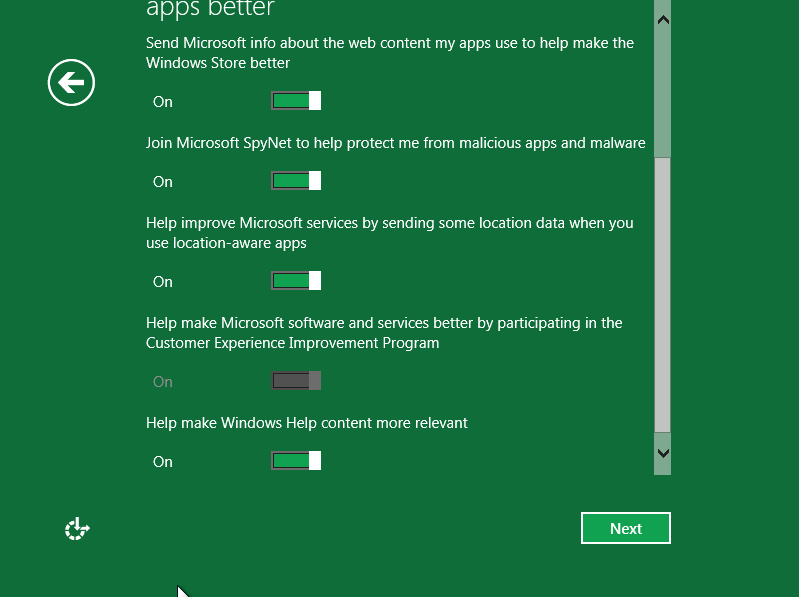
You’ll then be asked questions about what information you’re prepared to share with Microsoft.  It’s nice that they ask our permission for all of this, but you should note that these options are all ON, by default.

You’ll then see a settings page related to updates.
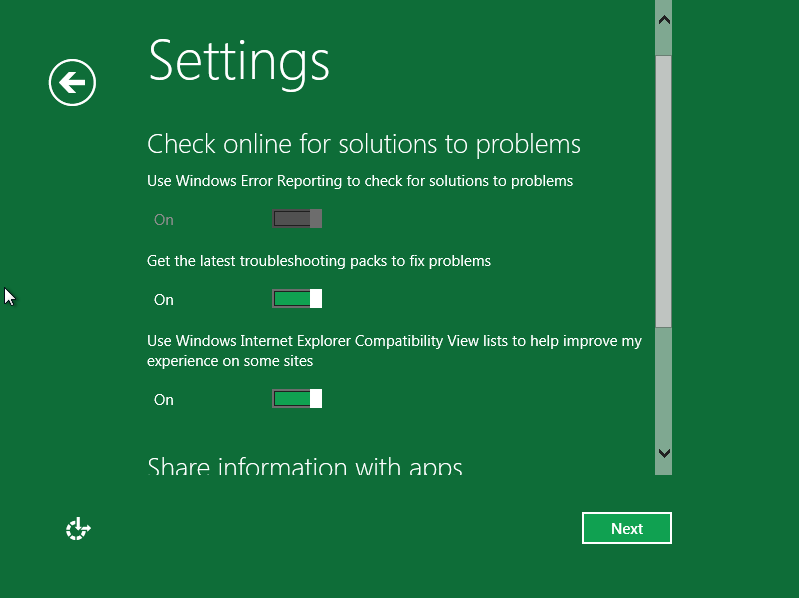
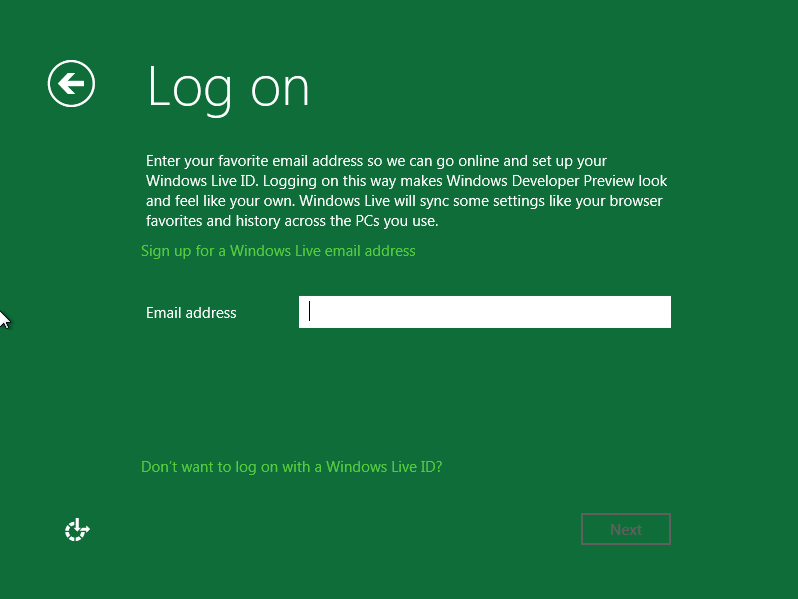
You now see a Log on screen, where you can log into Windows using your Windows Live ID.
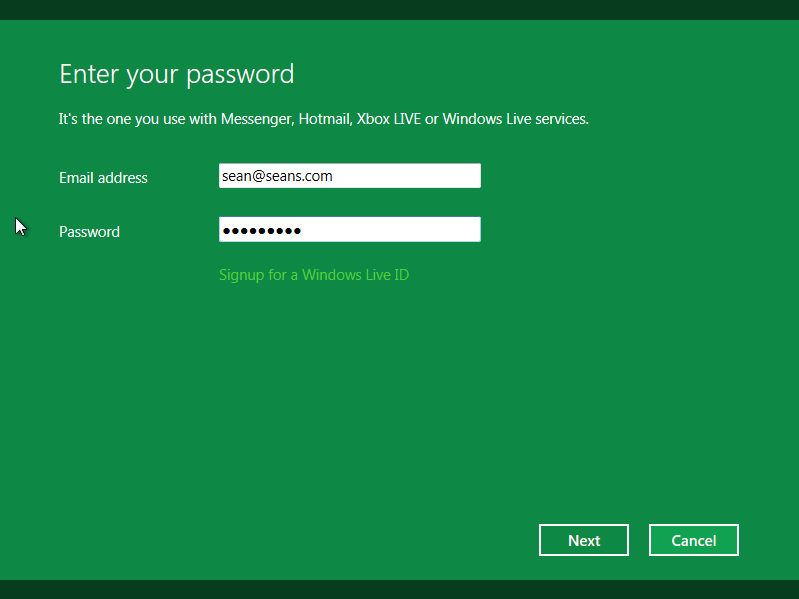
You enter your e-mail address and Windows Live password.
Windows goes off and does something will all of these settings.
You get one more “Preparing” screen.
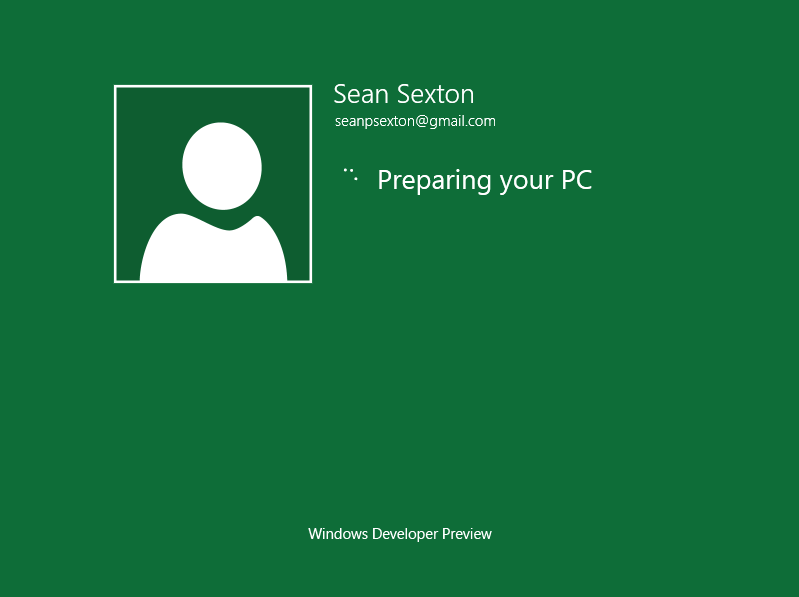
And Windows does a little more work in configuring your settings.
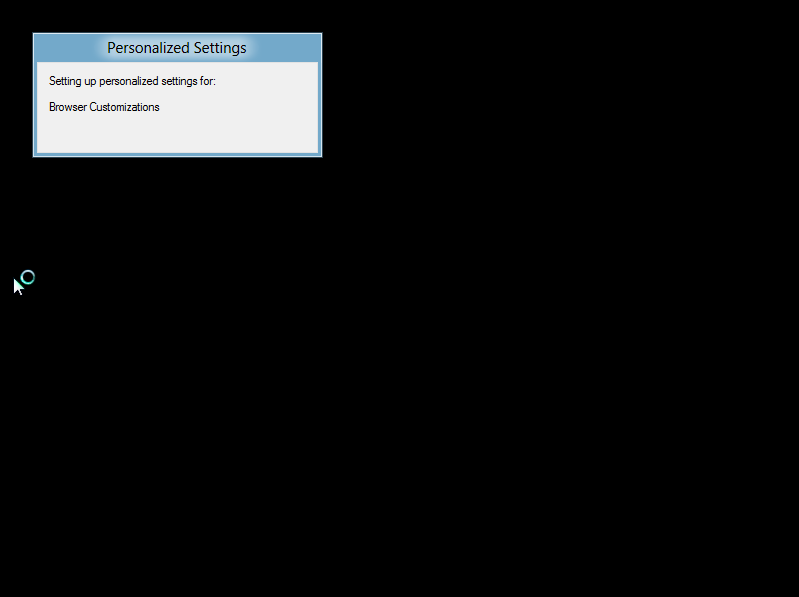
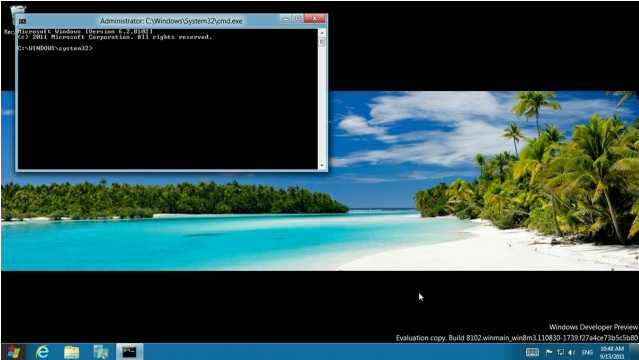
At this point, you’ll get a brief glimpse of the Windows 8 desktop.

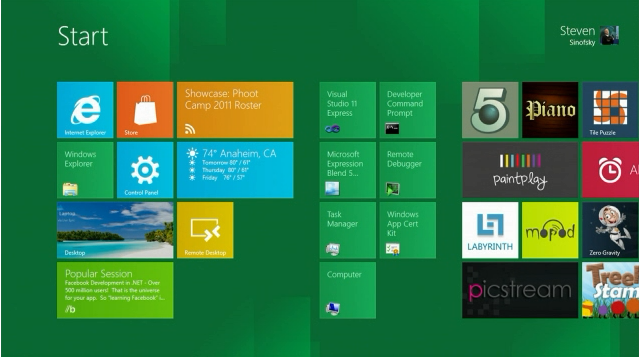
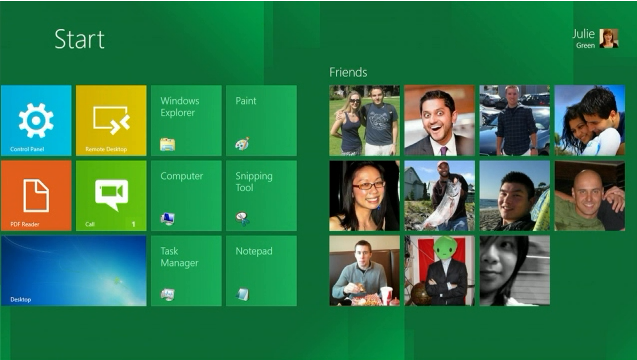
Finally, the Metro user interface shows up, listing all of the apps that you can launch from Metro.

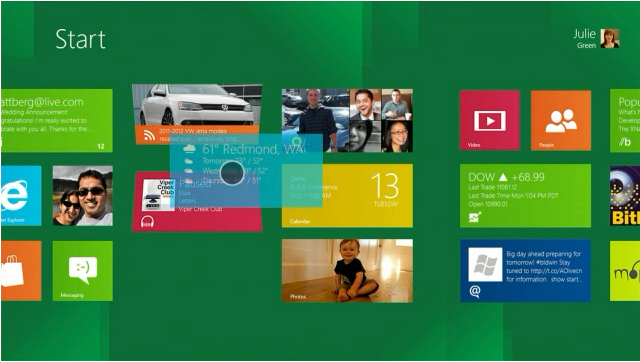
As you scroll to the right, you can see the full set of apps that show up in Metro in this developer preview.
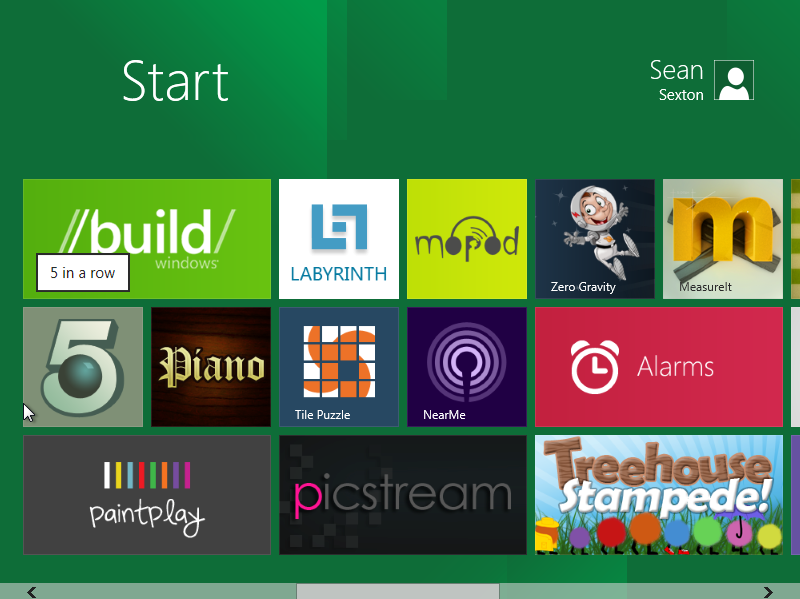
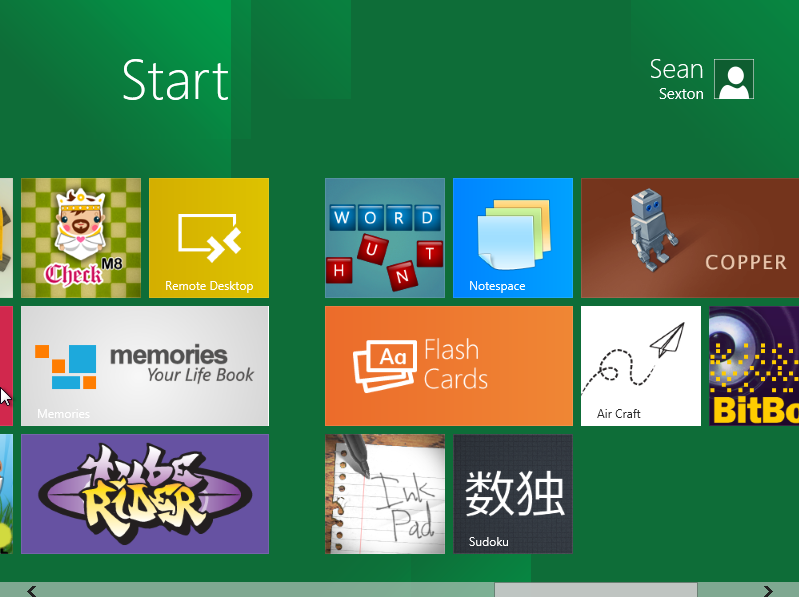
At this point, Windows 8 is up and running.

Note that you can switch to the classic Windows desktop by clicking on the “Desktop” app in the Metro interface, or by pressing the Windows key on your keyboard.  You’ll see the familiar Windows desktop.
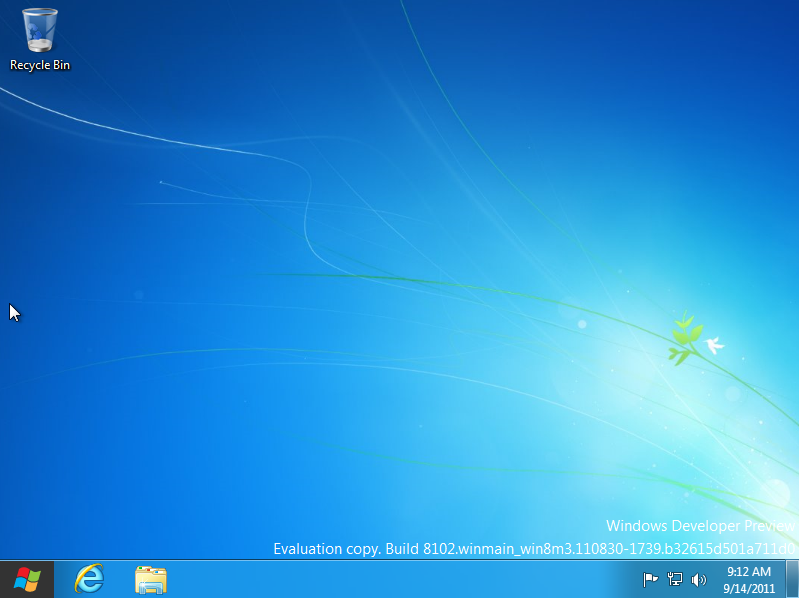
Clicking on the Windows icon at the lower left will switch you back to the Metro user interface.
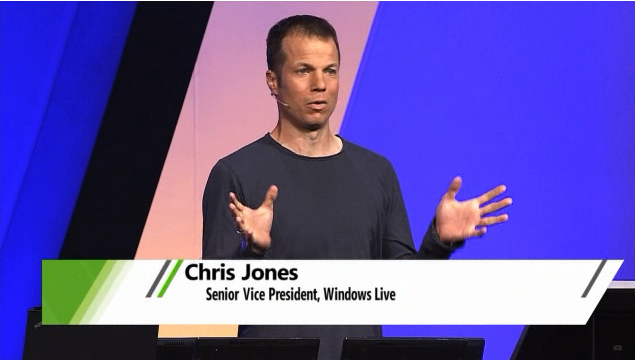
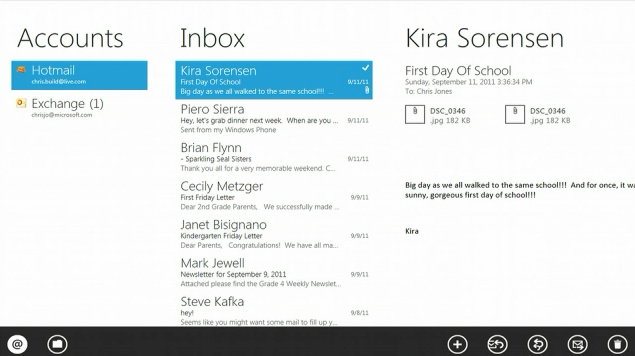
BUILD Conference Notes #4 – Keynote, part IV – Windows Live

BUILD conference keynote, part IV.  Windows 8 and Windows Live.  13 Sep 2011.
Chris Jones.

  • InBox, multiple accounts

  • Share calendars

  • Connected address book

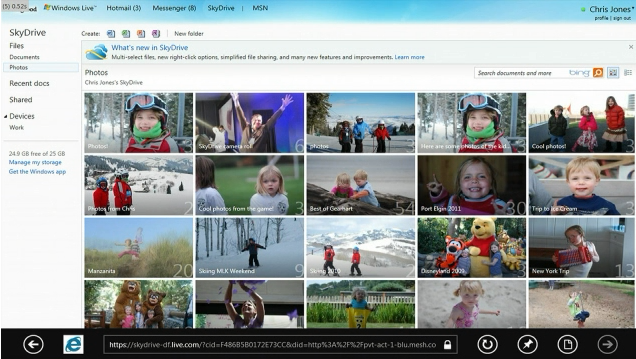
  • Photos – photos from various places

  • SkyDrive – accessible to developers
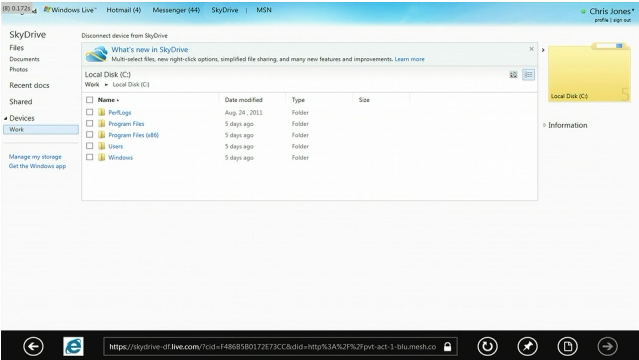
  • Connect devices via Live – e.g. navigate hard drive
  • Tunneling via Live ID
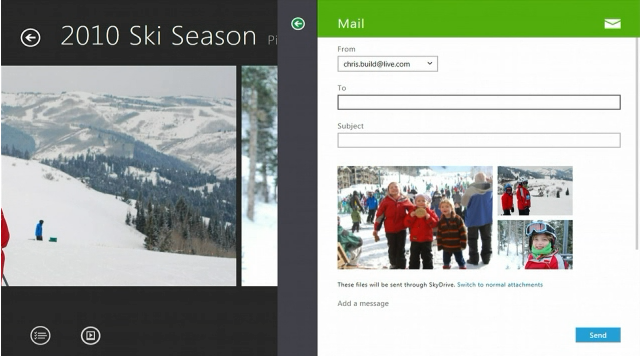
  • Sharing photos via mail

  • Connected contact list

  • SkyDrive via web site, access to all connected devices

  • Windows Phone 7.5, SkyDrive stuff

  • New Acer touch screen PC with Touch

  • Live apps are all written as new HTML5 Metro apps

  • Hundreds of other features in Windows 8 we haven’t yet seen
  • Sample apps

  • Teams built apps in 10 weeks
  • 17 teams, 2-3 devs per team, 10 weeks
  • College interns built all of the sample apps
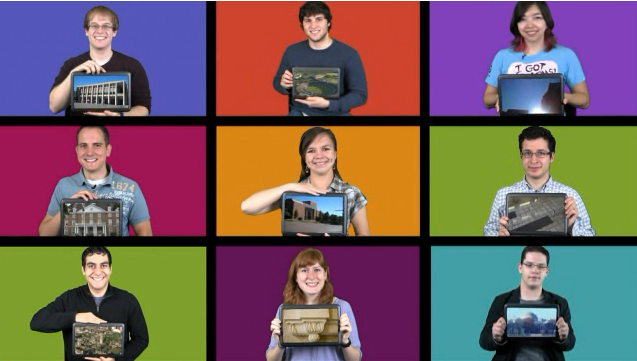
  • Here are some of the interns

  • Hmm, intern said “turn on their Slate”
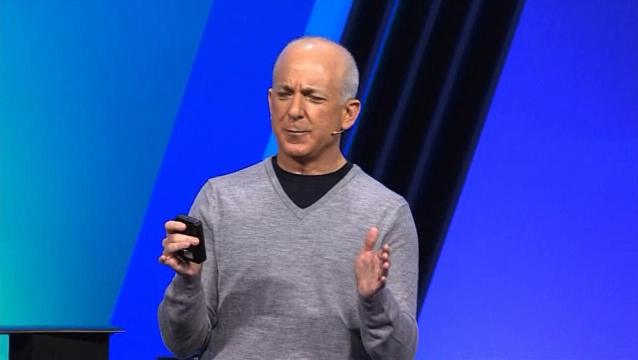
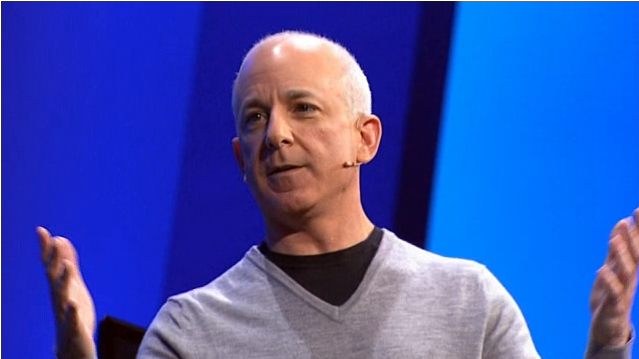
  • Steven, with more to say

  • Windows 8 Developer Preview – pre-release – Visual Studio 11 Express, Blend 5
  • Next milestone Beta.  Then RC, RTM, GA (General Availability)
  • Driven by quality, not by a date
  • Developer Preview will also receive updates
  • Customer Feedback will drive fixes that they make
  • http://dev.windows.com, can download preview, 10PM CST
  • No activation

BUILD Conference Notes #3 – Keynote, part III – Windows 8 Hardware Etc

BUILD conference keynote, part III.  Windows 8 Hardware and other new features in Windows 8.  13 Sep 2011.

  • Michael Angiulo, Corp VP, Windows Planning and Ecosystem

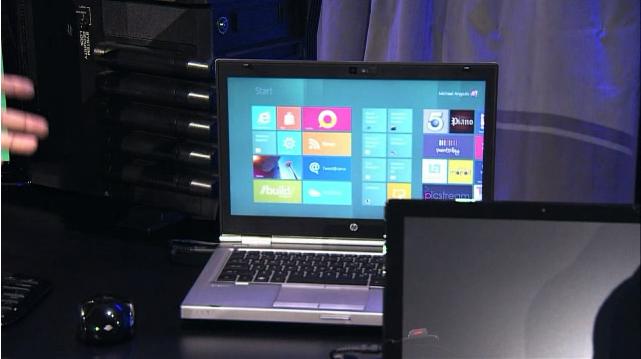
  • Super fast boot times
  • 8-sec bootup on current in-market laptop

  • Service automatically checks for root kits – tons of new security features

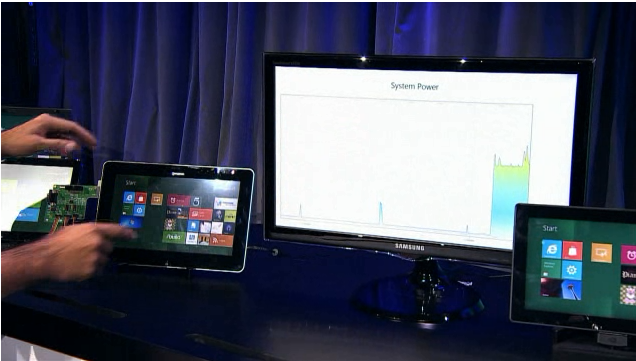
  • New power state – Connected Standby – very low power
  • One-click power switch on tablet – instant on/off

  • Killer feature – instant on/off, just like iPad
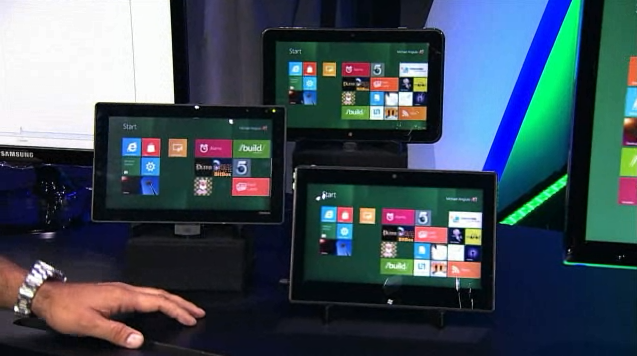
  • ATOM and ARM-based systems

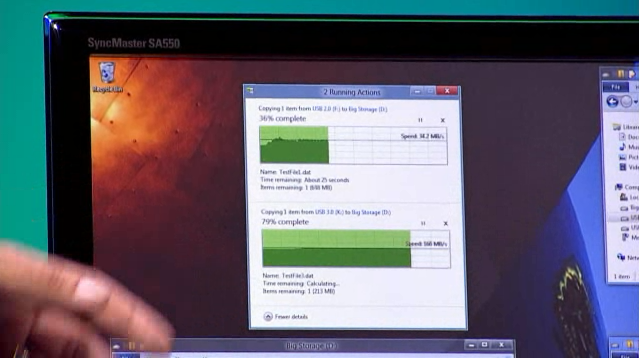
  • USB 3.0 – much faster than 2.0

  • Windows 8 supports 256TB drives
  • 4.7 TFlops computing power on killer 3-graphics card system.  (2500x original Cray)

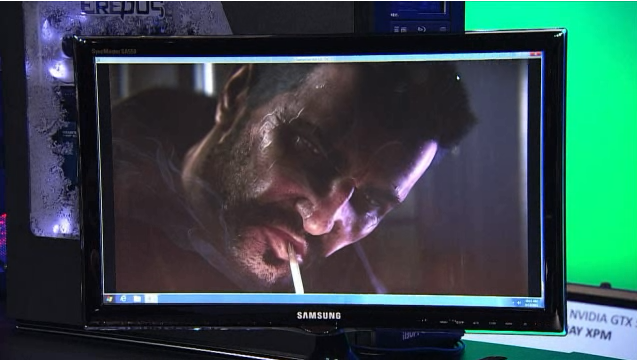
  • Unreal engine and DX11

  • All of Windows 8 is built hardware accelerated graphics
  • Only 1 pixel of chrome around the outside of apps
  • Touch working across wide variety of systems
  • If a screen can run Windows 7, it can automatically run Windows 8

  • 1366 x 768 – can do side-by-side in Metro
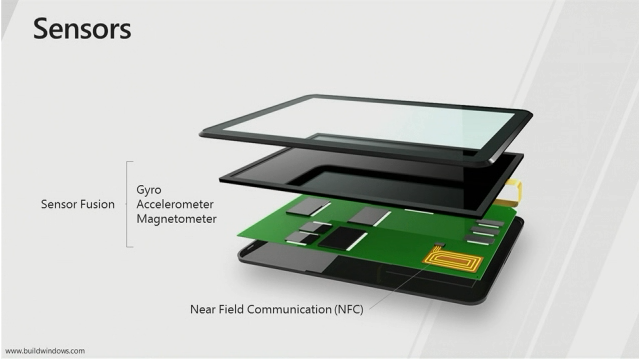
  • Sensor API in Win 8

  • NFC (Near Field Communication) built-in (sensor), to recognize objects
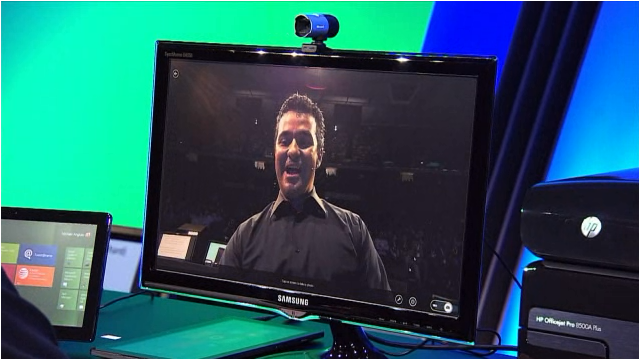
  • HD web cam app

  • Win 8 tablet with 3G

  • Resume from Sleep as fast as you can open the lid
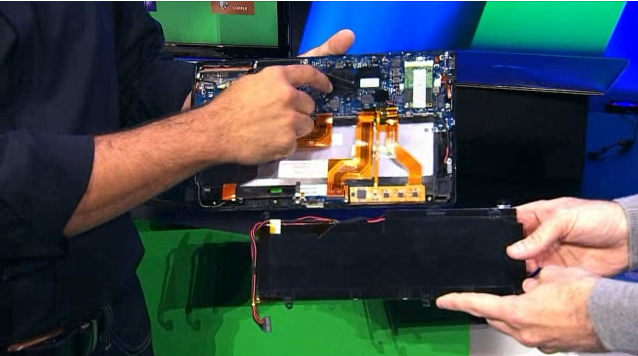
  • Thin laptops

  • PC is mostly battery

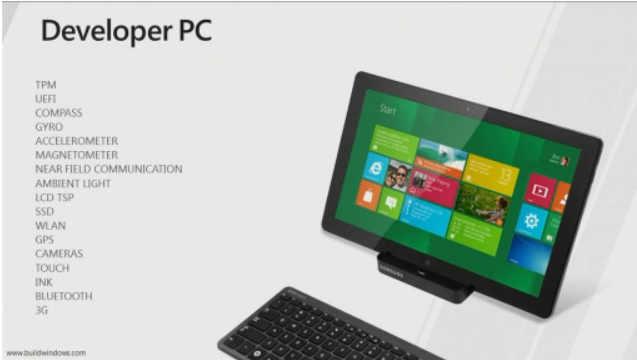
  • Samsung table PC – 5,000 in warehouse

  • Everyone at BUILD gets one of these
  • “Samsung Windows Developer Preview PC”

  • 2nd generation Core i5
  • Dual monitor
  • 11.6″ diagonal
  • Loaded with Developer Preview of Windows 8
  • Comes with tools, apps

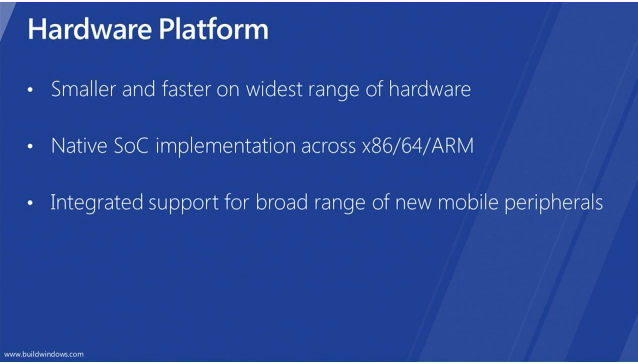
  • Win 8 smaller/faster on widest range of hardware
  • Windows 8 on “professional platform”

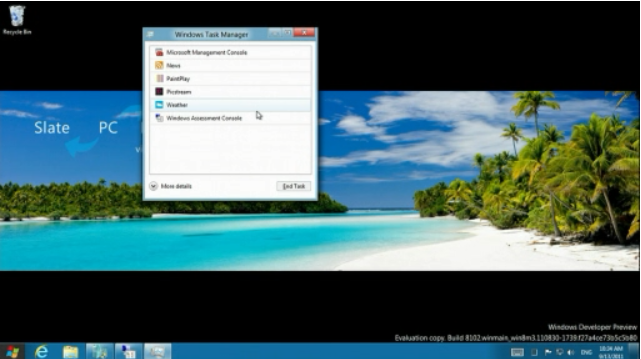
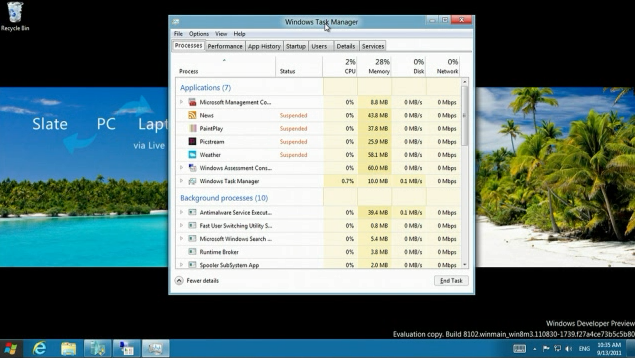
  • New Task Manager

  • Apps go into Suspended state when you’re not looking at them

  • New Startup mods in Task Manager
  • Services tab
  • Run command line tool to make current set of settings a baseline for restore
  • Standard performance benchmarks; run suites of tests; compare over machines or over time
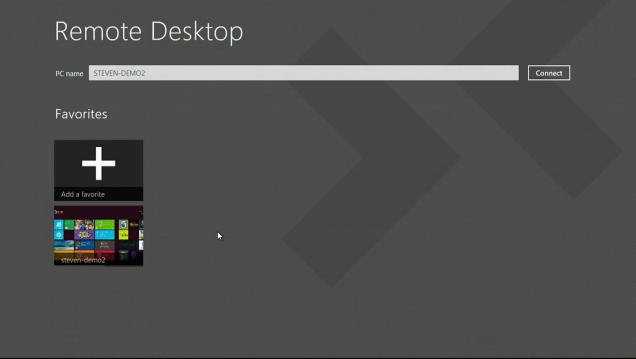
  • Remote Desktop

  • Touch enabling on remote session
  • Hyper-V, can run on Windows

  • VHDs, can mount as drives
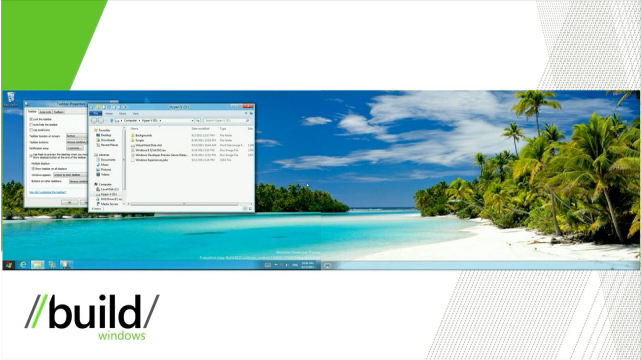
  • New ribbon in Windows Explorer; new Up button

  • Desktop background can span multiple monitors
  • Can customize taskbar for each monitor separately – i.e. show icons only for apps on that monitor
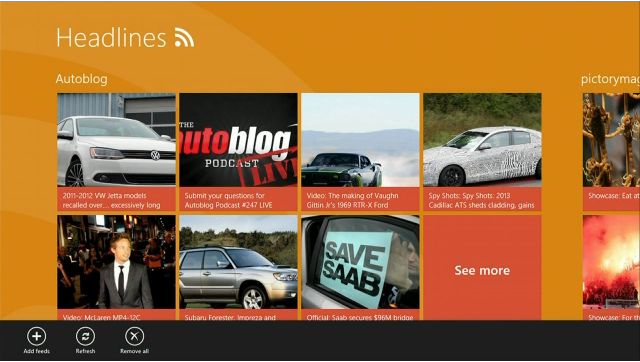
  • Swap monitor, e.g. run Metro on one monitor, app on another
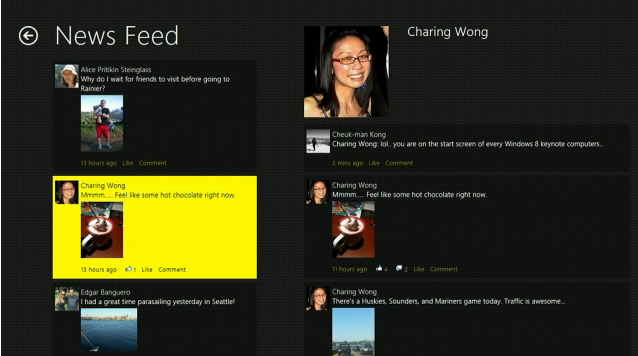
  • Type “cmd” in Metro, search opens automatically, shows you cmd.exe

  • Weather app

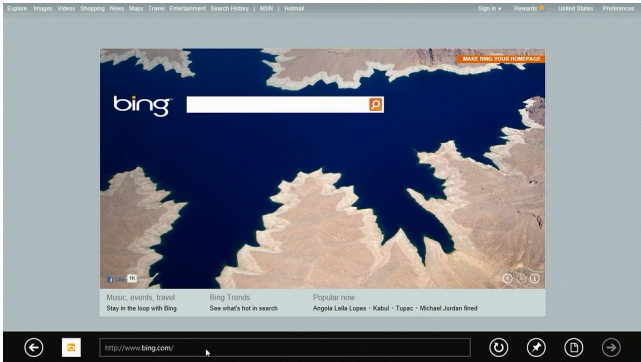
  • IE10 in Windows 8

  • All the normal keyboard/mouse works as usual
  • Can open app in either Metro panel or with normal Windows desktop frame
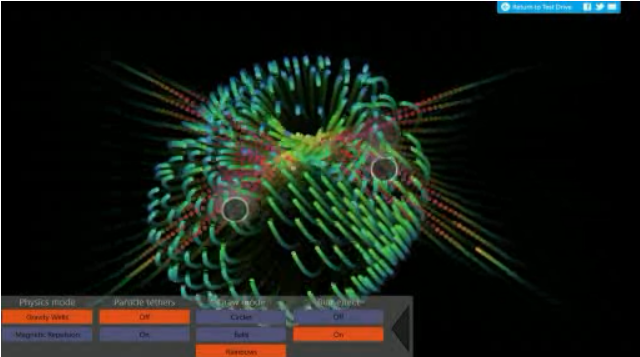
  • Internet Explorer 10 Platform Preview 3
  • Mulit-touch in IE10

  • Magnifier

  • Ease of Access – can make everything bigger
  • Thumb-by-Thumb keyboard layout

  • Ink / Pen

  • All personal settings roam

BUILD Conference Notes #2 – Keynote, part II – Building Applications

BUILD conference keynote.  13 Sep 2011, 11:30AM CST.

  • Today

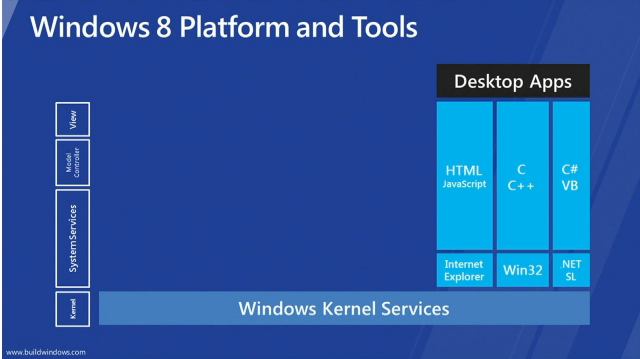
  • Windows 8 platform for Metro apps

  • Windows kernel – brought forward – robust, scalable
  • Windows Runtime – Win RT – APIs
  • WinRT – over 1800 objects
  • Application Model – natively built into Windows; all native code
  • Is .NET Framework gone?  Where does it live in this picture?
  • You pick the language that you want to use
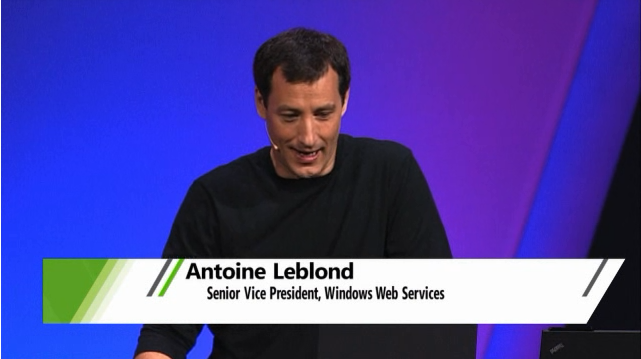
  • Antoine Leblond – building apps

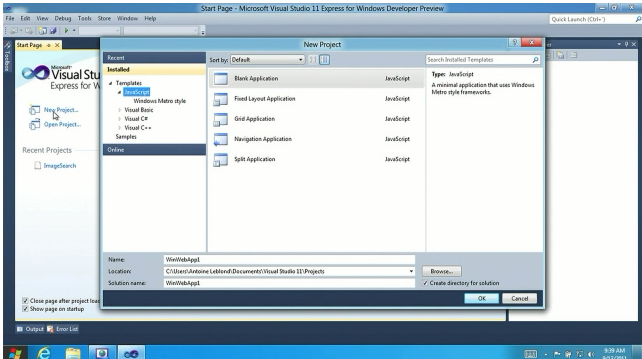
  • New Project, pick language

  • Templates are fully-functioning metro-style apps

  • Adding some HTML5 elements

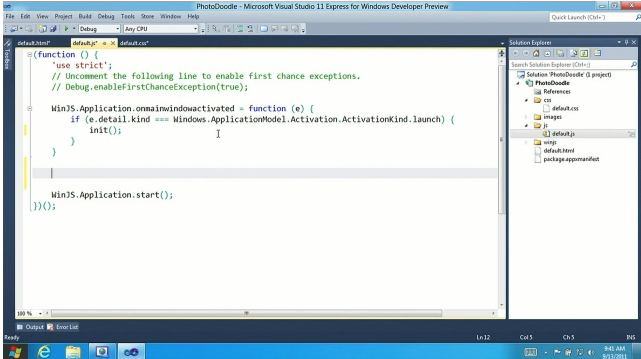
  • Writing some code (Javascript)

  • Run the app – browser launches

  • Ugh, back to procedural code.  Step backwards, if you talk to a XAML developer

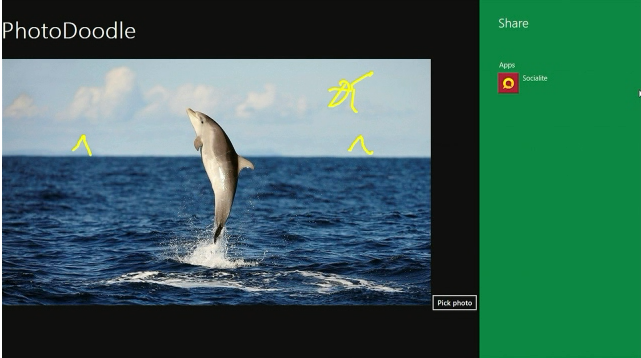
  • Sharing to social network

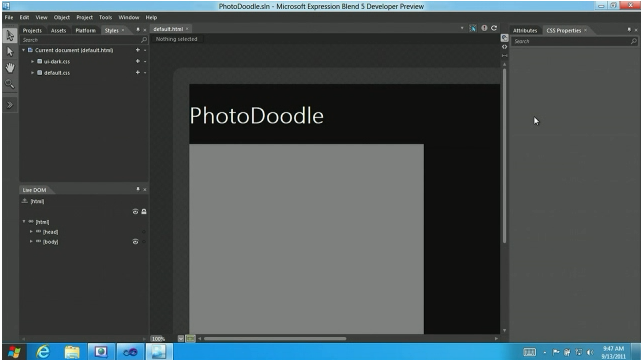
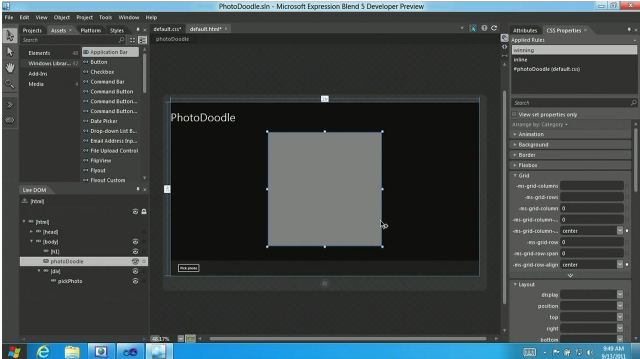
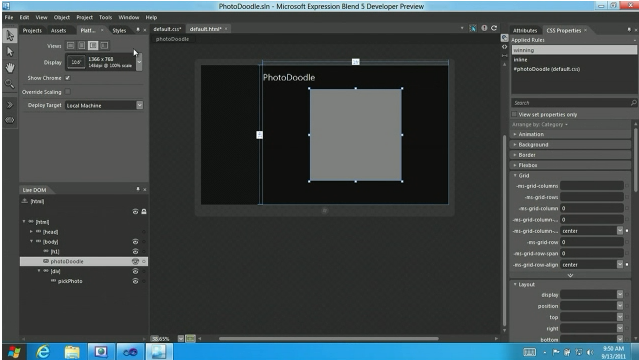
  • Blend 5 has support for HTML5

  • Using new CSS layout Grid

  • Previewing app at different resolutions and screen orientations

  • 58 lines of code for basic little HTML5 app

  • Packaging app into app store

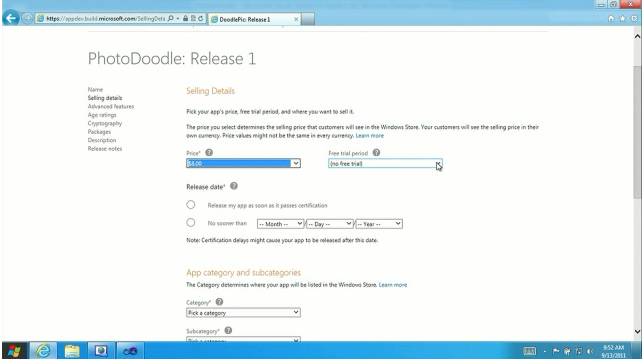
  • Set price for your app

  • Built-in licensing model, including trialware option
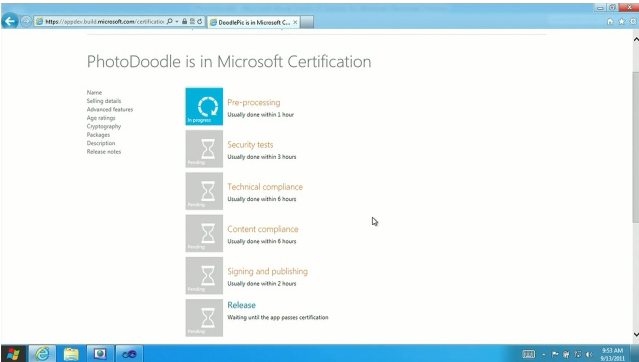
  • App certification process.  Shows you where your app is in the process

  • Technical Compliance – developers can run tests in advance using MS-supplied tools
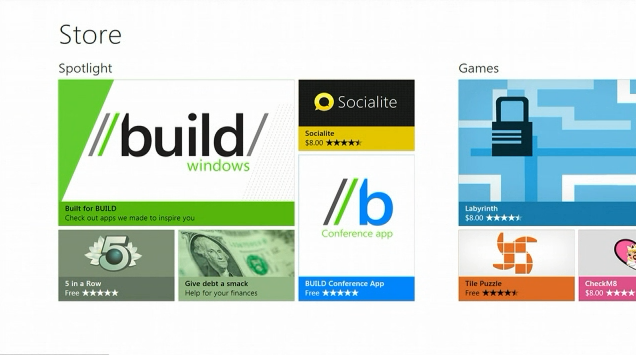
  • App Store, Spotlight section

  • Games in App Store

  • App Store is itself a metro-style HTML5 app
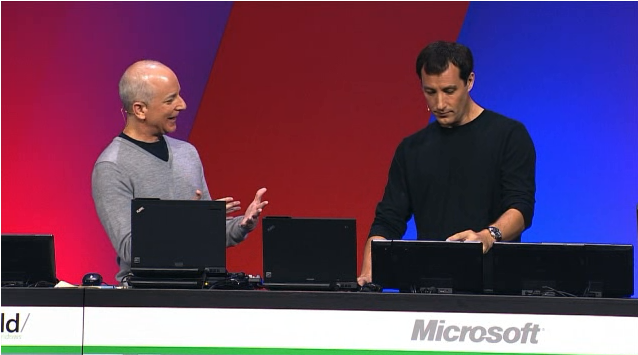
  • Steven is excited

  • App listing page in App Store

  • What about Win32 apps?
  • Start screen can list Win32 apps as well (e.g. Quicken)

  • Developers are NOT forced to use new Microsoft licensing model
  • Old apps can just be listed in App Store
  • XAML – where does it fit in?
  • Silverlight apps can run in new browser in Windows 8
  • Works the same way as in Windows 7, but not Metro app
  • Converting Silverlight app into Metro-style app
  • Converting from Silverlight environment to Windows 8 – only requires a handful of changes (e.g. namespaces)
  • Ported Silverlight now allows touch, full Metro app.  But it’s still XAML.

  • Change view in XAML to Windows 8 GridView.  Still XAML.
  • And can connect to Search Charm in Windows 8
  • We now can run Silverlight app with new Windows 8 grid view

  • New APIs/tools to build Metro apps
  • Rapid/scalable development
  • Your choice of languages and development tools
  • Apps automatically run on all the hardware that Windows 8 supports

BUILD Conference Notes #1 – Keynote, part I – User Experience

BUILD conference keynote.  13 Sep 2011, 11AM CST.

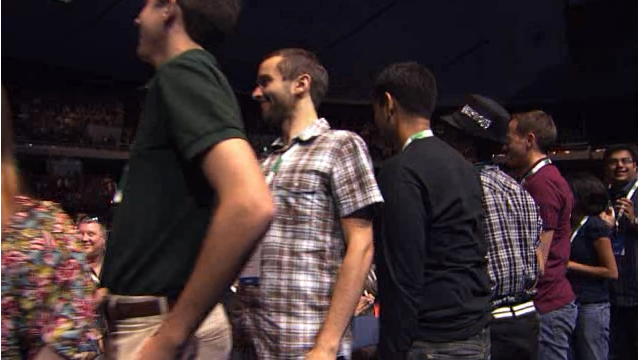
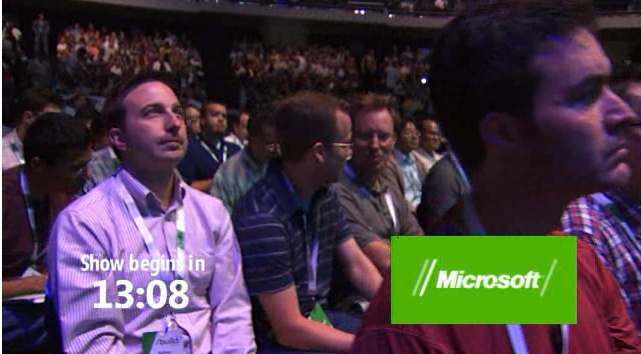
Prior to start of keynote, live stream wanders through the crowd.

  • Tagline – “Do what you’ve always imagined”


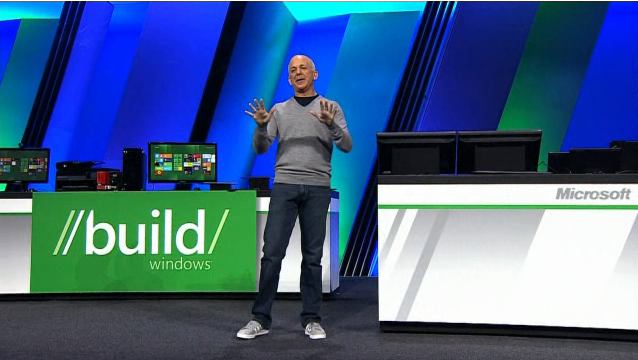
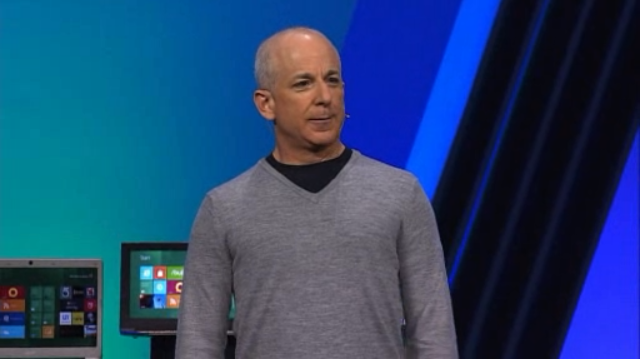
  • Steven Sinofsky

  • Launching Windows 8 today
  • Over 450,000,000 copies of Windows 7 sold
  • Windows 7 consumer usage is now greater than Windows XP usage
  • Over 1500 product changes to Windows 7 since RTM
  • IE9 – gave us hardware acceleration; showed that HW acceleration does matter for browsing
  • Over 542,000,000 users of Windows Live
  • IE9 + Windows Live = foundational elements of Windows 8

  • Touch – will become a huge part of interaction
  • Once you’ve used Touch on PC with Windows 8, you’ll want it on all devices
  • Mobility – you want devices that you can use while carrying around
  • Developers want more connectivity between users
  • Services are intrinsic part of all software
  • Windows 8 is at Developer Preview stage
  • Everything great in Windows 7 – even better in Windows 8
  • Everything that runs on 7 runs on 8
  • Full compatibility from Windows 7 to Windows 8
  • Goal of Windows 8 is to reimagine Windows, from the chip set on up to the user experience
  • E.g. Windows 8 running on ARM

  • Windows 8 can run on new hardware, as well as ARM and x86
  • Demo #1 – user experience
  • Demo #2 – Building metro style platform and tools
  • Demo #3 – hardware platform, range of form factors
  • Demo #4 – how everything connects to cloud-based services with Windows Live
  • Over 100 sessions at BUILD
  • Fundamental performance gains
  • Small Lenovo Netbook – 1GB memory, Atom processor.  It’s now running Windows 8
  • On Windows 7, 404MB, 32 processes
  • On Windows 8, uses 281MB memory, 29 processes
  • Better performance on Windows 8, using the same hardware
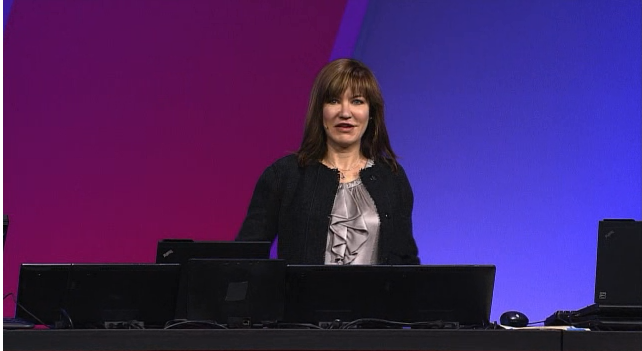
  • Showing off User Experience – Julie Larson Green, Corp VP of Windows Management

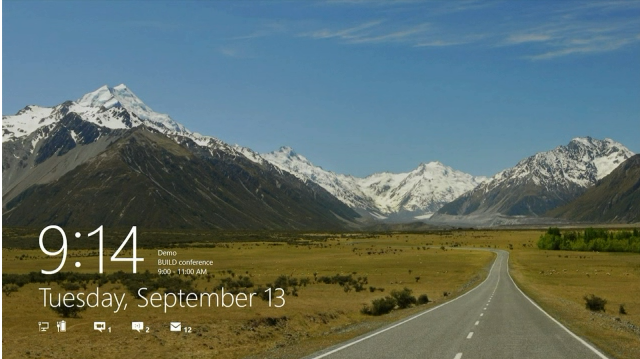
  • Lock screen

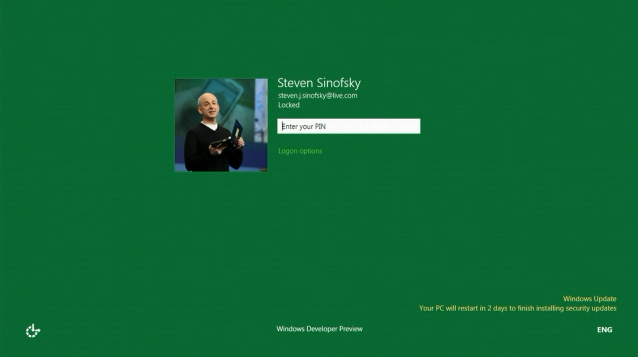
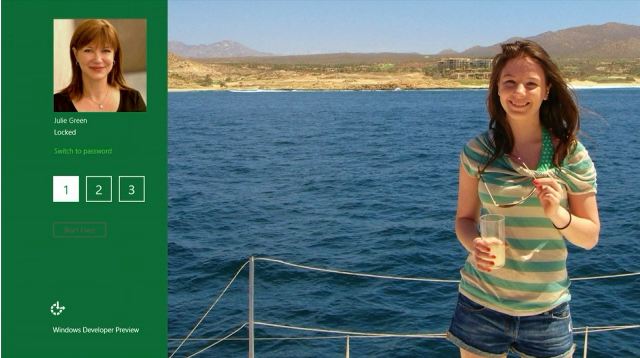
  • Login screen

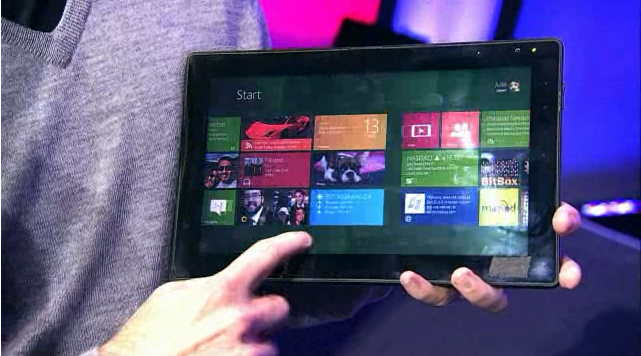
  • Start screen

  • Start Screen is not just a launching.  Also provides notifications, gadgets, etc.
  • Dragging tiles around

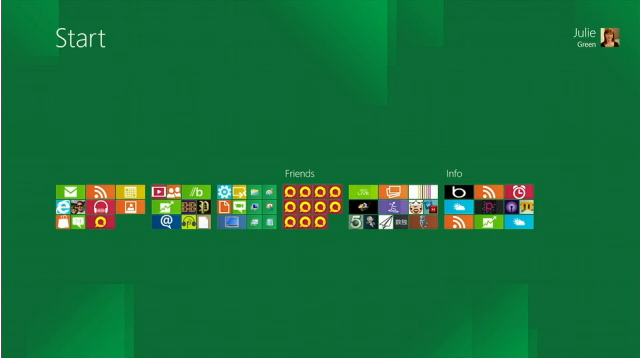
  • Pinch to zoom out and see everything

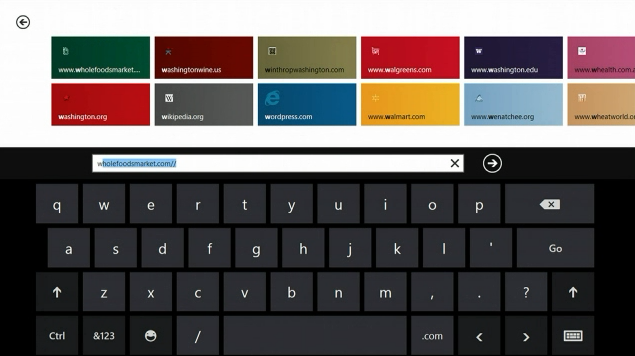
  • Onscreen keyboard

  • Control Panel

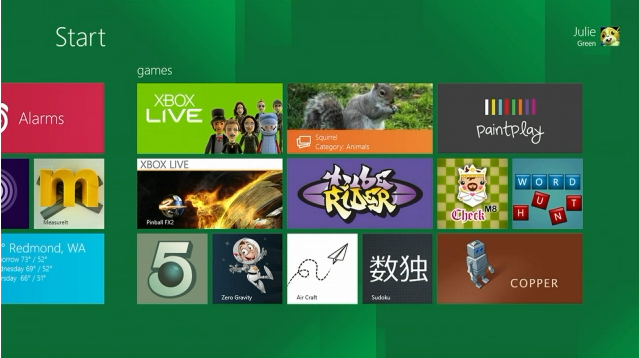
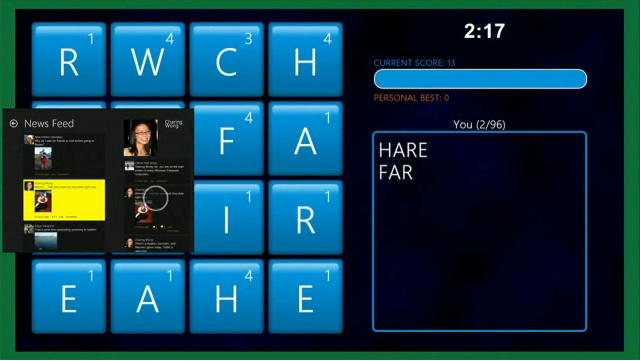
  • Games group

  • News reader

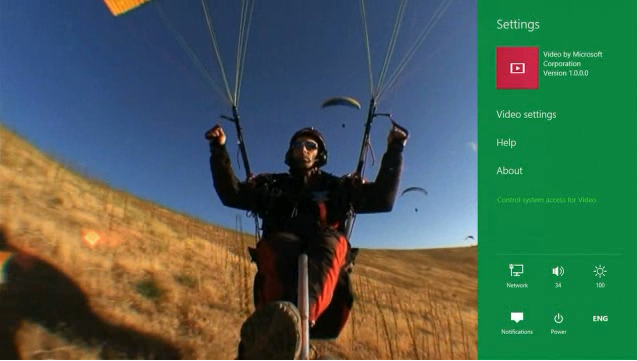
  • App settings

  • Docking apps

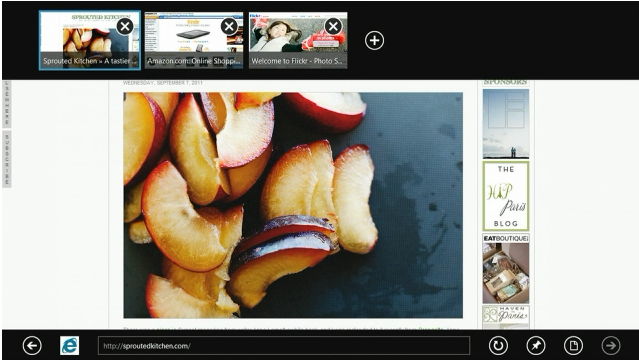
  • IE9 in Metro, chromeless  (“chrome-free”, ha-ha)

  • Swipe to get app bar with IE options

  • Use Touch to select-drag text

  • “Charms”

  • Spell-checking throughout Windows 8
  • Searching applications

  • Playing music

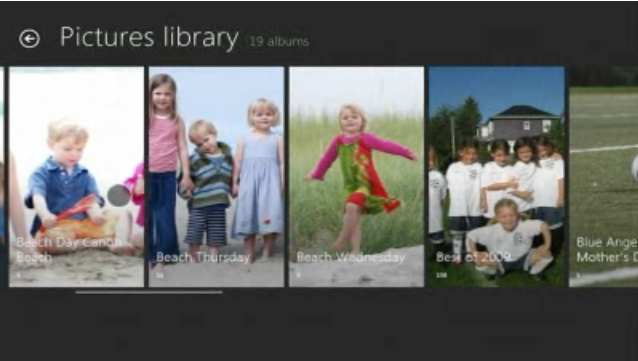
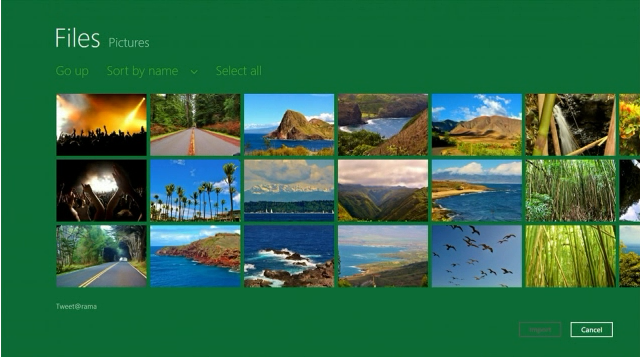
  • Pictures

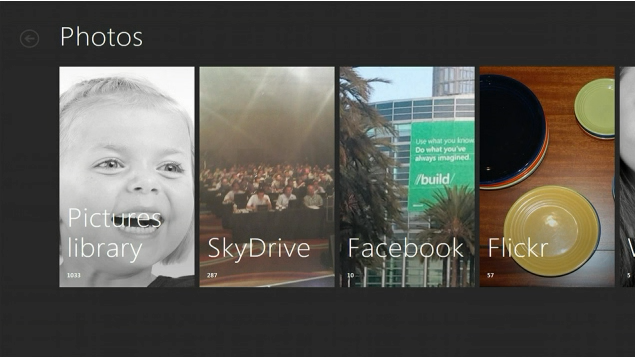
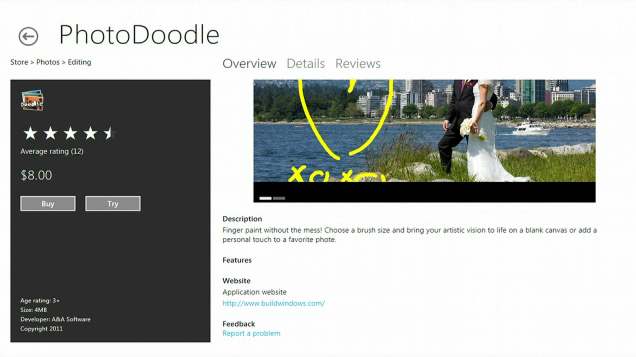
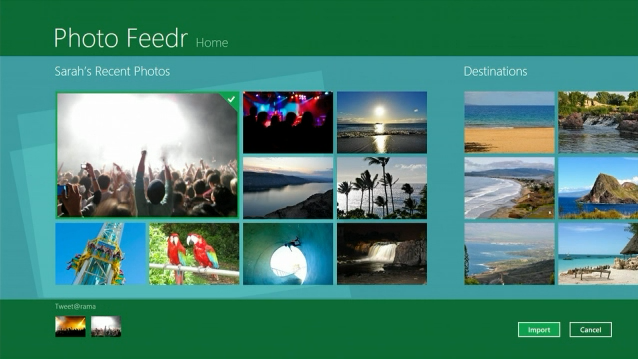
  • Photo Fedr – shows photos from the cloud

  • Tweet@rama

  • On tablet (ARM-based machine running Windows 8)

  • Fast / fluid user experience
  • Applications are immersive and full-screen
  • Touch-first; keyboard/mouse works just as well
  • Web of apps, working together – apps know about each other; work together
  • On various hardware platforms

Notes on Office 365 Launch

Office 365 launch.  28 Jun 2011.  Ballmer introducing it, plus a couple demos.

  • Ballmer introducing Office 365
  • Office + Cloud = Collaboration
  • “Office meets the cloud”
  • Office 365 being announced today
  • Collaboration scenarios, target to small businesses

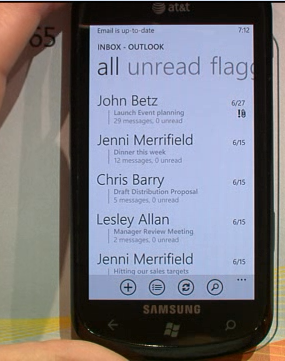
  • Accessing Office 365 using mobile devices, e.g. Windows Phone 7

  • Real-time collaboration–as one user updates, other user sees changes immediately
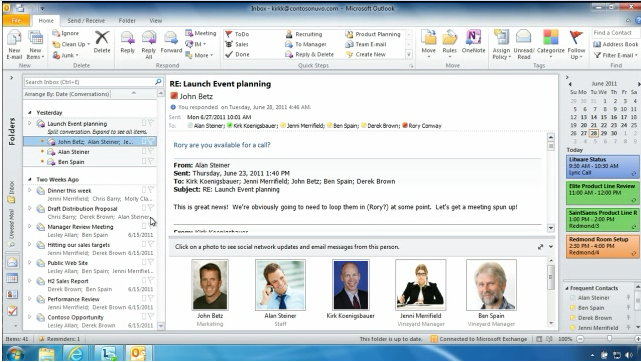
  • Outlook in Office 365

  • Online Meeting button – automatically sets up online meeting/conference

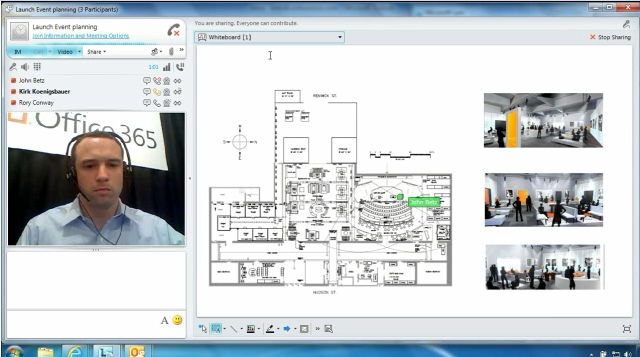
  • Realtime collaboration in whiteboard

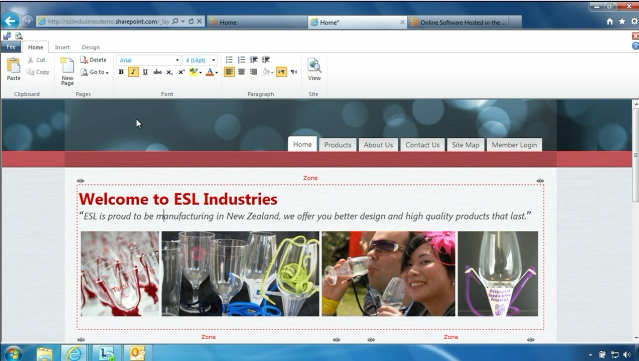
  • Collaboration using SharePoint
  • New SharePoint design surfaces, with Ribbon

  • Service plans for Office 365 – monthly subscription, or connecting existing Office apps to Office 365 service
  • Touting their SLA, but no numbers
  • Example of company planning to host all their documents in Office365
  • $100k/yr savings for sample company
  • Touting – improve collaboration between offices
  • “Global partner ecosystem” – partnering with various partners that already provide SLAs
  • Partner can package Office365 with services that partners already provide to small businesses
  • Our friend Steve

  • “Bring benefits of Office to the cloud”