Creating a Silverlight 4 Development Machine

Now that a Silverlight 4 beta is available, it’s time for me to create a new VM where I can develop Silverlight 4 applications.  This development machine will be based on Windows 7 and include:

  • Visual Studio 2010 Beta 2
  • .NET Framework 4 Beta 2
  • Silverlight 4 Beta
  • Expression Blend for .NET 4 Preview

As of January, 2010, this represents the most complete development environment possible for Silverlight 4 applications.

Operating System

I’ll be installing into a virtual machine environment, using VMware Workstation 6.5.1, running on top of Windows 7 (the host operating system).  The guest operating system, where I’ll be installing the development tools, will be Windows 7 Ultimate.

Both my host and guest machines are 32-bit (x86).

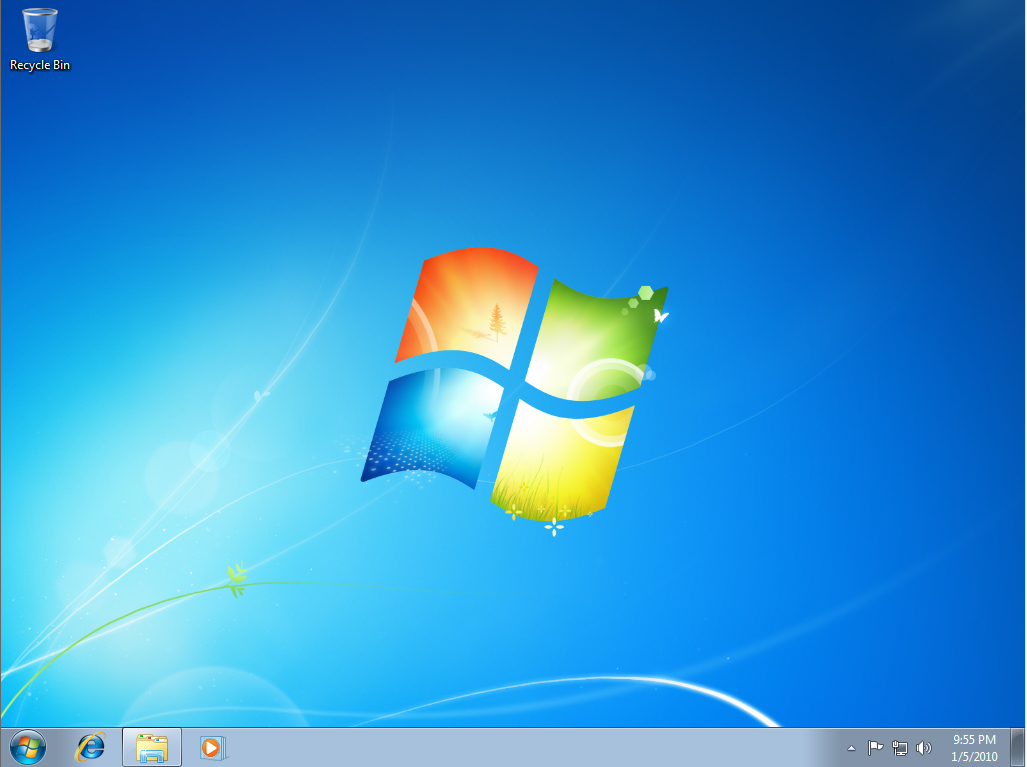
Here’s our “clean slate”–a fresh install of Windows 7 Ultimate with nothing else yet installed:

Fresh Install of Windows 7

It’s a beautiful sight.

Overview

Here’s a complete list of what I’ll be installing in the Windows 7 virtual machine:

  1. Visual Studio 2010 Ultimate Beta 2 (x86)    (19 Oct 2009)
  2. Silverlight 4 Beta Tools for Visual Studio 2010    (2 Dec 2009)
  3. Microsoft for Expression Blend for .NET 4 Preview    (16 Nov 2009)
  4. Silverlight Toolkit    (18 Nov 2009)
  5. WCF RIA Services for Visual Studio 2010 Beta 2    (3 Dec 2009)

I’ll include a link to the location of each tool in the sections below.

Install Visual Studio 2010

I got my copy of Visual Studio 2010 through my MSDN subscription, but you can get a free copy (“Go Live” license) here:

Download Visual Studio 2010 Beta 2

I haven’t tried downloading Visual Studio 2010 from this location, so I’m not sure what edition you get.  But even if it’s one of the Express editions, it ought to be fine for developing Silverlight 4 applications.

We start by launching the VS 2010 installation.

Visual Studio 2010 Installation

The installation begins.

Loading Components

We agree to the license, after carefully reading it.

License Agreement

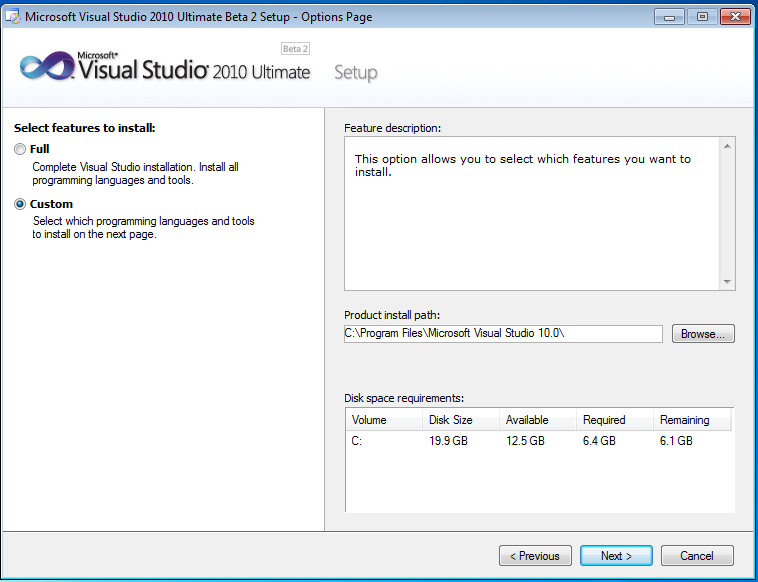
Next, we choose either a Full or Custom installation.  I always go with Custom, so that I can turn off stuff that I don’t want.  Notice that the default installation takes up 6.4 GB.

Custom Installation

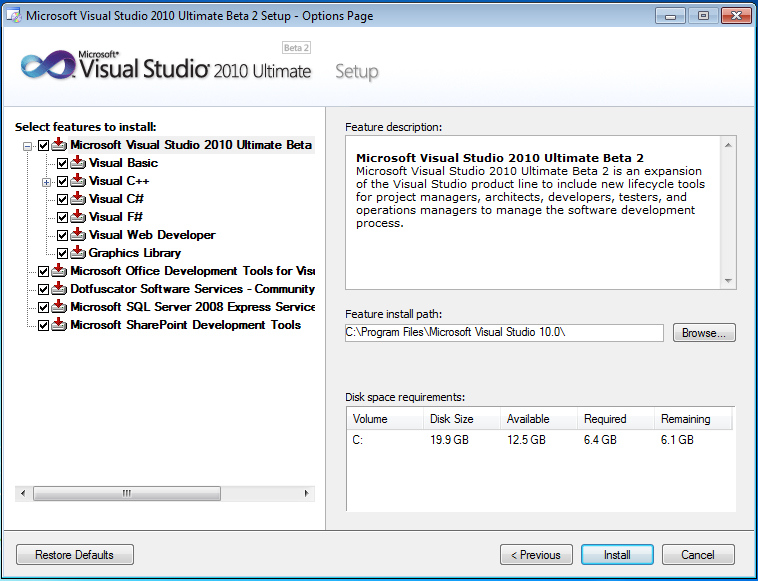
The next screen lets me select individual components to install.  It looks like everything is selected by default.

Select Features to Install

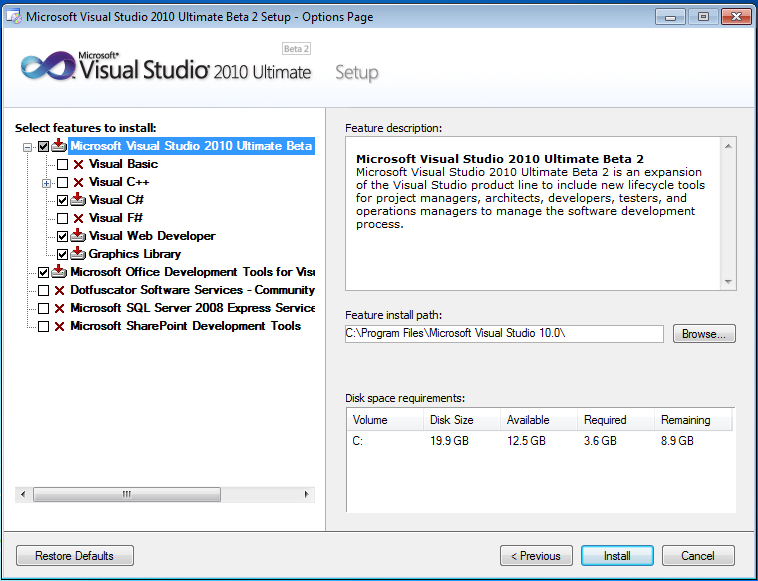
Here are my preferred choices.  I have no interest in VB, VC++ or F#.  For now, I’ll just stick with C#.  I do include the Office Development tools, but don’t need the Dotfuscator feature or SharePoint development tools.  I also uncheck SQL Server 2008 Express, since I’ll later install a full version of SQL Server 2008 when I need it.  This brings the install footprint down to 3.6 GB.

My Selected=

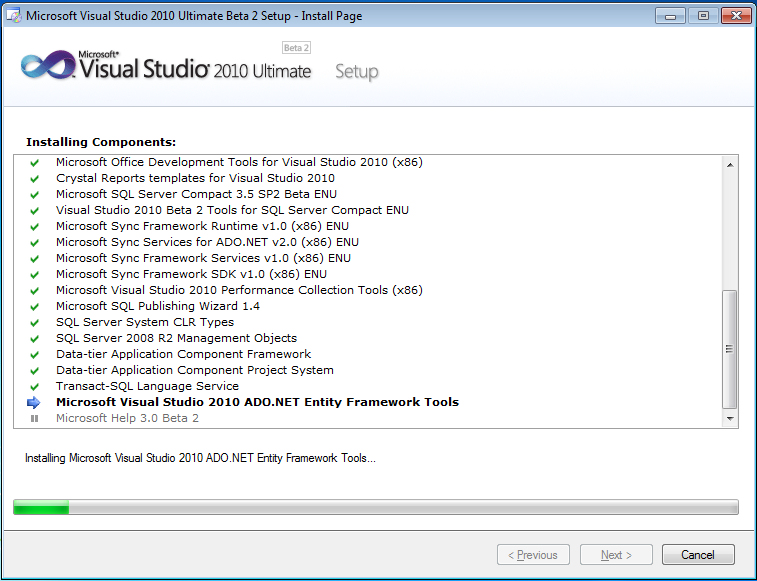
The installation process now starts.  It will take a while, since we have a lot of different components to install.

Installation Begins

A reboot is required after installation of the .NET Framework.

Reboot Required

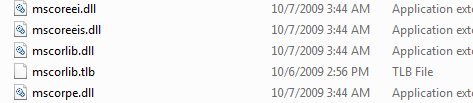
By the way, it’s interesting to note that version 4 of the .NET Framework actually updates the core components of the .NET Framework.  This was not true of version 3.0 or 3.5, which were both just releases that added to existing functionality.  So 4.0 represents the first time that core libraries have been updated since the 2.0 release in Nov, 2005–just over four years ago.

New Core Libraries

Nearly done now..

Installation Nearly Complete

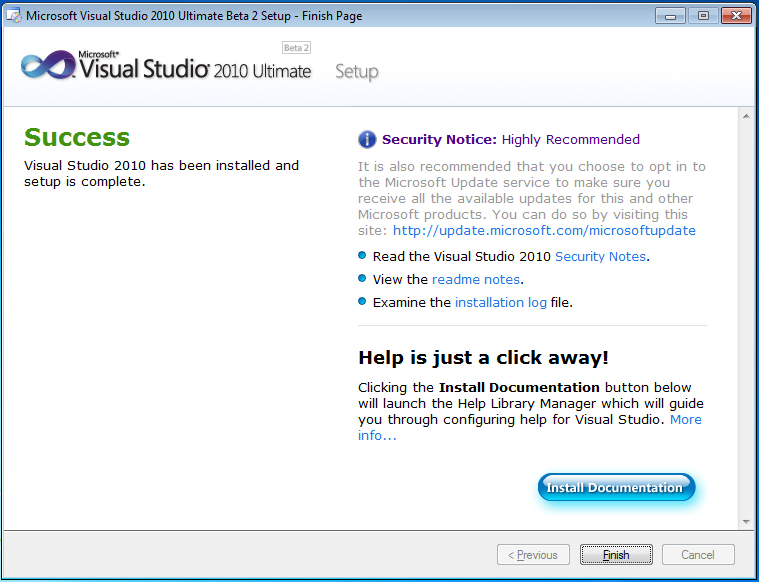
And the installation is now complete.

Installation Complete

Install Silverlight 4 Beta Tools for Visual Studio 2010

Visual Studio 2010 includes support for Silverlight 3, rather than Silverlight 4.  Because Visual Studio 2010 ships a bit earlier than Silverlight 4 (Visual Studio 2010 shipping in March, 2010 and Silverlight 4 shipping sometime in the first half of 2010), Visual Studio 2010 will support Silverlight 3 rather than Silverlight 4.

You can download the Silverlight 4 Tools for Visual Studio from the link below.  Note that this version of the Silverlight 4 tools works only with Beta 2–not Beta 1.

Download Silverlight 4 Beta Tools for Visual Studio 2010 Beta 2

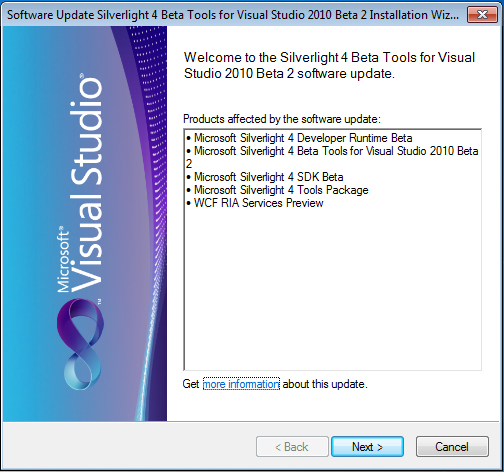
The install starts:

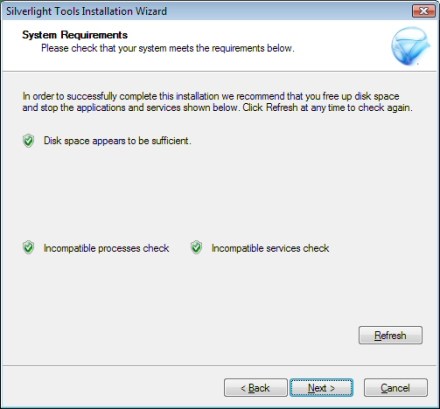
Silverlight 4 Tools Install

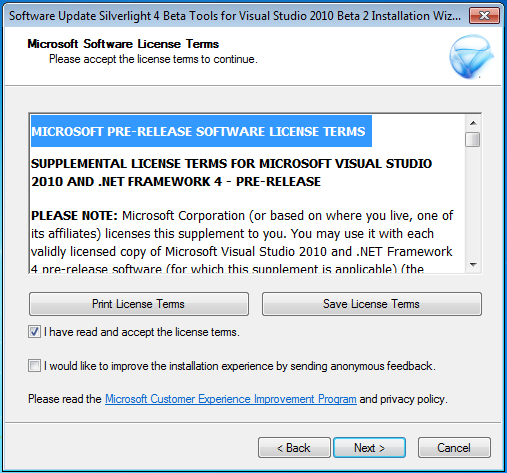
There’s another license agreement to read and accept.

License Agreement

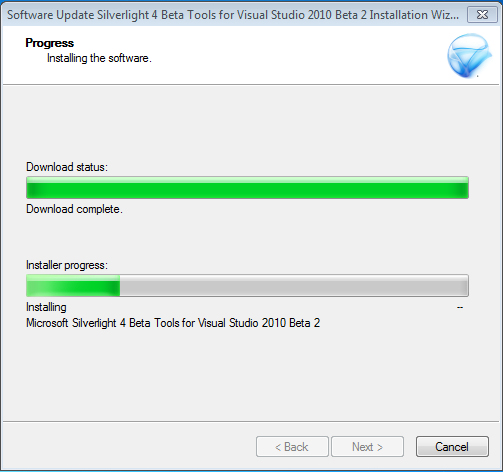
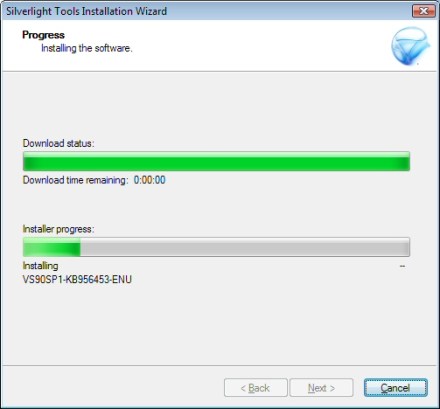
The install begins.

Install Begins

And we’re done..

Install Expression Blend Preview for .NET 4

There is a free preview download of Expression Blend that supports targeting both Silverlight 4 Beta and .NET 4 Beta 2.  It is listed as being compatible with Visual Studio 2010 Beta 2 and can be found at:

Download Expression Blend Preview for .NET 4

This is version 3.1.11111.0 of Expression Blend.  It supports creation of both Silverlight 4 Beta and .NET 4 Beta 2 content, but does not support creation of Silverlight 3 or .NET 3.5 content.  It also does not include SketchFlow.

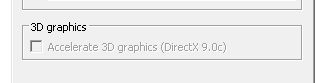
Note: If you are installing the tools to a virtual machine running in VMware Workstation, you may need to make a change in your display settings for the virtual machine before launching the Expression Blend install.  If the 3D graphics setting is enabled for the VM, the Blend install program may not display properly.  Under VMware Workstation 6.5.1, I’ve seen this problem consistently.  The fix is to disabled the 3D graphics setting for the VM.

3D Graphics Setting

One you disable 3D graphics, the first dialog in the install program will display properly.

Blend Install Starts

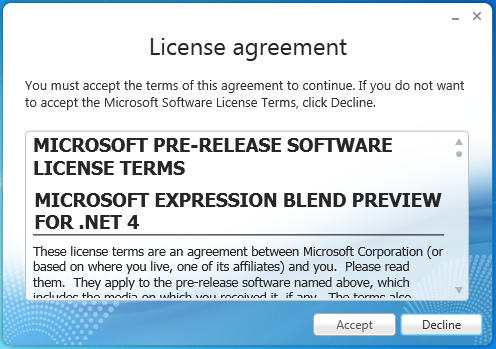
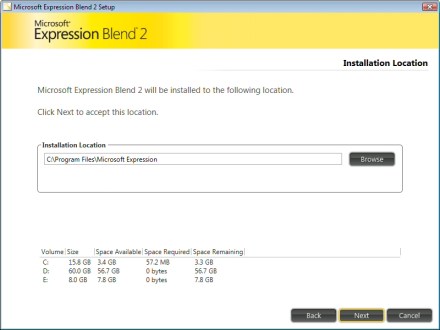
The Blend install dialogs are certainly beautiful.

Blend Install

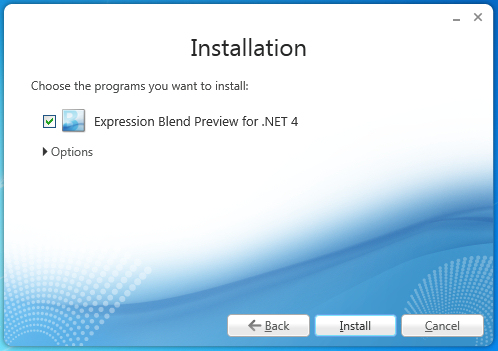
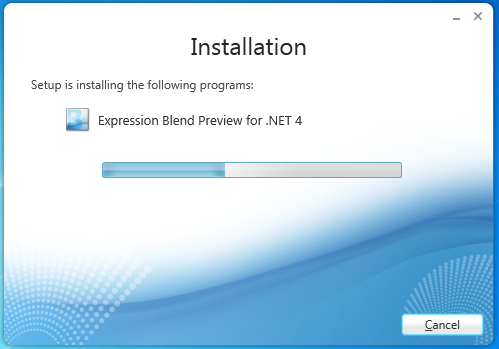
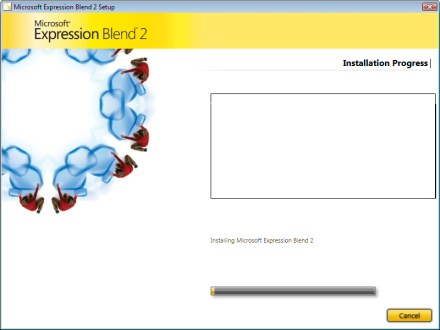
The installation starts:

Installation in Progress

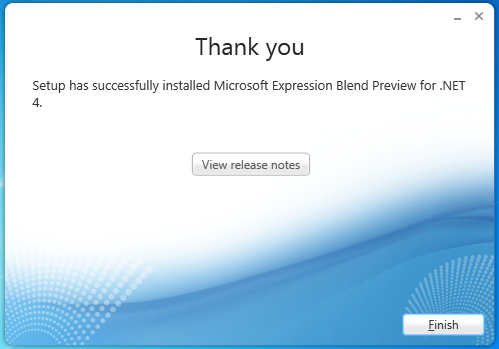
And the installation finishes quite politely.

Thank You

Install Silverlight Toolkit

Next, we install the Silverlight Toolkit, which includes a number of additional Silverlight Controls.  You can find the toolkit on CodePlex.

Download Silverlight Toolkit

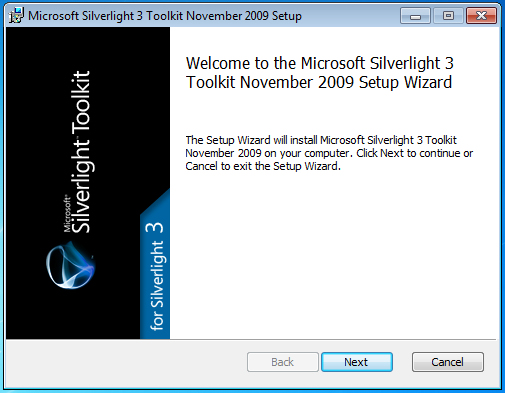
The install says that this is the toolkit for Silverlight 3, but the Nov, 2009 release has been updated to include support for Silverlight 4.

Toolkit Install Starts

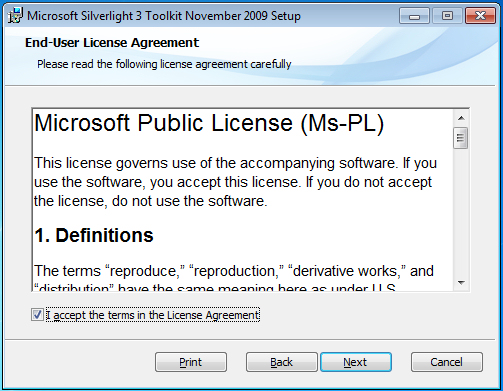
Yet another license agreement.

Toolkit License Agreement

You next get a chance to decide which components of the toolkit to install.

Silverlight Toolkit Features

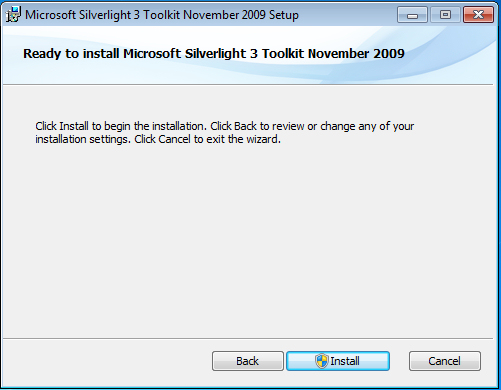
Ready to start the install now.

Ready to Install

The Silverlight Toolkit install in action:

Install in Progress

And we’re done.

Install Finishes

Install WCF RIA Services

Next, we install the WCF RIA services, which is a framework that allows writing n-tier ASP.NET/Silverlight applications.

You can find the WCF RIA Services install at:

Install WCF RIA Services for Visual Studio 2010 Beta 2

The link above allows you to download and install the WCF RIA Services.  However, I noticed that when I got to this point, it was already installed.  As it turns out, the install for the Silverlight 4 Beta also installed the WCF RIA Services preview.

Documentation

We’ve now downloaded everything that we need for creating Silverlight 4 applications.  One remaining piece of information that will be helpful is that the Silverlight 4 documentation can be found online at:

Silverlight 4 Documentation

Wrapping Up

There we go.  I now have a clean virtual machine that has everything on it that is needed for creating Silverlight 4 applications.  My one last remaining task is to go and save a snapshot of the VM, so that I preserve the “clean” Silverlight 4 development environment.

Silverlight Gets Full-Fledged Designer Support in Visual Studio 2010

Trying to wrap my head around the current situation with Silverlight 2 and 3 support in Visual Studio 2008 and 2010, I’m confused enough that I feel like shouting out a line from my daughter’s favorite Dr. Suess book, Fox in Socks:  “Now wait a minute, Mr. Socks Fox”!!

It is a little confusing.  But I think I now understand who supports what and I’ll take a stab at jotting it down, for future reference.

Visual Studio 2008 SP1

Visual Studio 2010

  • Supports both Silverlight 2 and Silverlight 3
  • Can install both on the same development machine
  • Each Silverlight project targets one of the two Silverlight versions
  • Silverlight 2 — need to install the Silverlight 2 SDK manually
  • Silverlight 3 — install manually

Ok, as far as I can tell, that’s the current situation.

This basically boils down to two questions:

  • Do I want to develop in Silverlight 2 or Silverlight 3?
    • Silverlight 2 is more stable and is officially released
    • Silverlight 3 (beta) — new controls, navigation framework, out-of-browser support
  • Which version of Visual Studio do I want to use?
    • VS 2008 — easier install experience, stable/released
    • VS 2010 — improved tooling for Silverlight & WPF

The last point is what I want to talk about.  Notice that improved tooling for Silverlight is a feature of Visual Studio, not of Silverlight itself.  Visual Studio 2010 finally gives us full design-time drag-and-drop support for Silverlight.

Let’s see what this looks like.  But first, let’s go back and take a look at the Silverlight design-time experience in Visual Studio 2008.  (I’m using Silverlight 3 here).

The Bad Old Days – Visual Studio 2008 SP1

Until now, Silverlight developers haven’t had the most basic tooling enjoyed by even the lowliest VB6 developers.  Namely — the ability to drag and drop controls onto a design surface and set their properties right in the designer.

Specifically, here’s what you couldn’t do.  If you look at the split window for Silverlight controls in the designer, you’ll notice that the upper pane is labeled “Preview”.

Preview Pane

This was a “Preview” pane because all it could do was to render your XAML on the screen as a preview of how it would eventually look in your Silverlight application.  You couldn’t drag controls onto this surface.  You also couldn’t select any controls in order to reposition them or to set their properties.

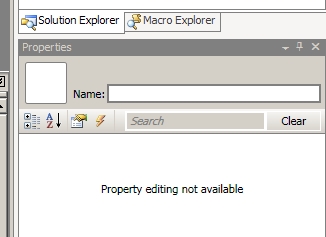
In Visual Studio 2008, if you try dragging Silverlight controls onto this Preview window, you just get a big fat “don’t do this” icon.  Even sadder, you can’t select any controls.  If you look at the properties window in Visual Studio, you just see the following sad message:

No Property Editing

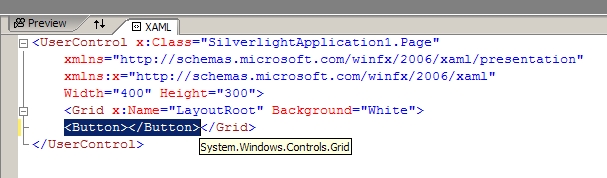
Thankfully, you could at least drag and drop controls down into your XAML.  This would at least insert the proper XAML tags for the control that you’d selected.  But you just got an empty tag.  (In the picture below, I’ve just dragged a Button into my XAML).

Drag Into XAML

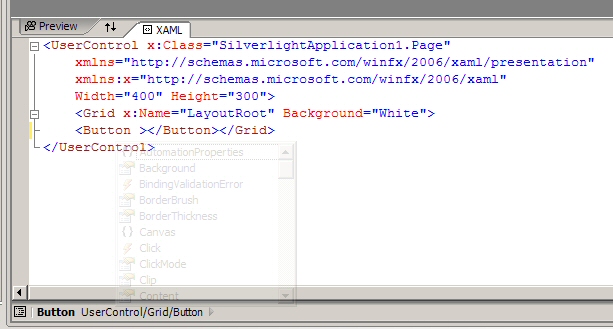
And, although we weren’t able to set property values in the property editor, there was some consolation in that Intellisense worked in the XAML code.

Intellisense in XAML

So the Silverlight development environment was workable, but not ideal.  Also, you could always author/edit your UIs in Expression Blend.  But then there was a big learning curve to tackle.

Enter Visual Studio 2010

In Visual Studio 2010, we finally have full designer support for Silverlight applications.  In the picture below, I’ve just dragged a Button from the toolbox onto the design surface.

Silverlight Design Surface

It makes me want to weep.  (Who would have thought that a developer would be so happy with being able to drag a button onto a form)?

Not only did the designer let me drag the button onto a design surface, but now it actually gives me a little more than an empty/default Button tag in my XAML.  I actually get a sensibly configured button object, with a reasonable size and a preset label.  Also notice that the upper pane is now labeled “Design”, rather than “Preview”.

But don’t weep yet.  It gets better.  You can actually left-click to select the button in the designer.  When you do this, you’ll see that you can now actually set properties for the button in the property window.

Property Window

Now you may weep or cheer, depending on your particular emotional reaction.

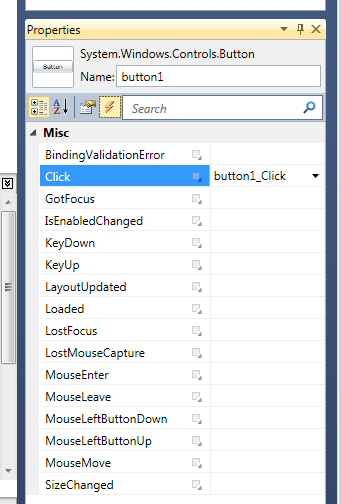
You’ll also notice that you can now click on the little event icon and then double-click to generate event handlers in your code-behind.  (As opposed to using Intellisense in the XAML to discover relevant events).

Event Properties

This is great, although I still don’t understand why there is no dropdown in the properties window to select the individual controls.  Is there a good reason why neither WPF or Silverlight applications allow selecting individual controls from the property window?

Also note that all of the above is possible in both Silverlight 2 and Silverlight 3.

Where Are We?

So clearly, Silverlight is now a full-fledged citizen in Visual Studio, with full tooling.  This may not seem like much, but for anyone who works with Silverlight a lot, it will make a huge difference.  Not to mention a much shallower learning curve for developers coming up to speed with Silverlight.

Mr. Socks Fox wasn’t spouting blibber blubber after all.

Installing Silverlight 3 with Visual Studio 2010 – Step by Step

[Note, 21-May-2010.  Silverlight 4 has been released.  For a step-by-step guide to installing Silverlight 4 with Visual Studio 2010, see my post Creating a Silverlight 4 Development Machine].

A beta version of Silverlight 3 was released at MIX09 in March.  Since a beta version of Visual Studio 2010 was also just released–in May–it makes sense to set up a Silverlight 3 and Visual Studio 2010 development environment.  My last post included screenshots of the installation process for Visual Studio 2010.  This post will cover installing the remaining bits needed for a Silverlight 3 development environment.

Note: Also take a look at the official Getting Started page for Silverlight 3.

This post will describe installing Silverlight 3 bits on top of a clean Windows 7 / Visual Studio 2010 environment.  I won’t install the Silverlight 2 components, so the resulting environment will be targeted exclusively at Silverlight 3.

At the moment, the Silverlight 3 beta is targeted at Visual Studio 2008 SP1, rather than Visual Studio 2010.  (See Tim Heuer’s blog post explaining this).  What this means is that we can’t just run the Silverlight 3 Tools installer.  If you try, you’ll get the following error.

Can't Install on VS 2010

Installing the Silverlight 3 Beta SDK

Instead, you’ll need to just install the Silverlight 3 Beta SDK manually.  Once you download the SDK installer and launch it, you’ll get the following screen:

SDK Welcome

Then you get a license dialog.  Note the comment about this beta license expiring 30 days after the commercial release of Silverlight 3, but no later than 30 Sep, 2009.  Does this imply that we’ll see a final release of Silverlight 3 by 30 Aug, 2009?

License Dialog

If you do a custom install, you’ll see the following features and components listed:

Custom Install

Here’s a quick summary of what is being installed:

  • Silverlight Tools – Components needed for building Silverlight applications
    • The core Silverlight DLLs, e.g. agcore.dll, coreclr.dll, et al
  • Build Components – Components used to build Silverlight projects
    • Microsoft.Silverlight.Build.Tasks.dll,  et al
  • Client Libraries – Silverlight Client Libraries and Controls
    • System.Xml.Serialization.dll, System.Xml.Linq.dll, System.Windows.Controls.Navigation, et al
  • Server Libraries – Silverlight Server Libraries and Controls
    • System.Web.Silverlight.dll, et al

Now we’re ready to install:

Ready to Install

Install continues:

Installing

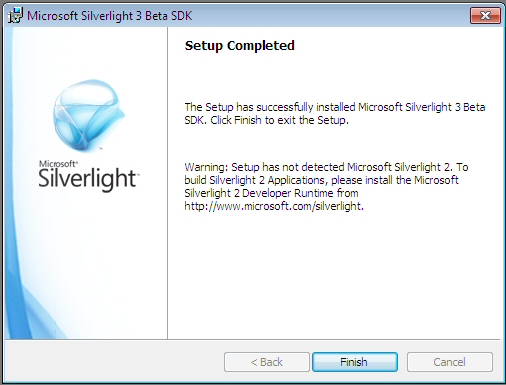
The install completes, and a dialog reminds us that the actual Silverlight 3 Beta runtime is not yet present.  (Actually, there is an error in this dialog — it’s reminding us that the Silverlight 2 runtime is not present).

SDK Done

Installing the Silverlight 3 Developer Runtime

Now we need to install the actual Silverlight 3 runtime, which you can download from here.

We start with the familiar Silverlight install splash screen (now branded as Silverlight 3 for Developers).

For Devs

Off we go..

Installing Runtime

The runtime install completes quickly.

Runtime Installed

Pretty simple.  You now have all of the important stuff that you need for developing Silverlight 3 applications with Visual Studio.

Building a Silverlight Application with Visual Studio 2010

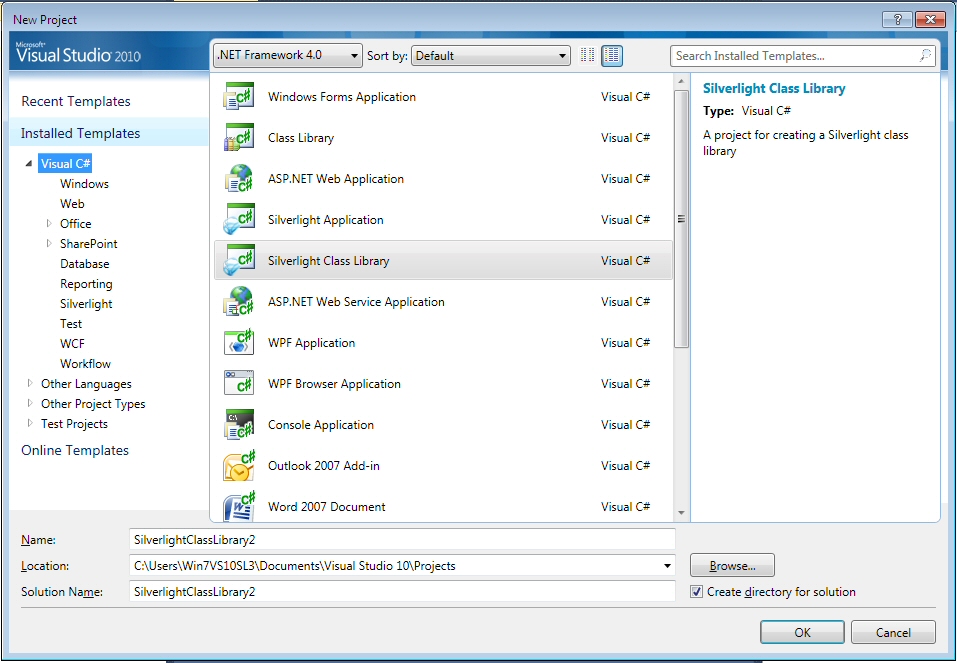
When you bring up the New Project wizard in Visual Studio, you’ll see two types of Silverlight projects listed:

  • Silverlight Application
  • Silverlight Class Library

New Project

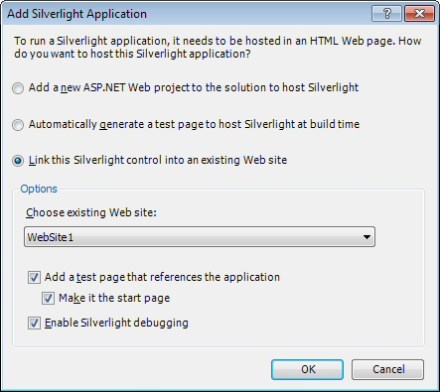
If you create a new Silverlight Application, you’ll see the Add Silverlight Application dialog.  But notice that there is now a dropdown labeled Silverlight Version.  This defaults to Silverlight 2.0, but you can select Silverlight v3.0 to create a Silverlight 3 application.

Create Silverlight 3 Application

You’ll see a similar dialog if you try to create a Silverlight Class Library.

Create Silverlight Class Library

The Silverlight Navigation Application

But notice that there is one Visual Studio template that shows up if you install Silverlight 3 Beta in Visual Studio 2008 SP1 that does not show up in Visual Studio 2010 — the Silverlight Navigation Application.  This is installed as part of the Silverlight 3 Tools installer, which we were unable to run.

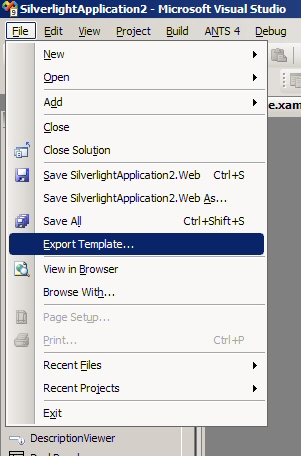
We need to pull this particular template from Visual Studio 2008 SP1 into Visual Studio 2010.  To do this, install the Silverlight 3 Tools installer on a machine that is running Visual Studio 2008 SP1.  Then fire up Visual Studio 2008, create a Silverlight Navigation Application project, and select Export Template from the File menu.

Export Template

You’ll see a dialog asking you to select the project to export a template for.  We’ll select the main navigation application.

Export Template

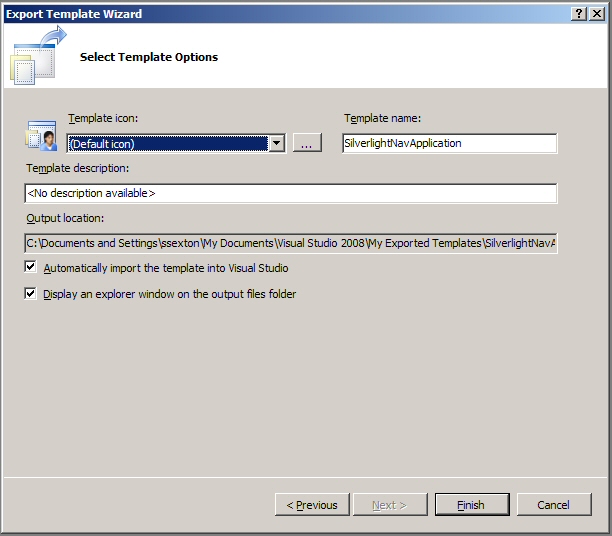
You can also give the new template a description and select an icon.

Template Part II

When you’re done, a new Windows Explorer window will pop up, containing a .zip file for your new template.  Now copy this .zip file to the following directory on your Visual Studio 2010 machine:

C:\Users\myname\Documents\Visual Studio 10\Templates\ProjectTemplates\Visual C#

Now when you bring up the New Project wizard in Visual Studio 2010, you’ll see a new template that you can use to create a Silverlight Navigation Application.

New Template in Action

Wrapping Up

That should do it — you now have a fully functional Silverlight 3 / Visual Studio 2010 environment.

Technorati tags: Silverlight, Silverlight 3, Visual Studio 2010

Visual Studio 2010 Install Screenshots

Beta 1 of Visual Studio is now available on MSDN.  (If you have the appropriate MSDN subscription).  Here is a complete set of screenshots, outlining the installation experience.

Note: I installed VS 2010 Beta 1 on a clean virtual machine running Windows 7 Build 7100 (RC).

We start with the familiar install startup menu:

First screen

Then we get a banner page, as things start up.

Install Banner

Next, we get a license page, as well as an overview of what is going to be installed.  The key components are:

  • VC 9.0 and 10.0 runtime libraries
  • .NET Framework 4 Beta 1    (more info)
  • Help 3.0 Beta 1    (more info)
  • Visual Studio Macro Tools
  • Visual Studio 2010 Professional Beta 1    (more info)

License Page

Next up is an options page:

Options Page

Now the actual installation begins and we can see a more complete list of all the components that will be installed.  For completeness, here’s the full list:

  • VC 9.0 Runtime
  • VC 10.0 Runtime
  • Microsoft .NET Framework 4 Beta 1
  • Microsoft Help 3.0 Beta 1
  • Microsoft Visual Studio Macro Tools
  • Microsoft Visual Studio 2010 Professional Beta 1
  • Microsoft Web Deployment Tool
  • Visual Studio Tools for the Office System 4.0 Runtime
  • Microsoft Office Development Tools for Visual Studio 2010
  • Dotfuscator Software Services – Community Edition
  • Microsoft SQL Server Compact 3.5 SP1
  • SQL Server Compact Tools for Visual Studio 2010 Beta 1
  • Microsoft Sync Framework Runtime v1.0
  • Microsoft Sync Services for ADO.NET v2.0
  • Microsoft Sync Framework Services v1.0
  • Microsoft Sync Framework SDK v1.0
  • Microsoft SQL Publishing Wizard 1.4
  • SQL Server System CLR Types
  • Shared Management Objects
  • Microsoft SQL Server 2008 Express Edition

Wow.  This is going to take a while.

Installation Begins

You’ll have to reboot after the .NET Framework 4 installation.

Reboot Required

Go get a cup of coffee while the remaining components install..

Coffee Break

You’ll get a warning dialog, indicating that SQL Server 2008 has compatibility issues on Windows 7 and suggesting that you install SP1.

Compatibility

I just clicked the Run Program button and proceeded with the install.  A little bit later, I got a second compatibility warning dialog, also mentioning SQL Server 2008.  An external DOS window was also spawned, running a setup.exe command.

Compatibility #2

Finally, everything finishes up and we’re done!

Installation Complete

After the install completes, we get the main autorun window again and the link for checking for service releases is now active.

Autorun #2

If you click the Check for Service Releases link, you’ll be redirected to an update web page, which in turn allows firing up the Windows Update applet.  When I tried this (29 Jun 2009), no updates were found.

Finally, we bring up Visual Studio 2010 for the first time.

Splash Screen

As with earlier versions, when you start Visual Studio for the first time, you’re asked to choose a language, which dictates how the environment is set up.  I’m a C# guy.

When things finally start up, we see the new Start Page for the first time.

Start Page

The New Project dialog also gets a fresh look.

New Project

Finally, we create an empty WPF Application.

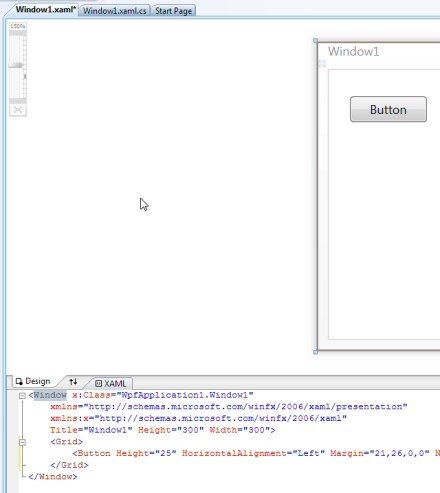
WPF Application

Quick Tip – Making Windows on 2nd Monitor Visible

I’m a big believer in using two (or even three) monitors on my main development machine.  I have two monitors on my home development machine (24″ Dell and 22″ off-brand) and having the extra real estate of that second monitor is invaluable.  I use it often, putting different applications over on the 2nd monitor and then dragging-dropping work/files between the monitors.

But I have a slight problem when I remote into my home machine from work.  Windows 7 supports mapping multiple monitors on the remote machine to multiple monitors on the local machine.  But at work, I just use a single monitor.  So I only see the windows that are being shown on the main monitor of my home machine.

The problem arises when I click on an icon in the taskbar to see a window and it doesn’t show up–because it exists on my second monitor.  Because I’m only seeing my main monitor, I don’t see the application’s window and can’t click on it.

The fix is simple.  Do the following:

  • Left-click on the application’s icon in the taskbar, to make it active
  • Right-click on the icon in the taskbar and select Move
  • Click one of the arrow keys once (it doesn’t matter which)
  • Now move your mouse–you’ll see an outline of the application appear on the screen and you can place it where you like

This works on both Windows XP and Windows Vista.  Windows placement in Windows 7 works a bit differently, so I’m not exactly sure the best way to do this in 7.

.NET Basics – Do Work in Background Thread to Keep GUI Responsive

One of the most important things that differentiates a “quick and dirty” application from one that has been designed well is how the application’s user interface behaves during lengthy operations.  The quick-and-dirty approach is to just do all of your work in a button’s Click event handler and not worry about the user interface.  The problem with this is that the GUI will freeze up while the application does whatever work it needs to do.

A well designed application, on the other hand, is one that is careful to do as much work as possible in background threads, keeping the GUI responsive and making sure that it makes it obvious to the user that work is going on in the background and adjusts the GUI to disallow any user actions that don’t apply until after the work finishes.

Under .NET 2.0, doing work on a background thread has become a lot easier, with the introduction of the BackgroundWorker class.  You no longer have to worry about cross-threading exceptions and checking a control’s InvokeRequired property.

A Simple Example of Using the BackgroundWorker Class

In this post, I’ll create a simple example of how you might use the BackgroundWorker class to do some work on a background thread and keep your GUI responsive.  We’ll start with a simple example that demonstrates how the GUI can become blocked and then evolve the application to make full use of the capabilities of the BackgroundWorker class.

Here are the basic players. We’ll have a FileReader class/object that reads text from a text file. And a Win Forms form with a button to initiate the file read operation and some GUI elements to display the status/results of the read operation.

Note: All code samples presented here can be found in CodePlex, at threadsafepubsub.codeplex.com

Iteration #1 – The Simplest Possible Solution

Let’s say that we just want to read a text file and return/display the number of lines found in the file. We can just make a call to our FileReader object, which returns the number of lines, and then display that number in our UI. Super simple.

This iteration is implemented in the files Form1.cs and FileReader1.cs.

Here’s what the GUI looks like.  If you click on the Read File button, you get a File Open dialog where you can select a file to read.  The file is read in and then we write out the # lines read, below the button.

001-Iter1Client

So far, so good.  This is how most simple user interfaces are written–you click on a button, which launches a Click callback, which does some work, and then returns to the caller.

Here’s what the FileReader1 class looks like, with a simple ReadTheFile method:

using System;
using System;
using System.Collections.Generic;
using System.IO;
using System.Linq;
using System.Text;

namespace ThreadSafePubSubUI
{
    public class FileReader1
    {
        // Read specified text file & return # lines
        public int ReadTheFile(string fileName)
        {
            int numLines = 0;

            using (StreamReader sr = new StreamReader(fileName))
            {
                string nextLine;
                while ((nextLine = sr.ReadLine()) != null)
                {
                    numLines++;
                }
            }

            return numLines;
        }
    }
}

And here’s the click event handler for the form: the guy that invokes ReadTheFile.

        private void btnSelect_Click(object sender, EventArgs e)
        {
            OpenFileDialog ofd = new OpenFileDialog();
            ofd.CheckFileExists = true;
            ofd.CheckPathExists = true;

            if (ofd.ShowDialog() == DialogResult.OK)
            {
                FileReader1 fr = new FileReader1();
                int numLines = fr.ReadTheFile(ofd.FileName);

                lblResults.Text = string.Format("We read {0} lines", numLines.ToString());
            }
        }

But what if the function that does the work takes a longer amount of time?  It’s pretty common for some action initiated by the user to take a little time.  What happens to the GUI while they are waiting?  We can simulate this by just adding a Thread.Sleep call in the ReadTheFile method.

            Thread.Sleep(3000);     // Simulate lengthy operation

Let’s also add a line in the btnSelect_Click method, to write a “busy” message to the GUI while we are processing.  Here is the updated click event handler:

        private void btnSelect_Click(object sender, EventArgs e)
        {
            OpenFileDialog ofd = new OpenFileDialog();
            ofd.CheckFileExists = true;
            ofd.CheckPathExists = true;

            if (ofd.ShowDialog() == DialogResult.OK)
            {
                lblResults.Text = " ... reading the file ...";
                FileReader1 fr = new FileReader1();
                int numLines = fr.ReadTheFile(ofd.FileName);

                lblResults.Text = string.Format("We read {0} lines", numLines.ToString());
            }
        }

What happens is not good.  Two bad things happen, from a user’s point of view:

  • The user interface is completely unresponsive during the file read operation
  • Our “reading the file” message is not displayed

What happened?  Well, because everything is on one thread, our user interface thread doesn’t respond to mouse clicks until ReadTheFile finishes.  Worse, even though we set the label’s Text property before we call ReadTheFile, the message loop doesn’t get a chance to process that change, and update the text, before we go out to lunch in ReadTheFile.

What we need to do to fix this is: do the file read operation on a different thread

The easiest way to do some work on a background thread, keeping the GUI responsive, is to use the BackgroundWorker class.

Iteration #2 – Using the BackgroundWorker Class

You should be doing very little actual work in GUI control event handlers like the Button.Click method.  It’s a good idea to:

  • Move code that does actual work outside of the user interface class
  • Do all work on a background thread.

We want to move code into a separate library or class, rather than having it in our Click event handler, to keep our user interface code separate from our functional code.  This is just a cleaner architecture and makes our code more maintainable, easier to test, and more extensible.

We also want to do as much work as possible on a different thread from the main thread handling the GUI.  If you do your work on the same thread, you risk locking up the user interface.  (As we saw in Iteration #1).

If you’re using the .NET Framework version 2.0 or later, the best way to do work on a background thread is to use the BackgroundWorker class.  This class gives us the ability to do some work on a background thread, provides progress and completed events “out of the box” and also ensures that these callbacks execute on the correct (GUI thread).

What do I mean by “execute on the correct thread”?  Here’s how it works.  To ensure that the GUI stays responsive, we want to do any non-trivial work on a background thread.  This thread can run in parallel to the GUI thread, so the user will still be able to interact with the GUI while the work is being done.

When the work finishes, we likely want to update something in the GUI to indicate this.  (E.g. change the text on a label to indicate that the operation is done).  Our GUI object will be notified by handling an event that the worker object fires.  But since we need to update the GUI, this event handler must be executing on the same thread as the user interface.

This last point is very important.  The core rule in Windows UI programming to remember is: the only thread that can update/change a user interface control is the thread that created it.  (This is true for Windows Forms applications, which use the Single Threaded Apartment model).

The beauty of the BackgroundWorker class is that it automatically handles all of this thread logic:

  • It does work on a background thread
  • It ensures that completed/progress events are fired on the original GUI thread

Let’s change our earlier file-reading example to use the BackgroundWorker.  This example can be found in the threadsafepubsub.codeplex.com project in the Form2/FileWorker2 classes.

Here’s the new Click event handler, where we create the background worker, attach our event handlers, and then tell it to go do some work.

private void btnSelect_Click(object sender, EventArgs e)
        private void btnSelect_Click(object sender, EventArgs e)
        {
            OpenFileDialog ofd = new OpenFileDialog();
            ofd.CheckFileExists = true;
            ofd.CheckPathExists = true;

            if (ofd.ShowDialog() == DialogResult.OK)
            {
                lblResults.Text = " ... reading the file ...";

                // Set up background worker object & hook up handlers
                BackgroundWorker bgWorker;
                bgWorker = new BackgroundWorker();
                bgWorker.DoWork += new DoWorkEventHandler(bgWorker_DoWork);
                bgWorker.RunWorkerCompleted += new RunWorkerCompletedEventHandler(bgWorker_RunWorkerCompleted);

                // Launch background thread to do the work of reading the file.  This will
                // trigger BackgroundWorker.DoWork().  Note that we pass the filename to
                // process as a parameter.
                bgWorker.RunWorkerAsync(ofd.FileName);
            }
        }

We first create an instance of the BackgroundWorker class and then wire up the DoWork and RunWorkerCompleted methods.  DoWork is the event that will fire when we call the RunWorkerAsync method.  And it will run asynchronously, in a background thread, freeing up the user interface.  Because RunWorkerAsync is launched in a background thread, control returns from the btnSelect_Click method quickly, and the UI is responsive, even while the file-read work is going on.

We also hook a handler to the RunWorkerCompleted event, which will fire when our bgWorker_DoWork method has finished doing the work.  This event, however, will execute on the original GUI thread–allowing is to update GUI elements directly within our gbWorker_RunWorkerCompleted handler.

Here’s the body of our DoWork handler.

        void bgWorker_DoWork(object sender, DoWorkEventArgs e)
        {
            FileReader2 fr = new FileReader2();

            // Filename to process was passed to RunWorkerAsync(), so it's available
            // here in DoWorkEventArgs object.
            string sFileToRead = (string)e.Argument;
            e.Result = fr.ReadTheFile(sFileToRead);
        }

Notice that we just use our earlier FileReader class to do the actual work of reading the file.  But there are two additions.

First, because this method is invoked from the BackgroundWorker object, we need to somehow get the name of the file to process.  We knew this filename back in the btnSelect_Click method and we hand it off by passing it as a parameter to RunWorkerAsync and then reading it out of the DoWorkEventArgs parameter.

Similarly, when we finish doing our work (reading the file), we need to make sure the result (# lines read) gets passed back to our RunWorkerCompleted handler.  We do this by setting the Result properly of the DoWorkEventArgs parameter.

Here’s the code for our RunWorkerCompleted event handler:

        void bgWorker_RunWorkerCompleted(object sender, RunWorkerCompletedEventArgs e)
        {
            if (e.Error != null)
            {
                MessageBox.Show(e.Error.Message);
            }
            else
            {
                int numLines = (int)e.Result;
                lblResults.Text = string.Format("We read {0} lines", numLines.ToString());
            }
        }

Here we see the other side of the e.Result handoff–we read the FileReader.ReadTheFile return value out of the RunWorkerCompletedEventArgs parameter.  We also check this parameter to see if an error occurred.

If you now run this example, you’ll see a couple of important things that work better than they did in iteration #1:

  • We now correctly see the “reading the file” label, indicating that work is in progress
  • While the file is being read, we can interact with the GUI normally

You can demonstrate the second part of this by clicking on the “Tell Me a Joke” button.  You’ll get a message box with a clever joke and you can then dismiss the dialog–all while the file read operation is still going on.

Iteration #3 – Application State and Cancel Logic

You might be tempted at this point to think that we’re done and our application has everything that it needs.  But we’re missing a few critical things.  Any time that you do work in a background worker thread, you should also consider:

  • Busy indicator — making it easy for the user to know when work is being done in the background
  • Application state — what can/can’t the user do while the work is in progress?
  • Progress indicator — give the user a visual sense of how much work is left to be done
  • Cancel logic — optionally, give the user a method to cancel the background work

Busy Indicator

Let’s start with the busy indicator.  It’s important to make it obvious to your users that something is happening in the background, and what that something is.

Application State

We have some subtle behavior in our current implementation that is probably not desirable.  Try the following:

  • Click on the Read File button and select a file, to initiate a file read operation
  • Before the read has completed, click on the button again and select a new file

You now have two file read operations running in parallel.  Is this really what we want?  Do we want to prohibit it?  If not, how do we handle the results of two different file read operations, when the operations complete?  How do we avoid mixing up the results?  How do we know which operation the results are coming from?  Is there a chance that the two operations will attempt to work on/with the same data?

For our purposes, let’s agree that we really only want to allow the user to do one operation at a time.  While one operation is in progress, a user cannot initiate another one.  We’ll modify the GUI to enforce this.

Progress Indicator

More than just indicating that some work is going on in the background, it would be nice to indicate how much work we’ve already done and how much work is left to do.  This lets a user judge how long the entire process will take.

Cancel Logic

Whenever you support doing some work on a background thread, you also need to consider whether a user might want to cancel this background activity.  Unless it’s something that happens quite quickly, it’s probably a good idea to allow a user to cancel the operation and return to the original state (no file is being read and they are able to select a new file to be read).

At this point, it’s probably a good idea to do a rough sketch of a state diagram, showing what a user can do and during what state:

Application State Diagram

Notice that we enter the “reading file” state when the user clicks the “Read File” button.  But while in this state, the user cannot press that button again–they either press the “Cancel” button, or we return to the original state when the file read operation completes.

Also note that we should be able to display a joke while in either state.  This confirms what we said earlier–the GUI won’t lock up during the file read operation.

Our Modified Example

Here’s how our file reader example works, after adding a progress indicator, cancel logic, and the ability to keep track of application state.  Here’s the new GUI during a file read operation:

Progress

Note that we now tell the user what file we’re reading and we display a progress indicator, showing how far into the read operation we are.  We also give them a Cancel button, allowing them to Cancel the operation before it completes normally.  Also notice that the Read File button is greyed out—the user can’t initiate another operation until the first one completes.

If the user lets the file read operation complete normally, they’ll see the following:

Success

Notice that when we finish reading the file, returning to the Idle state, we hide all of the progress/cancel widgets.  The Read File button is also enabled again.

If the user cancels the file read operation, they’ll see the following:

Cancelled

Again, all of the progress/cancel widgets are gone, since we’re back in the Idle state.  And the Read File button is available again.  But this time, we tell the user that they cancelled the operation.

The code for this iteration can be found in threadsafepubsub.codeplex.com, as Form3.cs and FileReader3.cs.

We added a couple of things at the top of the class–an enumeration to keep track of our state, and a class-level BackgroundWorker instance.  (We move this variable into class scope because our Cancel button will need access to the BackgroundWorker object.

    private enum AppStates { Idle, ReadingFile };

    private BackgroundWorker _worker;

Here’s our new Form3 constructor, where we now call a method to set the initial application state:

        public Form3()
        {
            InitializeComponent();

            // Set up initial state
            SetAppState(AppStates.Idle, null);
        }

Here’s the actual code for the new SetAppState function, as well as a helper function that sets visibility for several controls.

        // Set new application state, handling button sensitivity, labels, etc.
        private void SetAppState(AppStates newState, string filename)
        {
            switch (newState)
            {
                case AppStates.Idle:
                    // Hide progress widgets
                    SetFileReadWidgetsVisible(false);
                    btnSelect.Enabled = true;
                    break;

                case AppStates.ReadingFile:
                    // Display progress widgets & file info
                    SetFileReadWidgetsVisible(true);
                    lblProgress.Text = string.Format("Reading file: {0}", filename);
                    pbProgress.Value = 0;
                    lblResults.Text = "";
                    btnSelect.Enabled = false;
                    break;
            }
        }

        private void SetFileReadWidgetsVisible(bool visible)
        {
            lblProgress.Visible = visible;
            pbProgress.Visible = visible;
            btnCancel.Visible = visible;
        }

We’re basically just changing the visibility of the various progress widgets in the StatusStrip at the bottom of the form.  We also handle enabling/disabling the File Read button here.

The Click event handler for our File Read button is also slightly different. We add a line that sets the application state to indicate that a file is being read, we attach a handler to track progress, and we add an exception handler to ensure that the application state is set back to idle if anything goes wrong.

        private void btnSelect_Click(object sender, EventArgs e)
        {
            OpenFileDialog ofd = new OpenFileDialog();
            ofd.CheckFileExists = true;
            ofd.CheckPathExists = true;

            if (ofd.ShowDialog() == DialogResult.OK)
            {
                FileInfo fi = new FileInfo(ofd.FileName);
                SetAppState(AppStates.ReadingFile, fi.Name);

                try
                {
                    // Set up background worker object & hook up handlers
                    _worker = new BackgroundWorker();
                    _worker.DoWork += new DoWorkEventHandler(bgWorker_DoWork);
                    _worker.RunWorkerCompleted += new RunWorkerCompletedEventHandler(bgWorker_RunWorkerCompleted);
                    _worker.WorkerReportsProgress = true;
                    _worker.WorkerSupportsCancellation = true;
                    _worker.ProgressChanged += new ProgressChangedEventHandler(bgWorker_ProgressChanged);

                    // Launch background thread to do the work of reading the file.  This will
                    // trigger BackgroundWorker.DoWork().  Note that we pass the filename to
                    // process as a parameter.
                    _worker.RunWorkerAsync(ofd.FileName);
                }
                catch
                {
                    SetAppState(AppStates.Idle, null);
                    throw;
                }
            }
        }

Note also that we have to explicitly tell the BackgroundWorker that it should support both progress and cancellation functionality.

We also now have a new event handler for the ProgressChanged event, which looks like this:

        // Get info on progress of file-read operation (% complete)
        void bgWorker_ProgressChanged(object sender, ProgressChangedEventArgs e)
        {
            // Just update progress bar with % complete
            pbProgress.Value = e.ProgressPercentage;
        }

This one is pretty simple—we just set the value of the progress bar, which runs from 0 to 100, to the reported % complete value.

Our DoWork handler has just a few changes.  Here is the new version:

        // Do work--runs on a background thread
        void bgWorker_DoWork(object sender, DoWorkEventArgs e)
        {
            // Note about exceptions:  If an exception originates anywhere in
            // this method, or methods that it calls, the BackgroundWorker will
            // automatically populate the Error property of the RunWorkerCompletedEventArgs
            // parameter that gets passed into the RunWorkerCompleted event handler.
            // So we can handle the exception in that method.

            FileReader3 fr = new FileReader3();

            // Filename to process was passed to RunWorkerAsync(), so it's available
            // here in DoWorkEventArgs object.
            BackgroundWorker bw = sender as BackgroundWorker;
            string sFileToRead = (string)e.Argument;

            e.Result = fr.ReadTheFile(bw, sFileToRead);

            // If operation was cancelled (triggered by CancellationPending),
            // we bailed out of ReadTheFile() early.  But still need to set
            // Cancel flag, because RunWorkerCompleted event will still fire.
            if (bw.CancellationPending)
                e.Cancel = true;
        }

I added a note to remind us that exceptions originating in this chunk of code (or on this thread) are automatically made available to us in the RunWorkerCompleted handler.

Notice also that we’re now passing the BackgroundWorker object into the ReadTheFile method.  We do this because we need access to it, within this message, to check for user cancellation and to report progress.

Finally, we see a piece of the cancellation infrastructure here.  Below is another code chunk to help us understand how the cancel operation works—the click handler for the Cancel button.

        private void btnCancel_Click(object sender, EventArgs e)
        {
            _worker.CancelAsync();
        }

This is pretty simple.  When the user clicks the Cancel button, we tell the BackgroundWorker object to initiate a cancel operation.  Here’s a summary of the entire cancel operation (what happens when):

  • User clicks Cancel button
  • btnCancel_Click handler invokes BackgroundWorker.CancelAsync on active worker object
  • Method doing actual work (reading file) periodically checks BackgroundWorker.CancellationPending and aborts if it sees this property set
  • Control returns to bgWorker_DoWork method
  • DoWork method checks CancellationPending property and sets DoWorkEventArgs.Cancel to true if operation was cancelled
  • BackgroundWorker.RunWorkerCompleted fires
  • We can check RunWorkerCompletedEventArgs.Cancelled, in our RunWorkerCompleted handler, to detect whether operation was cancelled

This is a little involved, but if you walk through the code, you’ll see how things work.

Finally, here is our RunWorkerCompleted event handler:

        void bgWorker_RunWorkerCompleted(object sender, RunWorkerCompletedEventArgs e)
        {
            try
            {
                if (e.Error != null)
                {
                    MessageBox.Show(e.Error.Message, "Error During File Read");
                }
                else if (e.Cancelled)
                {
                    lblResults.Text = "** Cancelled **";
                }
                else
                {
                    int numLines = (int)e.Result;
                    lblResults.Text = string.Format("We read {0} lines", numLines.ToString());
                }
            }
            finally
            {
                // State now goes back to idle
                SetAppState(AppStates.Idle, null);
            }
        }

There are just a couple of new things here.  We now check the Cancelled property and display a message if the operation was cancelled.  We also add a finally block, where we ensure that we transition back to the Idle state, whether things completed normally, the user cancelled, or there was an error.

I have one final block of code to share—the ReadTheFile method that does the actual work:

        public int ReadTheFile(BackgroundWorker bw, string fileName)
        {
            int numLines = 0;
            FileInfo fi = new FileInfo(fileName);
            long totalBytes = fi.Length;
            long bytesRead = 0;

            using (StreamReader sr = new StreamReader(fileName))
            {
                // Note: When BackgroundWorker has CancellationPending set, we bail
                // out and fall back to the _DoWork method that called us.
                string nextLine;
                while (((nextLine = sr.ReadLine()) != null) &&
                       !bw.CancellationPending)
                {
                    bytesRead += sr.CurrentEncoding.GetByteCount(nextLine);
                    numLines++;
                    int pctComplete = (int)(((double)bytesRead / (double)totalBytes)* 100);
                    bw.ReportProgress(pctComplete);
                    Thread.Sleep(10);  // ms
                }
            }

            return numLines;
        }

We’ve basically added two things here: support for cancellation and for progress reporting.

To support user-initiated cancellation, we just check to see if the operation has been cancelled, after each line in the file that we read.  The frequency with which you check for cancellation is important.  If you don’t check often enough, the application will appear to not be responding to the cancel request and the user may become frustrated.

We report progress (% complete) by invoking the ReportProgress method on the background worker.  We do this after calculating the actual progress, in terms of # bytes read so far.
How Do I Bring Up Task Manager from a Remote Desktop Session?

Here’s another little trick that I assume most people know, but perhaps not.

When you’re connected using Remote Desktop and you need to kill a task, or to check on CPU or memory performance, how do you bring up Task Manager?  If you press Ctrl-Alt-Delete, you’ll get the Windows Security dialog in the host machine–not on the remote machine.

To bring up Task Manager in a remote session, just use the keyboard shortcut: Ctrl-Shift-ESC.  This will directly open the Windows Task Manager on the machine that you’re connected to.  Voila.

After Signing My Assembly, Why Do I Get Errors About Signing Referenced Assemblies?

This is a note-to-self quickie blog post.

I’m in the process of deploying a VSTO solution that includes two DLLs–a data access layer DLL and an Excel Workbook (VSTO) project that contains that code-behind for the actual Excel workbook.  In my case, my Excel code creates controls that live on the Action Pane in Excel and allow the user to interact with pre-created graphs that are fed data from a database.

When you deploy a VSTO solution, you need to grant full trust to the class library associated with the Excel Workbook (or other Office document).  This in turn means that you need to sign your assembly, i.e. attach a strong name to it.

When I sign my main assembly (e.g. ExcelWorkbook1.dll), and try to build it, I now get the following error:

Error    1    Assembly generation failed — Referenced assembly ‘MyDataAccessLayer’ does not have a strong name

What’s going on here is that when you sign an assembly, all referenced assemblies must now also have strong names.  Let’s say that again, the rule to remember is:

All assemblies referenced by a strong-named assembly must also have a strong name.

This makes sense, when you think about security concerns.  The purpose of signing an assembly is to prevent someone from replacing your assembly with one that has the same API, but does something bad–i.e. spoofing it.  Signing your main assembly helps, but if it then references a weakly-named (not signed) assembly, someone could spoof that assembly and still make your assembly behave badly.  That’s a security hole.

So when you think about signing your assemblies, giving them strong names, remember that it’s a domino effect–you’ll need to (and want to) sign all of your assemblies.  And any third-party assemblies that you use/reference need to also have strong names.

A Simple .NET Twitter API Wrapper Using LINQ

In the world of software demos, doing something with Twitter has replaced Hello World as the most common target of a demo.  At the risk of polluting the world with yet another chunk of code that does something with Twitter–I’d like to play around a bit with Silverlight charting and Twitter seems a great context for demoing what is possible.

But before I can start creating a Silverlight demo, I need a basic Twitter API wrapper in .NET.  So here’s a starting point–a simple example that uses LINQ to get a list of people that you follow.  This is a good starting point for later demos.

Twitter provides a simple REST API that lets you do basically everything you’d want to do using simple HTTP GET, POST and DELETE requests.

You can learn everything you need to know about the Twitter API at the Twitter API Wiki.

Basic Concepts

I’ll assume that you generally know how Twitter works–you follow some folks, some folks follow you, and you all post status messages–which your followers can read.  That’s the beauty of Twitter–pretty simple.

But here are some things that you should know about the Twitter API.

  • How it works
    • You post an HTTP request to a URL
    • You get XML data back in the HTTP response
  • Authentication
    • Some API method calls require authentication, using HTTP Basic Authentication.
    • Any app invoking calls that require authentication will need to supply the proper credentials.
  • Rate limits
    • Your app is limited to 100 requests per hour.    (whether you’re authenticating or not)
    • You can receive a special dispensation from the Twitter gurus to be allowed up to 20,000 requests/hr.
  • Paging
    • Many API methods requires multiple requests, retrieving a page of data at a time
    • The page parameter allows you to specify which page of data to retrieve
    • The count parameter allows specifying # items per page

What happens when you hit your rate limit?  Well, basically your application (your IP address, actually) can no longer make requests of Twitter–until the rate limit resets.

The API Calls That I Use

Here are the two Twitter API calls (URLs) that I use in this example:

You can see how these work by just entering the above URLs into your browser and looking at the XML data stream that comes back.

Here’s an example of the data returned by the friends call:

Output of Friends Request

An here’s an example of the data returned from the users call:

Data Returned from Users Request

The Peep Class

Let’s start building a simple Twitter API wrapper in .NET with a very simple class to encapsulate information about a single user–either yourself, a follower, or someone that you follow.  This doesn’t cover absolutely everything that we can find out about a Twitter user, but encapsulates some of the basic stuff that we care about.

(For these examples, I’m using Visual Studio 2008 — C# 3.0).

Here’s the code for the Peep class:

using System;
using System.Collections.Generic;
using System.Linq;
using System.Net;
using System.Text;
using System.Xml;
using System.Xml.Linq;

namespace TwitterLibGUI
{
    public class Peep
    {
        public string ScreenName { get; set; }
        public string Name { get; set; }
        public string Location { get; set; }
        public string Description { get; set; }
        public Uri ProfileImageURL { get; set; }
        public Uri URL { get; set; }
        public int ID { get; set; }

        public int NumFollowers { get; set; }
        public int NumFollowing { get; set; }
        public int NumUpdates { get; set; }

        public string LastUpdateText { get; set; }
        public DateTime LastUpdateDateTime { get; set; }

        public new string ToString()
        {
            return string.Format("{0} - {1}", ScreenName, Name);
        }
    }
}

Super simple class, made much easier through the user of C#’s automatic properties.  As an example, using me as a Twitter user, my ScreenName would be “spsexton” and my Name would be “Sean Sexton”.

The Peeps Class

Now that we have an object that wraps a “peep”, let’s create a special class that represents a collection of Peep instances–or “peeps”.  For example, an instances of Peeps could be used to store a list of everyone that we follow (or everyone that follows us).

We’ll use our old friend, the List(T) class, from System.Collections.Generic, which implements a strongly typed collection.

Basically, a collection of Peep objects will look like this:  List<Peep>.  But we’ll create a subclass so that we can add a static method for building up a list of everyone that we follow.

Here’s the full code for Peeps.cs, followed by an explanation of how we do things.

using System;
using System.Collections.Generic;
using System.Globalization;
using System.Linq;
using System.Net;
using System.Text;
using System.Xml;
using System.Xml.Linq;

namespace TwitterLibGUI
{
    /// <summary>
    /// Peep collection class
    /// </summary>
    public class Peeps : List<Peep>
    {
        // Partial Twitter API
        private const string getFriendsURI = "http://twitter.com/statuses/friends/{0}.xml?page={1}";

        /// <summary>
        /// Return list of Peeps followed by a specified person
        /// </summary>
        ///
<param name="ScreenName">The Twitter username, e.g. spsexton</param>
        /// <returns></returns>
        public static Peeps PeopleFollowedBy(string ScreenName, out int RateLimit, out int LimitRemaining)
        {
            if ((ScreenName == null) || (ScreenName == ""))
                throw new ArgumentException("PeopleFollowedBy: Invalid ScreenName");

            int nPageNum = 1;
            int userCount = 0;      // # users read on last call

            int rateLimit = 0;          // Max # API calls per hour
            int limitRemaining = 0;     // # API calls remaining

            XDocument docFriends;
            Peeps peeps = new Peeps();

            // Retrieve people I'm following, 100 people at a time
            // (each call to Twitter API results in one "page" of results--up to 100 users)
            try
            {
                do
                {
                    // Example of constituting XDocument directly from the URI
                    // docFriends = XDocument.Load(string.Format(getFriendsURI, ScreenName, nPageNum));

                    // Manually create an HTTP request, so that we can pull information out of the
                    // headers in the response.  (Then later constitute the XDocument).
                    HttpWebRequest req = (HttpWebRequest)WebRequest.Create(string.Format(getFriendsURI, ScreenName, nPageNum));
                    HttpWebResponse resp = (HttpWebResponse)req.GetResponse();
                    TwitterUtility.GetInfoFromResponse(resp, out rateLimit, out limitRemaining);
                    XmlReader reader = XmlReader.Create(resp.GetResponseStream());
                    docFriends = XDocument.Load(reader);

                    IEnumerable<XElement> users = docFriends.Elements("users").Elements("user");

                    userCount = users.Count();
                    if (userCount > 0)
                    {
                        List<Peep> nextPage = (from user in users
                                               orderby (string)user.Element("screen_name")
                                               select new Peep
                                               {
                                                   ID = (int)user.Element("id"),
                                                   ScreenName = (string)user.Element("screen_name"),
                                                   Name = (string)user.Element("name"),
                                                   Location = (string)user.Element("location"),
                                                   Description = (string)user.Element("description"),
                                                   ProfileImageURL = TwitterUtility.UriFromString((string)user.Element("profile_image_url")),
                                                   URL = TwitterUtility.UriFromString((string)user.Element("url")),
                                                   NumFollowers = (int)user.Element("followers_count"),
                                                   LastUpdateDateTime = TwitterUtility.SafeUpdateDateTime(user.Element("status")),
                                                   LastUpdateText = TwitterUtility.SafeUpdateText(user.Element("status"))
                                               }).ToList();

                        peeps.AddRange(nextPage);
                    }
                    nPageNum++;
                } while (userCount > 0);
            }
            catch (WebException xcp)
            {
                throw new ApplicationException(
                    string.Format("Twitter rate limit exceeded, max of {0}/hr allowed. Remaining = {1}",
                        rateLimit,
                        limitRemaining),
                    xcp);
            }
            finally
            {
                RateLimit = rateLimit;
                LimitRemaining = limitRemaining;
            }

            return peeps;
        }
    }
}

Notice that all we have in the Peeps class at this point is a static method, PeopleFollowedBy, that returns a collection of Peep objects, one for each person that the specified screen name follows.

The first thing that you’ll notice about the code is a loop where we get consecutive pages from the Twitter \statuses\friends\screenname.xml page.  By default, you get only 100  users at a time when invoking this URL.  So the easiest way to get all people that someone follows (their “friends”), is to request consecutive pages until you get one back that contains no users.

At each step through the loop, we construct a List<Peep> object from the XML results and then add that collection to a master collection (which this function will return).

Before we look at the code at the top of the loop that constructs an HTTP request to get the next page, take a look at the commented out line at the top of the loop:

                    // Example of constituting XDocument directly from the URI
                    // docFriends = XDocument.Load(string.Format(getFriendsURI, ScreenName, nPageNum));

This is actually the simplest way to get the results of the Twitter API calll into an XDocument, and ready for querying.  Using this single line, you could replace the next five lines of code that end with another XDocument.Load.  What’s going on here is the core of what we want to do–load up an XDocument from the URI that represents the Twitter API call.

But in my code, I go to a little more effort to create an HttpWebRequest and then get the HttpWebResponse for that request.  I do this solely for the purpose of getting Twitter rate limit information out of the header of the response.  If you’ll recall, Twitter has a 100 calls per hour rate limit by default.  The nice thing is that the API tells us the rate limit, as well as the # calls remaining, after each request.  So we read that from the header and keep track of it.

For now, this rate limit information is just returned to the caller.  But my intent is to use it in a future example to actually slow down my Twitter calls, as needed.  This will be helpful when we want to batch up a large # of Twitter calls, but we don’t want to risk maxing out our rate limit.  More on this later.

I get the rate limit info from the header in the TwitterUtility.GetInfoFromResponse method, described below.

Here’s Where LINQ Comes In

Now for the LINQ part.  Once we load up the XDocument from Twitter’s response, we can build up a collection of XElement objects corresponding to the list of users in the XML stream.  But this isn’t quite what we want..  To get the data from the XElement objects into our List<Peep> collection, we need to do a simple LINQ query.

(Thanks to a post by Wally McClure on the basic idea for the LINQ query: Calling the Twitter API in C#).

The LINQ query is pretty simple–we grab each user element from the XML stream and create a Peep object for that user.  We initialize all the fields of the new Peep object for which we can get data from this XML stream.  (We can’t get NumFollowing or NumUpdates–we’ll have to make a different API call to get that information).

In most cases, we’re asking for the value of an XML element that is a child of the <user> element.  E.g. the <id> element.  And we call helper methods in some cases, since the elements that we’re trying to read might by null.  (Actually, I haven’t tested this thoroughly–some of the other elements might occasionally be null and so it wouldn’t be a bad idea to use a “safe” accessor method on all of the elements).

Finally, we need to convert the result of our query–which is IEnumerable<Peep>–to a List<Peep> by calling the ToList() method.  Then we add this new list to the master list that we are building.

Handling the Rate Limit Exception

One final thing remains for this function–handling the case when we exceed our rate limit.  I added a simple handler, to make it a little more obvious to the client that we’ve exceeded our rate limit, rather than letting the underlying WebException bubble up.  This is a little bit sloppy, since there are other things that might throw a WebException.  But this is a good start at giving the caller a little info on the rate limit issue.

The Helper Class

Here is the full code for the TwitterUtility class, which just contains a handful of helper methods that we make use of in the Peeps and Peep (see below) classes.

using System;
using System.Collections.Generic;
using System.Globalization;
using System.Linq;
using System.Net;
using System.Text;
using System.Xml;
using System.Xml.Linq;

namespace TwitterLibGUI
{
    /// <summary>
    /// Various global utility methods for Twitter library
    /// </summary>
    public class TwitterUtility
    {
        /// <summary>
        /// Convert a string to a valid Uri object (or null)
        /// </summary>
        ///
<param name="sUri">String represent Uri, e.g. http://blahblah.com</param>
        /// <returns></returns>
        public static Uri UriFromString(string sUri)
        {
            return ((sUri != null) && (sUri.Length > 0)) ? new Uri(sUri) : null;
        }

        /// <summary>
        /// Pull a couple fields out of the header--specifically, the Twitter API rate limit info.
        /// </summary>
        ///
<param name="resp"></param>
        ///
<param name="rateLimit"></param>
        ///
<param name="limitRemaining"></param>
        public static void GetInfoFromResponse(WebResponse resp, out int rateLimit, out int limitRemaining)
        {
            rateLimit = 0;
            limitRemaining = 0;

            for (int i = 0; i < resp.Headers.Keys.Count; i++)
            {
                string s = resp.Headers.GetKey(i);
                if (s == "X-RateLimit-Limit")
                {
                    rateLimit = int.Parse(resp.Headers.GetValues(i).First());
                }
                if (s == "X-RateLimit-Remaining")
                {
                    limitRemaining = int.Parse(resp.Headers.GetValues(i).First());
                }
            }
        }

        /// <summary>
        /// Parse twitter date string into .NET DateTime
        /// </summary>
        ///
<param name="dateString"></param>
        /// <returns></returns>
        public static DateTime ParseTwitterDate(string dateString)
        {
            return DateTime.ParseExact(dateString, "ddd MMM dd HH:mm:ss zzz yyyy", CultureInfo.InvariantCulture);
        }

        /// <summary>
        /// Return a valid DateTime for status.created_at and handle the case
        /// of the status element not being present.
        /// </summary>
        ///
<param name="user">Represents status element (child of user element)</param>
        /// <returns></returns>
        public static DateTime SafeUpdateDateTime(XElement user)
        {
            DateTime creAt = new DateTime();        // Default constructor is 1/1/0001 12AM

            if (user != null)
            {
                XElement elemCreAt = user.Element("created_at");
                if (elemCreAt != null)
                {
                    creAt = ParseTwitterDate((string)elemCreAt);
                }
            }

            return creAt;
        }

        /// <summary>
        /// Return a valid update text string, whether or not the <status> element
        /// was present.
        /// </summary>
        ///
<param name="user">Represents status element (child of user element)</param>
        /// <returns></returns>
        public static string SafeUpdateText(XElement user)
        {
            string sText = "";

            if (user != null)
            {
                XElement elemText = user.Element("text");
                if (elemText != null)
                {
                    sText = (string)elemText;
                }
            }

            return sText;
        }
    }
}

Here’s what’s in this class:

  • UriFromString — “Safe” assignment, creating either a valid Uri object, or null
  • GetInfoFromResponse — Read the Headers collection from the HTTP response to pull out the rate limit and # remaining API calls
  • ParseTwitterDate — Parse the funky Twitter date/time string into a DateTime object
  • SafeUpdateDateTime — Another “safe” method, filling in a DateTime object only if the created_at element exists
  • SafeUpdateText — And a “safe” assignment from the text element

(Note: Both the <created_at> and <text> elements are under the <status> element).

NumFollowing and NumUpdates

My goal when I started throwing together this example was to fully populate the Peep class that I listed at the top of the post.  This includes not just # of followers for everybody in my “friends” list, but the # of people that they follow, and their total updates.  I can get everything from the API call that we just saw–the “friends” call.  But to get # following and # updates, I need to make a different call:

http://twitter.com/users/show.xml?screen_name=screenname

This method returns a bunch of info about a particular user, including # following and # updates.  (See the XML output at the top of the post).

So the obvious thing to do would be to add an assignment in our LINQ query, calling a helper method to go off and call this other Twitter API method, right?  For each user, we could call show.xml and get the remaining two fields.

The problem with including this 2nd Twitter call in the LINQ is that we’ll blow out our Twitter rate limit.  We only get 100 requests per hour, so we’d run out of steam trying to flesh out the first 100 users.  (And any Twitter user worth his salt follows at least 100 people).

So what is to be done?  For now, I add code to the Peep class (see below) to get the remaining info on a “peep by peep” basis, rather than getting everything all at once.  This is a bit of a cop out, since we leave it up to the client to decide how often to call this method.

I’ll do a 2nd post where I actually add code to make these additional calls, but in a “rate limit safe” manner.  (Hint–we’ll use timers to slow down our use of the Twitter API).

So until we get some “rate limit smart” code, here’s the expanded code for Peep.cs, including a method that calls show.xml to get the additional info.

using System;
using System.Collections.Generic;
using System.Linq;
using System.Net;
using System.Text;
using System.Xml;
using System.Xml.Linq;

namespace TwitterLibGUI
{
    public class Peep
    {
        private const string userInfoURI = "http://twitter.com/users/show.xml?screen_name={0}";

        public string ScreenName { get; set; }
        public string Name { get; set; }
        public string Location { get; set; }
        public string Description { get; set; }
        public Uri ProfileImageURL { get; set; }
        public Uri URL { get; set; }
        public int ID { get; set; }

        public int NumFollowers { get; set; }
        public int NumFollowing { get; set; }
        public int NumUpdates { get; set; }

        public string LastUpdateText { get; set; }
        public DateTime LastUpdateDateTime { get; set; }

        public new string ToString()
        {
            return string.Format("{0} - {1}", ScreenName, Name);
        }

        /// <summary>
        /// Calculate NumFollowing & NumUpdates, since these two fields'
        /// data isn't available from an API call that gets a list of
        /// multiple users, but must be retrieve for each user individually.
        /// </summary>
        public void CalcAddlInfo()
        {
            if ((ScreenName == null) || (ScreenName == ""))
                throw new ArgumentException("CalcNumFollowing: Invalid ScreenName");

            int rateLimit = 0;          // Max # API calls per hour
            int limitRemaining = 0;     // # API calls remaining

            XDocument docUser;

            try
            {
                HttpWebRequest req = (HttpWebRequest)WebRequest.Create(string.Format(userInfoURI, ScreenName));
                HttpWebResponse resp = (HttpWebResponse)req.GetResponse();
                TwitterUtility.GetInfoFromResponse(resp, out rateLimit, out limitRemaining);
                XmlReader reader = XmlReader.Create(resp.GetResponseStream());
                docUser = XDocument.Load(reader);

                XElement user = docUser.Element("user");

                NumFollowing = (int)user.Element("friends_count");
                NumUpdates = (int)user.Element("statuses_count");
            }
            catch (WebException xcp)
            {
                throw new ApplicationException(
                    string.Format("Twitter rate limit exceeded, max of {0}/hr allowed. Remaining = {1}",
                        rateLimit,
                        limitRemaining),
                    xcp);
            }

        }

        /// <summary>
        /// Variant that just takes screen name, rather than acting on existing
        /// instance.
        /// </summary>
        ///
<param name="ScreenName"></param>
        public void CalcAddlInfo(string screenName)
        {
            Peep p = new Peep { ScreenName = screenName };
            p.CalcAddlInfo();
        }
    }
}

The CalcAddlInfo method just invokes the show.xml API call and then reads the friends_count and statuses_count fields.

Hey, Where’s My GUI?

Ok, so at this point, we have the following code chunks:

  • Peep.cs — wraps data for a single user and gives us method to get a few additional fields
  • Peeps.cs — subclasses List<Peep> and gives us method to get list of people that we follow
  • TwitterUtility.cs — some miscellaneous helper functions

Now let’s throw a simple Win Forms GUI on top of these classes, so that we can test things out.  Here’s what the final result will look like, after calling our PeopleFollowedBy method:

ourgui

The code for this couldn’t be simpler.  I just call the Peeps.PeopleFollowedBy method, which returns an instance of the Peeps class (which is really a List<Peep>).  And then I bind the collection to a DataGridView.  Presto.

(If you’re paying attention, you’ll also notice that my rate limit is listed as 20,000/hr, rather than the default 100/hr.  This is because I requested “white list” status and the Twitter crew kindly consented to bump my rate limit.  This applies whenever I’m making API calls from my specific IP address).

For what it’s worth, here’s the event handler code for the Load Grid button in the GUI.  Notice that I also make a test call to the CalcAddlInfo method–so we can step through the call in the debugger and see how it works.

        private void btnLoadGrid_Click(object sender, EventArgs e)
        {
            int rateLimit;
            int limitRemaining;

            Cursor = Cursors.WaitCursor;
            Peeps peeps = Peeps.PeopleFollowedBy(txtScreenName.Text, out rateLimit, out limitRemaining);

            lblNumFollowing.Text = peeps.Count.ToString();
            lblRateLimit.Text = rateLimit.ToString();
            lblRemaining.Text = limitRemaining.ToString();

            peeps[5].CalcAddlInfo();

            dgvPeeps.DataSource = peeps;
            Cursor = Cursors.Default;
        }

Wrapping Up and Next Steps

That’s all there is to it–the process of making calls to the Twitter API from .NET code and consuming the resulting XML data using LINQ is pretty straightforward.

Where am I headed next, on my way to doing some Silverlight demos?  Here’s what I’ll cover in the next post:

  • Making my API methods smart about rate limits, using timers to acquire Twitter data quietly in the background–at a rate that is just slow enough to not trigger the rate limit.
  • Possibly caching the data on the client

If we were going to productize the code that I’ve presented, we’d also want to think about:

  • Moving the Twitter API stuff out of the data objects and into a separate class
  • Better exception handling
  • Wrapping the entire Twitter API, rather than just a couple methods

The Baby Has Two Eyeballs

eyeballs

Driving home the other night, I was teasing my 4-yr old daughter (as I often do).  We were talking about what sorts of games to play when we got home and I suggested that we could spend our time poking Lucy’s baby brother Daniel in the eye.  I also pointed out that we’d have to take turns and asked Lucy which of us should go first.

Lucy protested.  “Daddy”, she said excitedly, “we don’t have to take turns–Daniel has two eyeballs”!

After I stopped laughing at this, I realized that Lucy had seen something very important, which hadn’t even occurred to me:

Poking a baby in the eye is something that can be done in parallel!

Yes, yes, of course–you should never poke a baby in the eye.  And if you have a pre-schooler, you should never suggest eye-poking as a legitimate game to play, even jokingly.  Of course I did explain to Lucy that we really can’t poke Daniel in the eye(s).

But Lucy’s observation pointed out to me how limited I’d been in my thinking.  I’d just assumed that poking Daniel in the eye was something that we’d do serially.  First I would poke Dan in the eye.  And then, once finished, Lucy would step up and take her turn poking Dan in the eye.  Lucy hadn’t made this assumption.  She immediately realized that we could make use of both eyeballs at the same time.

There’s an obvious parallel here to how we think about writing software.  We’ve been programming on single-CPU systems for so long, that we automatically think of an algorithm as a series of steps to be performed one at a time.  We all remember the first programs that we wrote and how we learned about how computers work.  The computer takes our list of instructions and patiently executes one at a time, from top to bottom.

But, of course, we no longer program in a single-CPU environment.  Most of today’s desktop (and even laptop) machines come with dual-core CPUs.  We’re also seeing more and more quad-core machines appear on desktops, even in the office.  We’ll likely see an 8-core system from Intel in early 2010 and even 16-core machines before too long.

So what does this mean to the average software developer?

We need to stop thinking serially when writing new software.  It just doesn’t cut it anymore to write an application that does all of its work in a single thread, from start to finish.  Customers are going to be buying “faster” machines which are not technically faster, but have more processors.  And they’ll want to know why your software doesn’t run any faster.

As developers, we need to start thinking in parallel.  We have to learn how to decompose our algorithms into groups of related tasks, many of which can be done in parallel.

This is a paradigm shift in how we design software.  In the same way that we’ve been going through a multiprocessing hardware revolution, we need to embark on a similar revolution in the world of software design.

There are plenty of resources out there to help us dive into the world of parallel computing.  A quick search for books reveals:

Introduction to Parallel Computing – Grama, Karypis, Kumar & Gupta, 2003.

The Art of Multiprocessor Programming – Herlihy & Shavit, 2008.

Principles of Parallel Programming – Lin & Snyder, 2008.

Patterns for Parallel Programming – Mattson, Sanders & Massengill, 2004.

The following paper is also a good overview of hardware and software issues:

The Landscape of Parallel Computing Research: A View from Berkeley – Asanovic et al, 18 Dec 2006.

My point here is this:  As a software developer, it’s critical that you start thinking about parallel computing–not just as some specialized set of techniques that you might use someday, but as one of the primary tools in your toolbox.

After all, today’s two-eyed baby will be sporting 16 eyes before we know it.  Are you ready to do some serious eye-poking?

Hello Silverlight World, part 3 – The Lifecycle of a Silverlight Control

Ok, continuing with building a simple Wizard-generated Silverlight application and then staring at it to see how it works..  Last time, I talked about the Application object in Silverlight vs. WPF.  This time I’ll continue looking at the pieces in the sample Silverlight application, looking at the Page class that was generated and what happens to this control at runtime on a client machine.

Pages vs. Windows

I pointed out a couple of posts back the interesting difference here, just in the terminology.  In Silverlight, your main design surface is a “page”, which sort of comes from the fact that you’re serving up a series of web “pages” with some content in each.  (Nevermind that a Silverlight control can never be an entire page by itself, but must be hosted in an .html or .aspx page).  In WPF, the main design surface is a “window”, which seems appropriate because it runs in a bordered window.

Silverlight’s UserControl Class

In Silverlight, you render all of your content in a class that derives from System.Windows.Controls.UserControl.  When you use the wizard to generate a Silverlight application, it creates a class named Page, e.g.:

    public partial class Page : UserControl
    {
        public Page()
        {
            InitializeComponent();
        }
    }

One other quick thing to look at, is what else we’re doing in our child class at runtime, beyond what we get in the UserControl base class.  If you build your Silverlight application and then look at the other half of the partial class, i.e. the generated code in Page.g.cs, you’ll see:

    public partial class Page : System.Windows.Controls.UserControl {

        internal System.Windows.Controls.Grid LayoutRoot;

        private bool _contentLoaded;

        /// <summary>
        /// InitializeComponent
        /// </summary>
        [System.Diagnostics.DebuggerNonUserCodeAttribute()]
        public void InitializeComponent() {
            if (_contentLoaded) {
                return;
            }
            _contentLoaded = true;
            System.Windows.Application.LoadComponent(this, new System.Uri("/SilverlightApplication2;component/Page.xaml", System.UriKind.Relative));
            this.LayoutRoot = ((System.Windows.Controls.Grid)(this.FindName("LayoutRoot")));
        }
    }

So, like our App class that derived from System.Windows.Application, the Page class defines an InitializeComponent method that just calls the static Application.LoadComponent method, which just constitutes an object in question, based on its .xaml.  So for both our App and our Page class, the class is getting instantiated and then InitializeComponent causes it to finish initializing by reading the associated .xaml file and then setting properties and creating child objects based on what is in the .xaml.  This is the magic fairy dust that allows .xaml to work–at runtime, the .xaml is just interpreted and associated objects are created.

The second half of this process is happening at the point where we are setting the LayoutRoot property.  The wizard generated some .xaml for our page that has a Grid as the topmost element, with the name “LayoutRoot”.  Then, at code generation time, we get a Grid object declared and then point it to the object that we loaded from the .xaml.  (Using the FindName method).

Where Are We?

Ok, so we’ve seen that there really isn’t much to our Page class, other than the fact that it constitutes itself from the .xaml.  But what is really going on at runtime, on the client where this control will be hosted?

The Lifecycle of a Silverlight Control

To answer that, let’s just walk through the entire lifecycle of our Silverlight control, starting from how the code is downloaded from the server and continuing on to how the Silverlight runtime on the client’s machine loads and renders the control.

It All Starts With a Web Page

plugin-model

Here’s a diagram from the MSDN documentation that gives us the big picture.  Your Silverlight control runs in a managed environment (the Silverlight Common Language Runtime), which in turn runs in the context of a browser plug-in.  And that plug-in runs in the context of a web page that is downloaded from a web server to the client machine.

Remember that when we created our Silverlight application using the Visual Studio wizard, it also generated an ASP.NET web application in which to host our control.  (e.g. SilverlightApplication1.Web).  If you look at the web application, you’ll see that we’ve been given a couple examples of pages hosting our Silverlight control.  Specifically, you’ll see an .aspx and an .html page.  For now, let’s look at the more basic of the two–the .html page.

If you open this test page, e.g. SilverlightApplication1TestPage.html, and scroll to the bottom, you’ll see an <object> tag that mentions Silverlight:

    <object data="data:application/x-silverlight-2," type="application/x-silverlight-2" width="100%" height="100%"><param name="source" value="ClientBin/SilverlightApplication1.xap"/><param name="onerror" value="onSilverlightError" /><param name="background" value="white" /><param name="minRuntimeVersion" value="2.0.31005.0" /><param name="autoUpgrade" value="true" /><a href="http://go.microsoft.com/fwlink/?LinkID=124807" style="text-decoration: none;">
            <img src="http://go.microsoft.com/fwlink/?LinkId=108181" alt="Get Microsoft Silverlight" style="border-style: none"/>
        </a>
    </object>

What we see here is a standard HTML <object> tag, which allows us to embed a 3rd party plug-in into the browser on the client’s machine.  When rendering the web page, the browser will set aside an area of the page and let the plug-in render directly to that area.  In this case, the 3rd party is Microsoft and the plug-in is Silverlight.

So here’s how things get rolling with our Silverlight control, on the client’s machine (whoever is pointing their browser at your .html page):

  • Client starts up their browser and points it at SilverlightApplication1TestPage.html (let’s assume that the test page is on a web server somewhere)
  • The .html page is downloaded from the web server to the client and the browser begins rendering the HTML content
  • The browser reaches the <object> tag, which indicates that a plugin should be loaded, started up, and allowed to render that part of the page
  • To figure out how to call the plugin, the browser uses the value of the type attribute on the object tag.
  • In our cases, this type is application/x-silverlight-2.  This is a MIME type, which maps to Silverlight 2
  • Using the MIME type, the browser loads the plugin
    • Under Windows, there is a registry entry that associates this MIME type with an ActiveX control named AgControl.AgControl, which in turn is implemented by a DLL npctrl.dll, located in C:\Program Files\Microsoft Silverlight\2.0.40115.0
    • So npctrl.dll is the actual plugin implementation–an unmanaged Windows DLL that implements the plugin API and, in turn, launches the Silverlight CLR–the execution environment in which your Silverlight control actually runs

Ok, if you were paying attention, you may have noticed something surprising in that last bullet point:  ActiveX??  Isn’t ActiveX dead and buried, now that we’re dealing with a managed environment?

Well, yes and no.  The code that we are authoring–our Silverlight control–does run in a managed environment on the client machine, in that it runs inside of the Silverlight CLR/runtime.  But the Silverlight plugin itself has to interact with the web browser and, as such, is unmanaged code that implements that standard browser plug-in API(s) that allow it to run within the browser.

So clearly, npctrl.dll is unmanaged code.  But ActiveX?  The MSDN documentation is not 100% clear on this point, but here’s what I think is going on.  npctrl.dll is both a classic Win32 DLL (non-COM), as well as an ActiveX control (COM server).  Which mode it runs in depends on the browser.   When running inside of Internet Explorer, the plug-in runs as an ActiveX control, implementing the IXcpControl COM interface.  However, when Silverlight is hosted in other browsers, like Mozilla, it implements the Netscape Plug-in API, running as a classic Win32 DLL.  (It implements functions like NP_Initialize and NP_GetEntryPoints).  [This paragraph is mostly conjecture].

Silverlight Presentation Core

silverlight-architecture

Within the Silverlight plug-in, the next layer to take control is the Silverlight Presentation Core.  You can see the Presentation Core as the bottom blue box in this diagram (also found in MSDN documentation).

The Presentation Core is responsible for rendering everything in the browser, handling user interaction, playing video, and parsing XAML.  It’s implemented in agcore.dll, which is a classic Win32 DLL.  (Not a COM server and not a .NET executable).

When your browser starts up (in Firefox, at least), both npctrl.dll (Plug-in) and agcore.dll (Presentation Core) are loaded.  The remaining Silverlight runtime libraries described below are only loaded when you actually load a page containing a Silverlight control.

Silverlight CoreCLR

After your browser has loaded the Silverlight plug-in, it does three basic things:

  • Starts up the Silverlight Common Language Runtime
  • Downloads the .xap file containing your Silverlight control and Application object from the server
  • Instantiates your Application object and loads it

The CoreCLR, or Silverlight Common Language Runtime, is the Silverlight version of the CLR that runs inside the Silverlight plug-in.  (Labeled CLR Execution Engine in the above diagram).  This is the managed environment that your Silverlight applications run inside, similar to the CLR that hosts thick-client .NET applications.

The CoreCLR is implemented in coreclr.dll, also in C:\Program Files\Microsoft Silverlight\2.0.xxxxx.0.  The CoreCLR is based on the same codebase as the desktop version of the CLR, but much smaller, and with features not required in a browser environment removed.  (In the desktop world, the equivalent DLLs are mscoree.dll and mscorwks.dll).

Note: coreclr.dll is also just a “plain old” unmanaged Win32 DLL.  It is the implementation of the .NET CLR, so it does not run in a managed environment itself.

The XAP File

Before Silverlight can run any of your code on the client machine, it has to download it from the server.  Your Silverlight application is packaged into a .xap file.  The .xap file is nothing more than a .zip file that has been renamed.  You can prove this to yourself by building your application and then renaming the resulting .xap file as a .zip file.

silverlight-application-structure

If you look at the files inside your .xap, for a typical wizard-generated Silverlight application, you’ll find two files:

  • AppManifest.xaml
  • SilverlightApplication1.dll

The AppManifest.xaml file is the application manifest, which tells the Silverlight runtime what DLLs are present in this package and which one contains the entry point, or startup object, for your Silverlight application.  For example, you might see something like the following:

<Deployment xmlns="http://schemas.microsoft.com/client/2007/deployment" xmlns:x="http://schemas.microsoft.com/winfx/2006/xaml"
    EntryPointAssembly="SilverlightApplication1"
    EntryPointType="SilverlightApplication1.App"
    RuntimeVersion="2.0.31005.0">
  <Deployment.Parts>
    <AssemblyPart x:Name="SilverlightApplication1" Source="SilverlightApplication1.dll" />
  </Deployment.Parts>
</Deployment>

Note that the manifest tells Silverlight to load the assembly located in SilverlightApplication1.dll and that the startup object is SilverlightApplication1.App, which is the class that derives from System.Windows.Application.

Starting Up

Once the .xap file is downloaded, the CoreCLR can instantiate your object and get things started.  It does this by:

  • Instantiating an instance of your entry point type, e.g. SilverlightApplication1.App
  • Firing the Application.Startup event

Our wizard-generated Silverlight application included wizard-generated code to get everything up and running as follows:

  • During the App constructor
    • Wire a handler for the Application.Startup event
    • Call App.InitializeComponent
  • App.InitializeComponent, also wizard-generated :
  • The handler for the Application.Startup event
    • Instantiates a new Page object  (the actual Silverlight control to be displayed)
    • Sets the RootVisual property of the parent App object to point to the Page
  • During the Page constructor
    • Call Page.InitializeComponent
  • Page.InitializeComponent
    • Calls Application.LoadComponent, reconstituting the Page object from the associated XAML (BAML)

That’s really all there is to it.  At this point, through the magic of the browser plug-in architecture and the fact that the Silverlight CoreCLR is running on the client’s PC, you have a native .NET (Silverlight) application running on the client, hosted in the browser.

References

Debugging Silverlight Applications with windbg and sos.dll – 21 Aug 2008 – Tess Ferrandez
Debugging Tools and Symbols: Getting Started – Windows Hardware Developer Central
Dissecting Silverlight – 1 May 2007 – Ed Burnette
Setting a Silverlight 2 Startup Breakpoint Using WinDBG – 10 Jan 2009 – David Betz
Silverlight Application Services – MSDN
Silverlight Application Structure – MSDN
Silverlight Architecture – MSDN
Silverlight Plug-In Object Reference – MSDN

Hello Silverlight World, part 2 – The Application Object

In my last Silverlight post, Hello Silverlight part 1 – Generating the Project, I started creating a Silverlight-based Hello World application.  I described the various pieces that get created by the Project Wizard in Visual Studio 2008.  I also started comparing the Silverlight application to a wizard-generated WPF application.

Let me continue looking at the individual pieces that make up a bare-bones Silverlight application.  Maybe the convention should be to call it a “Silverlight control”, since that seems a bit more accurate.  For now, I’ll stick with Visual Studio’s terminology and call it a “Silverlight application”.

App.xaml

Like our WPF application, the main entry point of the Silverlight application is described by the App.xaml / App.xaml.cs files.  In both WPF and Silverlight, these files define a subclass of System.Windows.Application, which serves as the main object loaded at runtime.

In both WPF and Silverlight, we can look at the code in App.xaml.cs and App.g.cs (generated at build time) to get a sense of how the application gets loaded and run.  What we see is very different behavior, despite the fact that both App classes appear to derive from System.Windows.Application.

In the WPF application, here’s what happens:

  • There is an entry point named Main()
  • Main()
    • Creates an instance of the App class
    • Calls the InitializeComponent method of the App object
    • Calls the Run method of the App object
  • App.InitializeComponent
    • Sets App.StartupUri property to point to a Uri object pointing to Window1.xaml, our main window

In the Silverlight application, something very different is going on at startup:

  • There is no Main() method
  • The App constructor
    • Wires up the Application_Startup event handler to the App.Startup property
    • Wires up the Application_Exit event handler to the App.Exit property
    • Wires up the Application_UnhandledException event handler to the UnhandledException property
    • Invokes InitializeComponent
  • Application_Startup
    • Instantiates a new Page object (the class for our main page)
    • Sets App.RootVisual to point to this page object
  • InitializeComponent
    • Calls Application.LoadComponent, passing it a new Uri object pointing to App.xaml

Why is the startup behavior so radically different, between WPF and Silverlight, given that the main application appears to be inherited from System.Windows.Application in both cases?

The answer is that, while the class name and namespace are identical, the Application object in Silverlight is a very different animal than the one that is part of WPF.  Remember that the WPF application is running against an entirely different .NET Framework than the Silverlight application.  WPF is referencing/using the full .NET Framework 3.5 (with pieces from 2.0, 3.0 and 3.5), while the Silverlight application is referencing/using the Silverlight Framework, which is an entirely different set of libraries.  While much of the Silverlight framework is a subset of the WPF framework, the Application object is entirely different.

  • In WPF, the System.Windows.Application class lives in PresentationFramework.dll
  • In Silverlight, System.Windows.Application lives in System.Windows.dll

PresentationFramework.dll is part of the .NET Framework 3.0 and exists on a  client system when they install the full .NET Framework (3.0 or 3.5).  System.Windows.dll is part of the Silverlight framework and exists on a client system when they install Silverlight.

You can see this by reading the documentation (MSDN).  Or you can see how different these Application classes are by doing the following:

  • In the WPF application, open the App.xaml.cs file, right-click on Application and choose Go To Definition
    • You’ll see that the Application class has a Run method and a StartupUri property, but no RootVisual property
    • Now hover over the tab for this window in Visual Studio–you’ll see a temp filename that contains the name “PresentationFramework.dll”
  • In the Silverlight application, open the App.xaml.cs file, right-click on Application and choose Go To Definition
    • You’ll see a very different Application class, with a RootVisual property, but no Run method
    • Hover over the tab again–you’ll see a temp file name containing “System.Windows.dll”

Let’s Stop Here

That’s a good stopping point, for now.  We’ve looked just a little bit under the covers in the Silverlight application–enough to see that the main Application object loaded at runtime is very different from the object loaded in the WPF application.

Learning Out Loud

I’ve always sort of figured that this blog was a place to post things I was just learning, rather than a place to publish tutorials about technologies that I have more expertise in.

Because of the nature of our field, and the amount of new technologies that are always coming out, I’m far more interested in learning than I am in teaching.  There are already plenty of great teachers out there who are blogging, writing or lecturing.  I don’t really aspire to sell myself as a teacher of technologies—that would take far too much time and energy.

Instead, I see this blog as a forum for my attempts to learn new technologies—e.g. WPF and Silverlight.  I’m always looking for new ways to motivate myself to learn new technologies and having a blog is a good way to force myself to dive in and start learning something new.  When I realize that I haven’t posted anything for a few days, I feel the urge to start pulling together the next post.  Then, because I know I’m going to have to write about it, I find that I force myself to explore whatever the topic is in a much deeper manner than I would if I were just reading a book or attending a class.

This has been working out great so far.  I’m discouraged by how little time I have to study these new technologies.  I’d like to post far more frequently than I do.  But at least I’m gradually learning some new bits and pieces, about technologies like WPF and Silverlight.
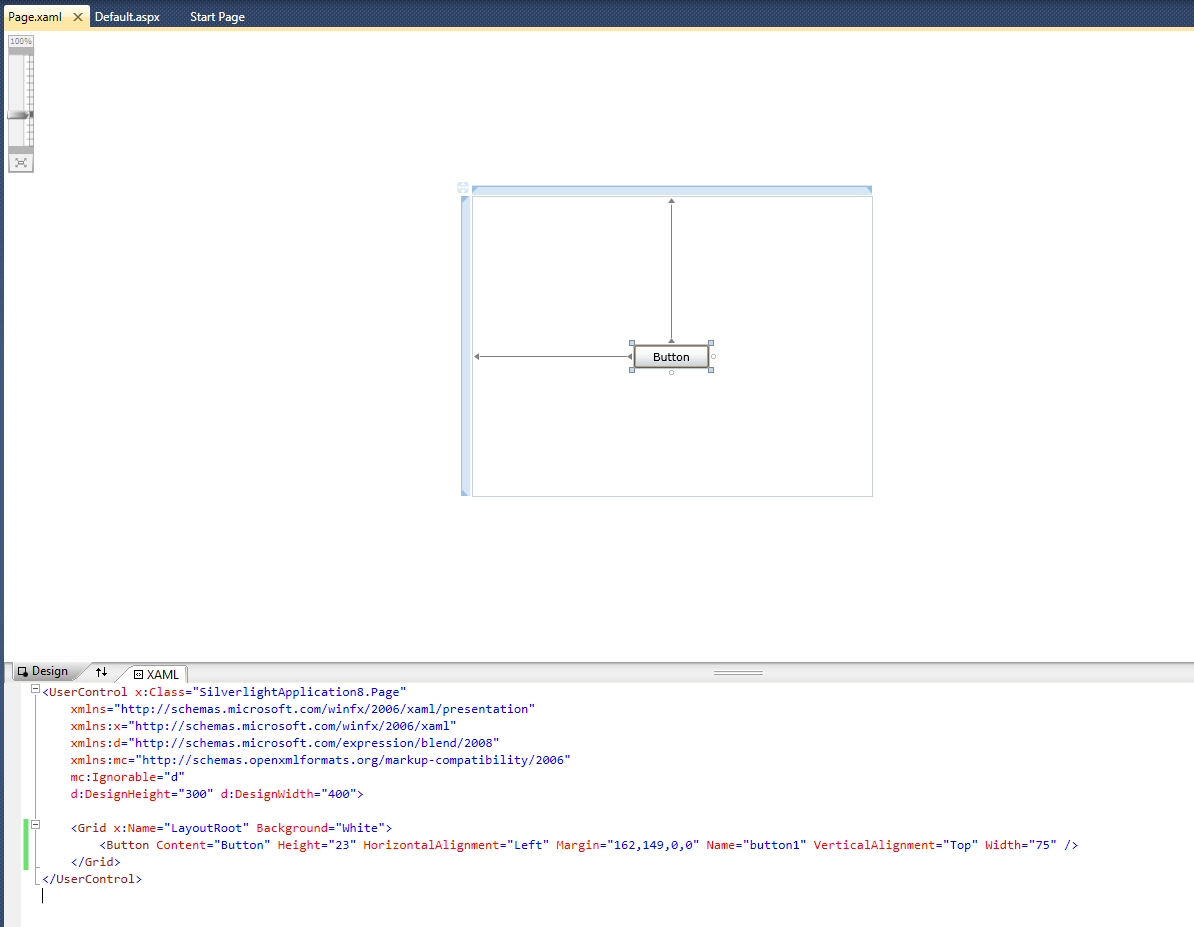
Reminding myself of my goals also helps me to just relax and not worry so much about making mistakes.  I’m just capturing on “paper” what I’m learning, as I learn it.  Since I’m only beginning the journey of grokking whatever it is, I don’t need to worry about whether I get it right or not.

Remembering all of this led me to change the tagline of this blog.  Instead of offering up my thoughts on various topics, I now see this as “learning out loud”.  That perfectly describes what I think I’m doing—learning new stuff, stumbling through it, and capturing the current state of my knowledge so that I can come back and refer to it later.

So let the journey continue—there’s still so much to learn!

Windows Vista is the High School Slut

In most high schools, there is a girl labeled simply as “the slut”.  This is the girl that everyone knows is a total slut—her reputation precedes her.

But every once in a while, someone discovers that a girl’s reputation is completely unfounded.  You actually get to know “the slut” and discover that the rumors all derive from some mean comments that one guy said about her several years ago.  (Ironically, likely because her behavior is the opposite of what the boy claims).

What’s interesting is how fast a negative impression can spread, whether it’s true or not.  In the case of the slut, word spreads quickly and pretty soon everyone simply labels her as “the slut”, without questioning where the label came from.  Even people who have never met her don’t bother to question the label.  It’s also not a reputation that she can hope to overturn, short of moving to a new school or changing her name.  People who get to know her might realize how untrue the label is.  But the majority of the school continues to think of her as the slut, because that’s what everyone says.

Windows Vista as the Slut

In the world of PC-based operating systems, Windows Vista is the slut.

Vista’s reputation has been trashed by bloggers, technical reviewers and pundits all over the web.  The bad impression is so pervasive that even the non-technical guy at the water cooler admits that he just special-ordered a PC with Windows XP because “Vista sucks”.  Even Google agrees with his assessment—the phrase “vista sucks” will net you 210,000 results, while “xp sucks” will only turn up 16,100.

Does Vista really suck?  If not, how did it get such a horrible reputation?

Vista does not suck.  In fact, many people believe that it works even better than Windows XP.  I’ve been running Vista on a number of machines for well over a year now and I haven’t had a single problem with it.  Every piece of software I’ve ever installed has worked fine.  Every hardware device I’ve hooked up to it has also worked fine.  The user experience is just prettier, cleaner, and more efficient than Windows XP.  Performance has been fine—it actually doesn’t seem to degrade over time like Windows XP used to, as you install more and more applications.  If you don’t believe me, go read some in-depth reviews done by people like Paul Thurrott and his Windows SuperSite.

Like the high school slut, Vista got her bad reputation mostly through word-of-mouth—and because people delight in sharing negative information.  Some high profile bloggers posted some very negative reviews when it first came out, and other bloggers wrote posts of their own, merely repeating the same bad impressions.  Before long, everyone’s bad impression of Vista was cemented, despite the fact that many people harshly critical of Vista had never installed or used it in any meaningful way.

That’s not to say that Vista didn’t have some problems when it was first released.  Many hardware vendors failed to write new drivers, so their older hardware just didn’t work with Vista.  If people tried upgrading an older system, or tried using older peripherals with Vista, they found that the hardware didn’t work.

The problem with drivers is really the fault of the hardware vendors, rather than Microsoft’s fault.  For these vendors, writing new drivers for old hardware is a low priority.  They’d much rather sell you new hardware (which did work with Vista) for your new machine.  This is also nothing new—we saw exactly the same thing with Windows XP when it first released, in that the older Windows NT drivers didn’t work.

The driver problems are old news, though.  These days, it’s hard to find a piece of hardware built in the past few years that doesn’t just work when you plug it into a Vista machine.

Should You Be Using Vista?

Like the slut, Vista’s reputation clears up completely once you get to know her.  Once you start using Vista on a regular basis, you start wondering what all the fuss is about.  And you find it hard to go back to Windows XP.

So should you use Vista?  If you’re buying a new machine, the answer is—absolutely, yes.  You’ll find that everything will just work, both hardware and software.  Unless you’re buying a really low-end machine, the performance will be just fine.  Just shoot for at least 1GB RAM (2GB is even better) and at least 2 GHz dual-core processor.  (You can get a Dell Inspiron 1525 laptop with 2GHz dual-core and 3GB RAM for under $500).

What about if you’re running an older machine—should you upgrade to Vista?  The simple answer is—no.  If you have an older machine running Windows XP and you’re happy with it, stick with it.  There’s no compelling reason to jump to Vista.  And—all other things being equal—Vista will perform more slowly than XP.  This has always been true.  If you had installed XP on your old Windows 98 box, it would have been pretty slow.  The truth is that hardware gets faster and faster all the time and newer versions of Windows take advantage of those performance gains.  That’s a good thing.

Where Do We Go From Here?

If we agree that Vista’s reputation has been unfairly tarnished, is there anything to be done about it?

No.

At this point, too many bad things have been said about Vista.  The damage has been done and it will never recover its reputation.

So, like the high school slut, Vista is doing the only thing it can do.  It’s moving, changing its name, making a new start.  Sometime later this year it will surface again—and we’ll be calling it “Windows 7”.

Hello Silverlight World, part 1 – Generating the Project

In my last Silverlight post, we got all of the Silverlight bits installed.  Now it’s time to build a super simple “Hello world” example and then look at the bits and pieces that go into a basic Silverlight app.  I’ll also compare the wizard-generated Silverlight application with the same application done in WPF.  (See my WPF hello-world samples: part 1, part 2 – Why XAML, and part 3 – Forms and Windows.

Let’s start with the obvious–create a Silverlight project in Visual Studio 2008, using the New Project wizard.  (I’m assuming that you’ve installed everything that you need for Silverlight).

We’re going to use C# and target version 3.5 of the .NET Framework.  You’ll see that there are templates for two different Silverlight project types:

  • Silverlight Application
  • Silverlight Class Library

Project wizard

Lovely.  We’ll create a simple “Silverlight Application”.

Before the project is actually created, we see a dialog asking us where we want to host our Silverlight Application.  Because Silverlight is a web-based technology, it has to actually be hosted in a web page somewhere.  Visual Studio is willing to generate a new project that will contain the test page.  Here’s the dialog that is shown, when creating a new Silverlight project in an empty solution:

Hosting Options

Here’s some more detail on what each of the three options means:

  • Add new ASP.NET Web project to the solution – creates a new solution with two projects: your Silverlight Application project and a new ASP.NET Web Application project.  The ASP.NET project will look like a typical new ASP.NET Web Application, except that it will also contain a test .aspx page and test .html page for hosting the Silverlight content.  You can also choose “ASP.NET Web Site” as your ASP.NET project type, rather than “ASP.NET Web Application”.  With a Web Application, you have to rebuild and re-publish a DLL to deploy, rather than having everything compiled dynamically (see this addressed in StackOverflow).  In most cases, you’ll want an ASP.NET Web Application.
  • Automatically generate a test page to host Silverlight at build time – In this case, you get a new solution with a single project—the Silverlight Application project.  You don’t have the overhead of a full test project for hosting the Silverlight content.  Instead, when you build the project, you’ll get a test page (TestPage.html) that shows up in your \Bin\Debug or \Bin\Release directory.  The test page is automatically set up to host the Silverlight content from your Silverlight Application project.
  • Link this Silverlight control into an existing Web site – This option will be available if you start with a solution containing an ASP.NET Web Application or Web Site and add your new Silverlight project to that solution.  The Silverlight Application project will be created in the existing solution.  The wizard will also offer to create a test page in the existing site (see below).  If you choose to create the test page, you’ll get an .aspx and an .html version, as before.

Link to Existing Site

In general, if you’re starting fresh, you’ll want the first option—Add a new ASP.NET Web project to the solution.

The Project Structure

If we choose the first option, here is what the resulting solution looks like:

Solution

So at this point, we have a project for our Silverlight content—HelloSilverlight, and an ASP.NET Web Application project to host the content—HelloSilverlight.Web.

For the moment, let’s focus on the HelloSilverlight project and compare it to its counterpart WPF Application.  Here are both projects, laid out side by side (WPF on the left):

WPF Vs Silverlight

Forms, Windows and Pages

Before we dive into the pieces of the project, there is some interesting terminology to talk about.  In my Hello WPF World, part 3 post, I talked about the difference between a classic Win Forms application and a WPF application.  Under Win Forms, your main window is called a “form”, and this technology goes back at least as far as Visual Basic 3.  (Further)?  With WPF, the terminology changed slightly, in that you’re working with a “window”, rather than a “form”.  And with Silverlight, our main GUI surface is called a “page”.

In one sense, this is just semantics.  Whether we call our main design surface a form, a window, or a page, it’s really just an area of the screen that a user interacts with.  But it’s interesting to think about where these terms come from, especially when thinking about “forms” vs. “pages”.  If we think about paper equivalents to what we’re creating in software, we started creating “forms”—bringing to the computer the process of a human filling out a paper form.  The idea is that they had a sheet with a bunch of empty boxes and they filled in the information.  In the case of a “page”, we inherit the term from the world of web “pages”.  Here the paper equivalent is very different—a page is just a static sheet containing information that you read.

Maybe I’m belaboring the point.  I just find it interesting that in the past we’ve used both “form” and “page” to refer to a user interface surface, and that the corresponding elements in the paper-based world are so different from each other.

In the case of Silverlight, we’re working with “pages”.  We inherit the terminology because we’re writing web-based software, and the web started out serving up static “pages” of content–a very good match for the corresponding real-world idea of a paper page.  But even though Silverlight is presenting a fully interactive user surface–more of a “form”–we’re using the term “page” because of the history.  Perhaps it’s just the case that the term “page” has evolved to mean something new—an interactive and dynamic surface for displaying information and gathering input.

Back to the Silverlight Project

Let’s get back on track and go compare our new Silverlight project to its counterpart in the WPF world.

The Application Manifest

AppManifest.xml is a file that we have in our Silverlight application, but not in the WPF application.  In Silverlight, AppManifest is the application level manifest that describes the constituent DLLs that we are deploying, and their entry points.  In our project, you’ll see that AppManifest.xml is basically empty.  But if you build the application, you’ll see that an AppManifest.xaml file is generated in the output directory.  Looking at AppManifest.xaml, you’ll see that we list one DLL that we are deploying, HelloSilverlight.dll, and that the name of this assembly is “HelloSilverlight”.

So the application manifest is basically a bootstrapper for the Silverlight runtime, telling it which assemblies need to be loaded.  Note that we also still have a manifest inside our HelloSilverlight.dll file, as well.  This is just a standard .NET assembly manifest.

AssemblyInfo

Comparing the AssemblyInfo.cs file in the Silverlight app to its counterpart in our WPF application, they are quite similar.  The obvious difference is that the Silverlight application does not include the ThemeInfo attribute for defining theme-specific resource dictionaries.  As far as I can tell, this is not supported in Silverlight.

Resources

The next difference between the WPF and Silverlight projects is that the default WPF application contains the Resources.resx and Resources.Designer.cs files.  If you haven’t used resources before, the general idea is to move all of your localizable strings from the code out into a resource file and then create a separate resource file for each target language that you want to support.  The appropriate resource file is then loaded automatically at run-time and your code picks up the localized string because it is loading strings from the resource file, rather than the strings coming directly from your XAML (or from the code).

The default Silverlight application project doesn’t have a resource file in the project by default.  You can easily add one, however, and load your strings from the resource file.  It’s not completely clear why the file is not created by default.  Perhaps the goal is just to reduce the size of the final .xap file, since it will be downloaded to the client.  Or perhaps the thinking is that you’d be less likely to want to localize a web-based application vs. a thick client.

Settings File

Similarly, the Silverlight project does not include a settings file (Settings.settings).  In WPF, this is where you would write/read application settings which you want to persist between sessions.  You end up with a configuration file, e.g. Myapp.exe.config, in the same directory as your .exe.  But because the Silverlight control running on the client has no access to the file system, you can’t use .config files as a mechanism for persisting application settings.

Let’s Stop There

This is a good place to stop.  I’ll continue comparing the WPF and Silverlight applications next time and we’ll start looking at what happens at runtime, when rendering the Silverlight control in a browser.

Hijacking Vista Special Folders on Start Menu

Ok, this wasn’t obvious, so it’s worth sharing.  What I want to do is to create a new sub-menu in the black area of Vista’s start menu, where you normally have a folder for your username, then “Documents”, “Pictures”, “Music”, etc.  I want a brand new folder where I can stick whatever shortcuts I want.

Here’s a picture of the final result.  Note the “famThings” folder, which is the custom folder that I wanted.  Also note that I was able to stick a file out here, as well as a sub-folder.

Hijacked Start Menu

As far as I can tell, there is no way to add a whole new slot for a sub-menu here, other than the default built-in menus that are part of Windows.  You can turn them on or off by tweaking the Start Menu properties, but I didn’t see a way to create a new one.  Perhaps there’s a registry hack to do this, but a quick Google search didn’t turn anything up.

So what I did instead was to hijack one of the pre-canned special folders and use it as the folder that I wanted.  I chose “Favorites”, because I use Firefox and my favorites are not stored here anyway.

Here’s how you do it:

  • If the Favorites folder doesn’t already show up here, turn it on:
    • Right-click start menu globe, select Properties
    • Go to Start Menu tab
    • Click Customize
    • Find entry “Favorites menu” and make sure that it’s checked
  • In Windows Explorer, navigate to C:UsersmynameFavorites and delete all the junk in there (assuming you don’t use Internet Explorer and store your regular favorites here).
  • Place whatever files you like in this folder, including files, sub-folders, or shortcuts
  • Now rename the Favorites folder to whatever you like
  • Log out and back in, or just restart the Explorer (e.g. by killing the explorer.exe process from Task Manager and then restarting)

Voila!  Now you have your very own custom menu at the top level of the Start Menu.

But Wait, That’s Not Enough

Here’s a little addendum, after the fact.  When I originally tried everything I described above, it worked—for a short time.  But then at some point, the directory name reverted back to “Favorites”.  What’s going on?

What’s happening here is that your Favorites folder is a “special folder”, in that it contains a little hidden file called desktop.ini that specifies some of the behavior of this folder in Windows Explorer.  Below is the original contents of desktop.ini :

[.ShellClassInfo]
LocalizedResourceName=@%SystemRoot%system32shell32.dll,-21796
IconResource=%SystemRoot%system32imageres.dll,-115
IconFile=%SystemRoot%system32shell32.dll
IconIndex=-173

This little file tells Windows Explorer a few tidbits about how the folder should be displayed, including its name and the icon used.  This overrides the actual folder name and the default folder icon normally displayed for folders.

So to achieve what we want, actually renaming the folder, we could just delete desktop.ini.  Alternatively, we could keep the file and just change the value of the LocalizedResourceName attribute to be what we want.  The other benefit of keeping this file is that you can change the actual icon displayed at the top of the Start Menu when you select the folder.

For example, let’s say that I have an icon file showing a cute little potted plant and I want that to be the icon associated with my famThings folder.  I could change desktop.ini to read:

[.ShellClassInfo]
LocalizedResourceName=famThings
IconFile=Plant.ico
IconIndex=0

Then I copy the Plant.ico file into the famThings (formerly Favorites) folder and set it to hidden.  (So that it doesn’t show up in the Start Menu).

Now you get what you want—a properly named special folder whose name won’t change.  And, at no extra charge, a custom icon for the folder.  Note that the special icon now shows up not just on the Start Menu, but as the folder icon anywhere in Windows Explorer:

Custom Icon

How to Reboot Machine While Connected Through Remote Desktop

I assume that everyone who uses Remote Desktop in Windows knows this already, but just in case…

I use Remote Desktop all the time to connect back to one or more machines on my home network.  I have a single static IP address and then have terminal server running on every box behind the router on a different port.  So I can connect to any of my machines remotely, by using a different port.

Being able to remote connect to any/all of my machines is huge.  I consider Remote Desktop to be one of the most critical tools that I use on a daily basis.

But  I occasionally find that there is something funky on one of my home machines that leads to my wanting to reboot it.  For example, I sometimes run into a situation where I can’t connect to the machine from outside my network, but I can still remote from a different machine in my home network.  So I remote to the “visible” machine, then remote over to the “invisible” machine.  Rebooting the problem machine seems to fix the problem.

The problem with rebooting is that the Shutdown and Restart options are removed from the Start Menu when you’re connected using Remote Desktop.

But not to worry–you can still reboot the machine, just using the command prompt.  Here’s the magic command (Windows 7, Vista or Windows XP):

shutdown -t 0 -r -f

That’s a “zero” after the -t option, indicating shutdown in zero seconds.  The -r option indicates a restart, rather than shutdown.  (Don’t forget this one)!  The -f option forces all applications to terminate.

So this is a critical command, worth remembering!

Why Can’t I Drag Silverlight Controls into the Designer?

We’re all spoiled.  For years, we’ve been able to drag/drop controls onto a design surface in Visual Studio and then write the code-behind.  Traditionally, our world has consisted of these two things–the design surface and the code-behind.

But with WPF and Silverlight, we really have three views: the design surface, the XAML code that defines the visual layout, and the code-behind.

When working on WPF projects then, you typically have a split window where you can work in either the design surface or the XAML code.  You can drag controls from the toolbox onto the design surface and the changes are reflected immediately in the XAML.  Conversely, you can edit the XAML and see changes on the design surface.  It looks like this.

WPF Designer

This is beautiful.  You can work in the classic drag/drop paradigm to quickly gen up your GUI.  And then you can tweak things in the XAML, or the property editor.  Life is good.

Silverlight – Something’s Missing!

But there is a bit of a difference when you’re working with Silverlight projects.  Take a look at that same split designer view:

Silverlight Designer

Notice the difference?  “Preview”, rather than “Design”.  You’ll also notice right away that you can’t drag controls onto the design surface.  Argh, I can’t live without drag/drop—these are habits that I picked up back in the days of VB3!

Relax.  Turns out that you can still drag/drop into the XAML, and your changes will be reflected in the Preview window.  The Silverlight designer is different from WPF in that this window is a read-only view of your GUI, rather than a directly-editable designer.  The other bad news is that there is no property window when editing Silverlight XAML, whereas there is when you’re working with the XAML in a WPF application.

You can read all about the Silverlight designer and its limitations here: Silverlight Tools for Visual Studio 2008 Designer Support

While this isn’t ideal, it’s workable.  Perhaps we’ll see the ability to edit directly on the design-surface in future versions of Visual Studio.  Being a newer technology, it’s sensible that Silverlight lags a bit behind WPF in terms of tooling support, in the same way that WPF seems to still lag a bit behind Win Forms.

Silverlight, Day 1 – Installing Everything

Silverlight is the new framework for delivering rich client functionality in a web browsers.  It’s an important architecture to consider when thinking about creating a new application–along with WPF (classic thick client) and ASP.NET/AJAX (thinner client).  The three framework choices–WPF, Silverlight, and ASP.NET/AJAX–live on different spots on the thick-to-thin client continuum.  Each is a valid choice as a framework for creating an application, depending on the customer or the needs.  Which one you choose depends on what the customer goals are.  It’s also possible to craft a solution that is a mix of one or more technologies–e.g. Silverlight controls as part of a broader ASP.NET site.

Given what I think is Silverlight’s importance in the Microsoft ecosystem, I think that it’s important for all Microsoft (or .NET) developers to be at least a little familiar with the platform.  So here’s a step-by-step recipe for getting a Silerlight development environment set up on your machine.  I’ve been setting up a new VM over the past few days that will be my “virgin” Silverlight development box.  There’s a lot to be said for just starting fresh and installing exactly what you need—no more, no less.

This has been written about at length at the silverlight.net site–how to get started with Silverlight.  But I thought it worth doing a post that walks through the exact steps required.

Virtual Machines and the Windows 7 Taskbar

As always, creating a new VM makes me feel all fresh, clean and wonderful.  I’m using VMware 6.5.1, which I really love.  I created a 32-bit bit VM and installed the Windows 7 beta that was just released last week (build 7000).  I can’t say enough good stuff about Windows 7, from what I’ve seen so far.  The performance is incredibly snappy, even in the VM, with 1GB of virtual memory.  The boot time is lightning fast.  And, with a little tweaking, I’m now really enjoying the new taskbar (the “superbar”).  I’m not remotely a Vista hater (I’ve been running it on all my home machines forever), so I wouldn’t call Window 7 “the Windows that Vista should have been”.  Vista has been great for me.  But Win 7 takes Vista and just pushes it a bit further, improving various things.
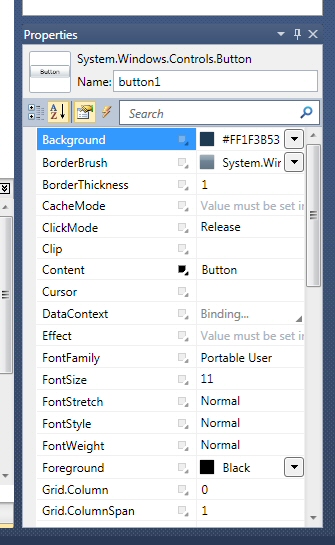
Just as a quick side note, here is the tweak that I made to the taskbar behavior, after hearing Paul Thurrott talk about this on Windows Weekly.  As Paul said, this should really be the default behavior.

Here’s how the taskbar looks out of the box.

Default Taskbar

Each button on the taskbar (in this case) represents a running application, which may contain one or more instances/windows.  What’s confusing about this is that you need to first click on an icon to get a popup of the individual windows.  Paul recommends, and I very much prefer, changing the default look and feel so that taskbar buttons are not grouped.

Here’s where you set the option, under Taskbar properties:

Change Taskbar

Notice that the default Button grouping setting is “Always group”.  If you change it to “Group when taskbar is full” or “Never group”, the taskbar then looks like this:

Better Taskbar

This is much nicer, because: a) you can click on individual windows, if more than one instance of an app is running and b) the text that is displayed makes it much easier to find what you’re looking for.
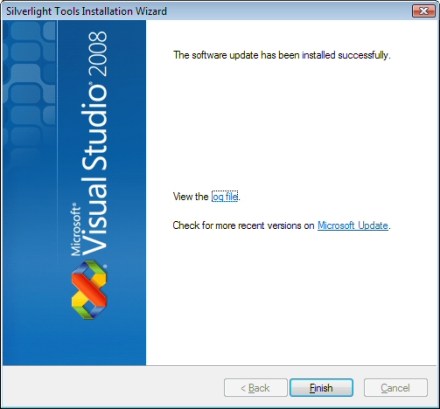
(Note: These screen grabs are actually from the M3 build distributed at PDC in Oct, 2008.  In the Jan, 2009 beta, you won’t see the Quick Launch icons).
Ok, enough fauning over Windows 7.  Let’s move on to installing all the Silverlight bits.

The Plan

The silverlight.net site has a nice Getting Started post listing the bits that you need to install, to get Silverlight fully functional.  [Note: Throughout this post, and from now on in my life, whenever I say “Silverlight”, I always mean “Silverlight 2”].  Here’s what the list looks like:

Getting Started with Silverlight

I’ll work through this entire list, to get everything installed.

Oh by the way, I’m assuming that you’ve already installed Visual Studio 2008 SP1, which also includes the .NET Framework 3.5 SP1.

Visual Studio 2008 SP1

Installing Silverlight Tools for Visual Studio 2008 SP1

To start with, we download and install Silverlight Tools for Visual Studio 2008 SP1.  This is version 9.0.30729.146, released on 10/30/2008.  The download is 72.7MB.

Download the Silverlight_Tools.exe file and launch it.

Welcome

Soak up the EULA:

License Agreement

At this point, the install may tell you that there are processes running that you need to shut down:

Incompatible Processes

After closing Firefox, I click the Refresh button and now get a clean bill of health:

No Incompatible Processes

The install then starts:

Install Progress

And we’re done.

Silverlight Install Complete

At this point, you’ve installed:

  • Silverlight 2 developer runtime  (2.0.31005.0)
  • Silverlight 2 SDK  (2.0.31005.0)
  • KB956453 for Visual Studio 2008 SP1
  • Silverlight Tools for Visual Studio 2008 SP1

You can find an installation log file at:  C:\Users\myname\AppData\Local\Temp\Silverlight%20Tools%20RTW_20090108_121446406.html .  It also contains hyperlinks to the textual MSI log files for the different products installed.

Silverlight 2 DataGrid Update

Next, you’ll want to download and install the Silverlight 2 DataGrid December 2008 Release, released on 12/19/2008.  This release apparently fixes a number of bugs with the DataGrid.

Expanding on the instructions on the download page, here are the steps:

  1. Close all instances of Visual Studio 2008
  2. Run SL2DataGridDec08.exe to extract the files
    Extract Files
  3. Delete all cached toolbox items by removing all files beginning with “toolbox” from C:\Users\UserName\AppData\Local\Microsoft\VisualStudio\9.0.
    Delete Toolbox Files
  4. Replace the following assemblies with the ones in this package:

    • %ProgramFiles%\Microsoft SDKs\Silverlight\v2.0\Libraries\Client\System.Windows.Controls.Data.dll
    • %ProgramFiles%\Microsoft SDKs\Silverlight\v2.0\Libraries\Client\System.Windows.Controls.Data.Design.dll

Installing Expression Blend 2

Next on the agenda is downloading and installing Expression Blend 2—the tool used for designing Silverlight and WPF GUIs.  Expression Blend 2 supports Silverlight 1.0.  SP1 for Expression Blend 2 (see below) adds support for Silverlight 2.0.

I’m installing a full version that I get through the Empower ISV program.  The link above will take you to a page where you can download a 30-day trial version.  You can purchase the full version from Amazon for roughly $479, or upgrade from Expression Blend 1 for $95.

This is version 2.0.1523.0.

Wow, snazzy install screen—exactly what you’d expect for a design-focused tool.

Installing Expression Blend

By the way, the Expression family consists of the following different tools:

  • Expression Web ($245) – for designing web sites  (think Front Page replacement)
  • Expression Blend ($479) – for creating WPF and Silverlight user interfaces
  • Expression Design – graphical design tool (partner tool for Blend, adding some add’l drawing capabilities)
  • Expression Media ($186) –  for organizing your media (assets)
  • Expression Encoder ($190) – for producing webcasts and publishing via Silverlight

You can get the whole lot—Expression Studio 2—for $666.  [Odd number to use for a retail price].

Decide where to install Blend:

Install Location

And off we go..

Blend Install Starts

Blend 2 is now installed.  But wait!  If you’re running on a VMware VM, don’t try running it yet.  It appears that the Expression products don’t run properly in VMs if 3D graphics acceleration is enabled.  Shut down your VM and disable 3D graphics acceleration (go to Settings, select your Display, look for the “3D graphics” section and uncheck “Accelerate 3D graphics (DirectX 9.0c).  Expression Blend was locking up my VM, but when I disabled 3D graphics acceleration, everything started working fine.

Install Expression Blend 2 Service Pack 1

Next you’ll want to install the service pack for Expression Blend 2 that adds support for Silverlight 2.  You can find it here: Expression Blend 2 Service Pack 1.

Note that this service pack replaces the Expression Blend 2.5 June 2008 Preview (which existed to support beta Silverlight 2 functionality).  So you don’t need Blend 2.5.

The service pack is small (18MB), and downloads and installs quickly.  The listed version is 2.1.1760.0.  So perhaps we can think of what we end up with as Blend 2.1, rather than Blend 2 or Blend 2.5.

Blend 2 Service Pack 1

Install Deep Zoom Composer  (optional)

Next on the Getting Started list is to install Deep Zoom Composer.  Deep Zoom is a technology built on top of Silverlight that allows you to publish a very high resolution image on a web site and allow zooming way into the image.  This is done by pre-processing the image to generate many different chunks of the image at many different resolutions.  You then publish all of these files to your server and visitors to your site can then zoom in and out of the original high-res image.

For an example of Deep Zoom in action, take a look at this collage of photos of my Dad.  I started with 191 different images and, after running everything through Deep Zoom Composer, ended up with 18,433 unique images on my server, taking up about 1.5GB of space.  The end result is pretty cool.  There’s another excellent example of Deep Zoom in action at the Hard Rock Memorabilia web site.

This step is optional because you’ll only want/need the Deep Zoom Composer if you intend to author some Deep Zoom images.  You can find the download for Deep Zoom Composer here: Deep Zoom Composer.  This is also small (4MB).  It’s listed as version 0.9.000.6.

For completeness, here’s the install sequence (which is pretty brainless):

Welcome

Note–when selecting an install location, I also set it up so that Everyone on the machine can run it.  That’s just my preference.

Location

Confirm that you’re ready to start the install:

Confirm

And we’re done.  Note the mention of checking for updates to the .NET Framework.  If you’ve followed all of the steps above, there should be no framework updates.

Done

Install the Silverlight Toolkit

Finally, you’ll want to install the latest version of the Silverlight Toolkit.  This is a collection of Silverlight controls (announced/released during the PDC in Oct 2008) and other goodies that the team has made available on codeplex.  The components have different levels of quality, depending on where in the release cycle they are.  But this is all stuff that is intended to eventually find its way into the mainline Silverlight product/release.  For more information on what’s in the Silverlight Toolkit, see Shawn Burke’s blog post.

You can download the Silverlight Toolkit here: download Silverlight Toolkit.  The current version was released on 9 Dec 2008.

The toolkit will come down as a .zip file.  There’s nothing really to install.  The idea is to unzip everything to a location of your choice and then just add references from your projects to the appropriate assemblies.

If you want to just play around with the controls, there’s a nice sample project included in the distribution, at \Samples\Controls.Samples.html — just open up the HTML page and you’ll be able to see and interact with the various controls.

Here’s a quick overview of how you make use of these controls from your Silverlight project.  Assume that we’ve already unzipped everything to \My Documents\Silverlight Toolkit.  Now fire up a new Silverlight project.  Once you’ve loaded the project, you’ll want to add the various controls to your toolbox, as follows:

Right-click in the Toolbox and select Choose Items.

Choose Items

In the dialog that comes up, go to the Silverlight tab and then click Browse.  Locate one of the assemblies from the Silverlight Toolkit and click the Open button.  The controls from that assembly will now show up in the dialog.  (And, if checked, in your Toolbox):

Silverlight Components

For example, notice that we now have the AutoCompleteBox in our toolbox:

toolbox

Wrapping Up

That’s really all there is to it.  Once you’ve followed all of these steps, you have all of the Silverlight bits and are now ready to create great Silverlight applications!