Hello Silverlight World, part 1 – Generating the Project

In my last Silverlight post, we got all of the Silverlight bits installed.  Now it’s time to build a super simple “Hello world” example and then look at the bits and pieces that go into a basic Silverlight app.  I’ll also compare the wizard-generated Silverlight application with the same application done in WPF.  (See my WPF hello-world samples: part 1, part 2 – Why XAML, and part 3 – Forms and Windows.

Let’s start with the obvious–create a Silverlight project in Visual Studio 2008, using the New Project wizard.  (I’m assuming that you’ve installed everything that you need for Silverlight).

We’re going to use C# and target version 3.5 of the .NET Framework.  You’ll see that there are templates for two different Silverlight project types:

  • Silverlight Application
  • Silverlight Class Library

Project wizard

Lovely.  We’ll create a simple “Silverlight Application”.

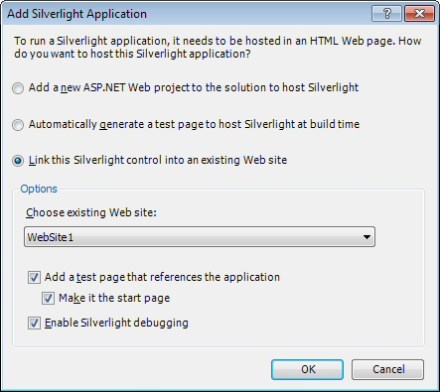
Before the project is actually created, we see a dialog asking us where we want to host our Silverlight Application.  Because Silverlight is a web-based technology, it has to actually be hosted in a web page somewhere.  Visual Studio is willing to generate a new project that will contain the test page.  Here’s the dialog that is shown, when creating a new Silverlight project in an empty solution:

Hosting Options

Here’s some more detail on what each of the three options means:

  • Add new ASP.NET Web project to the solution – creates a new solution with two projects: your Silverlight Application project and a new ASP.NET Web Application project.  The ASP.NET project will look like a typical new ASP.NET Web Application, except that it will also contain a test .aspx page and test .html page for hosting the Silverlight content.  You can also choose “ASP.NET Web Site” as your ASP.NET project type, rather than “ASP.NET Web Application”.  With a Web Application, you have to rebuild and re-publish a DLL to deploy, rather than having everything compiled dynamically (see this addressed in StackOverflow).  In most cases, you’ll want an ASP.NET Web Application.
  • Automatically generate a test page to host Silverlight at build time – In this case, you get a new solution with a single project—the Silverlight Application project.  You don’t have the overhead of a full test project for hosting the Silverlight content.  Instead, when you build the project, you’ll get a test page (TestPage.html) that shows up in your \Bin\Debug or \Bin\Release directory.  The test page is automatically set up to host the Silverlight content from your Silverlight Application project.
  • Link this Silverlight control into an existing Web site – This option will be available if you start with a solution containing an ASP.NET Web Application or Web Site and add your new Silverlight project to that solution.  The Silverlight Application project will be created in the existing solution.  The wizard will also offer to create a test page in the existing site (see below).  If you choose to create the test page, you’ll get an .aspx and an .html version, as before.

Link to Existing Site

In general, if you’re starting fresh, you’ll want the first option—Add a new ASP.NET Web project to the solution.

The Project Structure

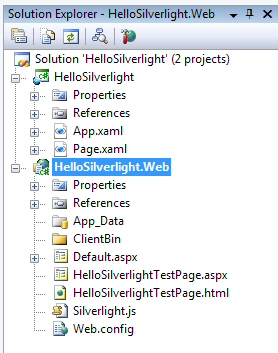
If we choose the first option, here is what the resulting solution looks like:

Solution

So at this point, we have a project for our Silverlight content—HelloSilverlight, and an ASP.NET Web Application project to host the content—HelloSilverlight.Web.

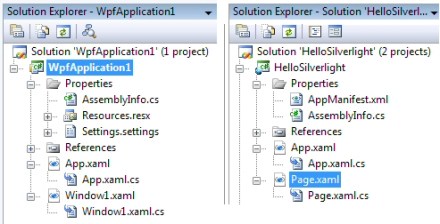
For the moment, let’s focus on the HelloSilverlight project and compare it to its counterpart WPF Application.  Here are both projects, laid out side by side (WPF on the left):

WPF Vs Silverlight

Forms, Windows and Pages

Before we dive into the pieces of the project, there is some interesting terminology to talk about.  In my Hello WPF World, part 3 post, I talked about the difference between a classic Win Forms application and a WPF application.  Under Win Forms, your main window is called a “form”, and this technology goes back at least as far as Visual Basic 3.  (Further)?  With WPF, the terminology changed slightly, in that you’re working with a “window”, rather than a “form”.  And with Silverlight, our main GUI surface is called a “page”.

In one sense, this is just semantics.  Whether we call our main design surface a form, a window, or a page, it’s really just an area of the screen that a user interacts with.  But it’s interesting to think about where these terms come from, especially when thinking about “forms” vs. “pages”.  If we think about paper equivalents to what we’re creating in software, we started creating “forms”—bringing to the computer the process of a human filling out a paper form.  The idea is that they had a sheet with a bunch of empty boxes and they filled in the information.  In the case of a “page”, we inherit the term from the world of web “pages”.  Here the paper equivalent is very different—a page is just a static sheet containing information that you read.

Maybe I’m belaboring the point.  I just find it interesting that in the past we’ve used both “form” and “page” to refer to a user interface surface, and that the corresponding elements in the paper-based world are so different from each other.

In the case of Silverlight, we’re working with “pages”.  We inherit the terminology because we’re writing web-based software, and the web started out serving up static “pages” of content–a very good match for the corresponding real-world idea of a paper page.  But even though Silverlight is presenting a fully interactive user surface–more of a “form”–we’re using the term “page” because of the history.  Perhaps it’s just the case that the term “page” has evolved to mean something new—an interactive and dynamic surface for displaying information and gathering input.

Back to the Silverlight Project

Let’s get back on track and go compare our new Silverlight project to its counterpart in the WPF world.

The Application Manifest

AppManifest.xml is a file that we have in our Silverlight application, but not in the WPF application.  In Silverlight, AppManifest is the application level manifest that describes the constituent DLLs that we are deploying, and their entry points.  In our project, you’ll see that AppManifest.xml is basically empty.  But if you build the application, you’ll see that an AppManifest.xaml file is generated in the output directory.  Looking at AppManifest.xaml, you’ll see that we list one DLL that we are deploying, HelloSilverlight.dll, and that the name of this assembly is “HelloSilverlight”.

So the application manifest is basically a bootstrapper for the Silverlight runtime, telling it which assemblies need to be loaded.  Note that we also still have a manifest inside our HelloSilverlight.dll file, as well.  This is just a standard .NET assembly manifest.

AssemblyInfo

Comparing the AssemblyInfo.cs file in the Silverlight app to its counterpart in our WPF application, they are quite similar.  The obvious difference is that the Silverlight application does not include the ThemeInfo attribute for defining theme-specific resource dictionaries.  As far as I can tell, this is not supported in Silverlight.

Resources

The next difference between the WPF and Silverlight projects is that the default WPF application contains the Resources.resx and Resources.Designer.cs files.  If you haven’t used resources before, the general idea is to move all of your localizable strings from the code out into a resource file and then create a separate resource file for each target language that you want to support.  The appropriate resource file is then loaded automatically at run-time and your code picks up the localized string because it is loading strings from the resource file, rather than the strings coming directly from your XAML (or from the code).

The default Silverlight application project doesn’t have a resource file in the project by default.  You can easily add one, however, and load your strings from the resource file.  It’s not completely clear why the file is not created by default.  Perhaps the goal is just to reduce the size of the final .xap file, since it will be downloaded to the client.  Or perhaps the thinking is that you’d be less likely to want to localize a web-based application vs. a thick client.

Settings File

Similarly, the Silverlight project does not include a settings file (Settings.settings).  In WPF, this is where you would write/read application settings which you want to persist between sessions.  You end up with a configuration file, e.g. Myapp.exe.config, in the same directory as your .exe.  But because the Silverlight control running on the client has no access to the file system, you can’t use .config files as a mechanism for persisting application settings.

Let’s Stop There

This is a good place to stop.  I’ll continue comparing the WPF and Silverlight applications next time and we’ll start looking at what happens at runtime, when rendering the Silverlight control in a browser.

Hijacking Vista Special Folders on Start Menu

Ok, this wasn’t obvious, so it’s worth sharing.  What I want to do is to create a new sub-menu in the black area of Vista’s start menu, where you normally have a folder for your username, then “Documents”, “Pictures”, “Music”, etc.  I want a brand new folder where I can stick whatever shortcuts I want.

Here’s a picture of the final result.  Note the “famThings” folder, which is the custom folder that I wanted.  Also note that I was able to stick a file out here, as well as a sub-folder.

Hijacked Start Menu

As far as I can tell, there is no way to add a whole new slot for a sub-menu here, other than the default built-in menus that are part of Windows.  You can turn them on or off by tweaking the Start Menu properties, but I didn’t see a way to create a new one.  Perhaps there’s a registry hack to do this, but a quick Google search didn’t turn anything up.

So what I did instead was to hijack one of the pre-canned special folders and use it as the folder that I wanted.  I chose “Favorites”, because I use Firefox and my favorites are not stored here anyway.

Here’s how you do it:

  • If the Favorites folder doesn’t already show up here, turn it on:
    • Right-click start menu globe, select Properties
    • Go to Start Menu tab
    • Click Customize
    • Find entry “Favorites menu” and make sure that it’s checked
  • In Windows Explorer, navigate to C:UsersmynameFavorites and delete all the junk in there (assuming you don’t use Internet Explorer and store your regular favorites here).
  • Place whatever files you like in this folder, including files, sub-folders, or shortcuts
  • Now rename the Favorites folder to whatever you like
  • Log out and back in, or just restart the Explorer (e.g. by killing the explorer.exe process from Task Manager and then restarting)

Voila!  Now you have your very own custom menu at the top level of the Start Menu.

But Wait, That’s Not Enough

Here’s a little addendum, after the fact.  When I originally tried everything I described above, it worked—for a short time.  But then at some point, the directory name reverted back to “Favorites”.  What’s going on?

What’s happening here is that your Favorites folder is a “special folder”, in that it contains a little hidden file called desktop.ini that specifies some of the behavior of this folder in Windows Explorer.  Below is the original contents of desktop.ini :

[.ShellClassInfo]
LocalizedResourceName=@%SystemRoot%system32shell32.dll,-21796
IconResource=%SystemRoot%system32imageres.dll,-115
IconFile=%SystemRoot%system32shell32.dll
IconIndex=-173

This little file tells Windows Explorer a few tidbits about how the folder should be displayed, including its name and the icon used.  This overrides the actual folder name and the default folder icon normally displayed for folders.

So to achieve what we want, actually renaming the folder, we could just delete desktop.ini.  Alternatively, we could keep the file and just change the value of the LocalizedResourceName attribute to be what we want.  The other benefit of keeping this file is that you can change the actual icon displayed at the top of the Start Menu when you select the folder.

For example, let’s say that I have an icon file showing a cute little potted plant and I want that to be the icon associated with my famThings folder.  I could change desktop.ini to read:

[.ShellClassInfo]
LocalizedResourceName=famThings
IconFile=Plant.ico
IconIndex=0

Then I copy the Plant.ico file into the famThings (formerly Favorites) folder and set it to hidden.  (So that it doesn’t show up in the Start Menu).

Now you get what you want—a properly named special folder whose name won’t change.  And, at no extra charge, a custom icon for the folder.  Note that the special icon now shows up not just on the Start Menu, but as the folder icon anywhere in Windows Explorer:

Custom Icon

How to Reboot Machine While Connected Through Remote Desktop

I assume that everyone who uses Remote Desktop in Windows knows this already, but just in case…

I use Remote Desktop all the time to connect back to one or more machines on my home network.  I have a single static IP address and then have terminal server running on every box behind the router on a different port.  So I can connect to any of my machines remotely, by using a different port.

Being able to remote connect to any/all of my machines is huge.  I consider Remote Desktop to be one of the most critical tools that I use on a daily basis.

But  I occasionally find that there is something funky on one of my home machines that leads to my wanting to reboot it.  For example, I sometimes run into a situation where I can’t connect to the machine from outside my network, but I can still remote from a different machine in my home network.  So I remote to the “visible” machine, then remote over to the “invisible” machine.  Rebooting the problem machine seems to fix the problem.

The problem with rebooting is that the Shutdown and Restart options are removed from the Start Menu when you’re connected using Remote Desktop.

But not to worry–you can still reboot the machine, just using the command prompt.  Here’s the magic command (Windows 7, Vista or Windows XP):

shutdown -t 0 -r -f

That’s a “zero” after the -t option, indicating shutdown in zero seconds.  The -r option indicates a restart, rather than shutdown.  (Don’t forget this one)!  The -f option forces all applications to terminate.

So this is a critical command, worth remembering!

Why Can’t I Drag Silverlight Controls into the Designer?

We’re all spoiled.  For years, we’ve been able to drag/drop controls onto a design surface in Visual Studio and then write the code-behind.  Traditionally, our world has consisted of these two things–the design surface and the code-behind.

But with WPF and Silverlight, we really have three views: the design surface, the XAML code that defines the visual layout, and the code-behind.

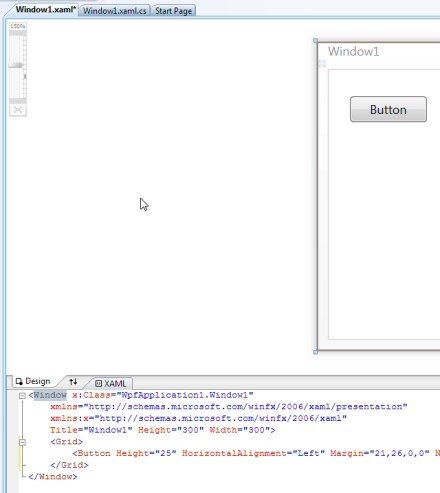
When working on WPF projects then, you typically have a split window where you can work in either the design surface or the XAML code.  You can drag controls from the toolbox onto the design surface and the changes are reflected immediately in the XAML.  Conversely, you can edit the XAML and see changes on the design surface.  It looks like this.

WPF Designer

This is beautiful.  You can work in the classic drag/drop paradigm to quickly gen up your GUI.  And then you can tweak things in the XAML, or the property editor.  Life is good.

Silverlight – Something’s Missing!

But there is a bit of a difference when you’re working with Silverlight projects.  Take a look at that same split designer view:

Silverlight Designer

Notice the difference?  “Preview”, rather than “Design”.  You’ll also notice right away that you can’t drag controls onto the design surface.  Argh, I can’t live without drag/drop—these are habits that I picked up back in the days of VB3!

Relax.  Turns out that you can still drag/drop into the XAML, and your changes will be reflected in the Preview window.  The Silverlight designer is different from WPF in that this window is a read-only view of your GUI, rather than a directly-editable designer.  The other bad news is that there is no property window when editing Silverlight XAML, whereas there is when you’re working with the XAML in a WPF application.

You can read all about the Silverlight designer and its limitations here: Silverlight Tools for Visual Studio 2008 Designer Support

While this isn’t ideal, it’s workable.  Perhaps we’ll see the ability to edit directly on the design-surface in future versions of Visual Studio.  Being a newer technology, it’s sensible that Silverlight lags a bit behind WPF in terms of tooling support, in the same way that WPF seems to still lag a bit behind Win Forms.

Silverlight, Day 1 – Installing Everything

Silverlight is the new framework for delivering rich client functionality in a web browsers.  It’s an important architecture to consider when thinking about creating a new application–along with WPF (classic thick client) and ASP.NET/AJAX (thinner client).  The three framework choices–WPF, Silverlight, and ASP.NET/AJAX–live on different spots on the thick-to-thin client continuum.  Each is a valid choice as a framework for creating an application, depending on the customer or the needs.  Which one you choose depends on what the customer goals are.  It’s also possible to craft a solution that is a mix of one or more technologies–e.g. Silverlight controls as part of a broader ASP.NET site.

Given what I think is Silverlight’s importance in the Microsoft ecosystem, I think that it’s important for all Microsoft (or .NET) developers to be at least a little familiar with the platform.  So here’s a step-by-step recipe for getting a Silerlight development environment set up on your machine.  I’ve been setting up a new VM over the past few days that will be my “virgin” Silverlight development box.  There’s a lot to be said for just starting fresh and installing exactly what you need—no more, no less.

This has been written about at length at the silverlight.net site–how to get started with Silverlight.  But I thought it worth doing a post that walks through the exact steps required.

Virtual Machines and the Windows 7 Taskbar

As always, creating a new VM makes me feel all fresh, clean and wonderful.  I’m using VMware 6.5.1, which I really love.  I created a 32-bit bit VM and installed the Windows 7 beta that was just released last week (build 7000).  I can’t say enough good stuff about Windows 7, from what I’ve seen so far.  The performance is incredibly snappy, even in the VM, with 1GB of virtual memory.  The boot time is lightning fast.  And, with a little tweaking, I’m now really enjoying the new taskbar (the “superbar”).  I’m not remotely a Vista hater (I’ve been running it on all my home machines forever), so I wouldn’t call Window 7 “the Windows that Vista should have been”.  Vista has been great for me.  But Win 7 takes Vista and just pushes it a bit further, improving various things.

Just as a quick side note, here is the tweak that I made to the taskbar behavior, after hearing Paul Thurrott talk about this on Windows Weekly.  As Paul said, this should really be the default behavior.

Here’s how the taskbar looks out of the box.

Default Taskbar

Each button on the taskbar (in this case) represents a running application, which may contain one or more instances/windows.  What’s confusing about this is that you need to first click on an icon to get a popup of the individual windows.  Paul recommends, and I very much prefer, changing the default look and feel so that taskbar buttons are not grouped.

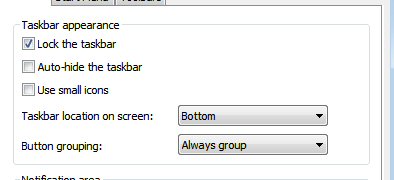
Here’s where you set the option, under Taskbar properties:

Change Taskbar

Notice that the default Button grouping setting is “Always group”.  If you change it to “Group when taskbar is full” or “Never group”, the taskbar then looks like this:

Better Taskbar

This is much nicer, because: a) you can click on individual windows, if more than one instance of an app is running and b) the text that is displayed makes it much easier to find what you’re looking for.

(Note: These screen grabs are actually from the M3 build distributed at PDC in Oct, 2008.  In the Jan, 2009 beta, you won’t see the Quick Launch icons).

Ok, enough fauning over Windows 7.  Let’s move on to installing all the Silverlight bits.

The Plan

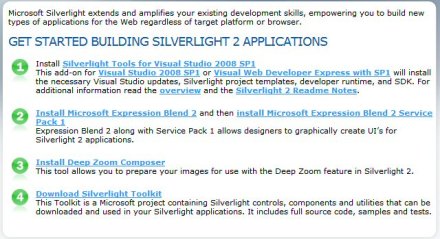
The silverlight.net site has a nice Getting Started post listing the bits that you need to install, to get Silverlight fully functional.  [Note: Throughout this post, and from now on in my life, whenever I say “Silverlight”, I always mean “Silverlight 2”].  Here’s what the list looks like:

Getting Started with Silverlight

I’ll work through this entire list, to get everything installed.

Oh by the way, I’m assuming that you’ve already installed Visual Studio 2008 SP1, which also includes the .NET Framework 3.5 SP1.

Visual Studio 2008 SP1

Installing Silverlight Tools for Visual Studio 2008 SP1

To start with, we download and install Silverlight Tools for Visual Studio 2008 SP1.  This is version 9.0.30729.146, released on 10/30/2008.  The download is 72.7MB.

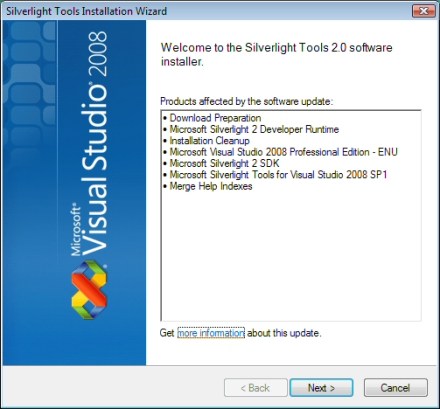
Download the Silverlight_Tools.exe file and launch it.

Welcome

Soak up the EULA:

License Agreement

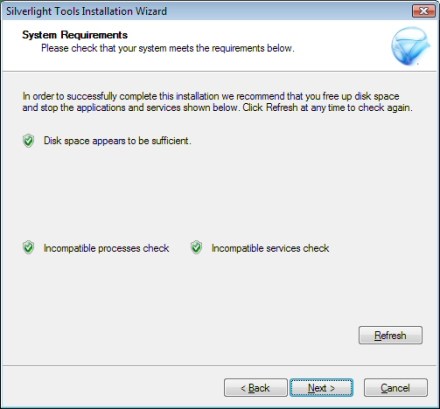
At this point, the install may tell you that there are processes running that you need to shut down:

Incompatible Processes

After closing Firefox, I click the Refresh button and now get a clean bill of health:

No Incompatible Processes

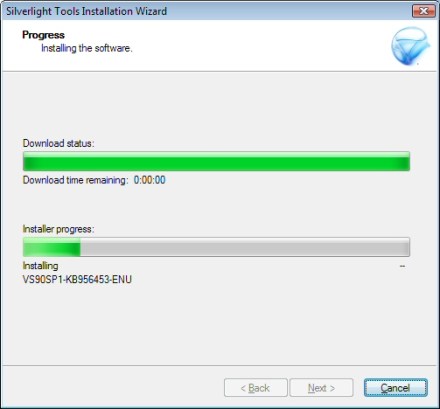
The install then starts:

Install Progress

And we’re done.

Silverlight Install Complete

At this point, you’ve installed:

  • Silverlight 2 developer runtime  (2.0.31005.0)
  • Silverlight 2 SDK  (2.0.31005.0)
  • KB956453 for Visual Studio 2008 SP1
  • Silverlight Tools for Visual Studio 2008 SP1

You can find an installation log file at:  C:\Users\myname\AppData\Local\Temp\Silverlight%20Tools%20RTW_20090108_121446406.html .  It also contains hyperlinks to the textual MSI log files for the different products installed.

Silverlight 2 DataGrid Update

Next, you’ll want to download and install the Silverlight 2 DataGrid December 2008 Release, released on 12/19/2008.  This release apparently fixes a number of bugs with the DataGrid.

Expanding on the instructions on the download page, here are the steps:

  1. Close all instances of Visual Studio 2008
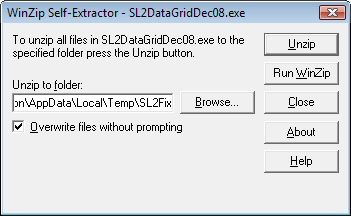
  2. Run SL2DataGridDec08.exe to extract the files
    Extract Files
  3. Delete all cached toolbox items by removing all files beginning with “toolbox” from C:\Users\UserName\AppData\Local\Microsoft\VisualStudio\9.0.
    Delete Toolbox Files
  4. Replace the following assemblies with the ones in this package:

    • %ProgramFiles%\Microsoft SDKs\Silverlight\v2.0\Libraries\Client\System.Windows.Controls.Data.dll
    • %ProgramFiles%\Microsoft SDKs\Silverlight\v2.0\Libraries\Client\System.Windows.Controls.Data.Design.dll

Installing Expression Blend 2

Next on the agenda is downloading and installing Expression Blend 2—the tool used for designing Silverlight and WPF GUIs.  Expression Blend 2 supports Silverlight 1.0.  SP1 for Expression Blend 2 (see below) adds support for Silverlight 2.0.

I’m installing a full version that I get through the Empower ISV program.  The link above will take you to a page where you can download a 30-day trial version.  You can purchase the full version from Amazon for roughly $479, or upgrade from Expression Blend 1 for $95.

This is version 2.0.1523.0.

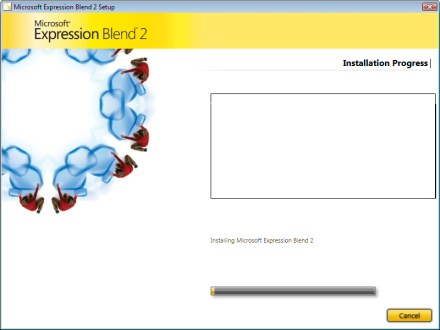
Wow, snazzy install screen—exactly what you’d expect for a design-focused tool.

Installing Expression Blend

By the way, the Expression family consists of the following different tools:

  • Expression Web ($245) – for designing web sites  (think Front Page replacement)
  • Expression Blend ($479) – for creating WPF and Silverlight user interfaces
  • Expression Design – graphical design tool (partner tool for Blend, adding some add’l drawing capabilities)
  • Expression Media ($186) –  for organizing your media (assets)
  • Expression Encoder ($190) – for producing webcasts and publishing via Silverlight

You can get the whole lot—Expression Studio 2—for $666.  [Odd number to use for a retail price].

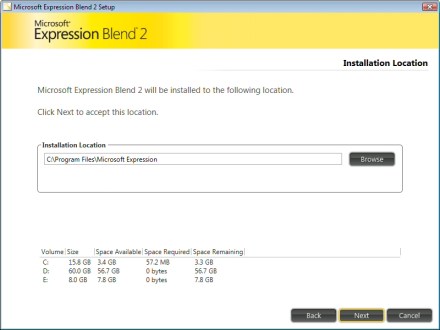
Decide where to install Blend:

Install Location

And off we go..

Blend Install Starts

Blend 2 is now installed.  But wait!  If you’re running on a VMware VM, don’t try running it yet.  It appears that the Expression products don’t run properly in VMs if 3D graphics acceleration is enabled.  Shut down your VM and disable 3D graphics acceleration (go to Settings, select your Display, look for the “3D graphics” section and uncheck “Accelerate 3D graphics (DirectX 9.0c).  Expression Blend was locking up my VM, but when I disabled 3D graphics acceleration, everything started working fine.

Install Expression Blend 2 Service Pack 1

Next you’ll want to install the service pack for Expression Blend 2 that adds support for Silverlight 2.  You can find it here: Expression Blend 2 Service Pack 1.

Note that this service pack replaces the Expression Blend 2.5 June 2008 Preview (which existed to support beta Silverlight 2 functionality).  So you don’t need Blend 2.5.

The service pack is small (18MB), and downloads and installs quickly.  The listed version is 2.1.1760.0.  So perhaps we can think of what we end up with as Blend 2.1, rather than Blend 2 or Blend 2.5.

Blend 2 Service Pack 1

Install Deep Zoom Composer  (optional)

Next on the Getting Started list is to install Deep Zoom Composer.  Deep Zoom is a technology built on top of Silverlight that allows you to publish a very high resolution image on a web site and allow zooming way into the image.  This is done by pre-processing the image to generate many different chunks of the image at many different resolutions.  You then publish all of these files to your server and visitors to your site can then zoom in and out of the original high-res image.

For an example of Deep Zoom in action, take a look at this collage of photos of my Dad.  I started with 191 different images and, after running everything through Deep Zoom Composer, ended up with 18,433 unique images on my server, taking up about 1.5GB of space.  The end result is pretty cool.  There’s another excellent example of Deep Zoom in action at the Hard Rock Memorabilia web site.

This step is optional because you’ll only want/need the Deep Zoom Composer if you intend to author some Deep Zoom images.  You can find the download for Deep Zoom Composer here: Deep Zoom Composer.  This is also small (4MB).  It’s listed as version 0.9.000.6.

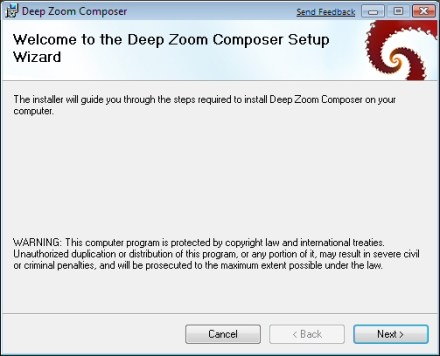
For completeness, here’s the install sequence (which is pretty brainless):

Welcome

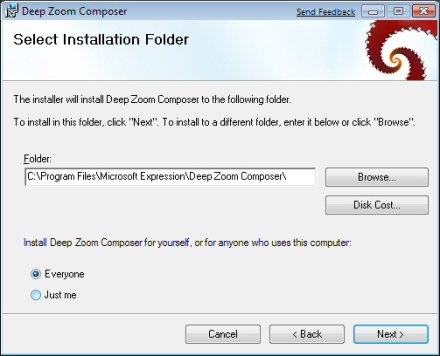
Note–when selecting an install location, I also set it up so that Everyone on the machine can run it.  That’s just my preference.

Location

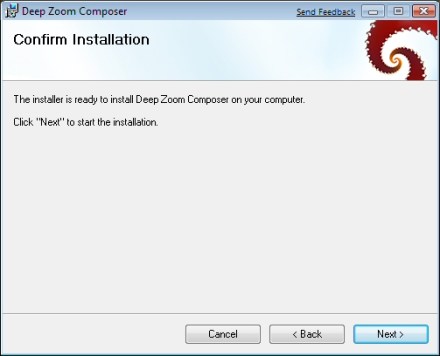
Confirm that you’re ready to start the install:

Confirm

And we’re done.  Note the mention of checking for updates to the .NET Framework.  If you’ve followed all of the steps above, there should be no framework updates.

Done

Install the Silverlight Toolkit

Finally, you’ll want to install the latest version of the Silverlight Toolkit.  This is a collection of Silverlight controls (announced/released during the PDC in Oct 2008) and other goodies that the team has made available on codeplex.  The components have different levels of quality, depending on where in the release cycle they are.  But this is all stuff that is intended to eventually find its way into the mainline Silverlight product/release.  For more information on what’s in the Silverlight Toolkit, see Shawn Burke’s blog post.

You can download the Silverlight Toolkit here: download Silverlight Toolkit.  The current version was released on 9 Dec 2008.

The toolkit will come down as a .zip file.  There’s nothing really to install.  The idea is to unzip everything to a location of your choice and then just add references from your projects to the appropriate assemblies.

If you want to just play around with the controls, there’s a nice sample project included in the distribution, at \Samples\Controls.Samples.html — just open up the HTML page and you’ll be able to see and interact with the various controls.

Here’s a quick overview of how you make use of these controls from your Silverlight project.  Assume that we’ve already unzipped everything to \My Documents\Silverlight Toolkit.  Now fire up a new Silverlight project.  Once you’ve loaded the project, you’ll want to add the various controls to your toolbox, as follows:

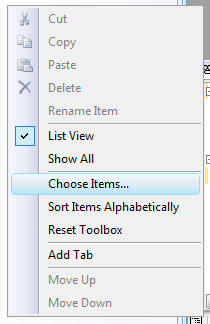
Right-click in the Toolbox and select Choose Items.

Choose Items

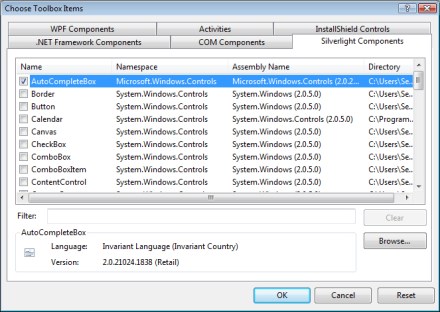
In the dialog that comes up, go to the Silverlight tab and then click Browse.  Locate one of the assemblies from the Silverlight Toolkit and click the Open button.  The controls from that assembly will now show up in the dialog.  (And, if checked, in your Toolbox):

Silverlight Components

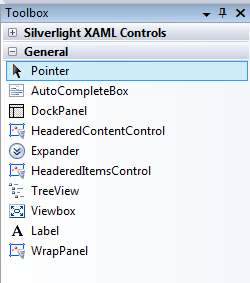
For example, notice that we now have the AutoCompleteBox in our toolbox:

toolbox

Wrapping Up

That’s really all there is to it.  Once you’ve followed all of these steps, you have all of the Silverlight bits and are now ready to create great Silverlight applications!

Using HttpWebRequest for Asynchronous Downloads

I’ve occasionally had a desire to test downloading a file via HTTP or FTP from a server—either to measure performance, or to stress test the server by kicking off a large number of simultaneous downloads.  Here’s a little Win Forms client that allows you to download a single file from a server, using either HTTP or FTP.  It shows download progress and displays the average transfer rate, in kb/sec.  It also demonstrates how to use the HttpWebRequest and FtpWebRequest classes in System.Net to do file downloads.

As an added bonus, this app is a nice example of doing a little work on a background thread and then firing callbacks back to the GUI thread to report progress.  This is done using the BeginXxx/EndXxx pattern, as well as using the Invoke method the ensure that GUI updating is done on the correct thread.  I always forget the exact syntax for this, so it’s nice to have it here to refer to.

The bulk of this code comes directly from the MSDN documentation for the HttpWebRequest.BeginGetResponse method.  I’ve created a little client app around it, adding some GUI elements to show progress.  I’ve also extended it to support downloads using FTP.

I include code snippets in this article, but you can download the entire Visual Studio 2008 solution here.

The End Result

When we’re done, we’ll have a little Win Forms app that lets us enter an HTTP or FTP path to a file and then downloads that file.  During the download, we see the progress, as well as the average transfer rate.
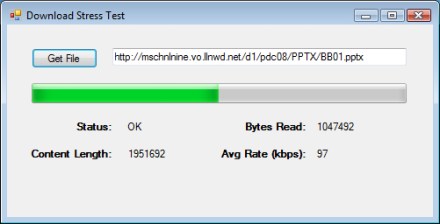
Download Stress Test application

For the moment, the application doesn’t actually write the file locally.  Instead, it just downloads the entire file, throwing away the data that it downloaded.  The intent is to stress the server and measure the transfer speed—not to actually get a copy of the file.

If we were to use HTTP and specify an HTML file to download, we’d basically be doing the same thing that a web browser does—downloading a web page from the server to the client.  In the example above, I download a 1.9MB Powerpoint file from the PDC conference, just so that we have something a little larger than a web page and can see some progress.

Using FTP Instead of HTTP

My little application does FTP, as well as HTTP.  If you enter an FTP-based URI, rather than an HTTP-based one, we automatically switch to using FTP to download the file.  Before the download can start, however, we need to ask the user for credentials to use to log into the FTP site.

FTP Credentials

Once we’ve gotten the FTP credentials, the download runs in much the same way that the HTTP-based download ran.
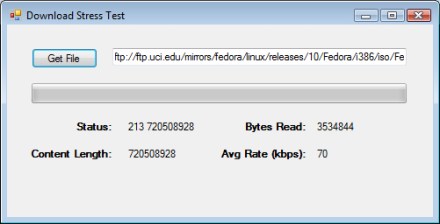
Downloading a file from an FTP server

In this case, I’m downloading an ISO image of the first CD of a Fedora distribution.  Note that the FTP response string starts with “213”, which gives file status and represents a successful response from the FTP server.  The second part of the response string is the size of the file, in bytes.  In the case of HTTP, the response was just “OK”.

Where Are We?

So what do we really have here?  A little program that downloads a single file without really writing it anywhere.  At this point, we have something that’s mildly useful for testing a server, since it tells us the transfer rate.  Furthermore, we can launch a bunch of these guys in parallel and download the same file many times in parallel, to stress the server.  (Ideally, the application would let us pick #-of-simultaneous-downloads and just kick them all off, but that’s an enhancement to be added later).

Diving Into the Source Code

More interesting than what this little program does is how you go about using the HttpWebRequest and FtpWebRequest classes to do the actual work.

Here’s a quick look at the C# solution:

Files in Solution

There’s really not much here—the main form (DownloadStressTestForm), the FTP credentials form (GetCredentialsForm) and a little helper class used to pass data around between asynchronous methods.

Most of the code lives in DownloadStressTestForm.cs.  Ideally, we’d split this out into the GUI pieces and the actual plumbing code that does the work of downloading the files.  But this is just a quick-and-dirty project.

Push the Button

Let’s take a look at the code that fires when you click the Get File button.

        private void btnGetFile_Click(object sender, EventArgs e)
        {
            try
            {
                lblDownloadComplete.Visible = false;

                WebRequest req = null;
                WebRequestState reqState = null;
                Uri fileURI = new Uri(txtURI.Text);

                if (fileURI.Scheme == Uri.UriSchemeHttp)
                {
                    req = (HttpWebRequest)HttpWebRequest.Create(fileURI);
                    reqState = new HttpWebRequestState(BUFFER_SIZE);
                    reqState.request = req;
                }
                else if (fileURI.Scheme == Uri.UriSchemeFtp)
                {
                    // Get credentials
                    GetCredentialsForm frmCreds = new GetCredentialsForm();
                    DialogResult result = frmCreds.ShowDialog();
                    if (result == DialogResult.OK)
                    {
                        req = (FtpWebRequest)FtpWebRequest.Create(fileURI);
                        req.Credentials = new NetworkCredential(frmCreds.Username, frmCreds.Password);
                        reqState = new FtpWebRequestState(BUFFER_SIZE);

                        // Set FTP-specific stuff
                        ((FtpWebRequest)req).KeepAlive = false;

                        // First thing we do is get file size.  2nd step, done later,
                        // will be to download actual file.
                        ((FtpWebRequest)req).Method = WebRequestMethods.Ftp.GetFileSize;
                        reqState.FTPMethod = WebRequestMethods.Ftp.GetFileSize;

                        reqState.request = req;
                    }
                    else
                        req = null;	// abort

                }
                else
                    MessageBox.Show("URL must be either http://xxx or ftp://xxxx");

                if (req != null)
                {
                    reqState.fileURI = fileURI;
                    reqState.respInfoCB = new ResponseInfoDelegate(SetResponseInfo);
                    reqState.progCB = new ProgressDelegate(Progress);
                    reqState.doneCB = new DoneDelegate(Done);
                    reqState.transferStart = DateTime.Now;

                    // Start the asynchronous request.
                    IAsyncResult result =
                      (IAsyncResult)req.BeginGetResponse(new AsyncCallback(RespCallback), reqState);
                }
            }
            catch (Exception ex)
            {
                MessageBox.Show(string.Format("EXC in button1_Click(): {0}", ex.Message));
            }
        }

The basic goal here is to create an instance of either the HttpWebRequest or FtpWebRequest class.  This is done by calling the corresponding Create method, and passing it the URI that the user entered.  Note that we use the Uri class to figure out if the user is entering an HTTP or an FTP URI.  We create an instance of the base class, WebRequest, which we’ll use to kick everything off.

We also create an instance of a class used to store some state information, either HttpWebRequestState or FtpWebRequestState.  These classes both derive from WebRequestState and are defined in this project, in WebRequestState.cs.

The idea of this state object is that we’ll hand it off to the asynchronous method that we use to do the actual download.  It then will get passed back to the callback that fires when an asynchronous method completes.  Think of it as a little suitcase of stuff that we want to carry around with us and hand off between the asynchronous methods.

Notice that if we’re doing an FTP transfer, we first pop up the credentials dialog to get the Username and Password from the user.  We then store those credentials in the FtpWebRequest object.

There’s one other difference between HTTP and FTP.  In the case of HTTP, we’ll fire off a single web request, with a GET command, to download the file.  But for FTP, we actually first send a command to read the file size, followed by the command to actually download the file.  To accomplish this, we set the Method property of the FtpWebRequest to WebRequestMethods.Ftp.GetFileSize.  We don’t set this property for HttpWebRequest because it just defaults to the GET command, which is what we want.

Towards the end of this function, you’ll see that I’m loading up the suitcase—setting the various properties of the WebRequestState object.  Along with the URI, we set up some delegates to point back to three callbacks in the DownloadStressTestForm class—SetResponseInfo, Progress, and Done.  These are the callbacks that actually update our user interface—when things start, during the file transfer, and when the file has finished downloading.

Finally, we call the BeginGetResponse method to actually launch the download.  Here, we specify a response callback—the method that will get called, not when the download has completed, but just when we get the actual HTTP response, or when the FTP command completes.  In the case of HTTP, we first get the response packet and then start reading the actual file using a stream that we get from the response.

What’s important here is that we push the work into the background, on another thread, as soon as possible.  We don’t do much work in the button click event handler before calling BeginGetResponse.  And this method is asynchronous—so we return control to the GUI immediately.  From this point on, we will only update the GUI in response to a callback.

Callbacks to Update the GUI

I mentioned the three callbacks above that we use to update the user interface—SetResponseInfo, Progress, and Done.  Here’s the declaration of the delegate types:

    public delegate void ResponseInfoDelegate(string statusDescr, string contentLength);
    public delegate void ProgressDelegate(int totalBytes, double pctComplete, double transferRate);
    public delegate void DoneDelegate();

And here are the bodies of each of these three callbacks, as implemented in DownloadStressTestForm.

        /// <summary>
        /// Response info callback, called after we get HTTP response header.
        /// Used to set info in GUI about max download size.
        /// </summary>
        private void SetResponseInfo(string statusDescr, string contentLength)
        {
            if (this.InvokeRequired)
            {
                ResponseInfoDelegate del = new ResponseInfoDelegate(SetResponseInfo);
                this.Invoke(del, new object[] { statusDescr, contentLength });
            }
            else
            {
                lblStatusDescr.Text = statusDescr;
                lblContentLength.Text = contentLength;
            }
        }

        /// <summary>
        /// Progress callback, called when we've read another packet of data.
        /// Used to set info in GUI on % complete & transfer rate.
        /// </summary>
        private void Progress(int totalBytes, double pctComplete, double transferRate)
        {
            if (this.InvokeRequired)
            {
                ProgressDelegate del = new ProgressDelegate(Progress);
                this.Invoke(del, new object[] { totalBytes, pctComplete, transferRate });
            }
            else
            {
                lblBytesRead.Text = totalBytes.ToString();
                progressBar1.Value = (int)pctComplete;
                lblRate.Text = transferRate.ToString("f0");
            }
        }

        /// <summary>
        /// GUI-updating callback called when download has completed.
        /// </summary>
        private void Done()
        {
            if (this.InvokeRequired)
            {
                DoneDelegate del = new DoneDelegate(Done);
                this.Invoke(del, new object[] { });
            }
            else
            {
                progressBar1.Value = 0;
                lblDownloadComplete.Visible = true;
            }
        }

This is pretty simple stuff.  To start with, notice the common pattern in each method, where we check InvokeRequired.  Remember the primary rule about updating controls in a user interface and asynchronous programming: the controls must be updated by the same thread that created them.  InvokeRequired tells us if we’re on the right thread or not.  If not, we use the Invoke method to recursively call ourselves, but on the thread that created the control (the one that owns the window handle).

Make note of this InvokeRequired / Invoke pattern.  You’ll use it whenever you’re doing background work on another thread and then you want to return some information back to the GUI.

The work that these callbacks do is very simple.  SetResponseInfo is called when we first get the reponse packet, as we start downloading the file.  We get an indication of the file size, which we write to the GUI.  Progress is called for each packet that we download.  We update the labels that indicate # bytes received and average transfer rate, as well as the main progress bar.  Done is called when we’re all done transfering the file.

The Response Callback

Let’s go back to where we called the WebRequest.BeginGetResponse method.  We we called this method, we specified our RespCallback as the method to get invoked when the response packet was received.  Here’s the code:

        /// <summary>
        /// Main response callback, invoked once we have first Response packet from
        /// server.  This is where we initiate the actual file transfer, reading from
        /// a stream.
        /// </summary>
        private static void RespCallback(IAsyncResult asyncResult)
        {
            try
            {
                // Will be either HttpWebRequestState or FtpWebRequestState
                WebRequestState reqState = ((WebRequestState)(asyncResult.AsyncState));
                WebRequest req = reqState.request;
                string statusDescr = "";
                string contentLength = "";

                // HTTP
                if (reqState.fileURI.Scheme == Uri.UriSchemeHttp)
                {
                    HttpWebResponse resp = ((HttpWebResponse)(req.EndGetResponse(asyncResult)));
                    reqState.response = resp;
                    statusDescr = resp.StatusDescription;
                    reqState.totalBytes = reqState.response.ContentLength;
                    contentLength = reqState.response.ContentLength.ToString();   // # bytes
                }

                // FTP part 1 - response to GetFileSize command
                else if ((reqState.fileURI.Scheme == Uri.UriSchemeFtp) &&
                         (reqState.FTPMethod == WebRequestMethods.Ftp.GetFileSize))
                {
                    // First FTP command was GetFileSize, so this 1st response is the size of
                    // the file.
                    FtpWebResponse resp = ((FtpWebResponse)(req.EndGetResponse(asyncResult)));
                    statusDescr = resp.StatusDescription;
                    reqState.totalBytes = resp.ContentLength;
                    contentLength = resp.ContentLength.ToString();   // # bytes
                }

                // FTP part 2 - response to DownloadFile command
                else if ((reqState.fileURI.Scheme == Uri.UriSchemeFtp) &&
                         (reqState.FTPMethod == WebRequestMethods.Ftp.DownloadFile))
                {
                    FtpWebResponse resp = ((FtpWebResponse)(req.EndGetResponse(asyncResult)));
                    reqState.response = resp;
                }

                else
                    throw new ApplicationException("Unexpected URI");

                // Get this info back to the GUI -- max # bytes, so we can do progress bar
                if (statusDescr != "")
                    reqState.respInfoCB(statusDescr, contentLength);

                // FTP part 1 done, need to kick off 2nd FTP request to get the actual file
                if ((reqState.fileURI.Scheme == Uri.UriSchemeFtp) && (reqState.FTPMethod == WebRequestMethods.Ftp.GetFileSize))
                {
                    // Note: Need to create a new FtpWebRequest, because we're not allowed to change .Method after
                    // we've already submitted the earlier request.  I.e. FtpWebRequest not recyclable.
                    // So create a new request, moving everything we need over to it.
                    FtpWebRequest req2 = (FtpWebRequest)FtpWebRequest.Create(reqState.fileURI);
                    req2.Credentials = req.Credentials;
                    req2.UseBinary = true;
                    req2.KeepAlive = true;
                    req2.Method = WebRequestMethods.Ftp.DownloadFile;

                    reqState.request = req2;
                    reqState.FTPMethod = WebRequestMethods.Ftp.DownloadFile;

                    // Start the asynchronous request, which will call back into this same method
                    IAsyncResult result =
                      (IAsyncResult)req2.BeginGetResponse(new AsyncCallback(RespCallback), reqState);
                }
                else    // HTTP or FTP part 2 -- we're ready for the actual file download
                {
                    // Set up a stream, for reading response data into it
                    Stream responseStream = reqState.response.GetResponseStream();
                    reqState.streamResponse = responseStream;

                    // Begin reading contents of the response data
                    IAsyncResult ar = responseStream.BeginRead(reqState.bufferRead, 0, BUFFER_SIZE, new AsyncCallback(ReadCallback), reqState);
                }

                return;
            }
            catch (Exception ex)
            {
                MessageBox.Show(string.Format("EXC in RespCallback(): {0}", ex.Message));
            }
        }

The first thing that we do in this method is to open our suitcase–our WebRequestState object, which comes back in the AsyncState property of the IAsyncResult.

The other main thing that we do in this method is to get the actual WebResponse object.  This contains the information that we actually got back from the server.  We do this by calling the EndGetResponse method.

Notice the standard Begin/End pattern for asynchronous programming here.  We could have done all of this synchronously, by calling GetResponse on the original HttpWebRequest (or FtpWebRequest object).  GetResponse would have returned an HttpWebResponse (or FtpWebResponse object).  Instead, we call BeginGetResponse to launch the asynchronous method and then call EndGetResponse in the callback to get the actual result—the WebResponse object.

At this point, the first thing that we want from the response packet is an indication of the length of the file that we’re downloading.  We get that from the ContentLength property.

It’s also at this point that we call the ResponseInfo delegate, passing it the status string and content length, to update the GUI.  (Using the respInfoCB field in the WebRequestState object).

Let’s ignore FTP for the moment and look at the final main thing that we do in this method—get a stream object and kick off a read of the first packet.  We get the stream from that WebReponse object and then go asynchronous again by calling the BeginRead method.  Are you seeing a pattern yet?  Again, if we wanted to do everything synchronously, we could just set up a loop here and call the stream’s Read method to read each buffer of data.  But instead, we fire up an asynchronous read, specifying our method that should be called when we get the first packet/buffer of data—ReadCallback.

FTP Download, Step 2

Let’s go back to how we’re doing FTP.  Remember that we set the FtpWebRequest.Method property to GetFileSize.  And in ReadCallback, if we see that we just did that first command, we send the file size back to the GUI.  And then we’re ready to launch the 2nd FTP command, which is DownloadFile.  We do this by creating a 2nd FtpWebRequest and calling the BeginGetResponse method again.  And once again, when the asynchronous method completes, we’ll get control back in ReadCallback.  We don’t risk recursing indefinitely because we store an indication of which command we’re doing in our suitcase—in WebRequestState.FTPMethod.

Gettin’ the Data

Finally, let’s take a look at the code where we actually get a chunk of data from the server.  First, a quick note about buffer size.  Notice that when I called BeginRead, I specified a buffer size using the BUFFER_SIZE constant.  For the record, I’m using a value of 1448 here, which is based on the size of a typical TCP packet (packet size less some header info).  We could really use any value here that we liked—it just seemed reasonable to ask for the data a packet at a time.

Here’s the code for our read callback, which first fires when the first packet is received, after calling BeginRead.

        /// <summary>
        /// Main callback invoked in response to the Stream.BeginRead method, when we have some data.
        /// </summary>
        private static void ReadCallback(IAsyncResult asyncResult)
        {
            try
            {
                // Will be either HttpWebRequestState or FtpWebRequestState
                WebRequestState reqState = ((WebRequestState)(asyncResult.AsyncState));

                Stream responseStream = reqState.streamResponse;

                // Get results of read operation
                int bytesRead = responseStream.EndRead(asyncResult);

                // Got some data, need to read more
                if (bytesRead > 0)
                {
                    // Report some progress, including total # bytes read, % complete, and transfer rate
                    reqState.bytesRead += bytesRead;
                    double pctComplete = ((double)reqState.bytesRead / (double)reqState.totalBytes) * 100.0f;

                    // Note: bytesRead/totalMS is in bytes/ms.  Convert to kb/sec.
                    TimeSpan totalTime = DateTime.Now - reqState.transferStart;
                    double kbPerSec = (reqState.bytesRead * 1000.0f) / (totalTime.TotalMilliseconds * 1024.0f);

                    reqState.progCB(reqState.bytesRead, pctComplete, kbPerSec);

                    // Kick off another read
                    IAsyncResult ar = responseStream.BeginRead(reqState.bufferRead, 0, BUFFER_SIZE, new AsyncCallback(ReadCallback), reqState);
                    return;
                }

                // EndRead returned 0, so no more data to be read
                else
                {
                    responseStream.Close();
                    reqState.response.Close();
                    reqState.doneCB();
                }
            }
            catch (Exception ex)
            {
                MessageBox.Show(string.Format("EXC in ReadCallback(): {0}", ex.Message));
            }
        }

As I’m so fond of saying, this is pretty simple stuff.  Once again, we make use of recursion, because we’re asynchronously reading a packet at a time.  We get the stream object out of our suitcase and then call EndRead to get an indication of how many bytes were read.  This is the indicator that will tell us when we’re done reading the data—in which case # bytes read will be 0.

If we’re all done reading the data, we close down our stream and WebResponse object, before calling our final GUI callback to tell the GUI that we’re done.

But if we did read some data, we first call our progress callback to tell the GUI that we got another packet and then we fire off another BeginRead.  (Which will, of course, lead to our landing back in the ReadCallback method when the next packet completes).

You can see that we’re passing back some basic info to the GUI—total # bytes read, the % complete, and the calculated average transfer rate, in KB per second.

If we actually cared about the data itself, we could find it in our suitcase—in WebRequestState.bufferRead.  This is just a byte array that we specified when we called BeginRead.  In the case of this application, we don’t care about the actual data, so we don’t do anything with it.

Opening the Suitcase

We’ve looked at basically all the code, except for the implementation of the WebRequestState class that we’ve been using as our “suitcase”.  Here’s the base class:

    /// <summary>
    /// Base class for state object that gets passed around amongst async methods
    /// when doing async web request/response for data transfer.  We store basic
    /// things that track current state of a download, including # bytes transfered,
    /// as well as some async callbacks that will get invoked at various points.
    /// </summary>
    abstract public class WebRequestState
    {
        public int bytesRead;           // # bytes read during current transfer
        public long totalBytes;            // Total bytes to read
        public double progIncrement;    // delta % for each buffer read
        public Stream streamResponse;    // Stream to read from
        public byte[] bufferRead;        // Buffer to read data into
        public Uri fileURI;                // Uri of object being downloaded
        public string FTPMethod;        // What was the previous FTP command?  (e.g. get file size vs. download)
        public DateTime transferStart;  // Used for tracking xfr rate

        // Callbacks for response packet info & progress
        public ResponseInfoDelegate respInfoCB;
        public ProgressDelegate progCB;
        public DoneDelegate doneCB;

        private WebRequest _request;
        public virtual WebRequest request
        {
            get { return null; }
            set { _request = value; }
        }

        private WebResponse _response;
        public virtual WebResponse response
        {
            get { return null; }
            set { _response = value; }
        }

        public WebRequestState(int buffSize)
        {
            bytesRead = 0;
            bufferRead = new byte[buffSize];
            streamResponse = null;
        }
    }

This is just all of the stuff that we wanted to pass around between our asynchronous methods.  You’ll see our three delegates, for calling back to the GUI.  And you’ll also see where we store our WebRequest and WebResponse objects.

The final thing to look at is the code, also in WebRequestState.cs, for the two derived classes—HttpWebRequestState and FtpWebRequestState.

    /// <summary>
    /// State object for HTTP transfers
    /// </summary>
    public class HttpWebRequestState : WebRequestState
    {
        private HttpWebRequest _request;
        public override WebRequest request
        {
            get
            {
                return _request;
            }
            set
            {
                _request = (HttpWebRequest)value;
            }
        }

        private HttpWebResponse _response;
        public override WebResponse response
        {
            get
            {
                return _response;
            }
            set
            {
                _response = (HttpWebResponse)value;
            }
        }

        public HttpWebRequestState(int buffSize) : base(buffSize) { }
    }

    /// <summary>
    /// State object for FTP transfers
    /// </summary>
    public class FtpWebRequestState : WebRequestState
    {
        private FtpWebRequest _request;
        public override WebRequest request
        {
            get
            {
                return _request;
            }
            set
            {
                _request = (FtpWebRequest)value;
            }
        }

        private FtpWebResponse _response;
        public override WebResponse response
        {
            get
            {
                return _response;
            }
            set
            {
                _response = (FtpWebResponse)value;
            }
        }

        public FtpWebRequestState(int buffSize) : base(buffSize) { }
    }

The whole point of these classes is to allow us to override the request and response fields in the base class with strong-typed instances—e.g. HttpWebRequest and HttpWebResponse.

Wrapping Up

That’s about it—that’s really all that’s required to implement a very simple HTTP or FTP client application, using the HttpWebRequest and FtpWebRequest classes in System.Net.

This is still a pretty crude application and there are a number of obvious next steps that we could take if we wanted to improve it:

  • Allow user to pick # downloads and kick off simultaneous downloads, each with their own progress bar
  • Prevent clicking Get File button if a download is already in progress.  (Try it—you do actually get a 2nd download, but the progress bar goes whacky trying to report on both at the same time).
  • Add a timer so that we can recover if a transfer times out
  • Allow the user to actually store the data to a local file
  • Log the results somewhere, especially if we launched multiple downloads