Ok, continuing with building a simple Wizard-generated Silverlight application and then staring at it to see how it works.. Last time, I talked about the Application object in Silverlight vs. WPF. This time I’ll continue looking at the pieces in the sample Silverlight application, looking at the Page class that was generated and what happens to this control at runtime on a client machine.
Pages vs. Windows
I pointed out a couple of posts back the interesting difference here, just in the terminology. In Silverlight, your main design surface is a “page”, which sort of comes from the fact that you’re serving up a series of web “pages” with some content in each. (Nevermind that a Silverlight control can never be an entire page by itself, but must be hosted in an .html or .aspx page). In WPF, the main design surface is a “window”, which seems appropriate because it runs in a bordered window.
Silverlight’s UserControl Class
In Silverlight, you render all of your content in a class that derives from System.Windows.Controls.UserControl. When you use the wizard to generate a Silverlight application, it creates a class named Page, e.g.:
    public partial class Page : UserControl
    {
        public Page()
        {
            InitializeComponent();
        }
    }
One other quick thing to look at, is what else we’re doing in our child class at runtime, beyond what we get in the UserControl base class. If you build your Silverlight application and then look at the other half of the partial class, i.e. the generated code in Page.g.cs, you’ll see:
    public partial class Page : System.Windows.Controls.UserControl {

        internal System.Windows.Controls.Grid LayoutRoot;

        private bool _contentLoaded;

        /// <summary>
        /// InitializeComponent
        /// </summary>
        [System.Diagnostics.DebuggerNonUserCodeAttribute()]
        public void InitializeComponent() {
            if (_contentLoaded) {
                return;
            }
            _contentLoaded = true;
            System.Windows.Application.LoadComponent(this, new System.Uri("/SilverlightApplication2;component/Page.xaml", System.UriKind.Relative));
            this.LayoutRoot = ((System.Windows.Controls.Grid)(this.FindName("LayoutRoot")));
        }
    }
So, like our App class that derived from System.Windows.Application, the Page class defines an InitializeComponent method that just calls the static Application.LoadComponent method, which just constitutes an object in question, based on its .xaml. So for both our App and our Page class, the class is getting instantiated and then InitializeComponent causes it to finish initializing by reading the associated .xaml file and then setting properties and creating child objects based on what is in the .xaml. This is the magic fairy dust that allows .xaml to work–at runtime, the .xaml is just interpreted and associated objects are created.
The second half of this process is happening at the point where we are setting the LayoutRoot property. The wizard generated some .xaml for our page that has a Grid as the topmost element, with the name “LayoutRoot”. Then, at code generation time, we get a Grid object declared and then point it to the object that we loaded from the .xaml. (Using the FindName method).
Where Are We?
Ok, so we’ve seen that there really isn’t much to our Page class, other than the fact that it constitutes itself from the .xaml. But what is really going on at runtime, on the client where this control will be hosted?
The Lifecycle of a Silverlight Control
To answer that, let’s just walk through the entire lifecycle of our Silverlight control, starting from how the code is downloaded from the server and continuing on to how the Silverlight runtime on the client’s machine loads and renders the control.
It All Starts With a Web Page

Here’s a diagram from the MSDN documentation that gives us the big picture. Your Silverlight control runs in a managed environment (the Silverlight Common Language Runtime), which in turn runs in the context of a browser plug-in. And that plug-in runs in the context of a web page that is downloaded from a web server to the client machine.
Remember that when we created our Silverlight application using the Visual Studio wizard, it also generated an ASP.NET web application in which to host our control. (e.g. SilverlightApplication1.Web). If you look at the web application, you’ll see that we’ve been given a couple examples of pages hosting our Silverlight control. Specifically, you’ll see an .aspx and an .html page. For now, let’s look at the more basic of the two–the .html page.
If you open this test page, e.g. SilverlightApplication1TestPage.html, and scroll to the bottom, you’ll see an <object> tag that mentions Silverlight:
    <object data="data:application/x-silverlight-2," type="application/x-silverlight-2" width="100%" height="100%"><param name="source" value="ClientBin/SilverlightApplication1.xap"/><param name="onerror" value="onSilverlightError" /><param name="background" value="white" /><param name="minRuntimeVersion" value="2.0.31005.0" /><param name="autoUpgrade" value="true" /><a href="http://go.microsoft.com/fwlink/?LinkID=124807" style="text-decoration: none;">
            <img src="http://go.microsoft.com/fwlink/?LinkId=108181" alt="Get Microsoft Silverlight" style="border-style: none"/>
        </a>
    </object>
What we see here is a standard HTML <object> tag, which allows us to embed a 3rd party plug-in into the browser on the client’s machine. When rendering the web page, the browser will set aside an area of the page and let the plug-in render directly to that area. In this case, the 3rd party is Microsoft and the plug-in is Silverlight.
So here’s how things get rolling with our Silverlight control, on the client’s machine (whoever is pointing their browser at your .html page):
- Client starts up their browser and points it at SilverlightApplication1TestPage.html (let’s assume that the test page is on a web server somewhere)
- The .html page is downloaded from the web server to the client and the browser begins rendering the HTML content
- The browser reaches the <object> tag, which indicates that a plugin should be loaded, started up, and allowed to render that part of the page
- To figure out how to call the plugin, the browser uses the value of the type attribute on the object tag.
- In our cases, this type is application/x-silverlight-2. This is a MIME type, which maps to Silverlight 2
- Using the MIME type, the browser loads the plugin
- Under Windows, there is a registry entry that associates this MIME type with an ActiveX control named AgControl.AgControl, which in turn is implemented by a DLL npctrl.dll, located in C:\Program Files\Microsoft Silverlight\2.0.40115.0
- So npctrl.dll is the actual plugin implementation–an unmanaged Windows DLL that implements the plugin API and, in turn, launches the Silverlight CLR–the execution environment in which your Silverlight control actually runs
Ok, if you were paying attention, you may have noticed something surprising in that last bullet point: ActiveX?? Isn’t ActiveX dead and buried, now that we’re dealing with a managed environment?
Well, yes and no. The code that we are authoring–our Silverlight control–does run in a managed environment on the client machine, in that it runs inside of the Silverlight CLR/runtime. But the Silverlight plugin itself has to interact with the web browser and, as such, is unmanaged code that implements that standard browser plug-in API(s) that allow it to run within the browser.
So clearly, npctrl.dll is unmanaged code. But ActiveX? The MSDN documentation is not 100% clear on this point, but here’s what I think is going on. npctrl.dll is both a classic Win32 DLL (non-COM), as well as an ActiveX control (COM server). Which mode it runs in depends on the browser. When running inside of Internet Explorer, the plug-in runs as an ActiveX control, implementing the IXcpControl COM interface. However, when Silverlight is hosted in other browsers, like Mozilla, it implements the Netscape Plug-in API, running as a classic Win32 DLL. (It implements functions like NP_Initialize and NP_GetEntryPoints). [This paragraph is mostly conjecture].
Silverlight Presentation Core
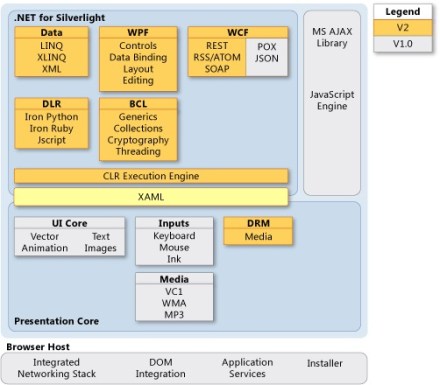
Within the Silverlight plug-in, the next layer to take control is the Silverlight Presentation Core. You can see the Presentation Core as the bottom blue box in this diagram (also found in MSDN documentation).
The Presentation Core is responsible for rendering everything in the browser, handling user interaction, playing video, and parsing XAML. It’s implemented in agcore.dll, which is a classic Win32 DLL. (Not a COM server and not a .NET executable).
When your browser starts up (in Firefox, at least), both npctrl.dll (Plug-in) and agcore.dll (Presentation Core) are loaded. The remaining Silverlight runtime libraries described below are only loaded when you actually load a page containing a Silverlight control.
Silverlight CoreCLR
After your browser has loaded the Silverlight plug-in, it does three basic things:
- Starts up the Silverlight Common Language Runtime
- Downloads the .xap file containing your Silverlight control and Application object from the server
- Instantiates your Application object and loads it
The CoreCLR, or Silverlight Common Language Runtime, is the Silverlight version of the CLR that runs inside the Silverlight plug-in. (Labeled CLR Execution Engine in the above diagram). This is the managed environment that your Silverlight applications run inside, similar to the CLR that hosts thick-client .NET applications.
The CoreCLR is implemented in coreclr.dll, also in C:\Program Files\Microsoft Silverlight\2.0.xxxxx.0. The CoreCLR is based on the same codebase as the desktop version of the CLR, but much smaller, and with features not required in a browser environment removed. (In the desktop world, the equivalent DLLs are mscoree.dll and mscorwks.dll).
Note: coreclr.dll is also just a “plain old” unmanaged Win32 DLL. It is the implementation of the .NET CLR, so it does not run in a managed environment itself.
The XAP File
Before Silverlight can run any of your code on the client machine, it has to download it from the server. Your Silverlight application is packaged into a .xap file. The .xap file is nothing more than a .zip file that has been renamed. You can prove this to yourself by building your application and then renaming the resulting .xap file as a .zip file.
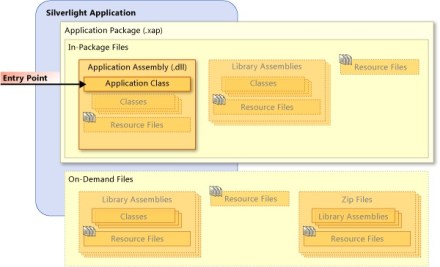
If you look at the files inside your .xap, for a typical wizard-generated Silverlight application, you’ll find two files:
- AppManifest.xaml
- SilverlightApplication1.dll
The AppManifest.xaml file is the application manifest, which tells the Silverlight runtime what DLLs are present in this package and which one contains the entry point, or startup object, for your Silverlight application. For example, you might see something like the following:
<Deployment xmlns="http://schemas.microsoft.com/client/2007/deployment" xmlns:x="http://schemas.microsoft.com/winfx/2006/xaml"
    EntryPointAssembly="SilverlightApplication1"
    EntryPointType="SilverlightApplication1.App"
    RuntimeVersion="2.0.31005.0">
  <Deployment.Parts>
    <AssemblyPart x:Name="SilverlightApplication1" Source="SilverlightApplication1.dll" />
  </Deployment.Parts>
</Deployment>
Note that the manifest tells Silverlight to load the assembly located in SilverlightApplication1.dll and that the startup object is SilverlightApplication1.App, which is the class that derives from System.Windows.Application.
Starting Up
Once the .xap file is downloaded, the CoreCLR can instantiate your object and get things started. It does this by:
- Instantiating an instance of your entry point type, e.g. SilverlightApplication1.App
- Firing the Application.Startup event
Our wizard-generated Silverlight application included wizard-generated code to get everything up and running as follows:
- During the App constructor
- Wire a handler for the Application.Startup event
- Call App.InitializeComponent
- App.InitializeComponent, also wizard-generated :
- The handler for the Application.Startup event
- Instantiates a new Page object (the actual Silverlight control to be displayed)
- Sets the RootVisual property of the parent App object to point to the Page
- During the Page constructor
- Call Page.InitializeComponent
- Page.InitializeComponent
- Calls Application.LoadComponent, reconstituting the Page object from the associated XAML (BAML)
That’s really all there is to it. At this point, through the magic of the browser plug-in architecture and the fact that the Silverlight CoreCLR is running on the client’s PC, you have a native .NET (Silverlight) application running on the client, hosted in the browser.
References
Debugging Silverlight Applications with windbg and sos.dll – 21 Aug 2008 – Tess Ferrandez
Debugging Tools and Symbols: Getting Started – Windows Hardware Developer Central
Dissecting Silverlight – 1 May 2007 – Ed Burnette
Setting a Silverlight 2 Startup Breakpoint Using WinDBG – 10 Jan 2009 – David Betz
Silverlight Application Services – MSDN
Silverlight Application Structure – MSDN
Silverlight Architecture – MSDN
Silverlight Plug-In Object Reference – MSDN

 Sean's Stuff