Sean’s Stuff

30 June, 2009

Installing Silverlight 3 with Visual Studio 2010 – Step by Step

Filed under: Silverlight,Visual Studio — Sean @ 6:01 pm
Tags: ,

[Note, 21-May-2010.  Silverlight 4 has been released.  For a step-by-step guide to installing Silverlight 4 with Visual Studio 2010, see my post Creating a Silverlight 4 Development Machine].

A beta version of Silverlight 3 was released at MIX09 in March.  Since a beta version of Visual Studio 2010 was also just released–in May–it makes sense to set up a Silverlight 3 and Visual Studio 2010 development environment.  My last post included screenshots of the installation process for Visual Studio 2010.  This post will cover installing the remaining bits needed for a Silverlight 3 development environment.

Note: Also take a look at the official Getting Started page for Silverlight 3.

This post will describe installing Silverlight 3 bits on top of a clean Windows 7 / Visual Studio 2010 environment.  I won’t install the Silverlight 2 components, so the resulting environment will be targeted exclusively at Silverlight 3.

At the moment, the Silverlight 3 beta is targeted at Visual Studio 2008 SP1, rather than Visual Studio 2010.  (See Tim Heuer’s blog post explaining this).  What this means is that we can’t just run the Silverlight 3 Tools installer.  If you try, you’ll get the following error.

Can't Install on VS 2010

Installing the Silverlight 3 Beta SDK

Instead, you’ll need to just install the Silverlight 3 Beta SDK manually.  Once you download the SDK installer and launch it, you’ll get the following screen:

SDK Welcome

Then you get a license dialog.  Note the comment about this beta license expiring 30 days after the commercial release of Silverlight 3, but no later than 30 Sep, 2009.  Does this imply that we’ll see a final release of Silverlight 3 by 30 Aug, 2009?

License Dialog

If you do a custom install, you’ll see the following features and components listed:

Custom Install

Here’s a quick summary of what is being installed:

  • Silverlight Tools – Components needed for building Silverlight applications
    • The core Silverlight DLLs, e.g. agcore.dll, coreclr.dll, et al
  • Build Components – Components used to build Silverlight projects
    • Microsoft.Silverlight.Build.Tasks.dll,  et al
  • Client Libraries – Silverlight Client Libraries and Controls
    • System.Xml.Serialization.dll, System.Xml.Linq.dll, System.Windows.Controls.Navigation, et al
  • Server Libraries – Silverlight Server Libraries and Controls
    • System.Web.Silverlight.dll, et al

Now we’re ready to install:

Ready to Install

Install continues:

Installing

The install completes, and a dialog reminds us that the actual Silverlight 3 Beta runtime is not yet present.  (Actually, there is an error in this dialog — it’s reminding us that the Silverlight 2 runtime is not present).
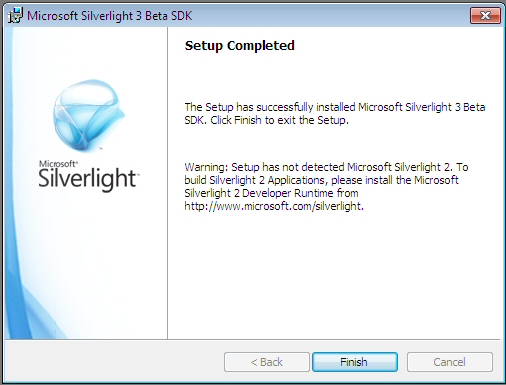
SDK Done

Installing the Silverlight 3 Developer Runtime

Now we need to install the actual Silverlight 3 runtime, which you can download from here.

We start with the familiar Silverlight install splash screen (now branded as Silverlight 3 for Developers).

For Devs

Off we go..

Installing Runtime

The runtime install completes quickly.
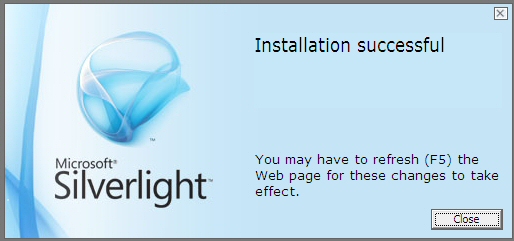
Runtime Installed

Pretty simple.  You now have all of the important stuff that you need for developing Silverlight 3 applications with Visual Studio.

Building a Silverlight Application with Visual Studio 2010

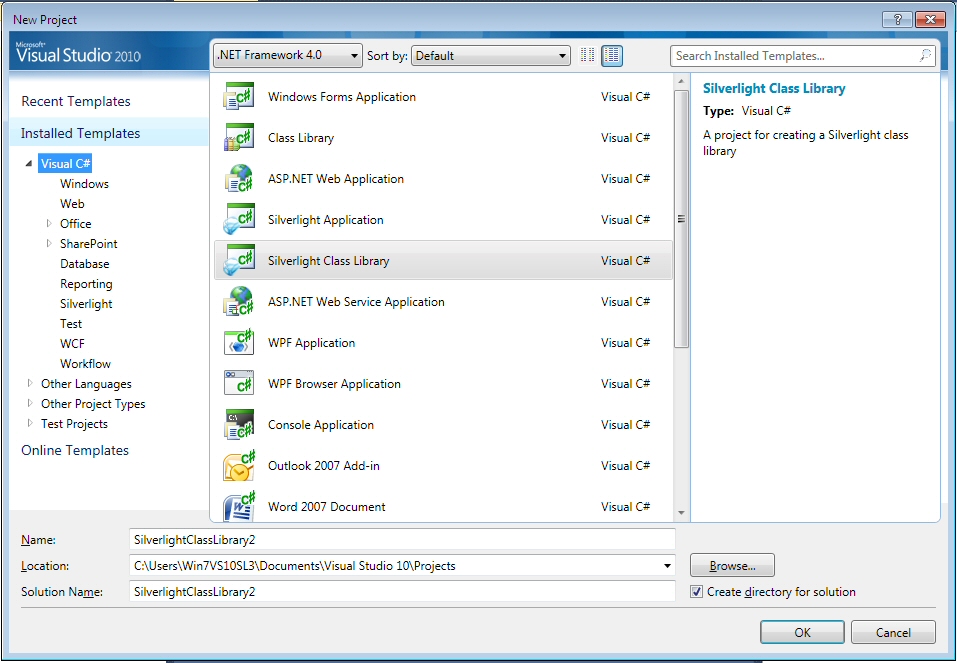
When you bring up the New Project wizard in Visual Studio, you’ll see two types of Silverlight projects listed:

  • Silverlight Application
  • Silverlight Class Library

New Project

If you create a new Silverlight Application, you’ll see the Add Silverlight Application dialog.  But notice that there is now a dropdown labeled Silverlight Version.  This defaults to Silverlight 2.0, but you can select Silverlight v3.0 to create a Silverlight 3 application.

Create Silverlight 3 Application

You’ll see a similar dialog if you try to create a Silverlight Class Library.

Create Silverlight Class Library

The Silverlight Navigation Application

But notice that there is one Visual Studio template that shows up if you install Silverlight 3 Beta in Visual Studio 2008 SP1 that does not show up in Visual Studio 2010 — the Silverlight Navigation Application.  This is installed as part of the Silverlight 3 Tools installer, which we were unable to run.

We need to pull this particular template from Visual Studio 2008 SP1 into Visual Studio 2010.  To do this, install the Silverlight 3 Tools installer on a machine that is running Visual Studio 2008 SP1.  Then fire up Visual Studio 2008, create a Silverlight Navigation Application project, and select Export Template from the File menu.
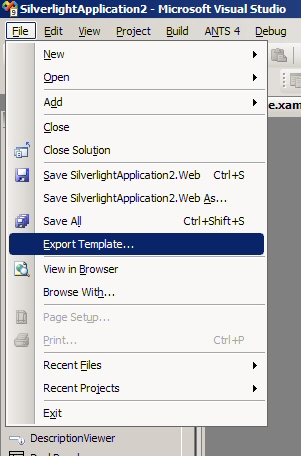
Export Template

You’ll see a dialog asking you to select the project to export a template for.  We’ll select the main navigation application.

Export Template

You can also give the new template a description and select an icon.
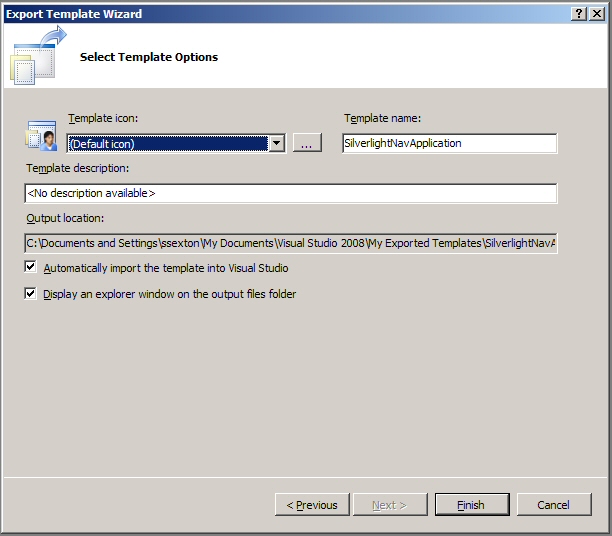
Template Part II

When you’re done, a new Windows Explorer window will pop up, containing a .zip file for your new template.  Now copy this .zip file to the following directory on your Visual Studio 2010 machine:

C:\Users\myname\Documents\Visual Studio 10\Templates\ProjectTemplates\Visual C#

Now when you bring up the New Project wizard in Visual Studio 2010, you’ll see a new template that you can use to create a Silverlight Navigation Application.

New Template in Action

Wrapping Up

That should do it — you now have a fully functional Silverlight 3 / Visual Studio 2010 environment.

Technorati tags: Silverlight, Silverlight 3, Visual Studio 2010

29 June, 2009

Visual Studio 2010 Install Screenshots

Filed under: Visual Studio — Sean @ 5:57 pm
Tags: , ,

Beta 1 of Visual Studio is now available on MSDN.  (If you have the appropriate MSDN subscription).  Here is a complete set of screenshots, outlining the installation experience.

Note: I installed VS 2010 Beta 1 on a clean virtual machine running Windows 7 Build 7100 (RC).

We start with the familiar install startup menu:

First screen

Then we get a banner page, as things start up.

Install Banner

Next, we get a license page, as well as an overview of what is going to be installed.  The key components are:

  • VC 9.0 and 10.0 runtime libraries
  • .NET Framework 4 Beta 1    (more info)
  • Help 3.0 Beta 1    (more info)
  • Visual Studio Macro Tools
  • Visual Studio 2010 Professional Beta 1    (more info)

License Page

Next up is an options page:

Options Page

Now the actual installation begins and we can see a more complete list of all the components that will be installed.  For completeness, here’s the full list:

  • VC 9.0 Runtime
  • VC 10.0 Runtime
  • Microsoft .NET Framework 4 Beta 1
  • Microsoft Help 3.0 Beta 1
  • Microsoft Visual Studio Macro Tools
  • Microsoft Visual Studio 2010 Professional Beta 1
  • Microsoft Web Deployment Tool
  • Visual Studio Tools for the Office System 4.0 Runtime
  • Microsoft Office Development Tools for Visual Studio 2010
  • Dotfuscator Software Services – Community Edition
  • Microsoft SQL Server Compact 3.5 SP1
  • SQL Server Compact Tools for Visual Studio 2010 Beta 1
  • Microsoft Sync Framework Runtime v1.0
  • Microsoft Sync Services for ADO.NET v2.0
  • Microsoft Sync Framework Services v1.0
  • Microsoft Sync Framework SDK v1.0
  • Microsoft SQL Publishing Wizard 1.4
  • SQL Server System CLR Types
  • Shared Management Objects
  • Microsoft SQL Server 2008 Express Edition

Wow.  This is going to take a while.

Installation Begins

You’ll have to reboot after the .NET Framework 4 installation.

Reboot Required

Go get a cup of coffee while the remaining components install..

Coffee Break

You’ll get a warning dialog, indicating that SQL Server 2008 has compatibility issues on Windows 7 and suggesting that you install SP1.

Compatibility

I just clicked the Run Program button and proceeded with the install.  A little bit later, I got a second compatibility warning dialog, also mentioning SQL Server 2008.  An external DOS window was also spawned, running a setup.exe command.

Compatibility #2

Finally, everything finishes up and we’re done!

Installation Complete

After the install completes, we get the main autorun window again and the link for checking for service releases is now active.

Autorun #2

If you click the Check for Service Releases link, you’ll be redirected to an update web page, which in turn allows firing up the Windows Update applet.  When I tried this (29 Jun 2009), no updates were found.

Finally, we bring up Visual Studio 2010 for the first time.

Splash Screen

As with earlier versions, when you start Visual Studio for the first time, you’re asked to choose a language, which dictates how the environment is set up.  I’m a C# guy.

When things finally start up, we see the new Start Page for the first time.

Start Page

The New Project dialog also gets a fresh look.

New Project

Finally, we create an empty WPF Application.

WPF Application

8 June, 2009

Quick Tip – Making Windows on 2nd Monitor Visible

Filed under: Windows — Sean @ 5:00 pm
Tags: , ,

I’m a big believer in using two (or even three) monitors on my main development machine.  I have two monitors on my home development machine (24″ Dell and 22″ off-brand) and having the extra real estate of that second monitor is invaluable.  I use it often, putting different applications over on the 2nd monitor and then dragging-dropping work/files between the monitors.

But I have a slight problem when I remote into my home machine from work.  Windows 7 supports mapping multiple monitors on the remote machine to multiple monitors on the local machine.  But at work, I just use a single monitor.  So I only see the windows that are being shown on the main monitor of my home machine.

The problem arises when I click on an icon in the taskbar to see a window and it doesn’t show up–because it exists on my second monitor.  Because I’m only seeing my main monitor, I don’t see the application’s window and can’t click on it.

The fix is simple.  Do the following:

  • Left-click on the application’s icon in the taskbar, to make it active
  • Right-click on the icon in the taskbar and select Move
  • Click one of the arrow keys once (it doesn’t matter which)
  • Now move your mouse–you’ll see an outline of the application appear on the screen and you can place it where you like

This works on both Windows XP and Windows Vista.  Windows placement in Windows 7 works a bit differently, so I’m not exactly sure the best way to do this in 7.

Blog at WordPress.com.